Working With Users

October 14, 2025October 14, 2025

Managing your team’s store access is essential to controlling which users can log into the LifeSaver Software Software and what they can do once inside. This article will show you how to set up User accounts and groups, modify User permissions, and manage roles across multiple store locations. Taking a few moments to configure these settings will help you ensure that only authorized staff have access to sensitive data. Let’s explore how to configure these system access details below.

Image displaying the menu bar on the Home page, highlighting the Security button.

Click the Security button in the menu bar at the top of the LifeSaver Software Home page to begin creating and updating user accounts.


Creating and Editing User Groups

The User Groups function lets you set up a batch of roles and permissions, then apply them to staff who share the same job responsibilities. Keep reading to learn how to create and edit user groups.
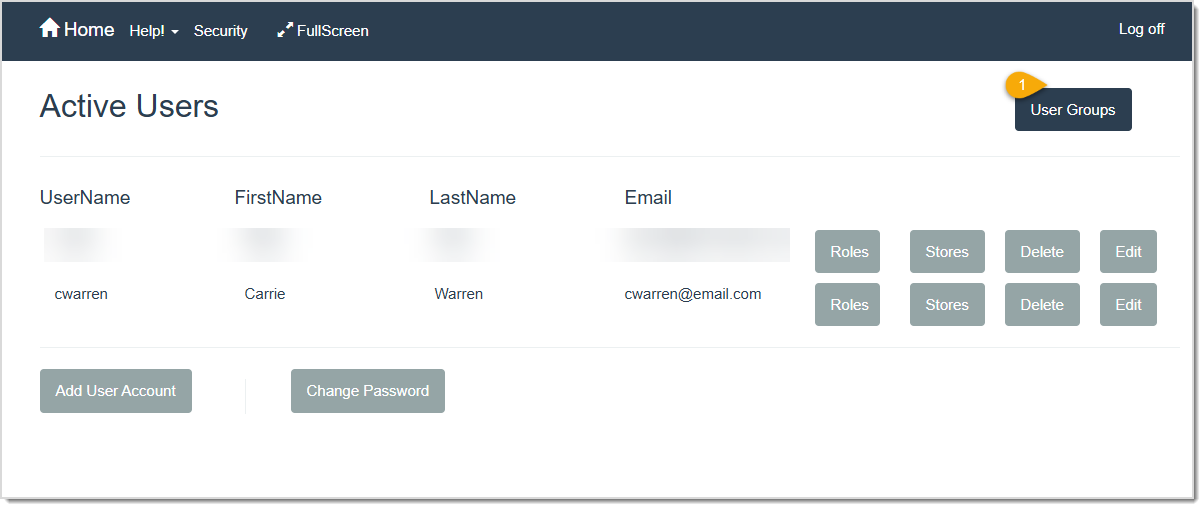
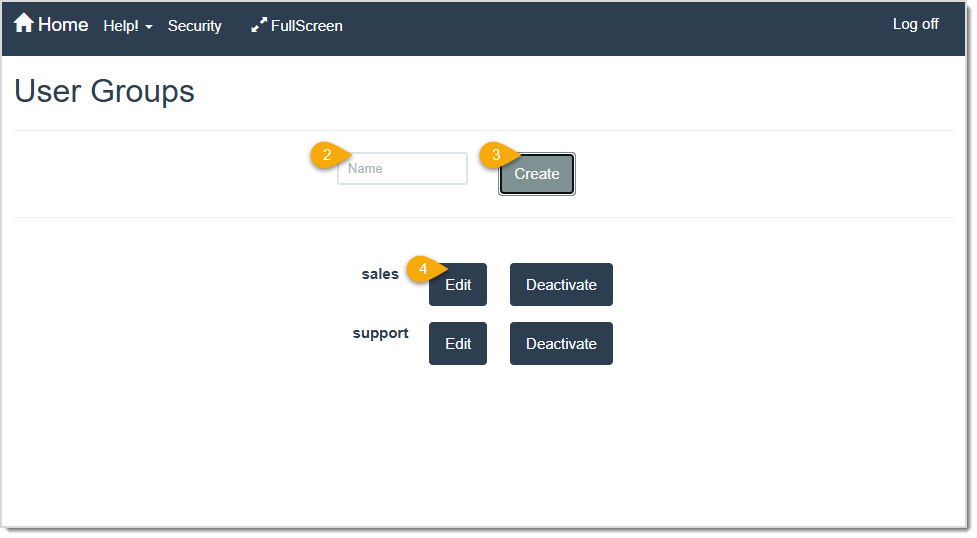
Image displaying the Active Users page of the LifeSaver software and highlighting the User Groups button.

  1. After clicking the Security button on the Home page, click the User Groups button once the Active Users page populates.
    Image displaying the User Groups page of the LifeSaver software.
  2. Enter the desired Group Name, for example in the picture above, there is a Sales and a Support group.
  3. Click the Create button to add the group to the list shown above. 
  4. Click the Edit button to set roles for that group.
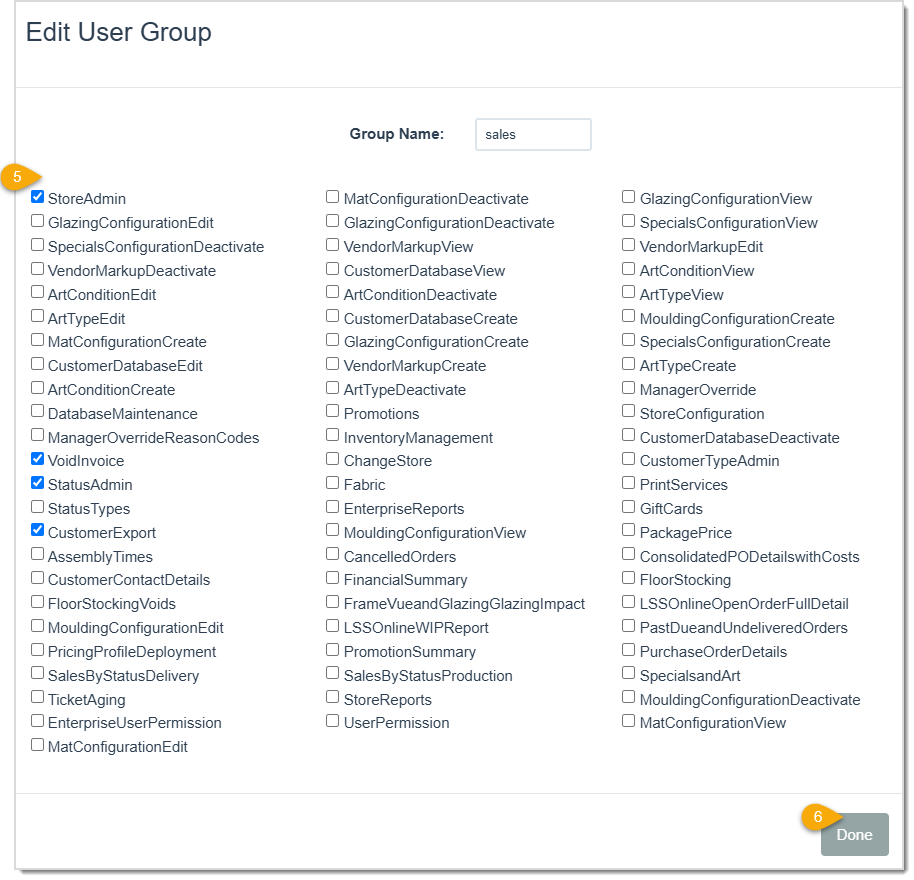
    Image displaying the Edit User Group window of the LifeSaver software.
  5. Check the box for each role / permission you want to assign to the group. 
  6. Click the Done button to finalize your changes.


Creating and Editing User Accounts

Follow these steps to add a new user account:  
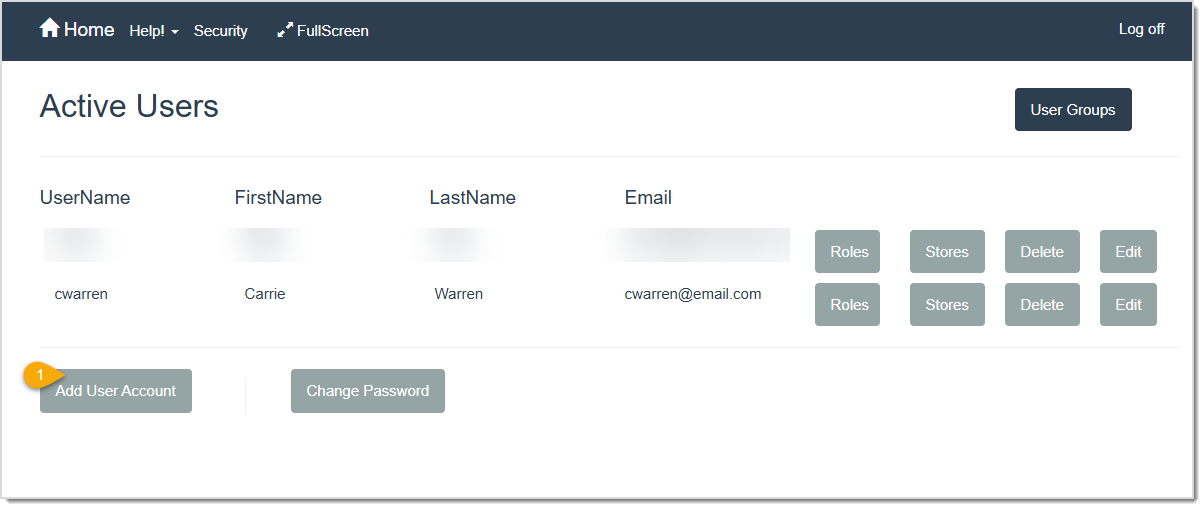
Image highlighting the Add User Account button on the Active Users page of the LifeSaver software.

  1. On the Active User page, click the Add User Account button and the Add User page will load.
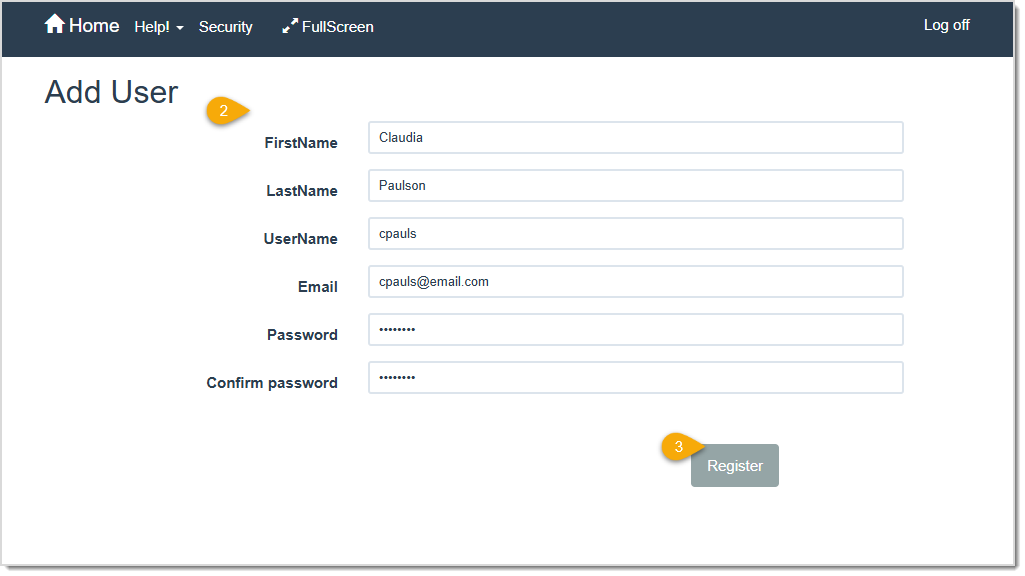
    Image displaying the Add User page of the LifeSaver software.
  2. Fill out the fields on the Add User page. All fields are required.
  3. Click the Register button to add this User.  

You’ll be returned to the Active Users page with the new account added. To edit an existing user:
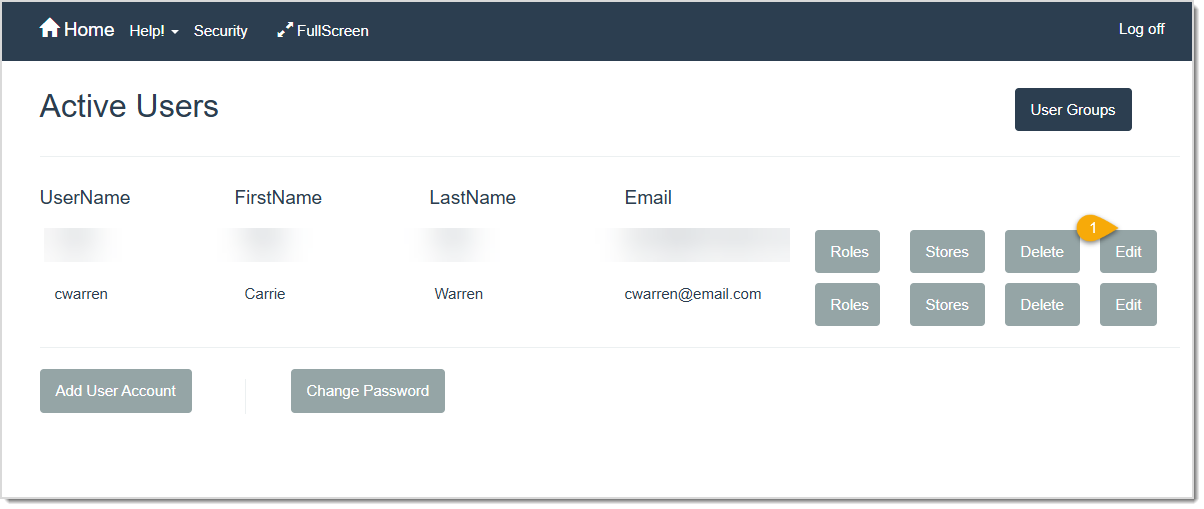
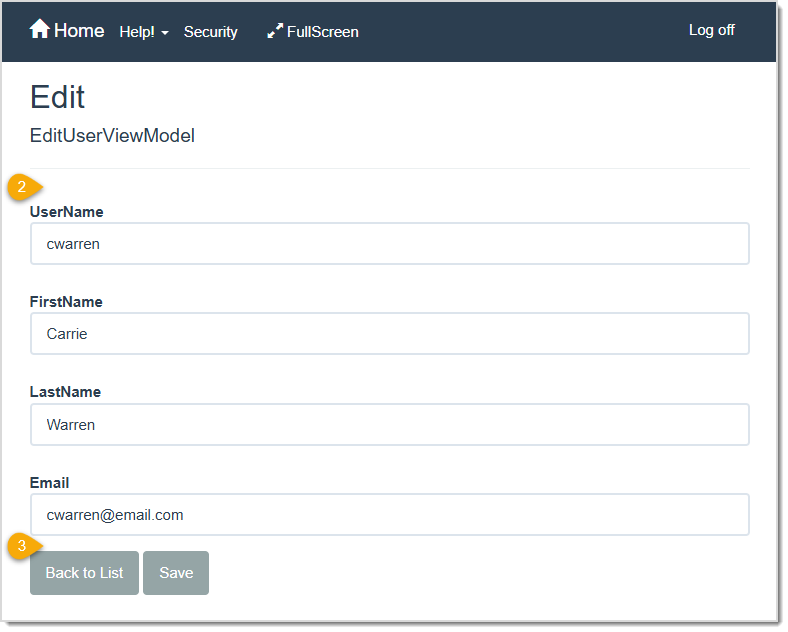
Image displaying the Active Users page of the LifeSaver software highlighting the Edit button.

  1. Click the Edit button associated with the User account to which you want to make changes.
  2. The Edit User page will load and you can update the Username, First Name, Last Name, or Email as needed. 
    Image displaying the Edit User page of the LifeSaver software.
  3. Click the Back to List button if you don't need to make changes, or click the Save button to save your edits and return to the Active Users page.

To delete a User, click the Delete button on the Active Users page to remove it from your system.
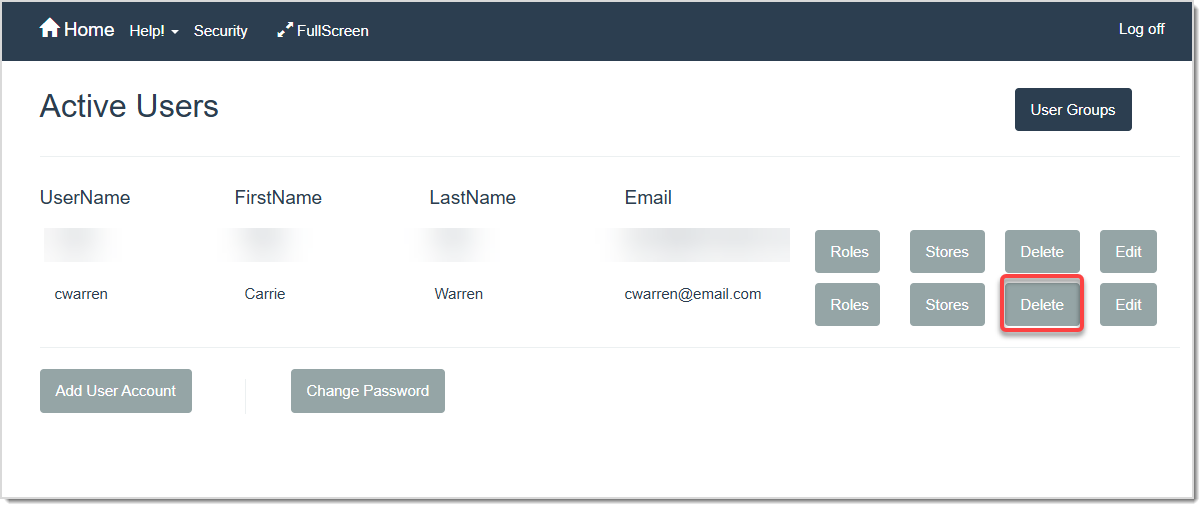
Image displays the Delete button on the Active Users page.


Roles and Permissions

Roles define what actions each user can perform. For example, you might give your sales staff the ability to write orders, while only management can change tax settings or delete invoices. You can assign roles on a user-by-user basis or create User Groups to apply the same privileges at once.  
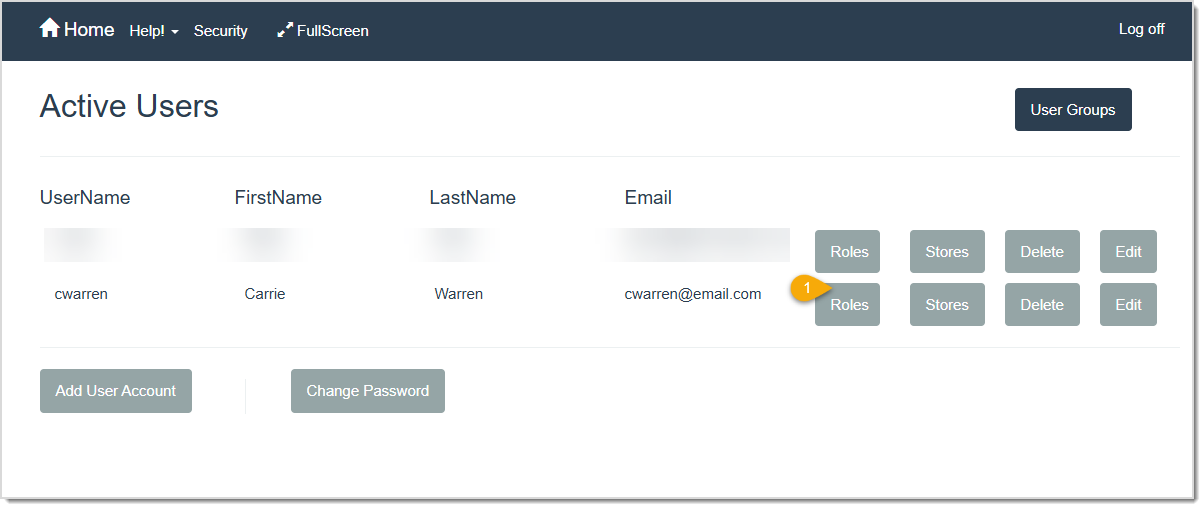
Image displaying the Active Users page of the LifeSaver software with the Roles function highlighted.

To assign a role to one user:  

  1. On the Active Users page, find the desired User in the list and click the Roles button on their line item.

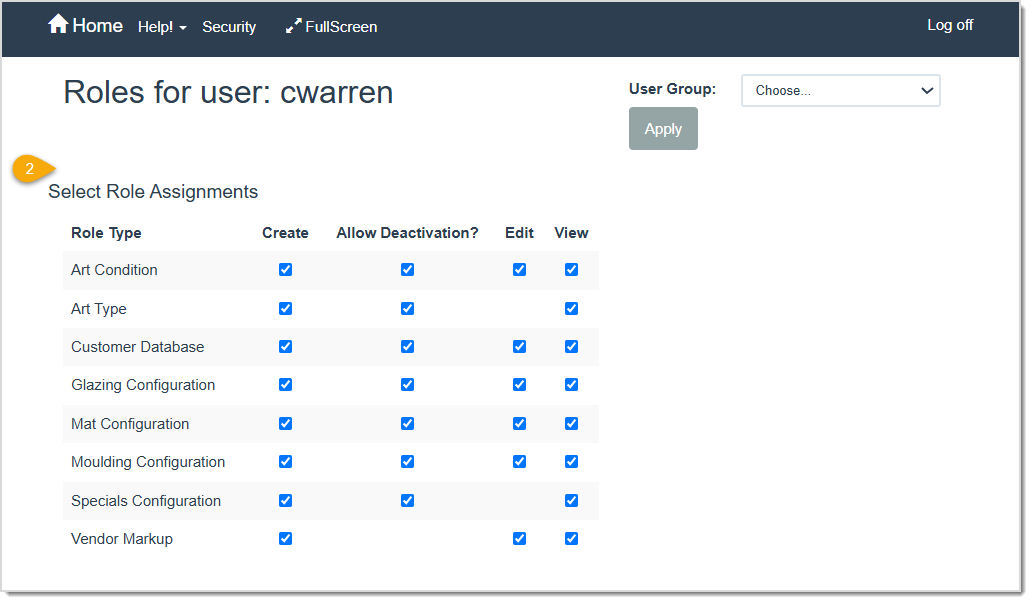
    Image displaying the upper area of the Roles for User page in the LifeSaver software.
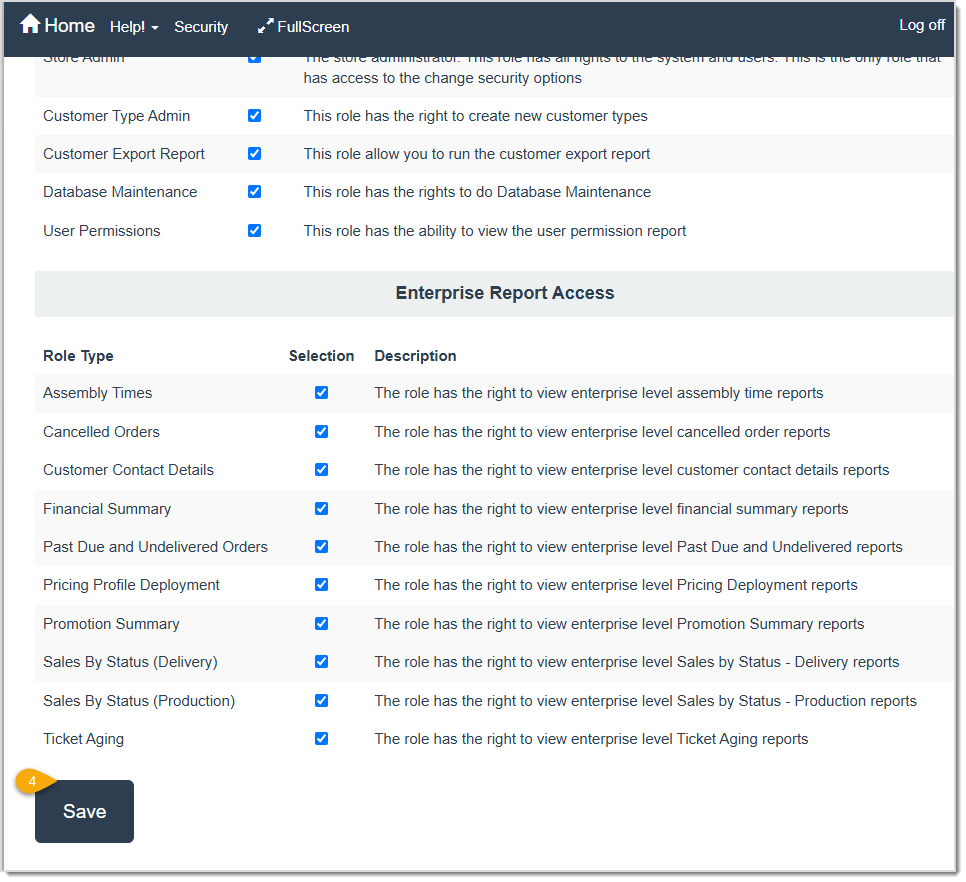
  2. Check or uncheck the desired Roles and permissions for the selected User.
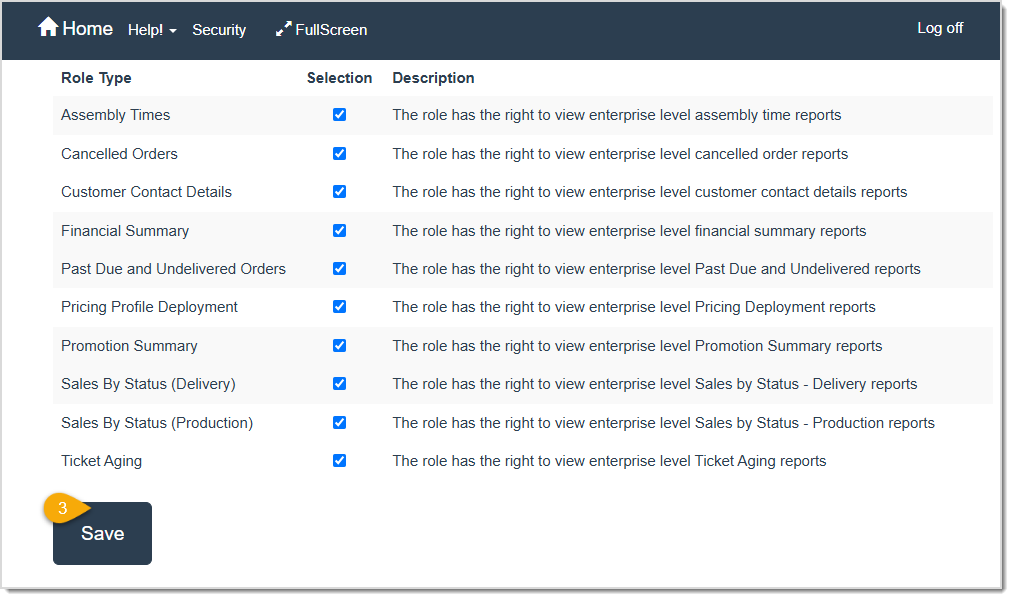
  3. Click the Save button.
    Image displaying the lower area of the Roles for the user page.


Assigning Stores to Users in Multi-Store Environments

If your shop has multiple locations, you can choose which specific stores a user can access:  

Image displaying the Active Users page, highlighting the Stores button.

  1. On the Active Users page, click the Stores button associated with the User that has multiple stores.
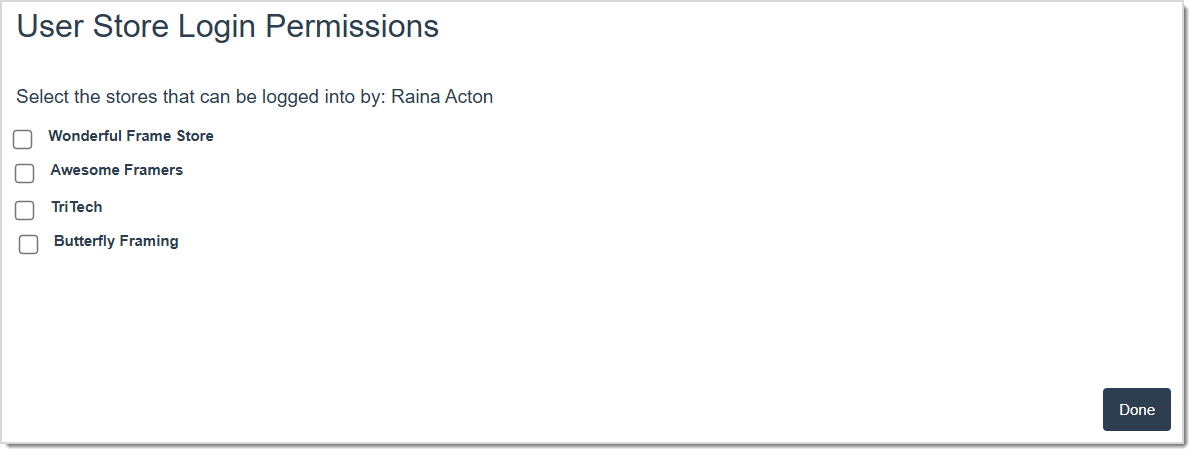
    Image displaying the User Store Login Permissions page.
  2. Click each store location you want them to have access to.  
  3. Click Done.   


Creating Manager Override Reason Codes

Before assigning Manager Override Roles, you need to create Manager Override Reason Codes.
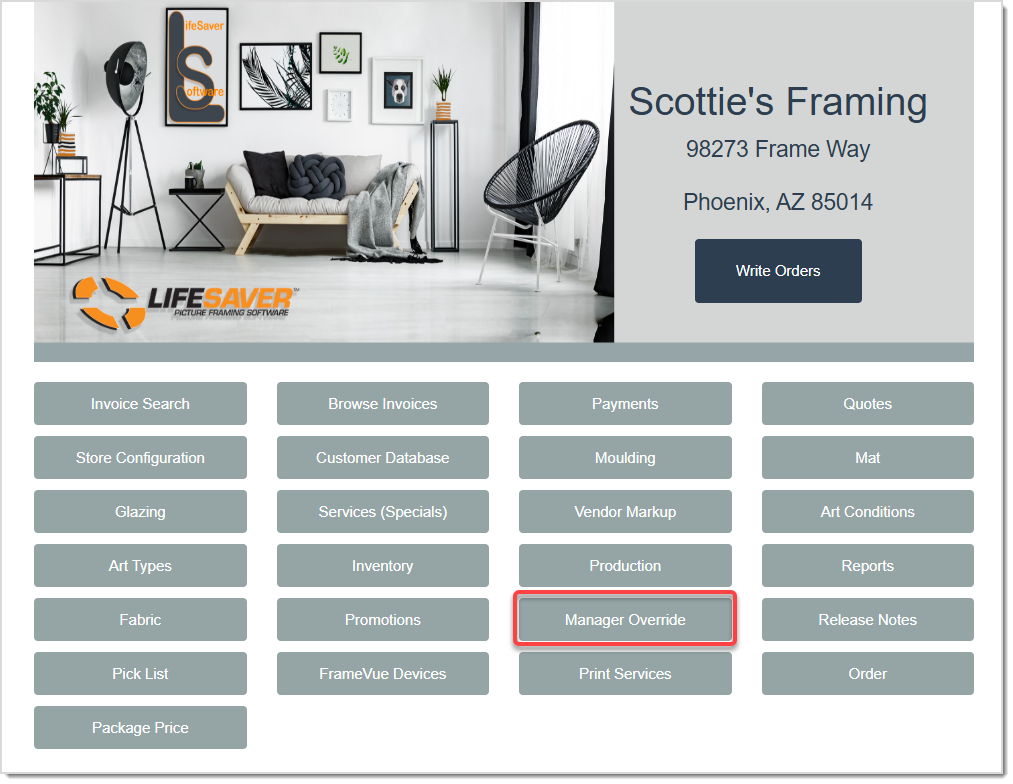
Image displaying the LifeSaver Home page, highlighting the Manager Override button.

On the Home page, click the Manager Override button. You may also access Manager Override controls by clicking Security in the top blue bar.
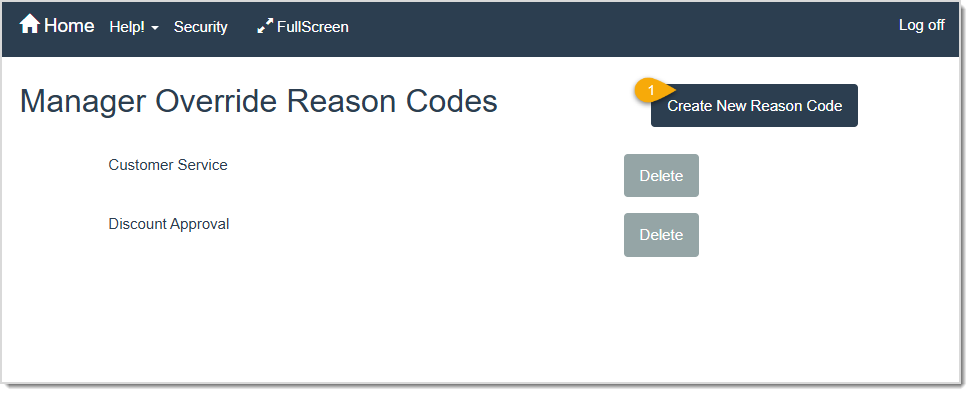
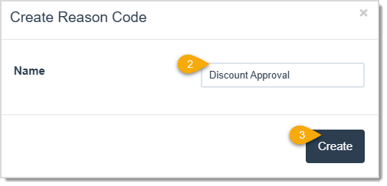
Image displaying the Manager Override Reason Codes page of the LifeSaver software.

  1. On the Manager Override Reason Codes page, click the Create New Reason Code button to add a reason. 
    Image displaying the Create Reason Code window.
  2. Enter in your new Reason Code in the Name field. 
  3. Click the Create button to add it to the existing Code list.


Assigning Manager Override Role Permissions

Assigning the Manager Override Role allows store managers and staff who need higher-level permissions to approve certain discounts or changes. Below you will learn how to activate and assign the Manager Override Role.
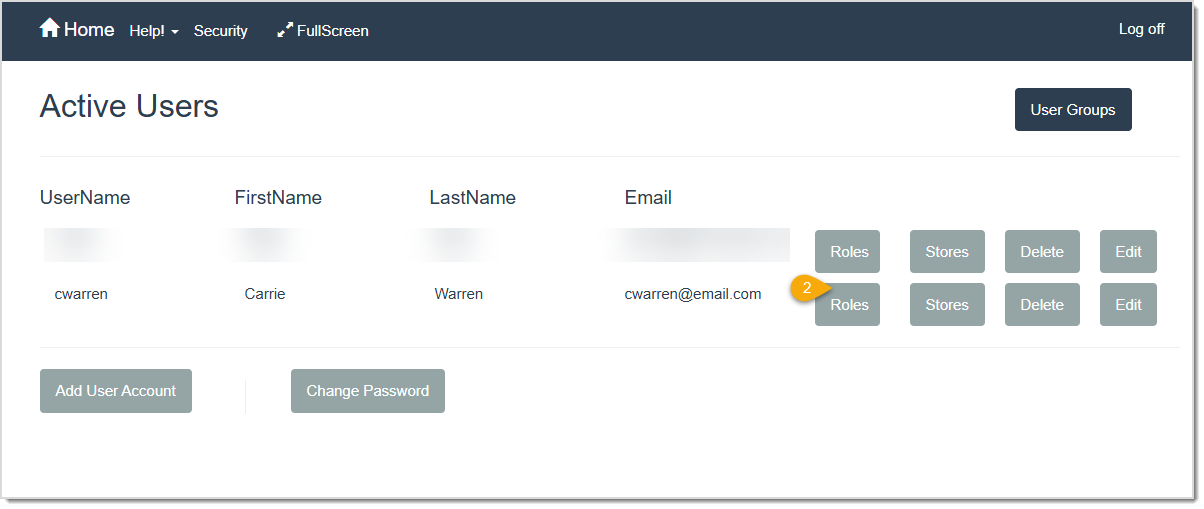
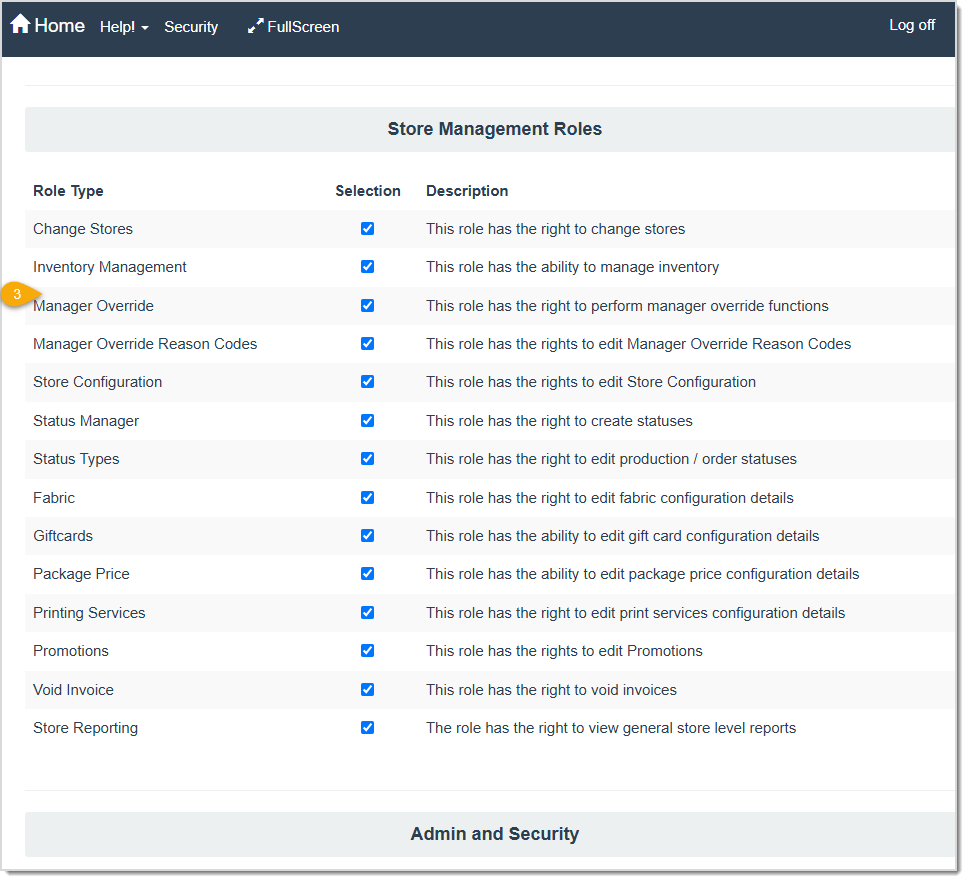
Image displaying the Security button on the Home page of the LifeSaver software.

  1. Click on the Security button on the Home bar. The Active Users page will load. 
    Image displaying the Active Users page, highlighting the Roles button.
  2. Click the Roles button on the User you want to grant Manager Override access.
    Image displaying the Roles for user page.
  3. Check the box for the Manager Override Role Type.
    Image displaying the Roles for user page, highlighting the Save button.
  4. Click the Save button.

If an employee no longer needs manager privileges, repeat the steps above and deselect the Manager Override box. Then click the Save button to save your changes.  

Once a User has Manager Override permissions, they can approve special discounts when writing Work Orders by clicking the Discount button in the Totals area of the Create Ticket page, shown below. When an unauthorized user tries to apply a Manager Override discount, a prompt appears for an authorized username and password.  
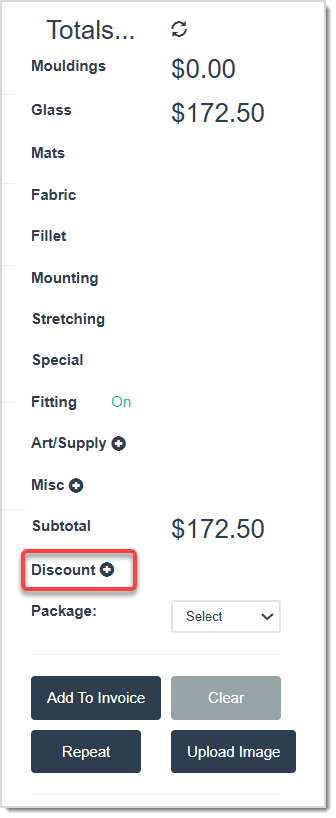
Image displaying the Write Order page of the LifeSaver software, highlighting the Discount button.


Related Topics

Store Configuration - Settings


Frequently Asked Questions

Q: What if an employee forgets their password?  

A: Click the Security button, then Password for their account, and enter a new one. Note that this only works if you’re currently logged into that user. Alternatively, they can use the Forgot Password link on the login screen if you have their correct email on file.  


Q: Can I force employees to get a manager’s approval for certain overrides?  

A: Yes, in Settings, enable Require Manager Override so any discount, comp, or override prompts for management login. 


Q: Do I have to create a reason code before assigning Manager Override?  

A: Yes, the system prompts an authorized user to select a reason code when applying Manager Override, so you should create at least one code first.


Q: I have a question, but I can't find my answer here, how do I get more assistance?

A: You can ask any question at the link below, once received one of our technicians will be in touch! If you need immediate assistance, the LifeSaver Software team is available Monday through Friday, from 9:00am to 6:00pm Eastern time. Feel free to contact our support team at: 1-800-381-0600, extension 2. Or you can email us at support@lifesaversoft.com and we will respond within 24-hours.

Need Help?

Can't quite find the answer you're looking for? Our support team is just a call away.