
Your Processing Payment Portal
Payment Portal The Payment Portal is a dashboard included as part of our payments offering. It allow

 October 13, 2025
Your Customer Report functionality in LifeSaver Software is a powerful way for you to see how much revenue your customers are generating in your store and to export your customer data in useful ways. This article will show you how to access, filter, and interpret the Customer Revenue Report as well as how to work with the different exports. Read on to learn how quick and easy it is to see who’s contributing most to your bottom line.
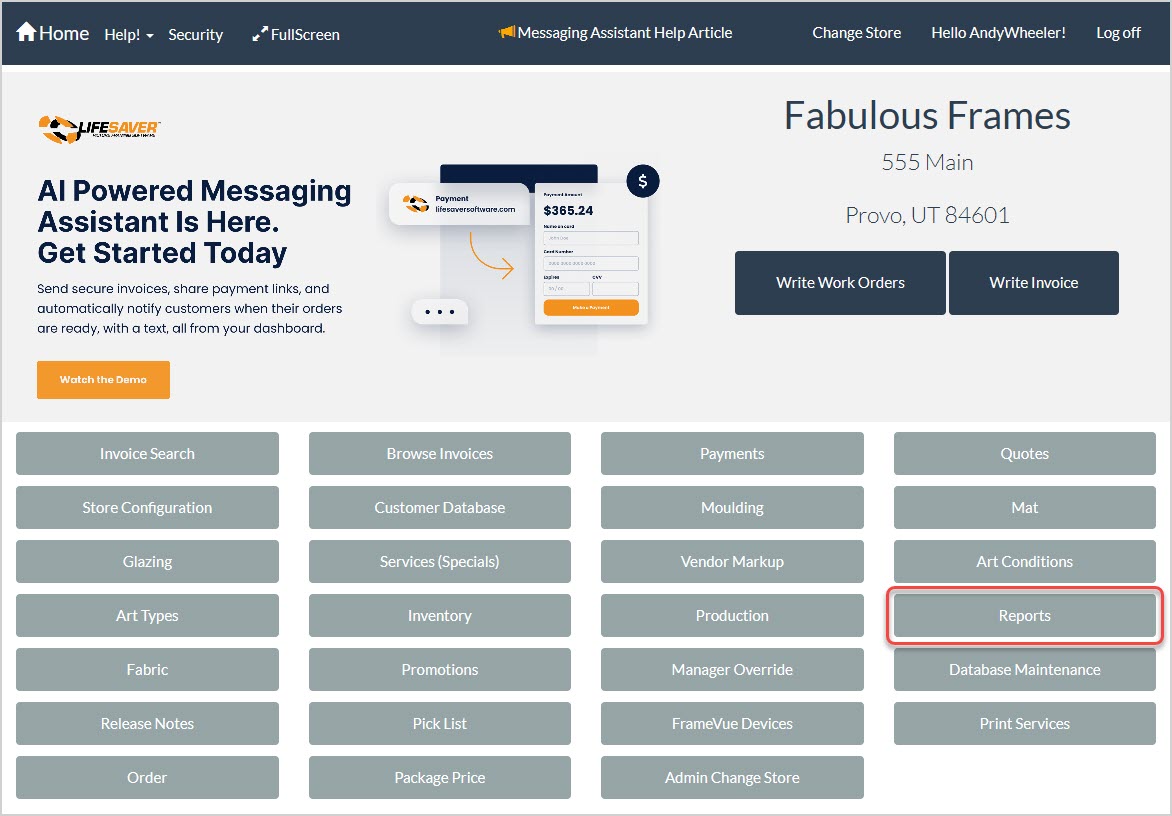
To get to this area, click the Reports button from the LifeSaver Software Home page. The Store Reporting page will load. Click the Customer button to access the Customer Revenue report and the different exports, as pictured below.
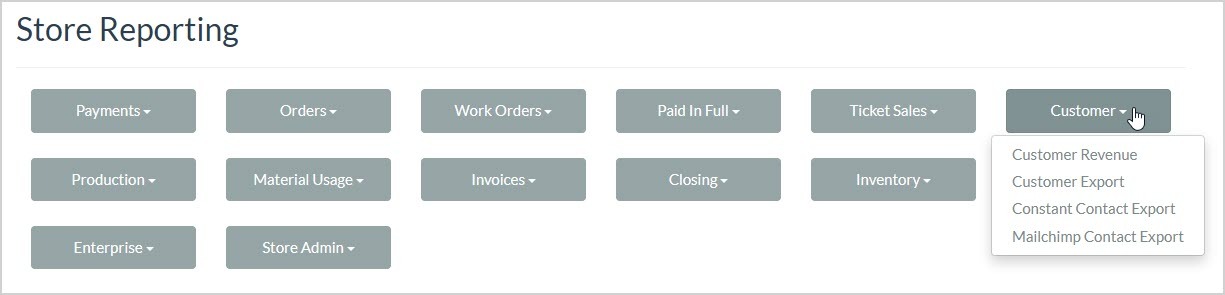
Your Customer Revenue report and the Customer Export, Constant Contact Export, and Mailchimp Contact Export pages have the following functions:
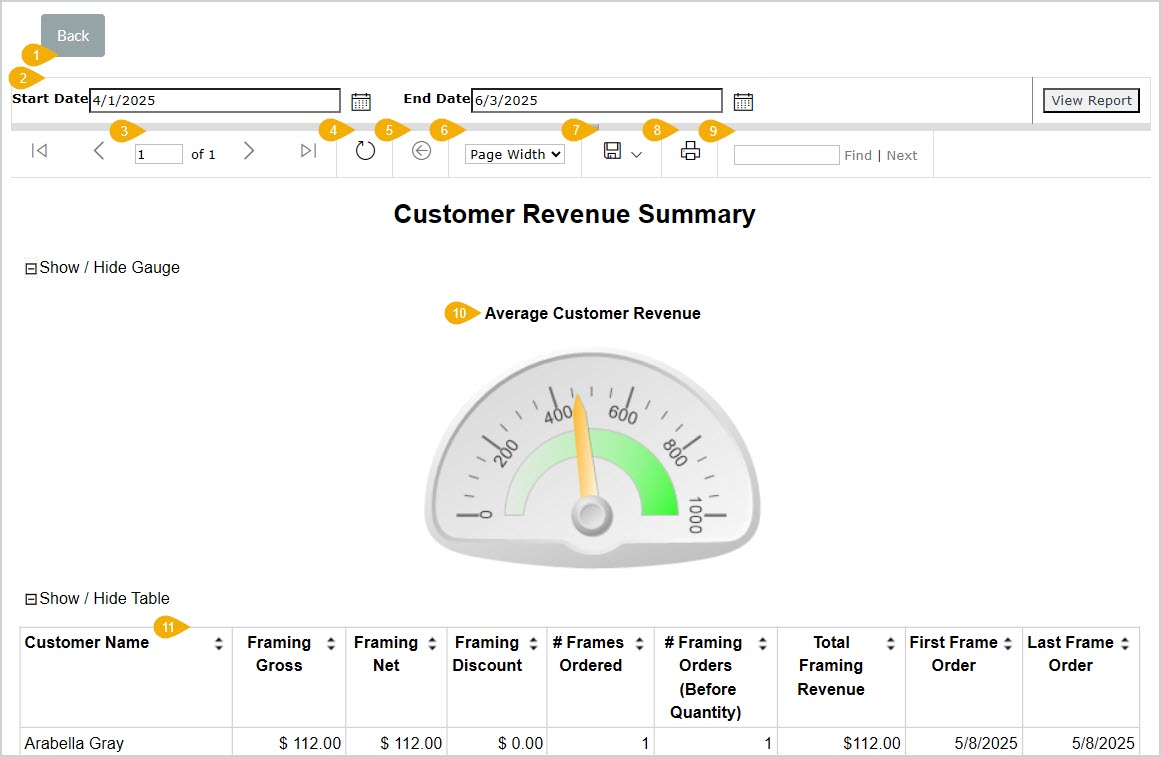
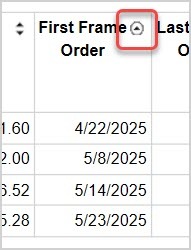
The Customer Revenue Report Data Table
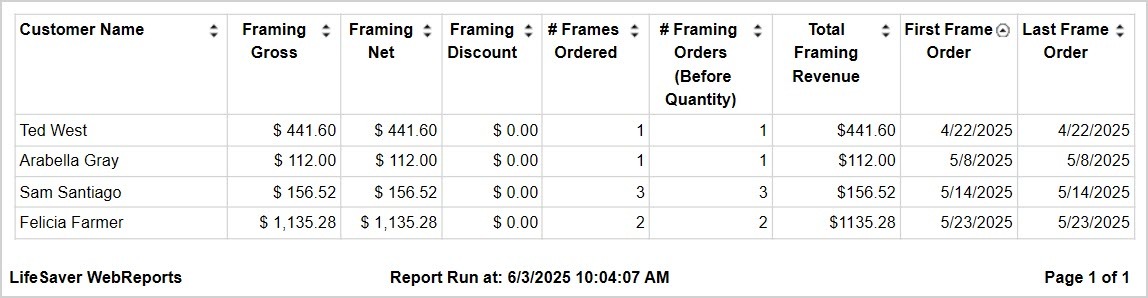
The Customer Revenue report gives you critical sales information about the customers that used your framing services within the date range you selected. It gives you the following data for each of your customers:
Below the data table the system will display the date and time you ran the report as well as the page number.
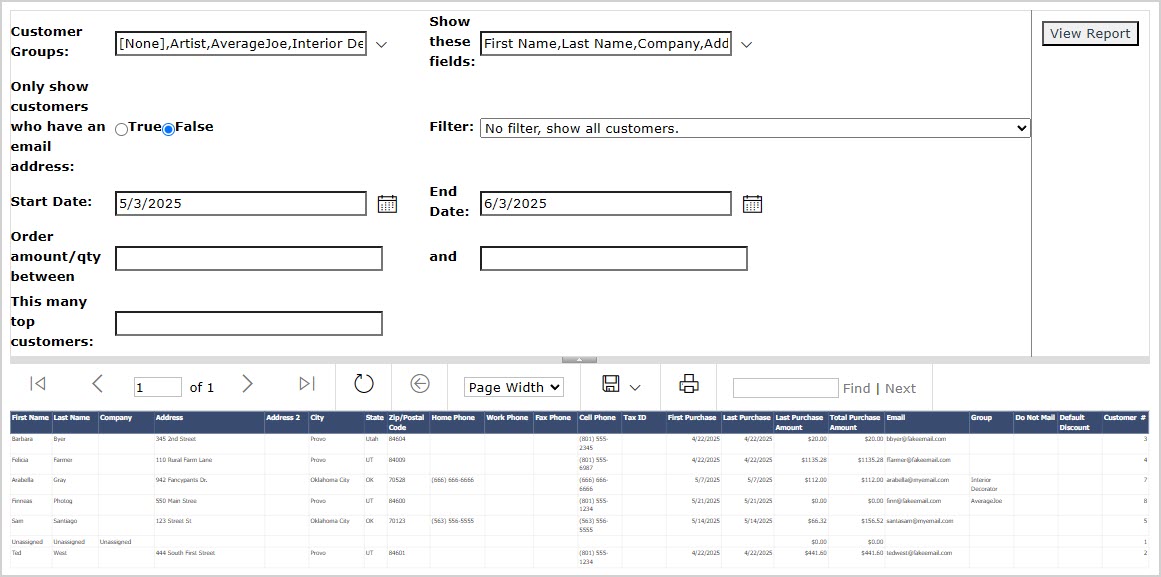
The Customer Export has complete details of customers for whatever period you choose to view. You are able to set a date range for the report using the Start Date and End Date fields. By default, the report will display the last seven days. You can filter by Customer Groups if you have created any. You can set the data table to Show These Fields from a list of all data available (by default, all data columns display). You have the option to Only Show Customers Who Have an Email Address. You have Filter options showing All Customers, those who placed orders in the date range, those who ordered within a dollar amount range you can specify, those who placed a specified number of orders in the date range, or you can view only top customers, and you can specify how many you view. If you change any of the filters, click the View Report button to load the selected data.
It gives you the following data for customers from each of your chosen stores:
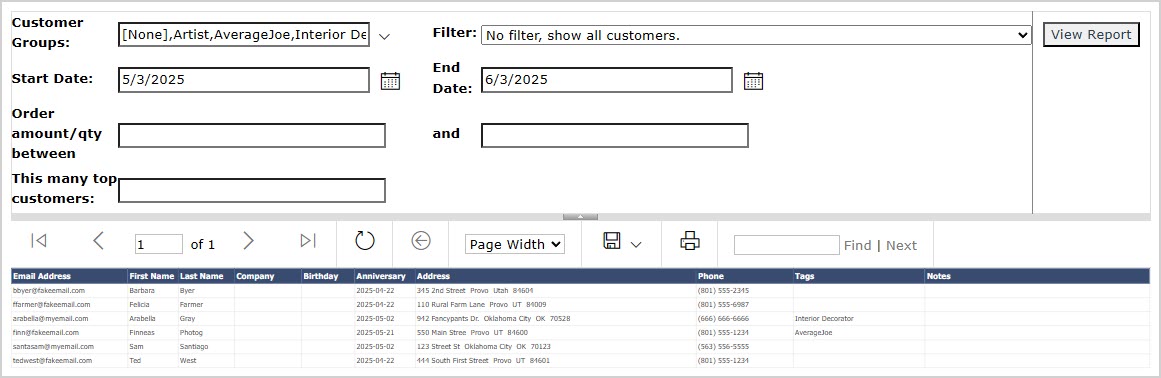
The Constant Contact Export has complete details of customers for whatever period you choose to view. You are able to set a date range for the report using the Start Date and End Date fields. By default, the report will display the last seven days. You can filter by Customer Groups if you have created any. You have Filter options showing All Customers, those who placed orders in the date range, those who ordered within a dollar amount range you can specify, those who placed a specified number of orders in the date range, or you can view only top customers, and you can specify how many you view. If you change any of the filters, click the View Report button to load the selected data.
It gives you the following data for customers from each of your chosen stores:
The Mailchimp Contact Export has complete details of customers for whatever period you choose to view. You are able to set a date range for the report using the Start Date and End Date fields. By default, the report will display the last seven days. You can filter by Customer Groups if you have created any. You have Filter options showing All Customers, those who placed orders in the date range, those who ordered within a dollar amount range you can specify, those who placed a specified number of orders in the date range, or you can view only top customers, and you can specify how many you view. If you change any of the filters, click the View Report button to load the selected data.
It gives you the following data for customers from each of your chosen stores:
Q: Is there a way to see every customer’s revenue for a specific time period?
A: Yes. Click the Start and End date icons to choose your time frame, then click View Report. This will update the Customer Revenue Report to show data just for that period.
Q: Can I download the Customer Revenue Report to Excel?
A: Absolutely. Click the export icon, select Excel, and then save your report.
Q: Why isn’t a particular customer showing on the report?
A: The Customer Revenue Report only includes revenue from orders classified as framing. If the missing customer hasn’t purchased framing services, or if the purchases are outside your selected date range, they won’t appear.
Q: What is the best export format for Constant Contact and Mailchimp?
A: For both Constant Contact and Mailchimp, the CSV (comma separated values) file export is recommended.
Q: I have a question, but I can't find my answer here, how do I get more assistance?
A: You can ask any question at the link below, once received one of our technicians will be in touch! If you need immediate assistance, the LifeSaver Software team is available Monday through Friday, from 9:00am to 6:00pm Eastern time. Feel free to contact our support team at: 1-800-381-0600, extension 2. Or you can email us at support@lifesaversoft.com and we will respond within 24-hours.
Is this page helpful?
×Help us improve our articles