The Order Reports are a great feature for anyone who needs insight into the orders placed within LifeSaver Software Software. This article will show you how to access, run, and interpret the Order Reports so you can gain valuable data about new invoices and invoice revisions. Take a look to see how you can quickly identify revenue figures and item details for the orders you process.
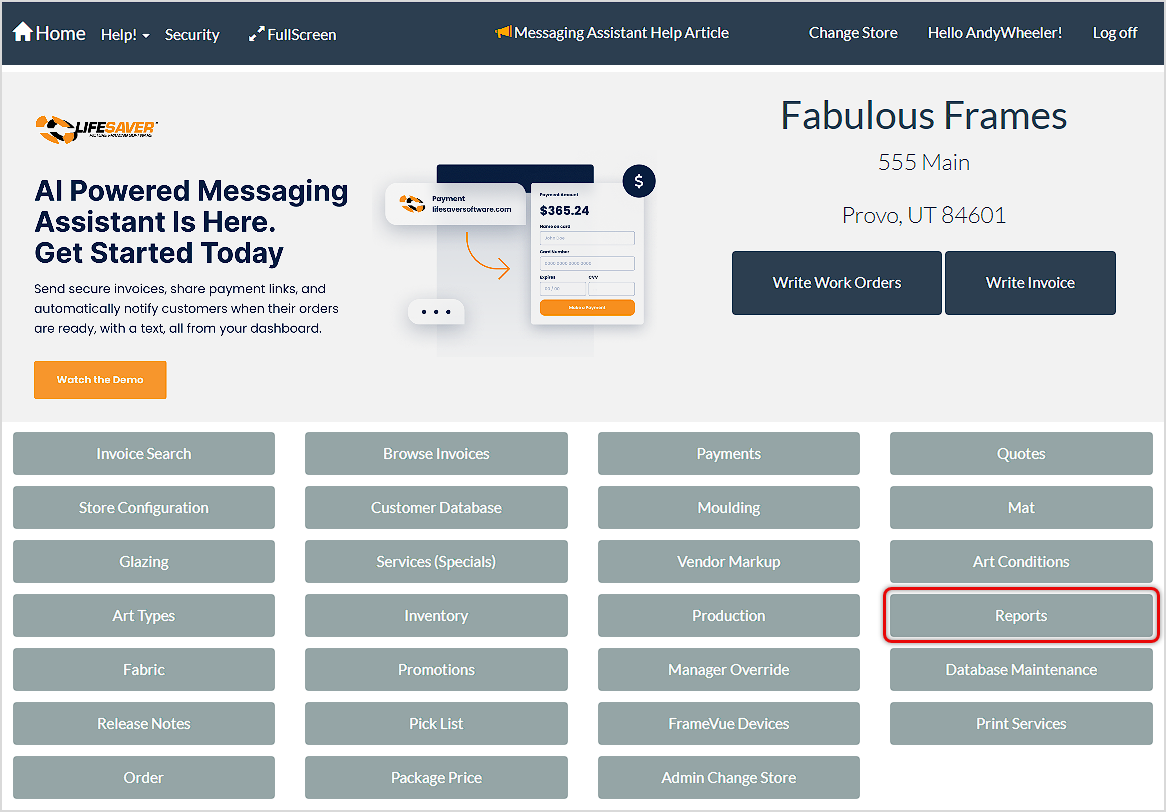
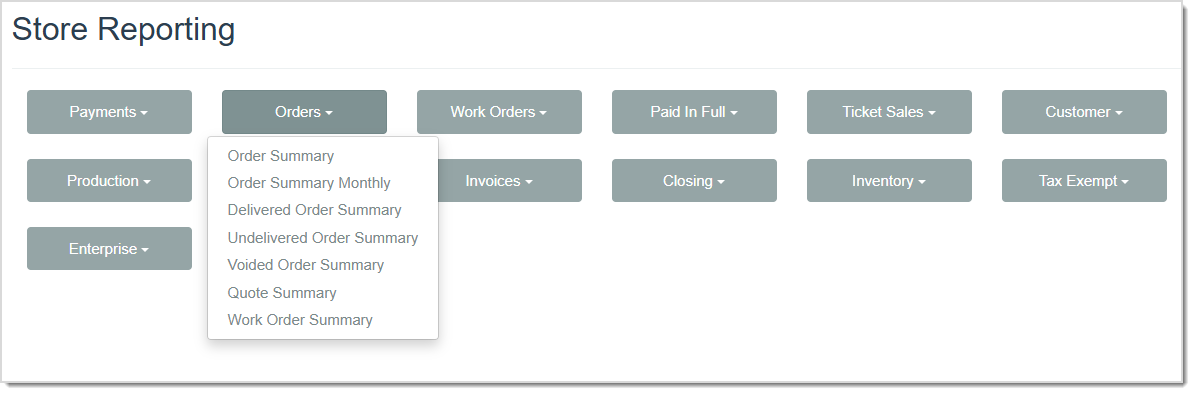
On the LifeSaver Software Home page, click the Reports button. Then click the Orders button, followed by the Order report you want to view, to generate the report.
Order Summary Report

This report displays the New Invoices Summary and the Revised Invoices Summary in separate sections. The default date range is the last seven days but can be edited as you see fit.
The Order Summary Report includes the following information:
- The Date the Order was created.
- The Invoice Number.
- The Customer’s name.
- The Number of Revisions made to the order.
- If the + is clicked in the report, highlighted above, it expands to where you can view the Line Item numbers if there are multiple Work Orders on the invoice.
- The Labor cost.
- The Material cost.
- The Subtotal of the order.
- The Taxes added to the order.
- The Total dollar amount of the order.
- The total value of any New Invoices included in the report, before revisions.
- The Revisions Totals of any changes made to invoices during the date range
- The Total charges for the New Invoices plus any Revision Totals.
Order Summary Monthly Report

This Summary Report displays the Date, Labor, Material, Subtotal, Tax, and Total of the Orders Received in the selected Month. As well as the Overall Totals calculated at the bottom.
Delivered Order Summary Report
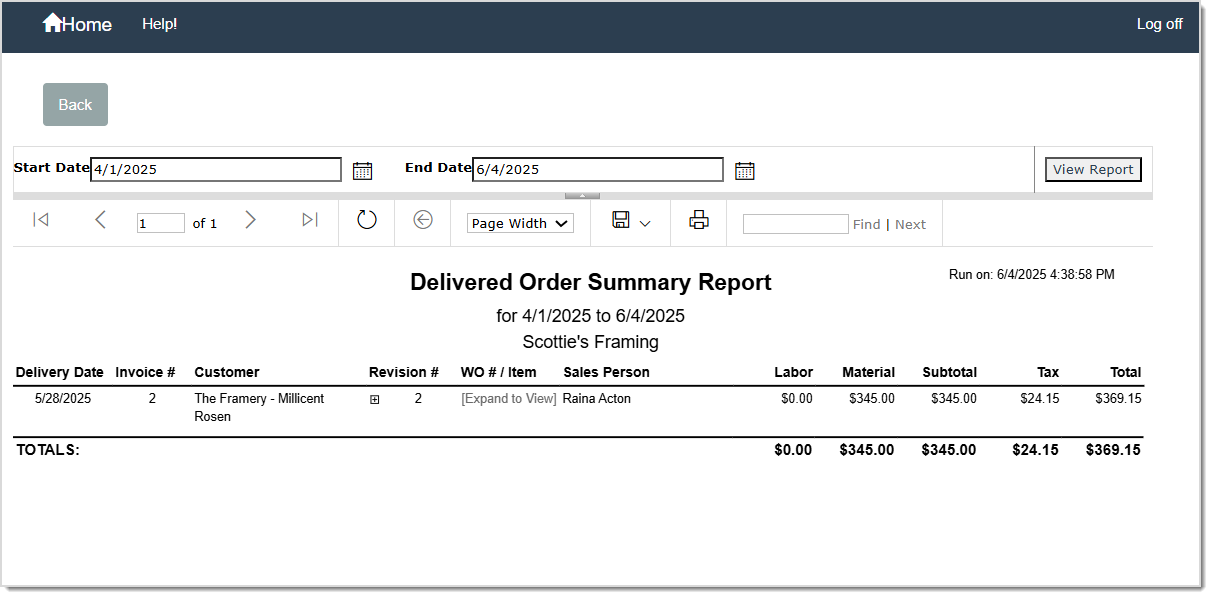
This report displays orders that have been delivered to the customer for the date range selected.
Orders must be updated to the Delivered status in the Production Menu upon customer pickup in order for it to be listed on the report. The Delivered Order Summary Report includes the following information:
- The Delivery Date of the order.
- The Invoice Number of the order.
- The Customer Name associated with the order.
- The Number of Revisions made to this order.
- The Work Order Number / Item Number of the order.
- The Name of the Sales Person who entered the order.
- The cost of Labor for the order.
- The cost of the Materials for the order.
- The Subtotal of the order.
- The Tax applied to the order.
- The Total dollar amount of the order.
- The bottom of the report lists the Overall Totals.
Undelivered Order Summary Report
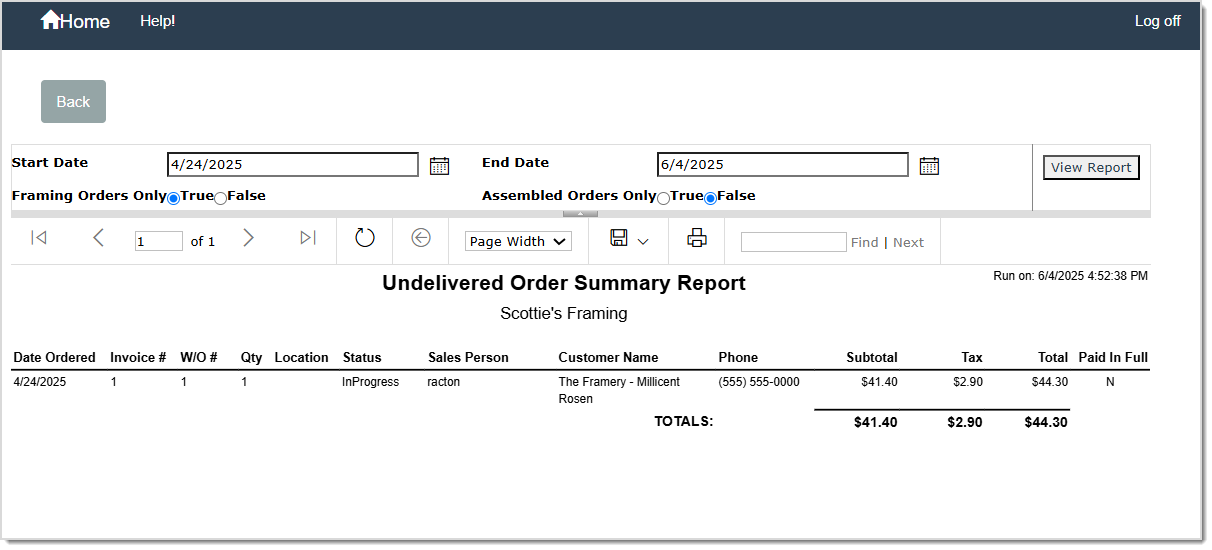
This Report displays orders that have not been delivered to the customer for the date range selected.
The Undelivered Order Summary Report includes the following information:
- The Date that the Order was placed.
- The Invoice Number of the Order.
- The Work Order Number.
- The Quantity of items in the Order.
- The Location where the art or framed art is being stored until pickup or assembly.
- The Status of the Order.
- The name of the Sales Person.
- The Customer’s Name.
- The Phone Number of the Customer.
- The Subtotal of the Order.
- The Taxes added to the Order.
- The Total dollar amount of the Order.
- Whether or not the Order has been Paid in Full, Y for Yes and N for No.
- The bottom of the report lists the Overall Totals.
Voided Order Summary Report
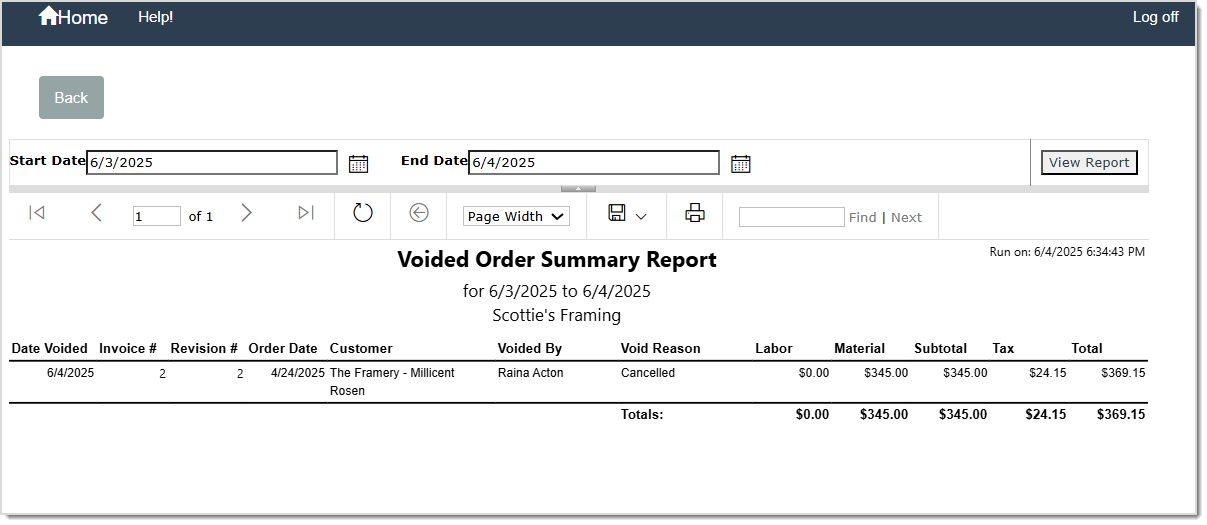
This report displays orders that have been voided within the Date Range selected.
The Voided Order Summary Report includes the following fields:
- The Date that the Order was voided.
- The Invoice Number of the Order.
- The Number of Revisions made to the Order.
- The Date that the Order was entered.
- The Customer’s Name.
- Who Voided the Order.
- The Reason the Order was Voided.
- The Labor cost of the Order.
- The Material cost of the Order.
- The Subtotal of the Order.
- The Taxes added to the Order.
- The Total dollar amount of the Order.
- The bottom of the report lists the Overall Totals.
Quote Summary Report
This Report displays the following depending on the filters selected: Open Quotes and Quotes that have been turned into live invoices.
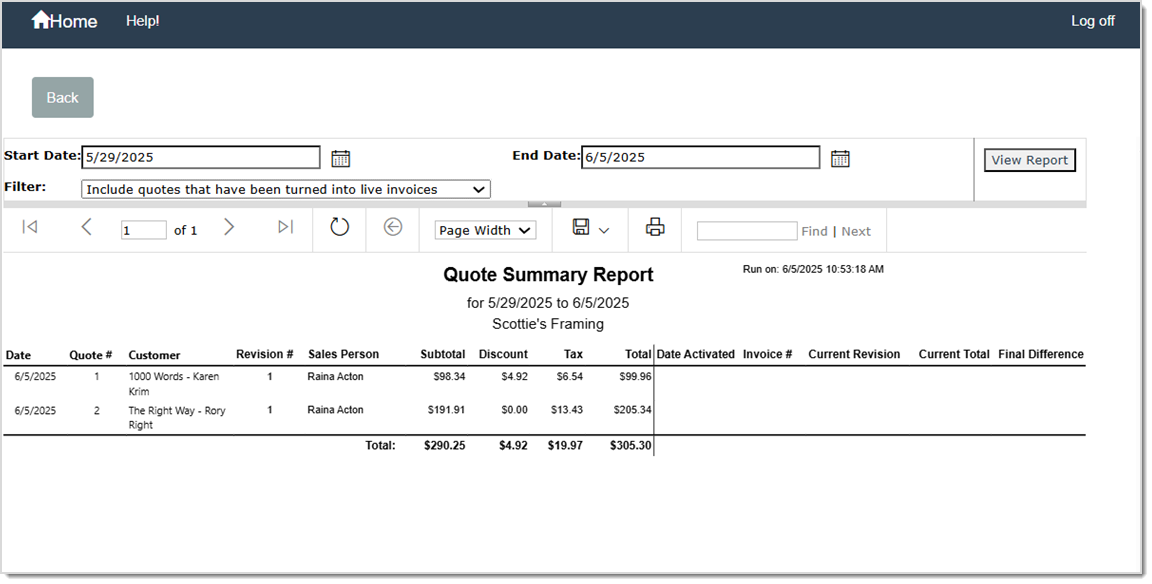
The Quote Summary Report includes the following fields:
- The Filter drop-list that you can select from depending on whether or not you want to view only Open Quotes or Quotes that have been turned into Live Invoices, or both.
- The Date that the Quote entered the system.
- The Quote Number.
- The Customer’s Name.
- The Number of Revisions that have been made.
- The Sales Person’s name.
- The Subtotal of the Quote.
- The Discount taken off of the Total.
- The Taxes added to the Order.
- The Total dollar amount of the Order.
- The Date that the Quote was turned into a Live Invoice, if applicable.
- The Invoice Number, if applicable.
- The Current Revision that the invoice is on.
- The Current Invoice Total, if applicable.
- The Final Difference of cost between quote and live invoice.
- The bottom of the report lists the Overall Totals.
Work Order Summary Report
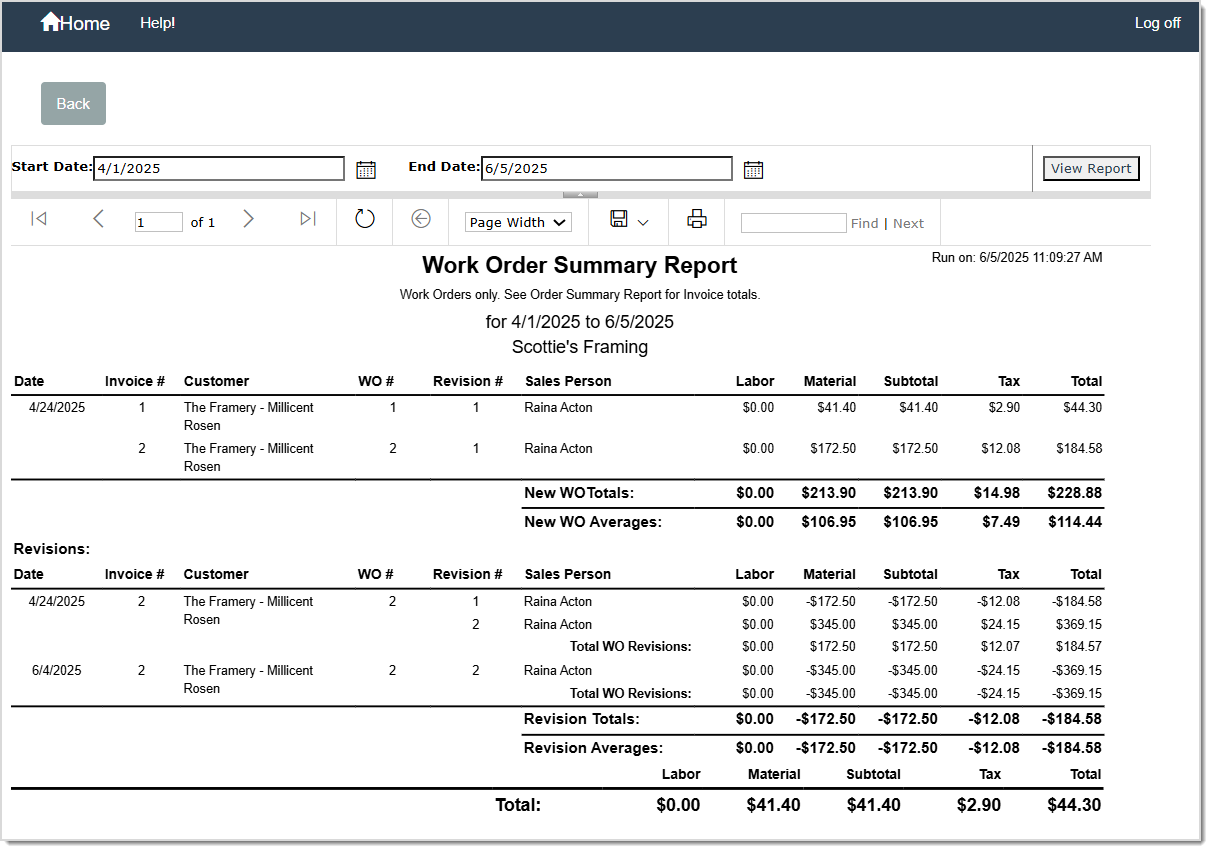
You can use this report to view a summary of work orders for the time period selected. The report defaults to today’s date. The report does not include invoices.
The Work Order Summary Report includes the following information:
- The Date the Work Order was created.
- The Invoice Number.
- The Customer’s Name.
- The Work Order Number.
- The Number of Revisions made to the order.
- The Sales Person’s name.
- The Labor cost of the order.
- The Material cost of the order.
- The Subtotal of the order.
- The Taxes added to the order.
- The Total dollar amount of the order.
- The Work Order Totals.
- The Work Order Average Costs.
- The Revision Totals.
- The Revision Average Costs.
Related Topics
Generate Store Reports
Work Order Reports
Paid in Full Reports
Ticket Sales Reports
Frequently Asked Questions
Q: How do I see details on invoiced materials used in these orders?
A: You might consider the Material Usage reports for in-depth breakdowns of mats, mouldings, and glazing.
Q: I have a question, but I can't find my answer here, how do I get more assistance?
A: You can ask any question at the link below, once received one of our technicians will be in touch! If you need immediate assistance, the LifeSaver Software team is available Monday through Friday, from 9:00am to 6:00pm Eastern time. Feel free to contact our support team at: 1-800-381-0600, extension 2. Or you can email us at support@lifesaversoft.com and we will respond within 24-hours.


 October 13, 2025
Is this page helpful?
×Help us improve our articles