
Working With Tax Exemption
There are a lot of different reasons why you might mark a sale, or part of a sale, tax exempt. Often

 October 09, 2025
LifeSaver Software Software offers you the flexibility to quickly locate past invoices and take actions such as printing, editing, making payments, or emailing customers. This article will show you how to search for an invoice in just a few clicks. With Invoice Search, you will be able to retrieve results by invoice number, partial customer name, phone number, or even work order description. Take a look below to see how you can streamline your billing process and help your business stay organized and up to date.
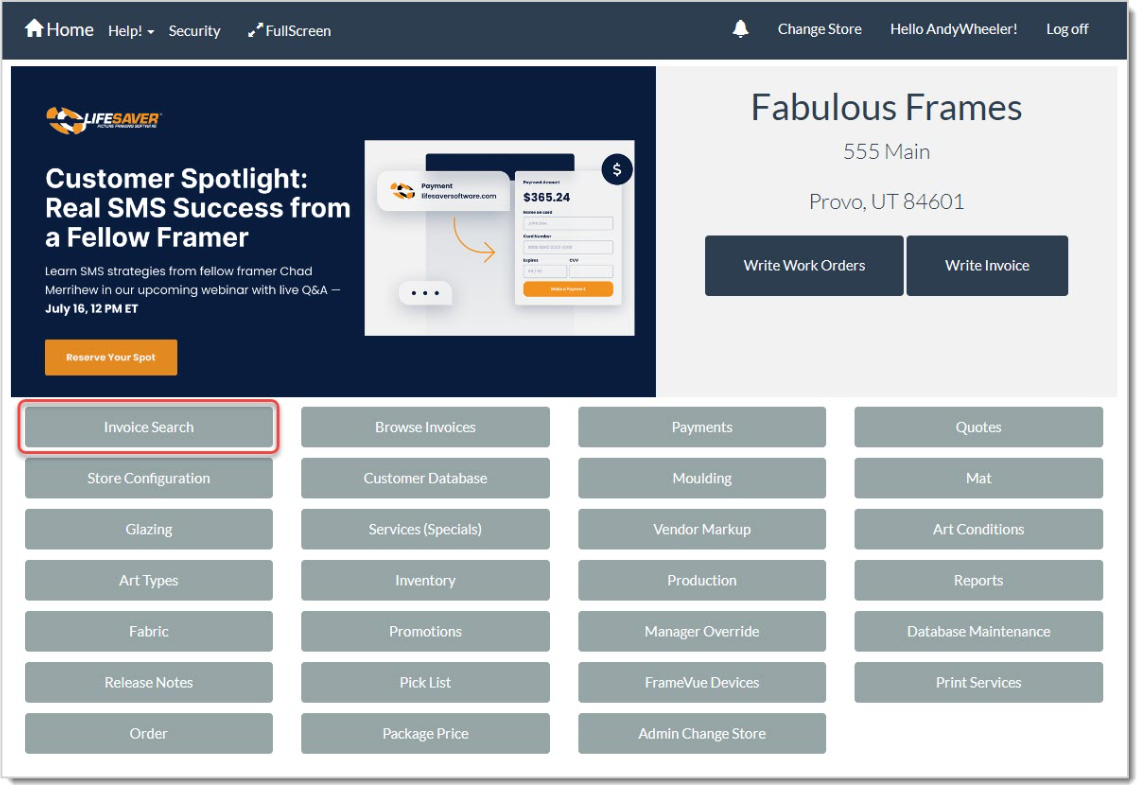
There are two ways to find your Invoices, we’ll start with the Invoice Search. On the LifeSaver Software home screen, click the Invoice Search button. This opens the Invoice Search window.
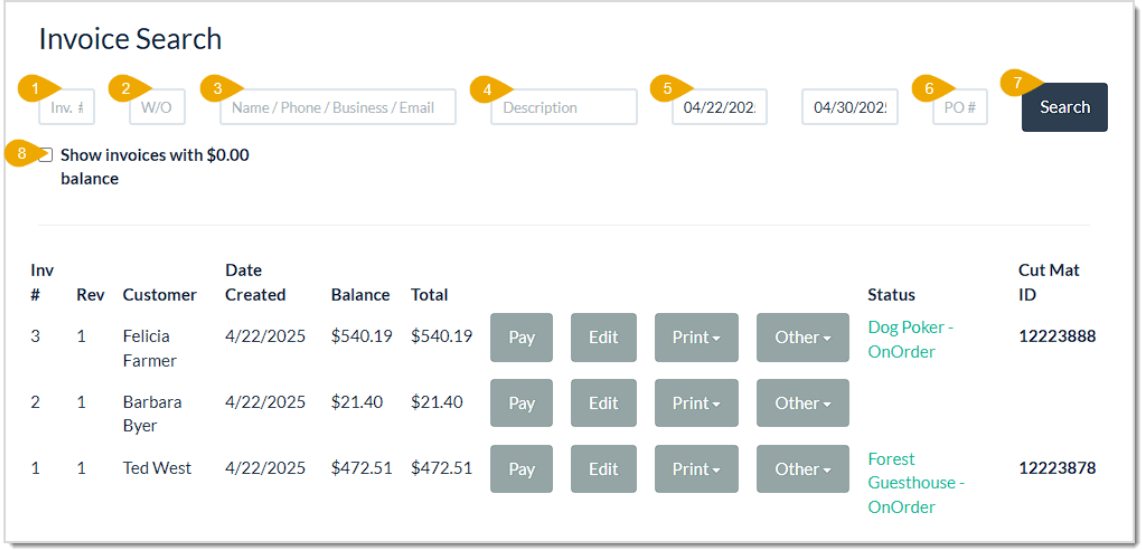
After you click Invoice Search, you can look up invoices using whatever information you have:
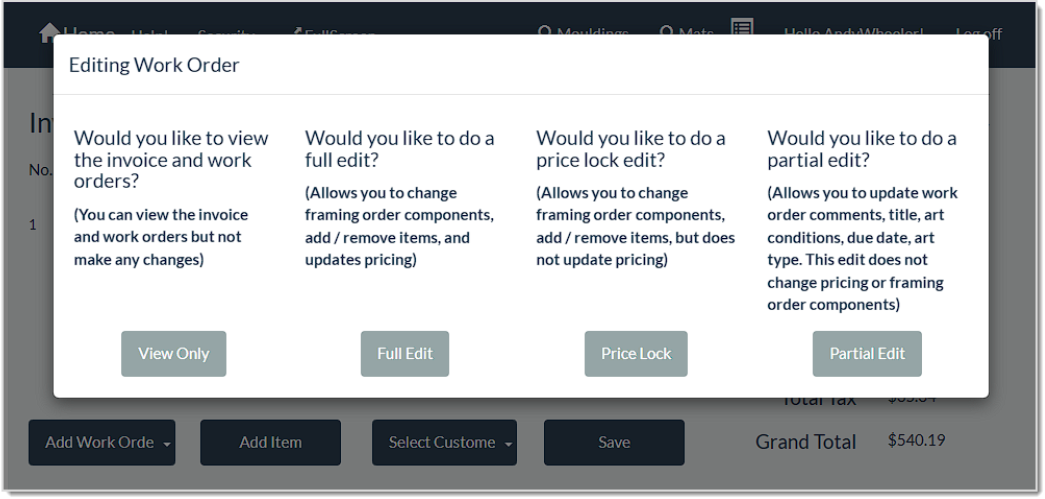
As an example, if you type “344” in the Invoice # field and click the Search button, you will see Invoice 344 and any associated records that contain 344 in the data. Once you see the invoice line item, you can pay it, void it, refund it, or email it, all from the same screen.
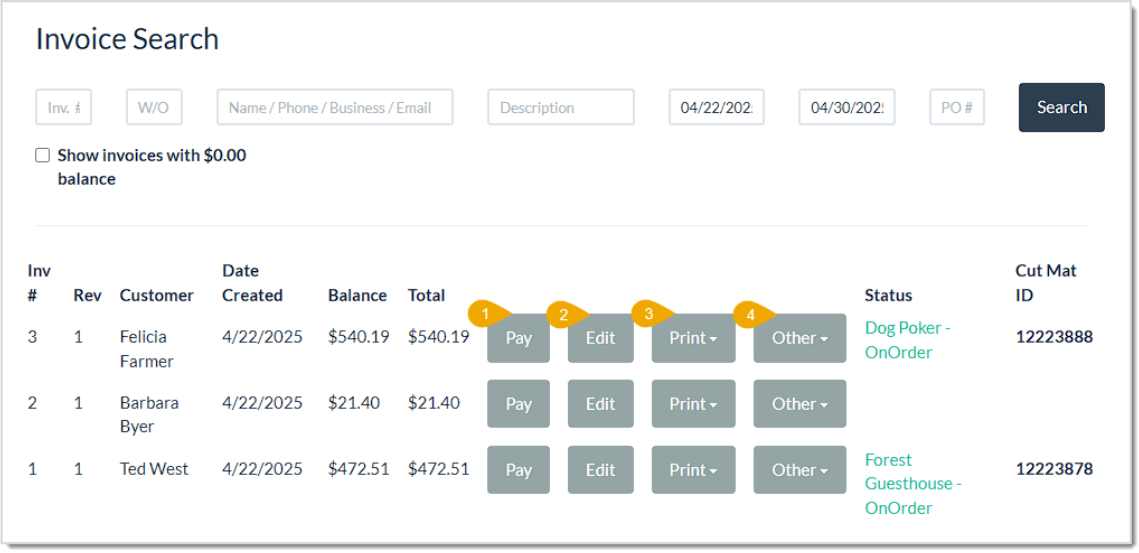
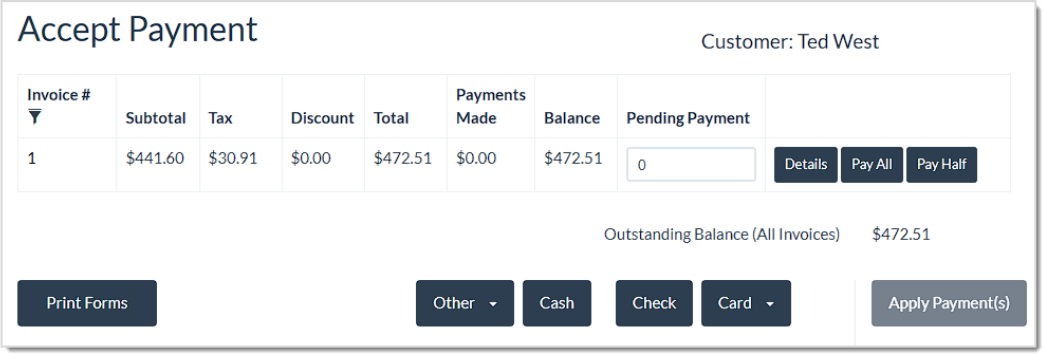
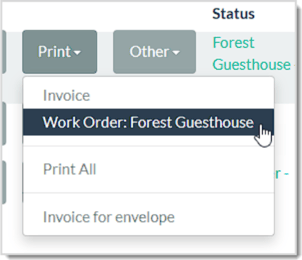
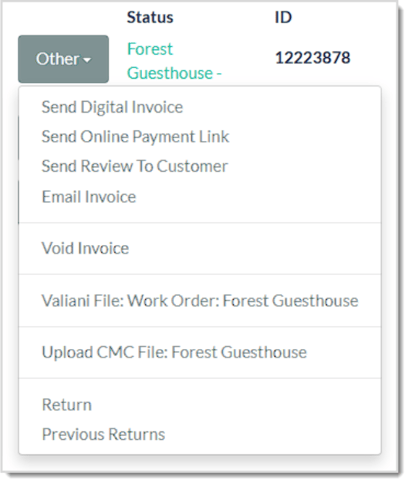
Under the Invoice Search results, each Invoice record includes its Invoice Number, Revision number, Customer Name, Date Created, Balance, Total, Status, and Cut Mat ID number. Each Invoice also has a set of buttons you can use to do the following:
Browsing Invoices
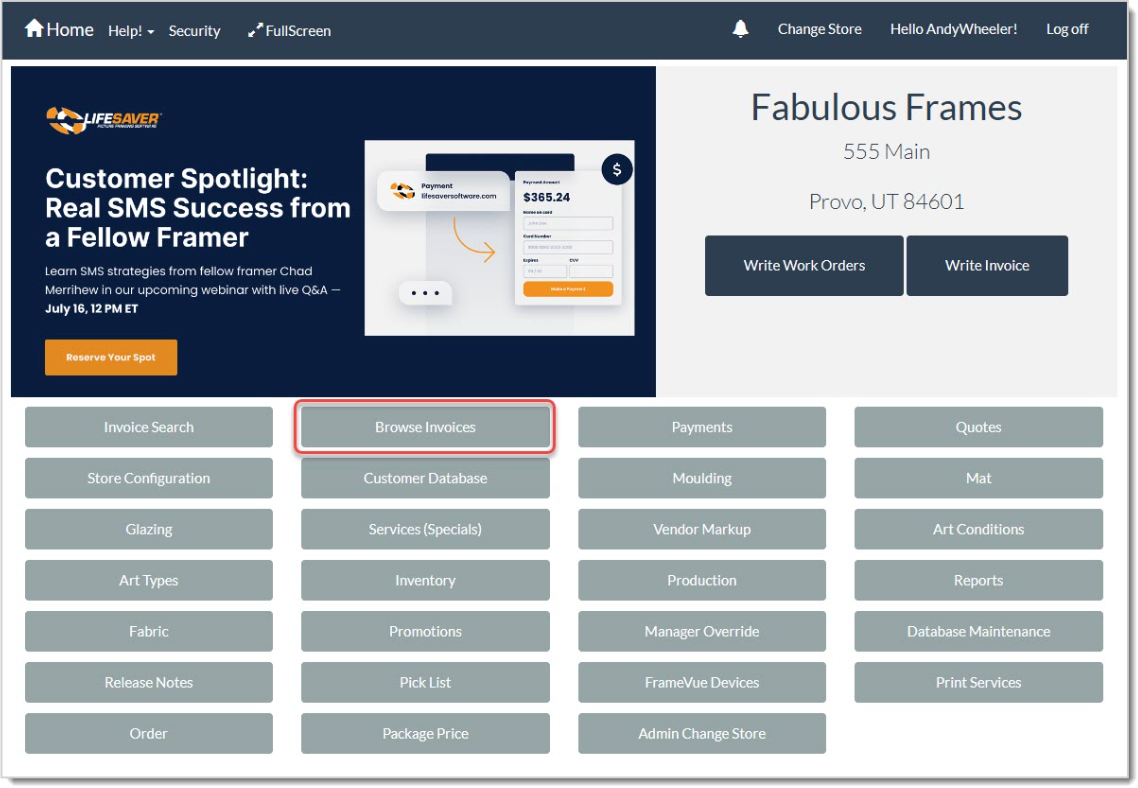
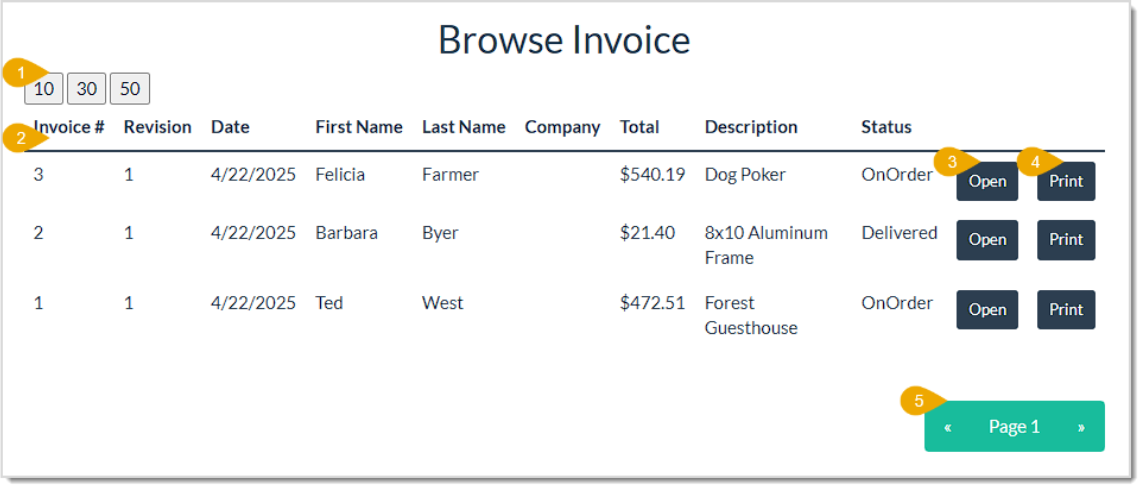
From the LifeSaver Software Home page, you can click to Browse Invoices in the upper left. The Browse Invoices page will load for you and lists all saved Invoices in the system.
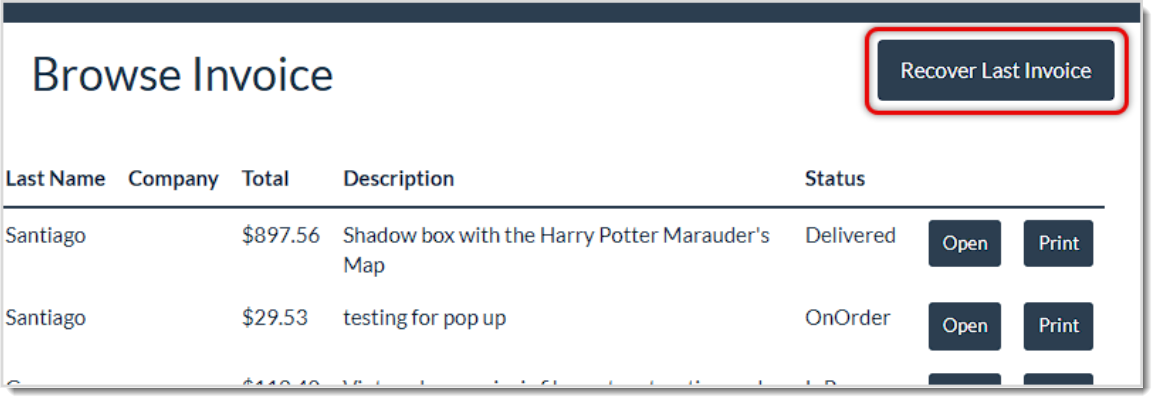
Please Note: As you’re working on your invoices, the work in progress is being automatically cached in the browser as an Autosave function. The usefulness of this feature is that if the system crashes for some reason, or there is an internet outage, it may be possible to recover the work in progress. This is especially important whenever you’re writing invoices with many line items. On the Browse Invoice page you will now see a Recover Last Invoice button you can use if you somehow crash.
Working with the Database Maintenance Button
Q: Can I search for partial names when searching for invoices?
A: Yes, you can type partial or incomplete names in the Name field and the LifeSaver Software will show all matches for that portion of the name.
Q: What if I can’t remember the invoice number or the customer’s details?
A: You can use date ranges or work order descriptions instead. The LifeSaver Software provides multiple ways to retrieve the correct invoice.
Q: Is there a limit to how many invoices will display in the results?
A: By default, results display all invoices that contain the search criteria, so you can refine your search with additional details (e.g., date range, phone) to narrow the list.
Q: Can I see if an invoice has a balance due in the results?
A: Yes, the search results typically show the invoice number, revision number, customer name, balance, and more detail.
Q: Can I email an invoice directly after I locate it?
A: Absolutely. Under the “Other” button drop-list, you will see the Email Invoice feature that lets you send a copy to the customer.
Q: I have a question, but I can't find my answer here, how do I get more assistance?
A: You can ask any question at the link below, once received one of our technicians will be in touch! If you need immediate assistance, the LifeSaver Software team is available Monday through Friday, from 9:00am to 6:00pm Eastern time. Feel free to contact our support team at: 1-800-381-0600, extension 2. Or you can email us at support@lifesaversoft.com and we will respond within 24-hours.
Is this page helpful?
×Help us improve our articles