LifeSaver Software’s invoice feature lets you create professional invoices while capturing all your work order and item details in one place. This article will show you how to work with your invoices in the LifeSaver software. Take a look!
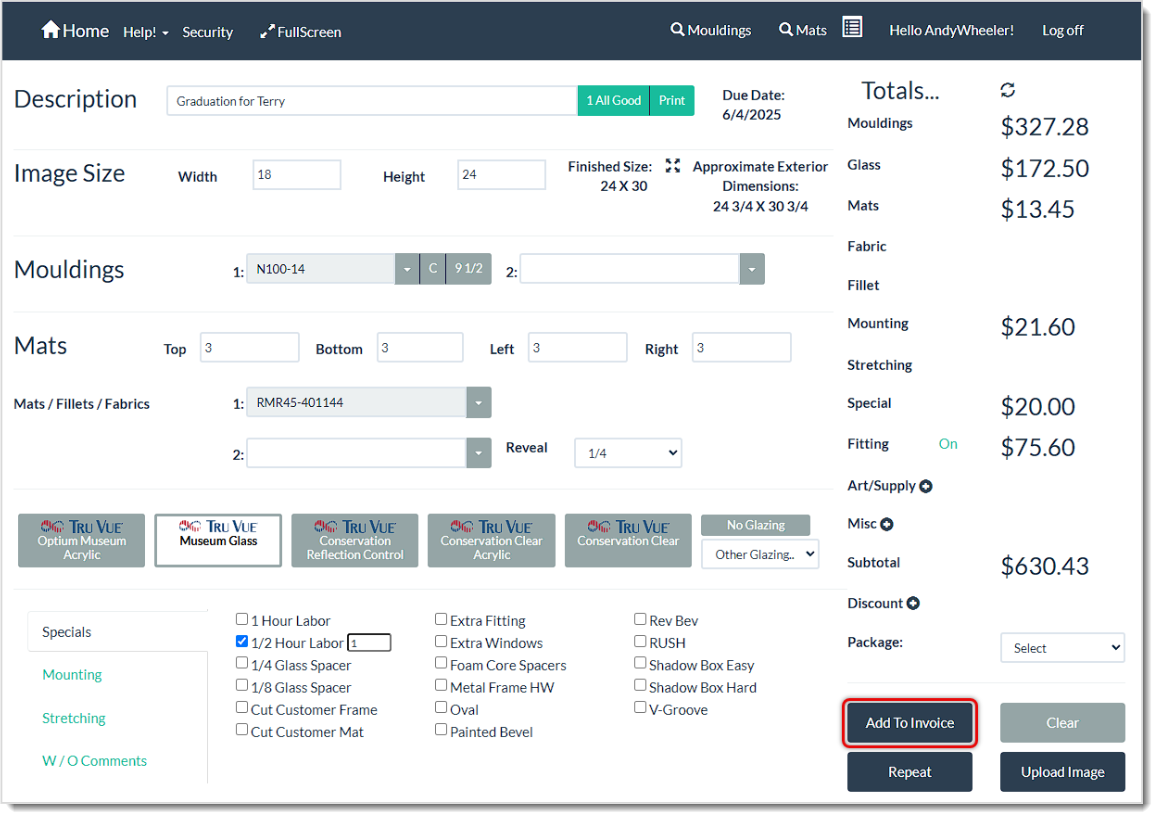
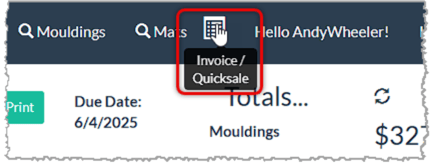
Whenever you complete a Work Order, click the Add To Invoice button to proceed. You can also directly click the Invoice / Quicksale Icon in the upper right menu bar to bring up the Invoice window.
How to Create an Invoice
Invoices can be initially created from Work Orders, as described below, or you can create a blank invoice using the Invoice / Quicksale Icon pictured above or by clicking the Write Invoice button on the system Home page. Creating invoices in LifeSaver lets you charge for custom orders, art items, and more, all in one place. Follow these steps to create a new invoice from a Work Order:
- In your Work Order, complete configuration of everything you need.
- Click the Add To Invoice button on the Work Order page, as pictured above. The Invoice Window will open with a line item for the Work Order.
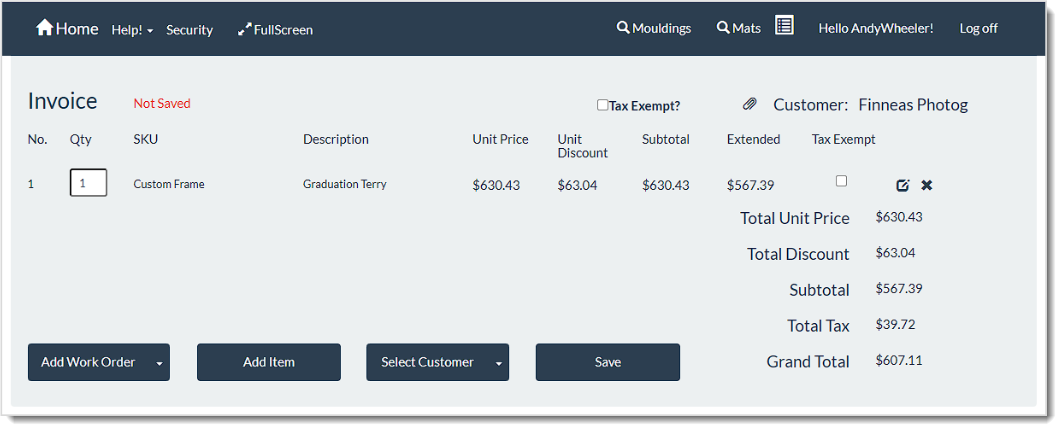
- You can click the Add Item button if you want to add additional inventory items, gift cards, manual fees, or shipping charges. For example, to add a shipping fee you can choose Manual Item Entry and a blank line will be added to the Invoice where you can enter Quantity, SKU, Description, Unit Price, and Unit Discount.
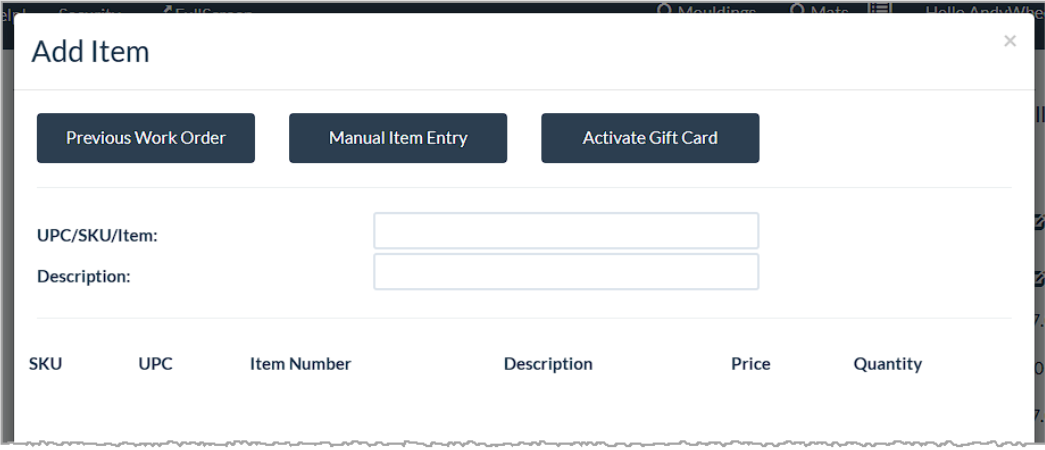
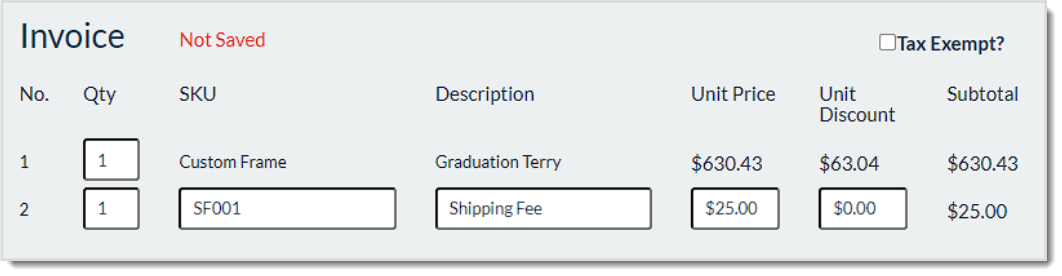
- Click Select Customer to choose an existing customer or enter a new customer’s information. If your store tracks tax IDs, the system automatically checks or unchecks Tax Exempt at the top of the Invoice.

- If you want to attach a purchase order to the invoice, click the Paper Clip Icon and enter the purchase order number.
- When the Invoice is ready, click the Save button and you’ll be prompted to save it as a Quote or to proceed with the live Invoice. In either case, it is already saved as an Invoice in your system and you’ll be able to find it with your other Invoices.

- If you clicked the Quote button, you’ll be prompted to save it as a Quote. If you choose Invoice you have several options:
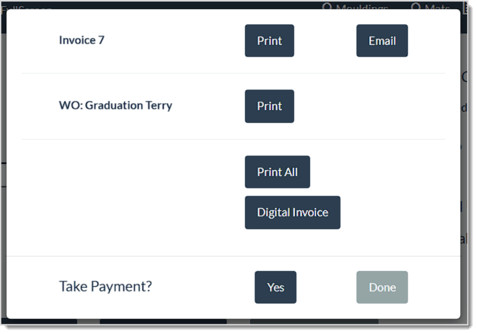
- Click Done if you wish to return to the Home page.
Please Note: These functions are fully detailed in the article Print, Email, or Generate a Digital Invoice.
You can always get back to your invoices using either Invoice Search, if you know the invoice details, or Browse Invoices from the Home page.
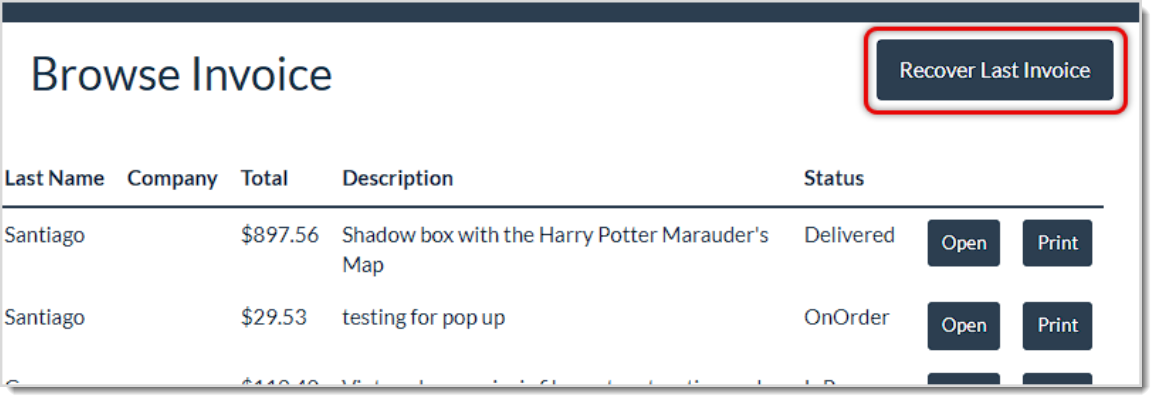
Please Note: As you’re working on your invoices, the work in progress is being automatically cached in the browser as an Autosave function. The usefulness of this feature is that if the system crashes for some reason, or there is an internet outage, it may be possible to recover the work in progress. This is especially important whenever you’re writing invoices with many line items. On the Browse Invoice page you will now see a Recover Last Invoice button you can use if you somehow crash.
Viewing and Editing Invoices
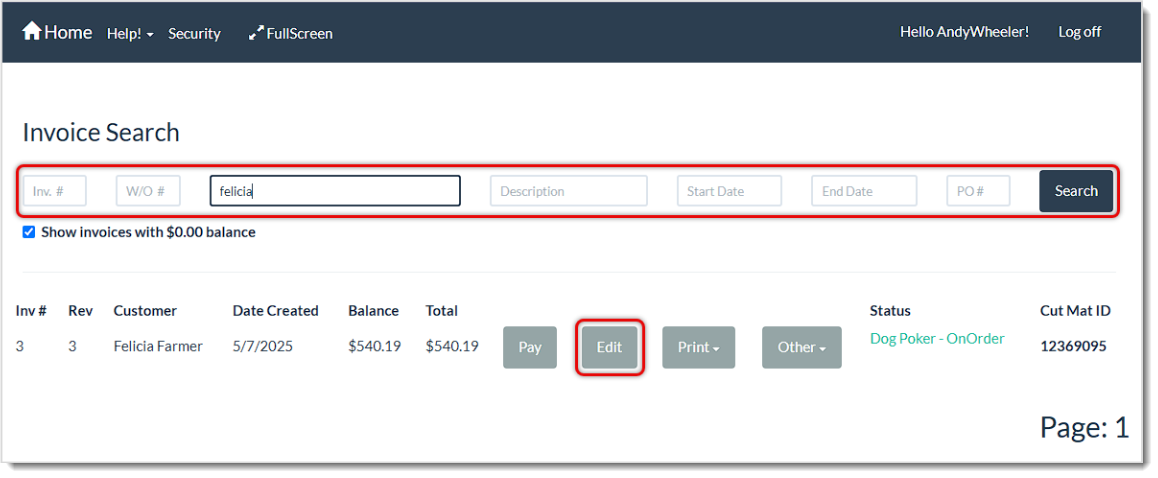
On the Home page, click the Invoice Search button or Browse Invoices button to locate the invoice you want to edit. After you have searched for and selected the invoice you’ll see the invoice line item. You can choose one of these methods:
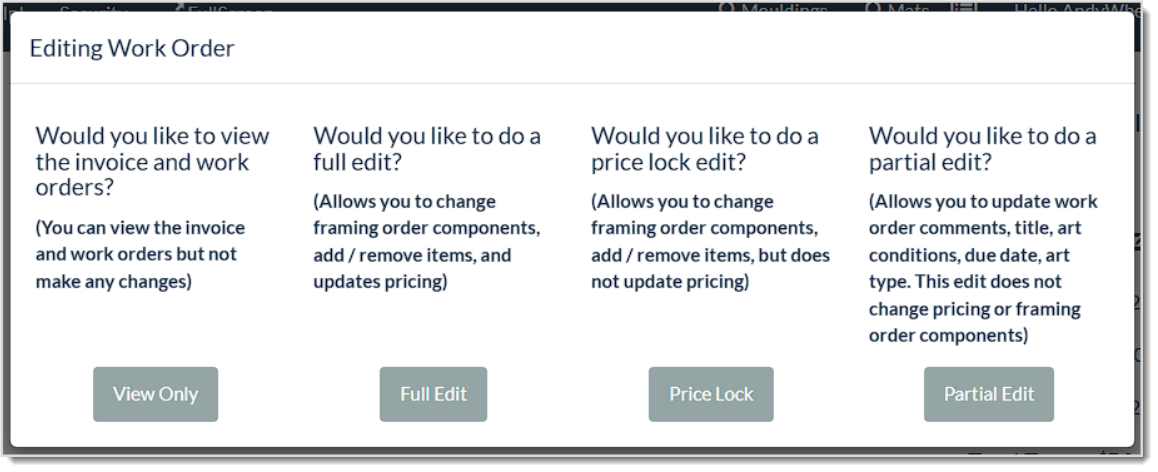
- View Only – If you just need to check the details of an Invoice, you can use the View Only option. You won’t be able to make any changes, but you’ll see all the details. If you Void an Invoice, this will be your only option for working with the Invoice.
- Full Edit – Click the Full Edit button to open the Invoice and allow you to change framing components, measurements, add or remove items, add additional Work Orders, and update prices as needed. Full details are below.
- Price Lock Edit – Click the Price Lock button to change or remove framing components and measurements without updating the total price, even if the new changes would normally alter the price.
- Partial Edit – Click the Partial Edit button if you only need to modify basic details like the Work Order description, due date, art condition, or art type without affecting other line items or the overall price.
Editing an Invoice
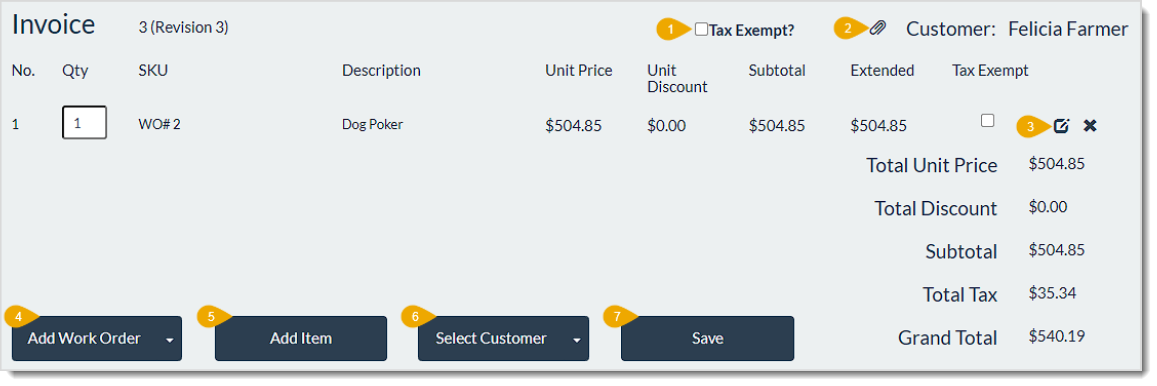
If you clicked the Full Edit option above, you will see these options:
- Tax Exempt – If the entire Invoice will be tax exempt, you can check the Tax Exempt checkbox at the top of the invoice. If an individual Work Order will be tax exempt, you can check the box on the far right of the line item to set it that way.
- Attach Purchase Order – If you click the Paperclip Icon, a window will open for you that will allow you to enter a PO Number to associate with the invoice.
- Update Work Order – Click the Edit icon to open the full Work Order, allowing you to add or edit items as needed. Click the Update Invoice button in the lower right to finalize your changes and return you to the invoice.
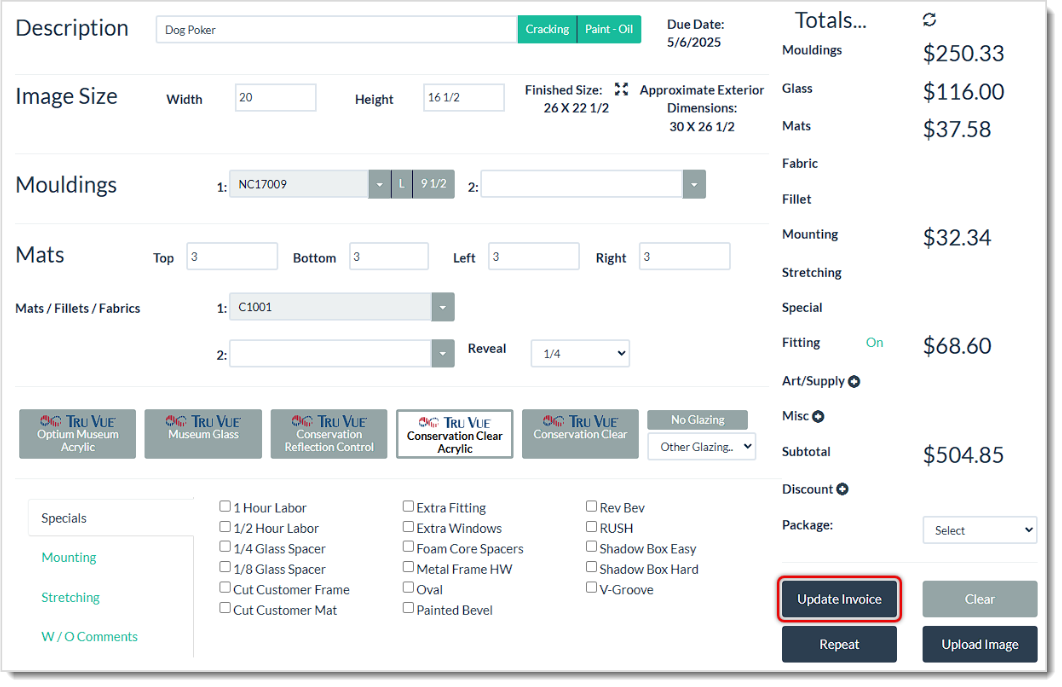
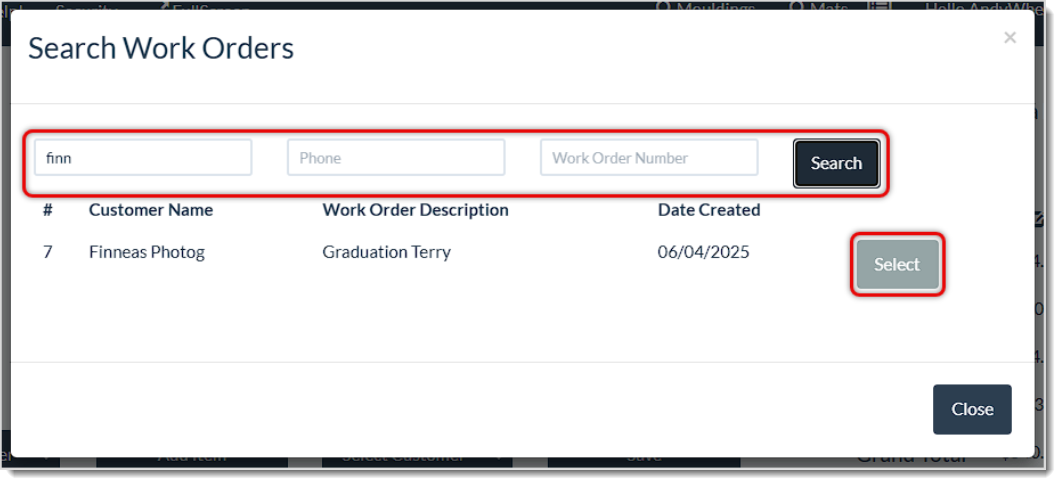
- Add Work Order – If the invoice needs one or more additional Work Orders added you can click the Add Work Order button. It will allow you to create a new Work Order from scratch, like a blank version of the one pictured above. You also have the option to click the drop-arrow to Copy Previous Work Order, which will open a window allowing you to search for a work order to duplicate. You are able to copy any previous Work Order, including invoices in a Voided status like the example below. When you click the Search button, the copied Work Order will open in full edit view like the one pictured above, and you’ll have the option of clicking an Add to Invoice button when you’re ready.
- Add Item – Click the Add Item button to add a blank line item to the Invoice as described in #3 of the Create an Invoice section above. You are able to enter an item Quantity, SKU, Description, Unit Price, and any Unit Discount you might want to add.
- Select Customer – Click the Select Customer button to either add or change the Customer for the Invoice. Examples of this functionality are in #4 above from the Create an Invoice section.
- Save – When you have completed your changes and additions, click the Save button to update the Invoice.
How to Process a Payment on an Invoice
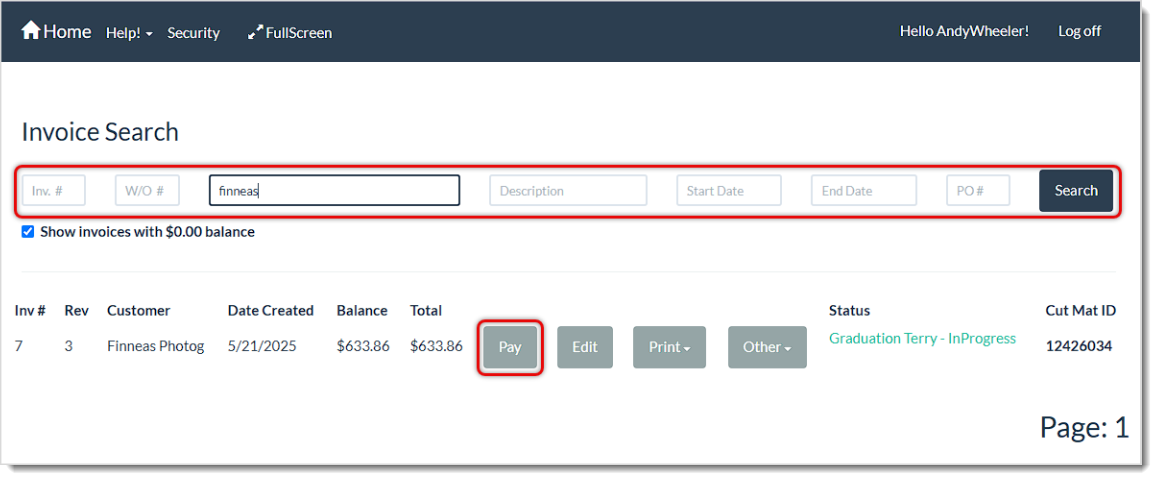
Once the Invoice Search page loads, follow these steps to take payment:
- Enter whatever information you have about the invoice or customer into the appropriate search field at the top and click the Search button or hit your Enter key on your keyboard. Matching Invoices will load in the data table below along with their balances. You can search by Invoice Number, Work Order Number, Customer Name or Phone, Item Description, Start or End Date, or Purchase Order Number.
- Click the Pay button for the relevant line item. The Accept Payment page will load with the Invoice information.
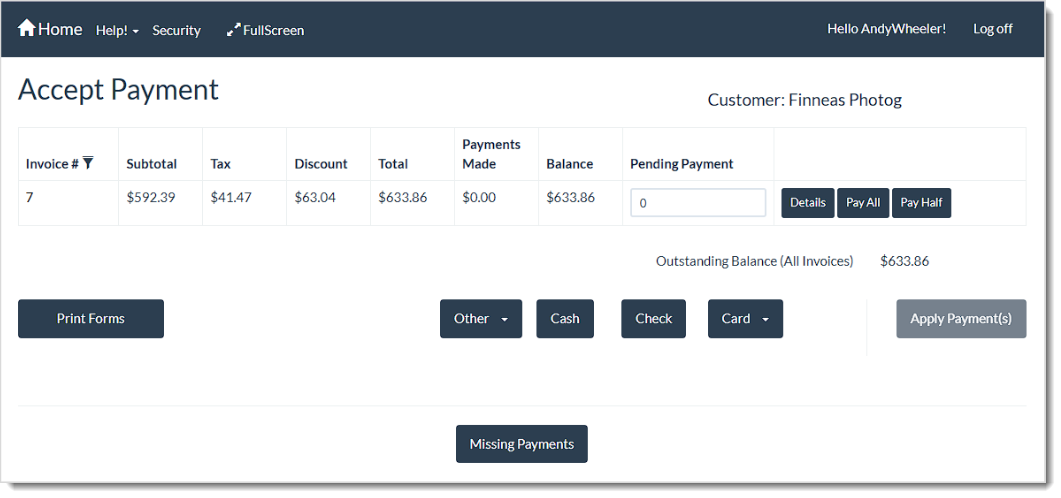
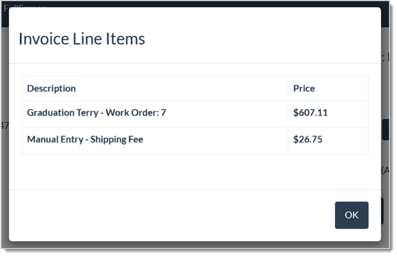
- In the Pending Payment field, enter the amount the customer is paying toward the Invoice balance. You can use the Pay All or Pay Half buttons to automatically load those amounts, or you can manually enter a different amount. Please note that you can click the Details button to open a window showing the items in the Invoice, as pictured below.
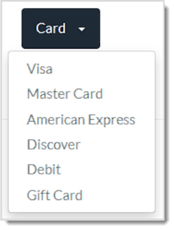
- Click the appropriate payment type button. For Cash, if the amount entered is more than the balance of the Invoice, the system will display the change due. If you choose Check, you will be asked to enter the check number. If you choose Card, a drop-list will open and you can choose the appropriate option. If you click the Other button, a drop-list will open with any custom tender options you have configured in the system settings.
Please Note: If the customer made a Card payment toward the invoice on this device and that payment is not showing toward the Invoice balance, you can click the Missing Payments button and refresh the information with that payment. This option only works if you use the EVO processing solution.
A payment line item will appear, as pictured below. If the customer is paying using multiple payment types, you will need to repeat these steps for each one. When you print the receipt for this payment you’ll have the opportunity to take an additional payment, as described below.
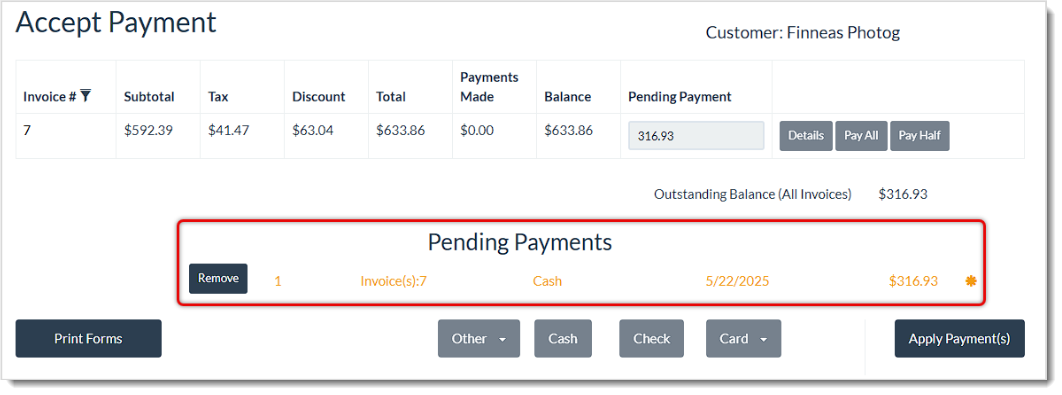
- Once you have everything you need for this payment, click the Apply Payment(s) button. The button will not be active until there is a payment amount in the Pending Payment field and a payment method is selected.
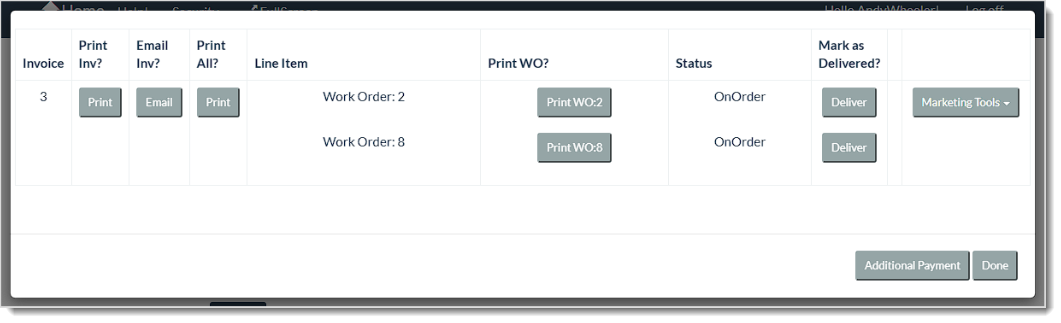
- Once the payment has been completed, you have many options on what you can do for printing, emailing, or performing Marketing actions for the customer. Please note, these functions are fully detailed in the article Process a Payment on an Invoice.
Related Topics
Create an Invoice
Print, Email, or Generate a Digital Invoice
Process a Payment on an Invoice
Refund a Payment or Void an Invoice
Working with Quotes
Frequently Asked Questions
Q: What if I need to add a non-inventory charge, like shipping?
A: Click Add Item, choose Manual Item Entry, and fill in the Description, Price, or any discount you want to apply.
Q: Can I add multiple Work Orders to the same Invoice?
A: Yes. In the Invoice window, click Add Work Order to attach additional Work Orders to your current invoice.
Q: What if my customer doesn’t want to pay right away?
A: Click Save and choose Invoice if you want a running balance on the account, or use Quote if you only want to hold the information temporarily.
Q: Can I undo an update after I save the edited Invoice?
A: You can reopen the invoice and edit it again. However, if you need to revert to the original pricing entirely, you may want to use Price Lock Edit to avoid altering the total amount.
Q: Why do I get prompted to take payment after an edit?
A: If the total increases when you do a Full Edit, the system asks if you want to accept additional payment. Similarly, it prompts for a refund if the total decreases.
Q: Can I print an Invoice without taking a payment first?
A: Yes. You may click the Print button in the Print Invoice / Workorder window after clicking Save in the Invoice Window—even if no payment has been taken. The invoice will reflect the unpaid balance.
Q: How do I reprint an existing Invoice?
A: Go to Invoice Search, locate the Invoice by typing the Invoice number or customer name, and click the Print drop-list. You can also choose Invoice, Workorder, or Print All to reprint the forms you need.
Q: Can I void an Invoice if there are already payments applied?
A: No. If any payments were applied, you must first refund any payments. Once you process the refund(s), you can then void the invoice.
Q: Can I undo a voided Invoice?
A: No. When you void an invoice, it is permanently deemed inactive. If you voided an invoice in error, consider creating a new invoice or reaching out to support for assistance.
Q: I have a question, but I can't find my answer here, how do I get more assistance?
A: You can ask any question at the link below, once received one of our technicians will be in touch! If you need immediate assistance, the LifeSaver Software team is available Monday through Friday, from 9:00am to 6:00pm Eastern time. Feel free to contact our support team at: 1-800-381-0600, extension 2. Or you can email us at support@lifesaversoft.com and we will respond within 24-hours.


 October 09, 2025
Is this page helpful?
×Help us improve our articles