Your Production reports in LifeSaver Software deliver important details about your work. This article will show you how to access, filter, and interpret the Production reports. Read on to learn how these tools can improve how you view the work you do.
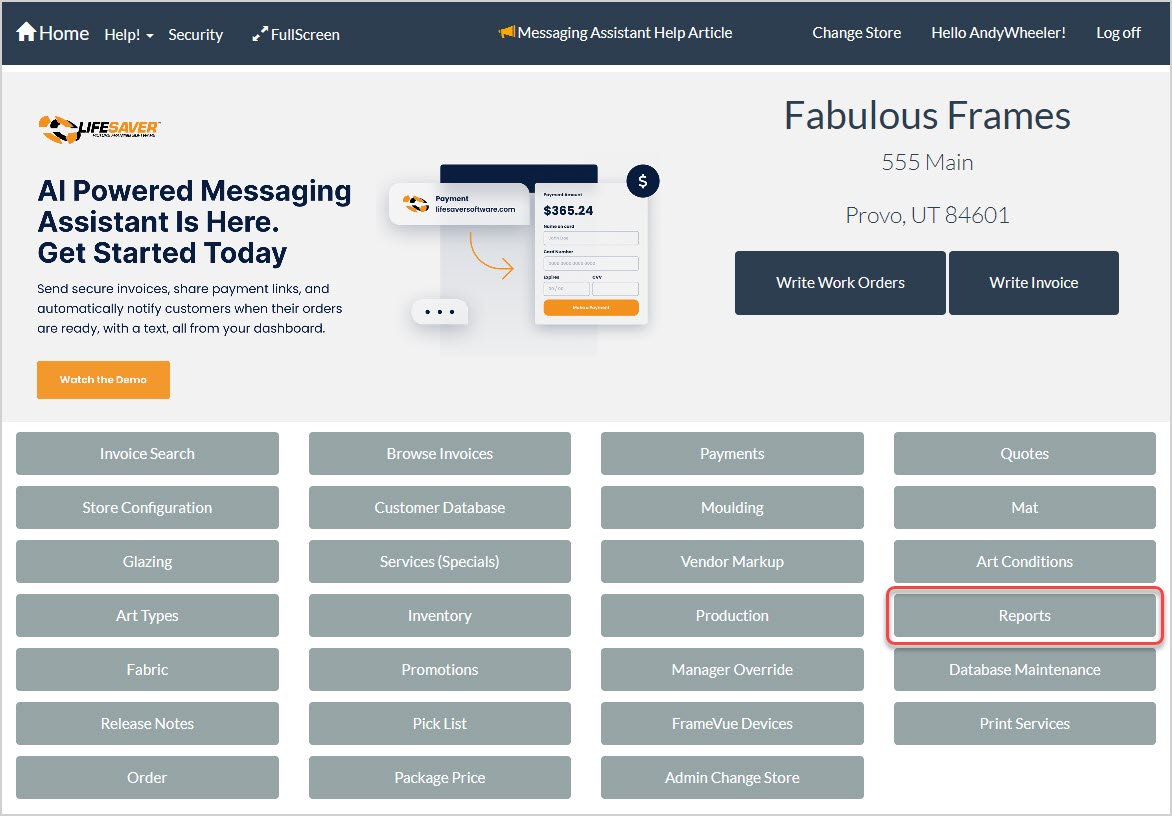
To get to this area, click the Reports button from the LifeSaver Software Home page. The Store Reporting page will load. Click the Production button to access the reports, as pictured below.
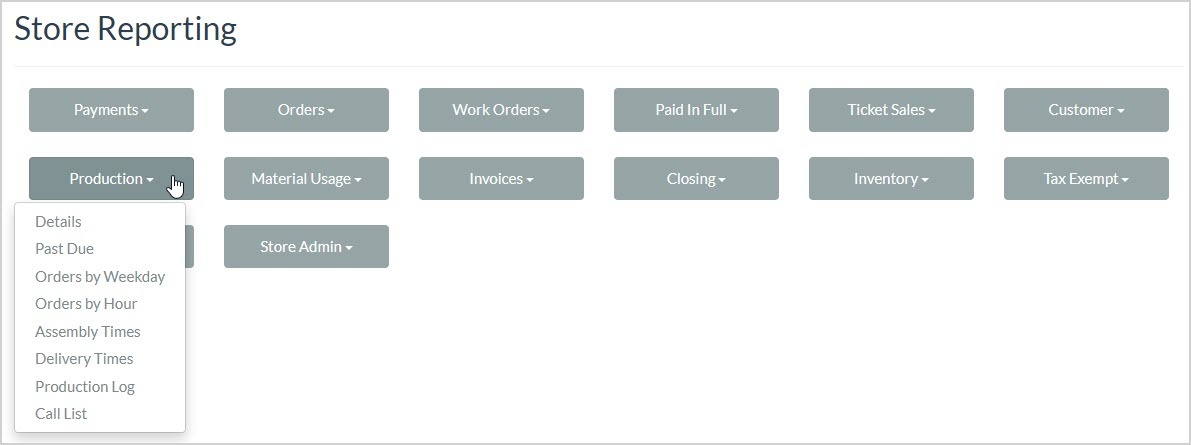
Production Report Major Functions
Your Production reports have the following functions:

- Back Button – This button will take you back to the Store Reporting page.
- Date Range – Enter the Start Date and End Date you need, then click the View Report button to load the data for that period. All reports in the Production report list have these fields except for Past Due and Call List.
- Navigation – If the report has multiple pages of data, you can use the arrows to go all the way to the beginning or end page (outer arrows), to the previous or next page (inner arrows), or you can enter the page you want to go to in the page number field.
- Refresh – If your report data might have changed since you loaded the page, or if you just want to reload to the initial view, click the Refresh button.
- Return to Parent Report – If the report you’re viewing is loaded from a parent report, the Return to Parent Report will take you back to that page. If there is no parent report, this button will not be active.
- Zoom – Using this control, you can set the Zoom level for the report’s viewing window. This feature does not enlarge the actual viewing window and will only control the zoom level within the frame below the control header.
- Save / Export – Click this button to download an Excel file, PDF document, or CSV spreadsheet of the report data. This function will export all pages of data.
- Print – Click the Print button to send a print of all report data to a browser print window. You will also see a window that will allow you to download a PDF file of the output. All pages of the report will print by default.
- Search – You can search by keyword or numeric data for anything in the report. Click Find to jump to the first search match. Click Next to jump to the next one until you find what you need.
- Average Customer Revenue (Customer Revenue Report only) – This graph will show the Average Customer Revenue dollar amount spent across all transactions for the period. You can click the Show / Hide Gauge icon to hide or display it, as needed.
The Production Details Report
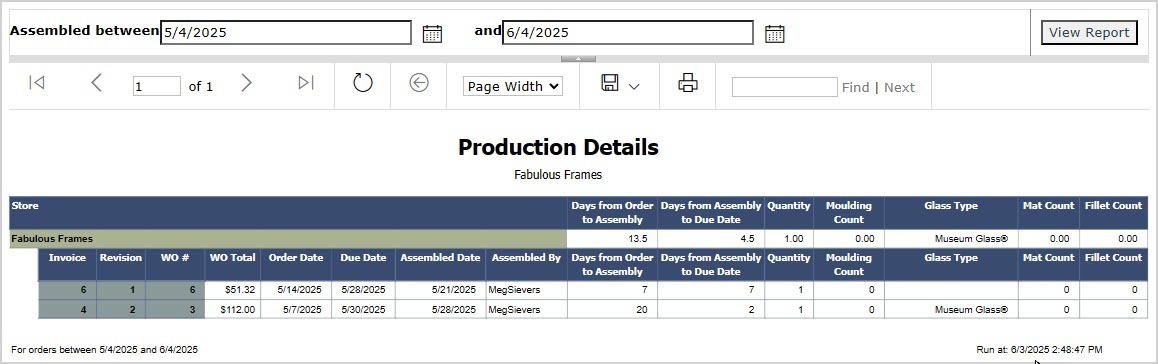
The Production Details report gives you important details about orders within the date range you selected. It gives you the following data for each work order:
- The Invoice number, how many Revisions were made, and the Work Order number.
- The dollar amount of each Work Order Total.
- The work order’s Order Date, Due Date, and Assembled Date.
- The name of the employee the order was Assembled By.
- The number of Days from Order to Assembly and Days from Assembly to Due Date.
- The Quantity of items in the order.
- The Moulding Count for the order.
- The Glass Type used in the order.
- The Mat Count for the order.
- The Fillet Count for the order.
- The top row of the report displays averages for Days from Order to Assembly, Days from Assembly to Due Date, Quantity, Moulding Count, Mat Count, and Fillet Count.
Below the data table the system will display the date range selected and the date and time you ran the report.
The Past Due Report
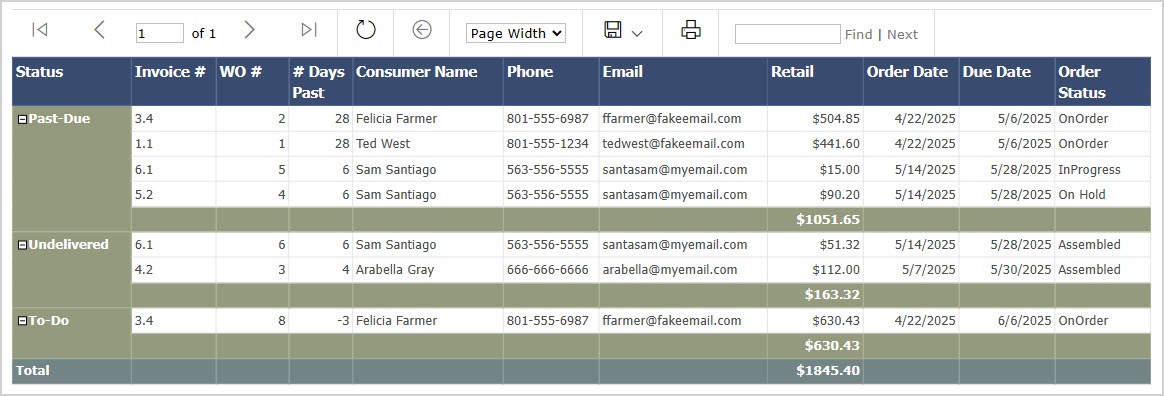
The Past Due report gives you details about all Past Due, Undelivered, and To-Do orders in the system. Please note that each of these areas can be collapsed with the minus icon to the left of the title, or expanded again with the plus icon.
It gives you the following data:
- The order’s Past Due Status (Past Due, Undelivered, and To-Do).
- The Invoice Number and Work Order Number.
- The Number of Days Past of the order.
- The Customer Name, Phone, and Email.
- The total Retail dollar amount of the order.
- The Order Date and the Purchase Date.
- The Order Status of the work order.
The Orders By Weekday Report
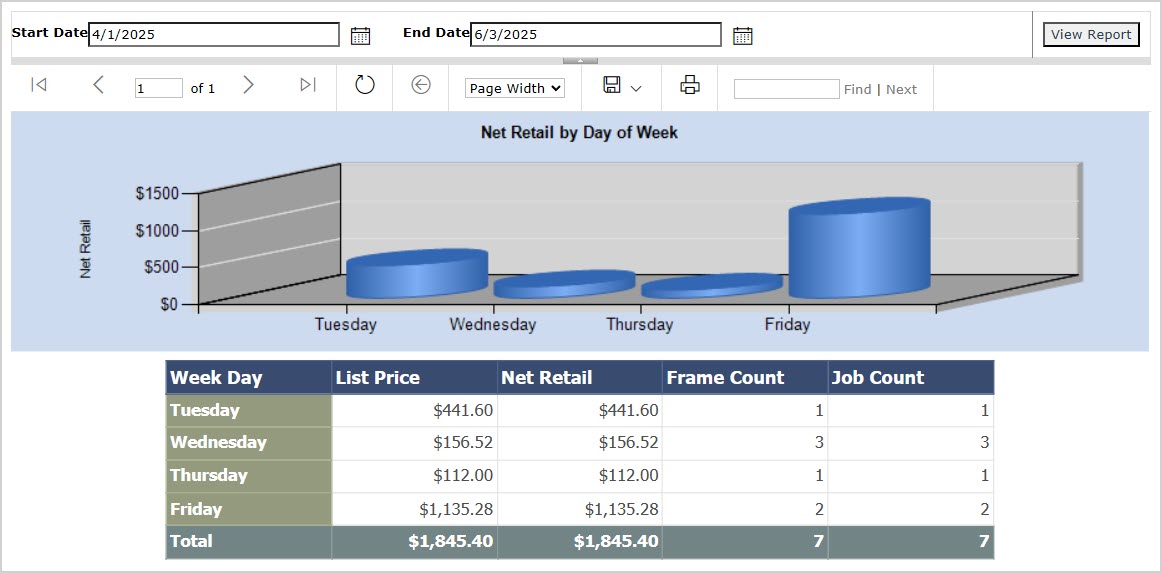
The Orders by Weekday report breaks down your sales by day of the week for whatever period you choose to view. You are able to set a date range for the report using the Start Date and End Date fields. By default, the report will display the last seven days. If you change any of the filters, click the View Report button to load the selected data.
It gives you the following data for customers from each of your chosen stores:
- The Week Day.
- The total List Price of all items in the orders.
- The total Net Retail of all items in the orders.
- The total Frame Count in the orders.
- The total Job Count in the orders.
- The bottom row of the report gives Total amounts for the List Price, Net Retail, Frame Count, and Job Count columns.
The Orders By Hour Report
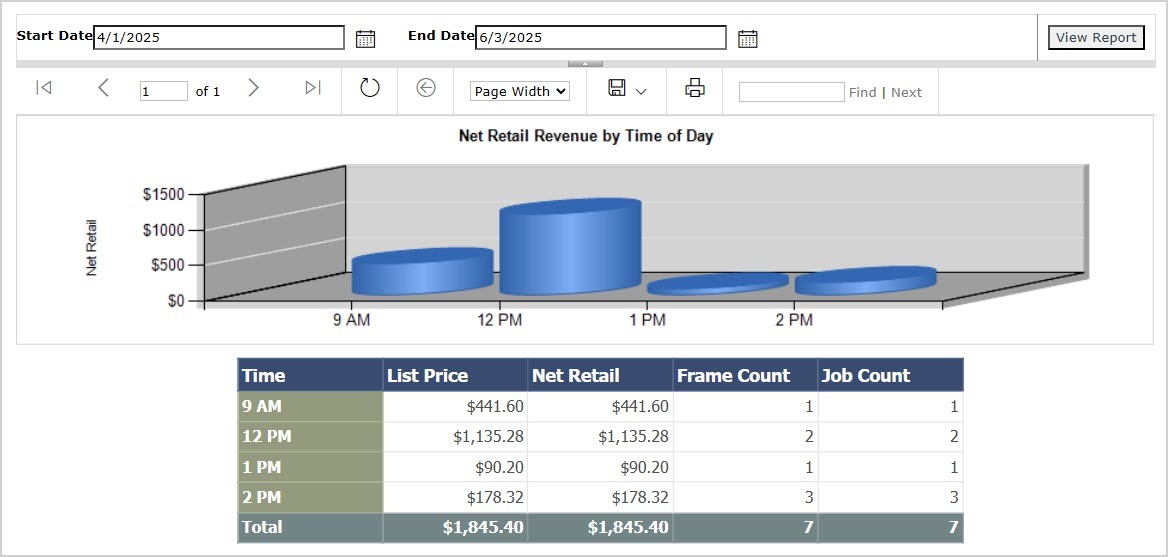
The Orders by Hour report breaks down your sales by hour of the day for whatever period you choose to view. You are able to set a date range for the report using the Start Date and End Date fields. By default, the report will display the last seven days. If you change any of the filters, click the View Report button to load the selected data.
It gives you the following data for customers from each of your chosen stores:
- The Time.
- The total List Price of all items in the orders.
- The total Net Retail of all items in the orders.
- The total Frame Count in the orders.
- The total Job Count in the orders.
- The bottom row of the report gives Total amounts for the List Price, Net Retail, Frame Count, and Job Count columns.
The Assembly Times Report
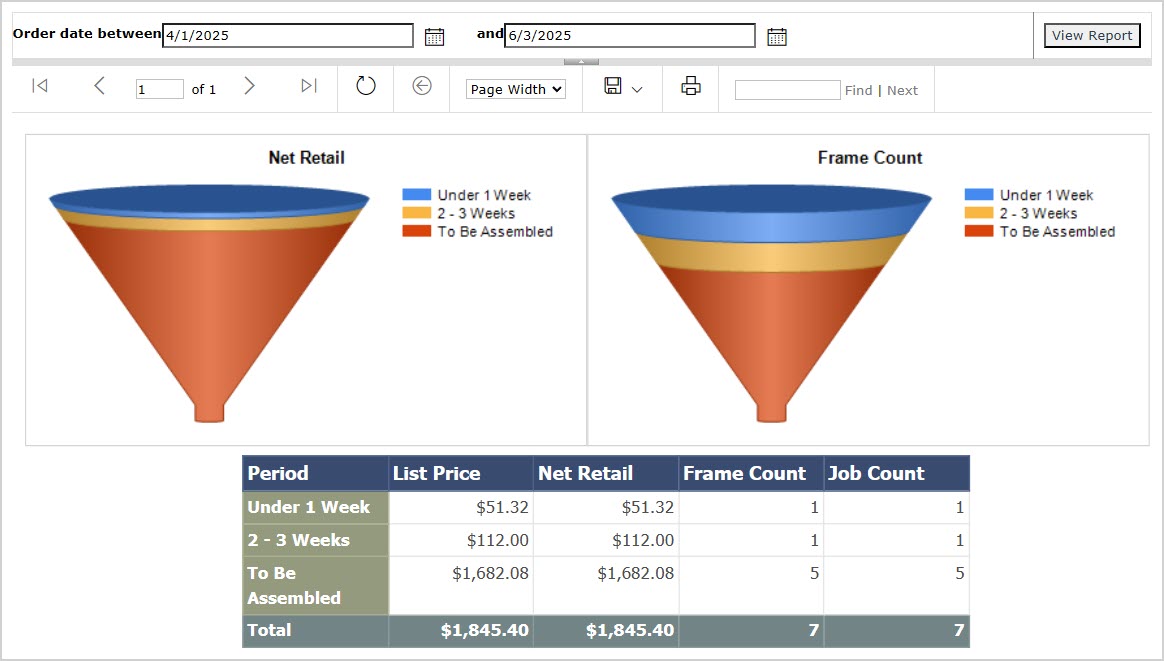
The Assembly Times report breaks down your sales by the amount of time used to complete assembly for whatever period you choose to view. You are able to set a date range for the report using the Start Date and End Date fields. By default, the report will display the last seven days. If you change any of the filters, click the View Report button to load the selected data.
It gives you the following data for customers from each of your chosen stores:
- The Date Range in months (any orders yet To Be Assembled are also listed).
- The total List Price of all items in the orders.
- The total Net Retail of all items in the orders.
- The total Frame Count in the orders.
- The total Job Count in the orders.
- The bottom row of the report gives Total amounts for the List Price, Net Retail, Frame Count, and Job Count columns.
The Delivery Times Report
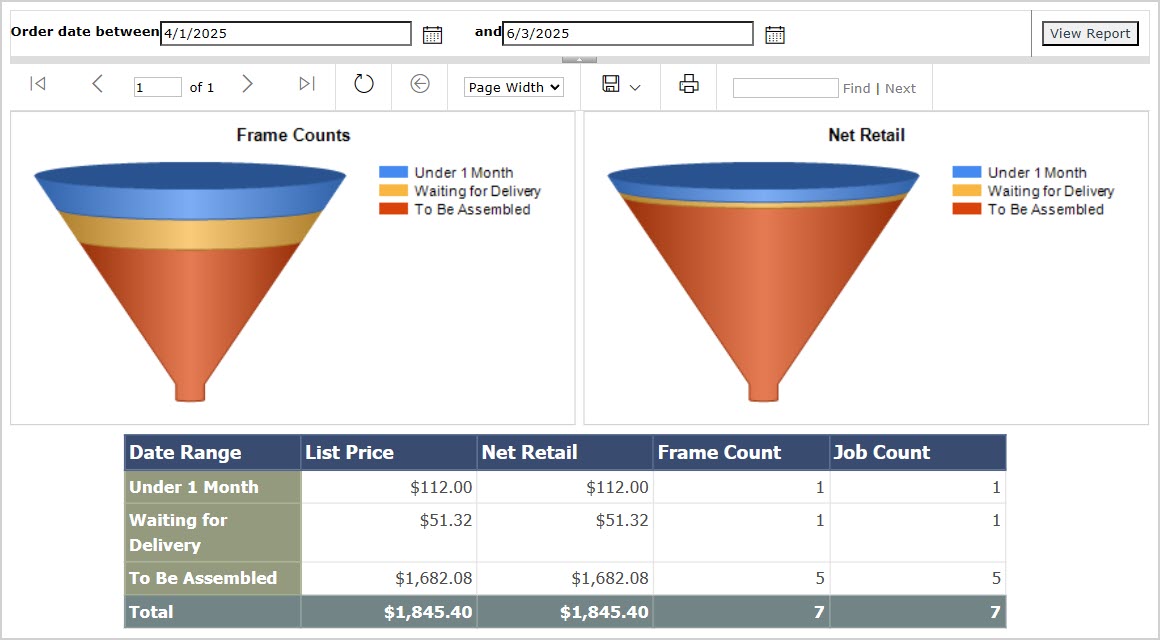
The Delivery Times report breaks down your sales by the amount of time used to deliver orders for whatever period you choose to view. You are able to set a date range for the report using the Start Date and End Date fields. By default, the report will display the last seven days. If you change any of the filters, click the View Report button to load the selected data.
It gives you the following data for customers from each of your chosen stores:
- The Date Range in months (any orders Waiting for Delivery or yet To Be Assembled are also listed).
- The total List Price of all items in the orders.
- The total Net Retail of all items in the orders.
- The total Frame Count in the orders.
- The total Job Count in the orders.
- The bottom row of the report gives Total amounts for the List Price, Net Retail, Frame Count, and Job Count columns.
The Production Log Report
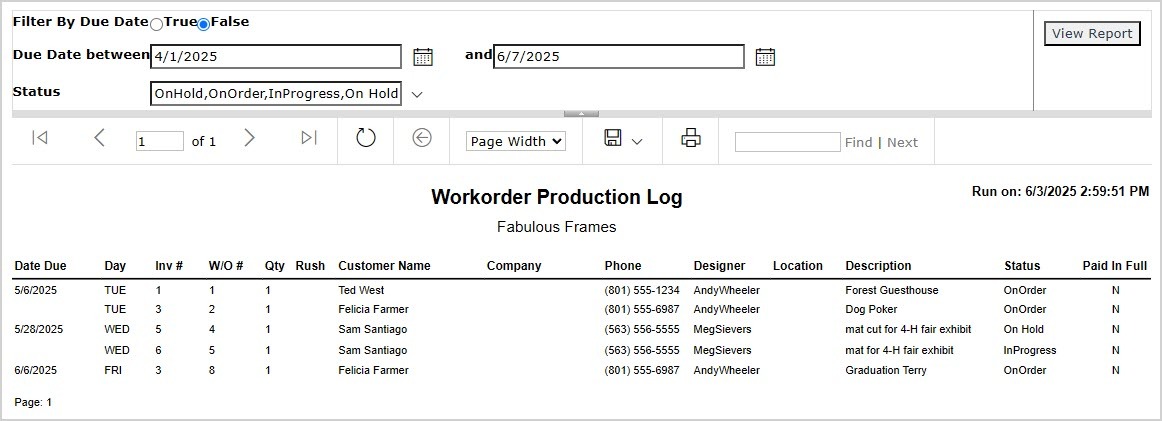
The Production Log report gives important details on your work orders for whatever period you choose to view. You can set the report to Filter by Due Date or not. You are able to set a date range for the report using the Start Date and End Date fields. By default, the report will display the last seven days. You can also choose the order statuses you want to see in the Status filter. If you change any of the filters, click the View Report button to load the selected data.
It gives you the following data for customers from each of your chosen stores:
- The Date Due for the orders.
- The Day of the week for each order.
- The Invoice Number and Work Order Number associated with each of the orders.
- The Quantity of items in each of the orders.
- Whether or not each order was given a Rush priority.
- The Customer Name on each order.
- The Company, if any, for each order.
- The Phone number on each order.
- The Designer, Location, Description, and Status of each order.
- Whether or not the order has been Paid in Full.
In the upper right above the data table the system will display the date and time you ran the report. Below the data table in the lower left is the page number of the report.
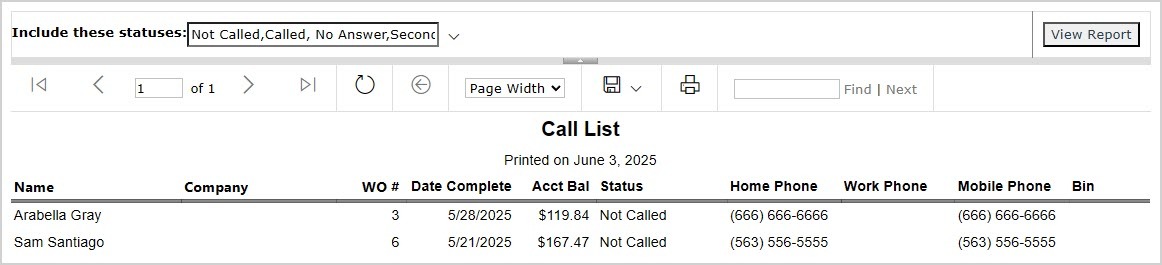
The Call List report details customers needing a call from you. You can also choose the Call List statuses you want to see in the Include These Statuses filter. If you change any of the filters, click the View Report button to load the selected data.
It gives you the following data for customers from each of your chosen stores:
- The Customer Name.
- The Company, if any.
- The Work Order Number for the call.
- The Date Complete for the order.
- The Account Balance for each order.
- The Status of the call.
- The Home Phone number, Work Phone number, and Mobile Phone number for the customer.
- The Bin containing the item of each order.
Above the data table, the system will display the date you ran the report.
Related Topics
Generate Store Reports
Order Reports
Frequently Asked Questions
Q: I have a question, but I can't find my answer here, how do I get more assistance?
A: You can ask any question at the link below, once received one of our technicians will be in touch! If you need immediate assistance, the LifeSaver Software team is available Monday through Friday, from 9:00am to 6:00pm Eastern time. Feel free to contact our support team at: 1-800-381-0600, extension 2. Or you can email us at support@lifesaversoft.com and we will respond within 24-hours.


 October 13, 2025
Is this page helpful?
×Help us improve our articles