Store Configuration - Store Information

October 13, 2025
The LifeSaver Software system has an area for setting up your store information that is easy to use. In this article, you will learn how to configure store settings, set up your email template, and upload your logo. Take a look at your options.
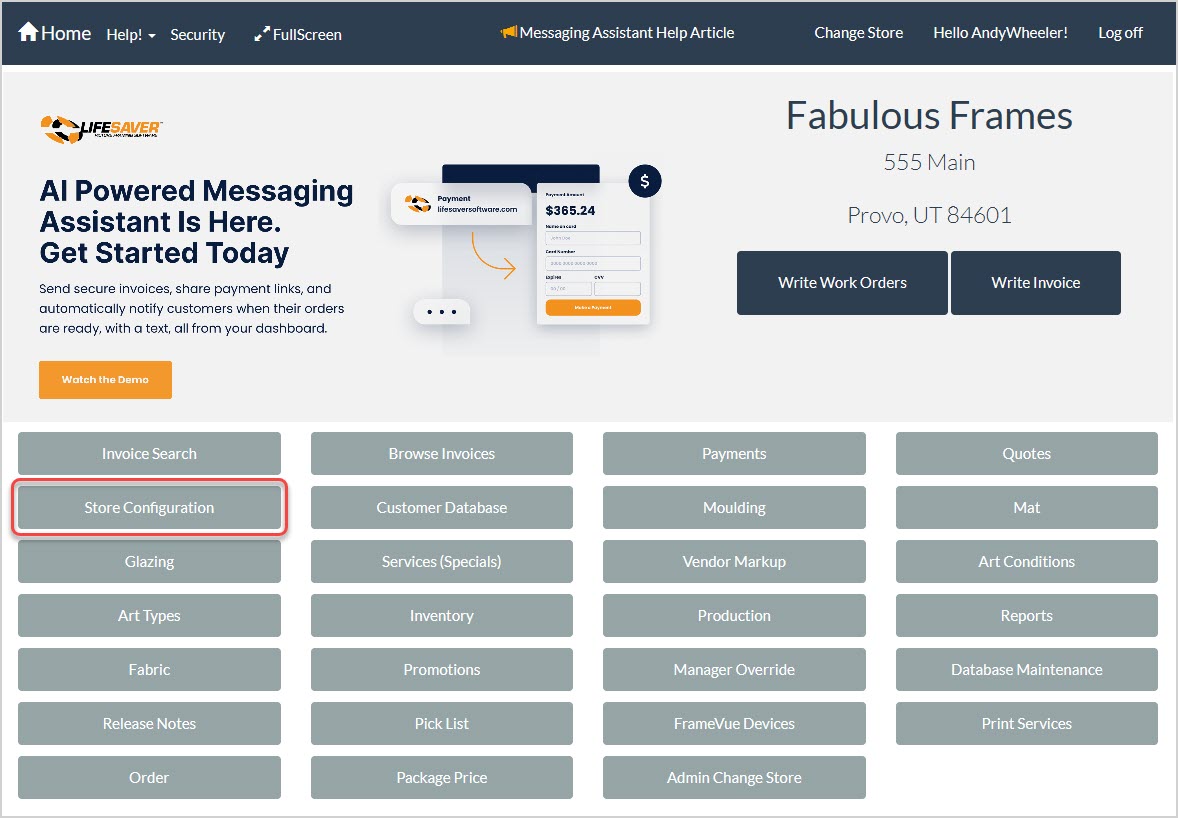
To get to this area, click the Store Configuration button on the Home page. On the Store Configuration page, click the Store Information tab.

Store Information Settings
Here are the options for your store information configuration:
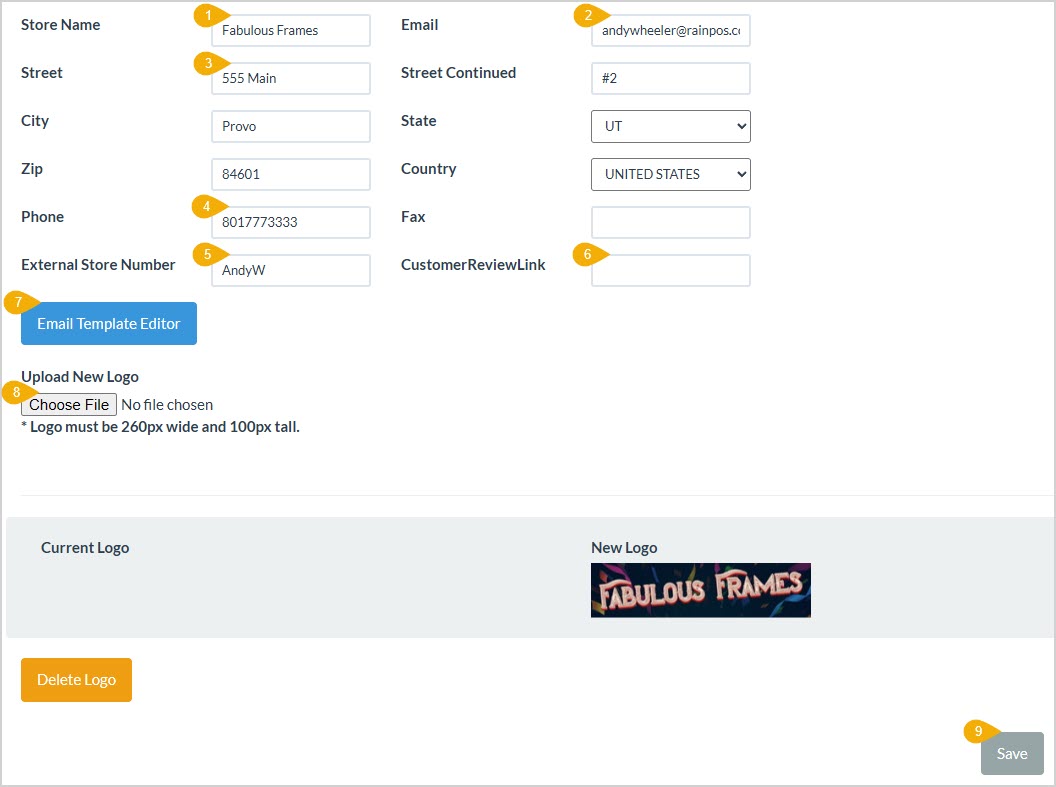
- Store Name – Enter your store name the way you want it to appear throughout the system.
- Email – Enter the email address you want your customers to use when communicating with you.
- Address – Enter your Street, Street (Continued / Address Line 2), City, State, ZIP Code, and Country.
- Phone / Fax – Enter your Phone and Fax numbers with area codes.
- External Store Number – If you have a public-facing store number you want to have on invoices for customers, enter it here.
- Customer Review Link – Enter the full URL (website address) for your Google review page for customers to enter a Google review of your store. If you have not yet set up your Google review page, click here and go to page 7 for instructions on how to do so.
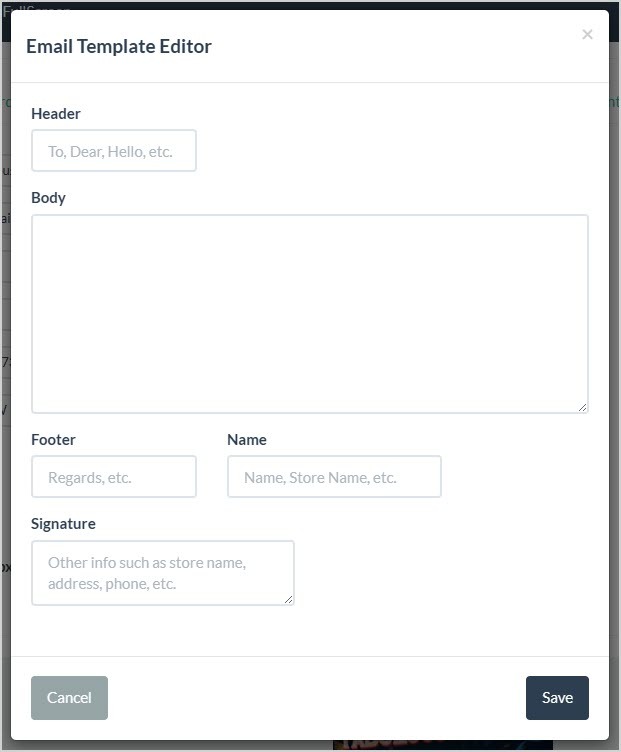
- Email Template Editor – For email messages you send to customers through LifeSaver, you can set up a template that will apply standard content. Click this button to open the Email Template Editor. You can configure the Header (greeting), Body (the main content of your email), Footer (complimentary close, such as Sincerely or Regards), Name (your name and/or the store name), and Signature (final info you want at the bottom of the message, e.g. store name and contact info, etc.). Click the Save button when you are finished.
- Company Logo – You can upload an image file of your store logo here. The image needs to be JPG or PNG and should measure exactly 260 pixels wide and 100 pixels high. Click the Choose File button to search your computer for the logo file. Once you have selected the image you’ll be shown a preview of the image and you can click the Save button to add the logo to your Store Information settings page. You can click the Delete Logo button if you need to upload a new one.

- Save – Once you have configured your store information, be sure to click the Save button.
Related Topics
Store Configuration - Taxes
Store Configuration - Workshop
Store Configuration - Settings
Store Configuration Tour
Frequently Asked Questions
Q: I have a question, but I can't find my answer here, how do I get more assistance?
A: You can ask any question at the link below, once received one of our technicians will be in touch! If you need immediate assistance, the LifeSaver Software team is available Monday through Friday, from 9:00am to 6:00pm Eastern time. Feel free to contact our support team at: 1-800-381-0600, extension 2. Or you can email us at support@lifesaversoft.com and we will respond within 24-hours.
Payment Portal The Payment Portal is a dashboard included as part of our payments offering. It allow
The Customer Database button on the LifeSaver Software Home page is your lifeline to all the informa
This article will help you store, organize, and sell your inventory while tracking quantities and ot


Is this page helpful?
×Help us improve our articles