The Production Log is a helpful way to see which work orders are coming up, which are overdue, and which are ready for customer pickup. This article will show you how to view and use the Production Log in the LifeSaver Software software so you can easily keep your workshop on schedule. Take a look and see how this feature will help you track and manage each step in your production process.
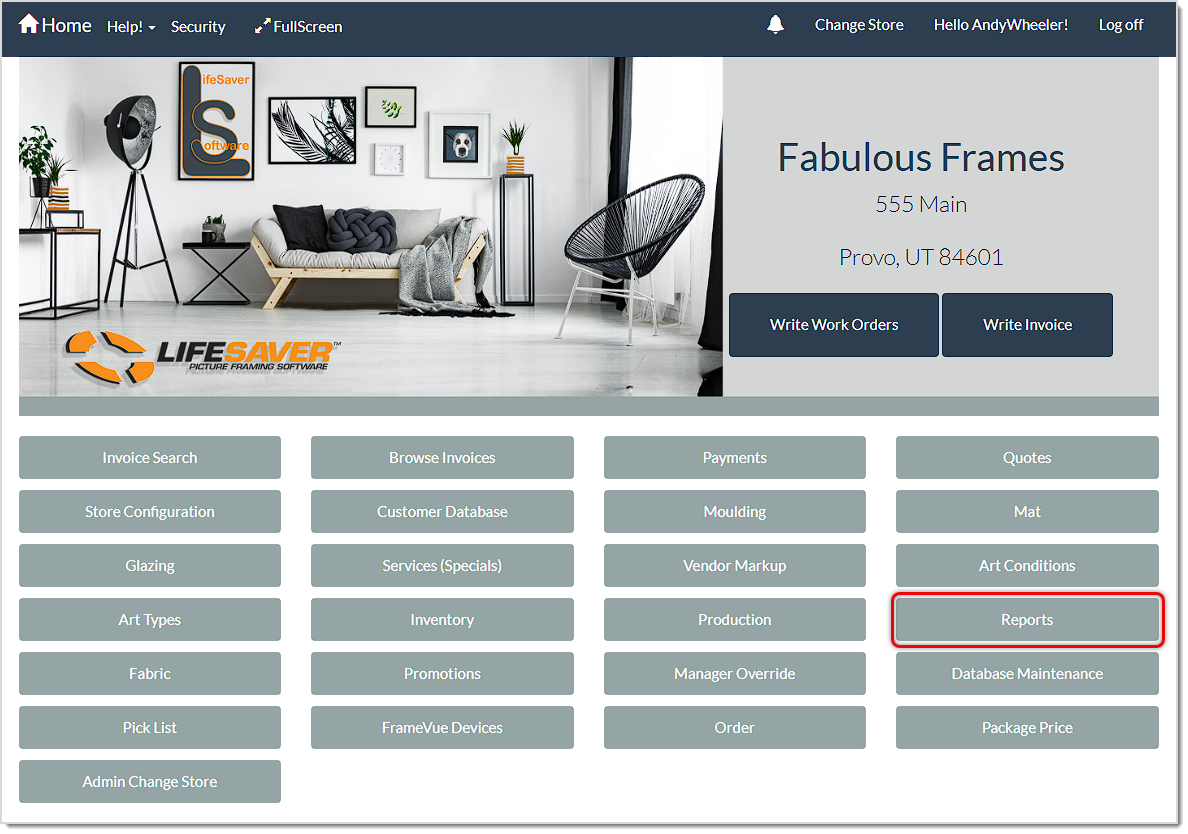
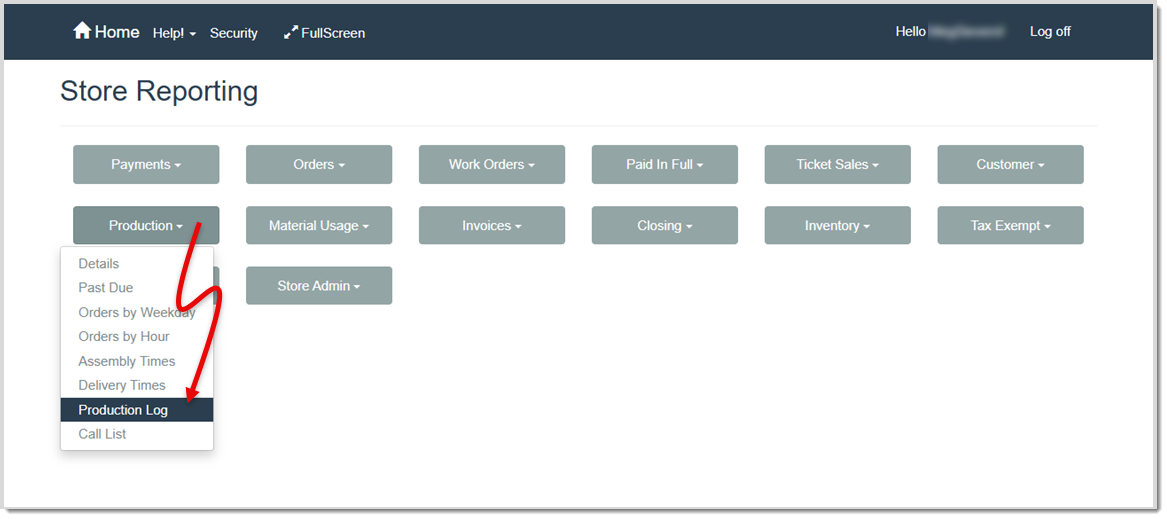
To access this feature, click the Reports button on your Home page. On the Store Reporting page, open the Production drop-list and click Production Log.
Understanding the Production Log
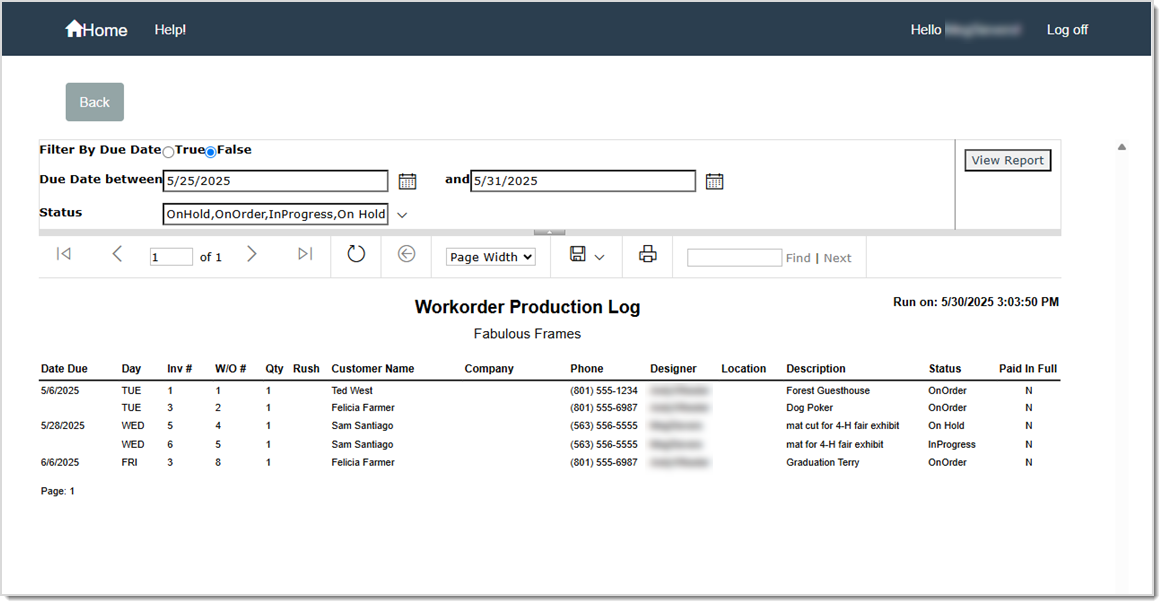
The Production Log is like a workshop schedule. It shows you a list of work orders by due date or day, along with helpful details such as the work order number, quantity, customer name and phone number, location, and description. Only actively assembled work orders show on the Production Log; once you move a work order to the Assembled or Delivered status, it drops off.
Pro Tip: Remember to update each work order’s production status in the Production Status page. This ensures the Production Log is always accurate.
Report Filtering Options

- Back – Click this button to go back to the Store Reporting page.
- Filter By Due Date – Select True or False to indicate if you want to filter the results based on the date the work order is due:
- True – This filter narrows the list to work orders whose due dates fall within a date range you pick.
- False – This is the default filter. It shows all work orders that still need to be assembled or are currently in the assembly process.
- Due Date Between – If you selected True, enter the dates between which you want to view work orders. Click the Calendar icon to choose a date from a calendar. The dates you select will be included in the results.
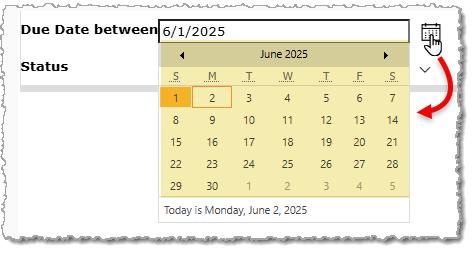
- Status – Click the down arrow to select the production statuses you want to include in your report from a drop-list of all active statuses.
- View Report – Click to view the results of your filtering criteria selections.
- Hide Parameters – Click this arrow (when you hover over it, it turns blue) to hide your report filtering options from view. You can click it again to redisplay them.
Report Usage Options

- Navigation – Use the arrow buttons to jump to the first page, previous page, next page, or last page of the report (in the order shown in the image above). If you know the page number you want to view, enter that in the field in the center of the navigation buttons.
- Refresh – Click this button to refresh the report view.
- Back to Parent Report – Click this button to go back to a parent report. Please note, this report doesn’t have a parent report, so this button is non-functional.
- Zoom – Click this drop-list to change the magnification of the report (enlarge it or make it smaller).
- Save – Click this button to save the report as an Excel file, PDF file, or CSV (comma delimited) file.
- Print – Click this button to print a copy of the report to a networked printer.
- Search – Enter a search term in the box and click Find to highlight the first time that term is found in your results. Click Next to find additional matching terms.
Report Details
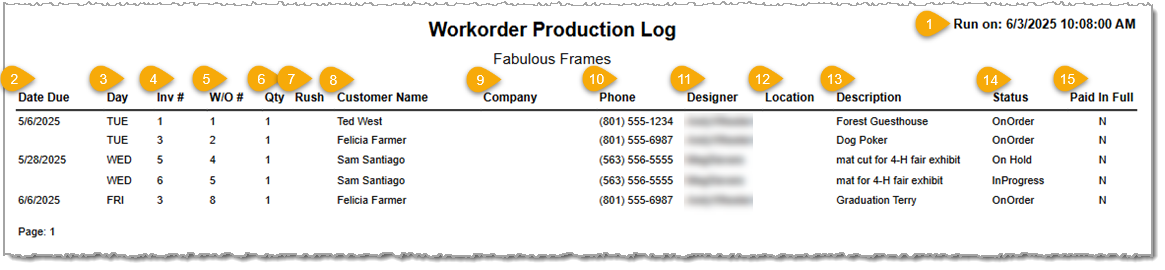
- Run On Timestamp – This field displays the date and time you generated this copy of the Production Log.
- Date Due – This column displays the date you agreed to finish a work order.
- Day – This column displays the day of the week the work order is due (in the example above, 5/6/2025 is a Tuesday).
- Inv # – This column displays the number of the invoice this work order is part of.
- W/O # – This column displays the work order number.
- Qty – This column displays the quantity to be completed for the work order.
- Rush – This column indicates if the work order was marked as rush completion when it was created.
- Customer Name – This column displays the name of the customer for whom you are completing the work order.
- Company – This column displays the name of the company for which you are completing the work order.
- Phone – This column displays the phone number to use for calls regarding the work order.
- Designer – This column displays the name of the employee who entered the work order.
- Location – This column displays the location where the customer art is stored before assembly.
- Description – This column displays the description that was entered for the work order when it was created.
- Status – This column displays the current status of the work order as it displays on the Production Status page.
- Paid In Full – This column indicates if the work order has been paid in full by the customer and is therefore eligible for delivery.
Related Topics
Working With Production Statuses
Frequently Asked Questions
Q: Can I print or export the Production Log for offline reference?
A: Yes. The Production Log includes a Print button, as well as an option to export the results. This allows you to print or save a file copy of your schedule.
Q: Why do I still see completed work orders on the Production Log report?
A: You need to mark the work order as Assembled or Delivered in the Production Status menu. Once a work order is marked Delivered, it no longer appears on the Production Log.
Q: Can I hide work orders that are already delivered?
A: You don’t need to. Once you set a work order’s status to Delivered, it no longer appears in the Production Log. You can also use the default filter to hide completed jobs.
Q: Can I change the due date range on the Production Log?
A: Absolutely. Switch the filter to True, then adjust your start and end dates before clicking View Report.
Q: I have a question, but I can't find my answer here, how do I get more assistance?
A: You can ask any question at the link below, once received one of our technicians will be in touch! If you need immediate assistance, the LifeSaver Software team is available Monday through Friday, from 9:00am to 6:00pm Eastern time. Feel free to contact our support team at: 1-800-381-0600, extension 2. Or you can email us at support@lifesaversoft.com and we will respond within 24-hours.


 October 10, 2025
Is this page helpful?
×Help us improve our articles