Your Production Statuses are a key feature in LifeSaver Software Software that help you organize, track, and control the work order process. This guide shows you how to configure and use production Statuses effectively. By following these simple steps, you ensure that every custom framing job moves smoothly from order to delivery.
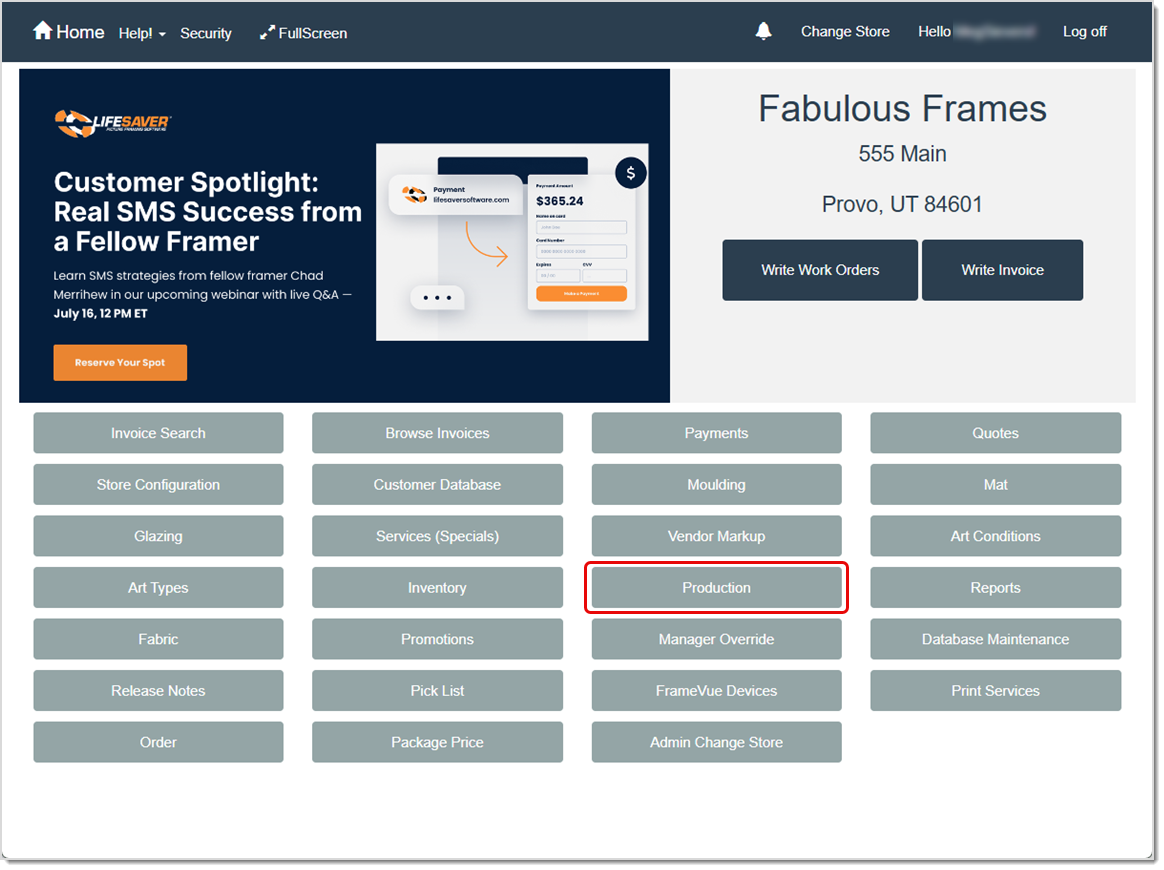
To access this feature, click the Production button on your Home page.
Relevant Store Configuration Settings
A variety of options in your Store Configuration can affect how you use Production. Click the Store Configuration button on your Home page to access these settings. On the Settings tab of your store configuration, you will want to review these options:
- Include Inventory Items On Production Screen
- Require All Work Orders On An Invoice To Be Delivered Together
The Production Status List Page
Create a new production Status, define the order in which Statuses display on your Production Status page, and manage any existing Statuses all from this page.
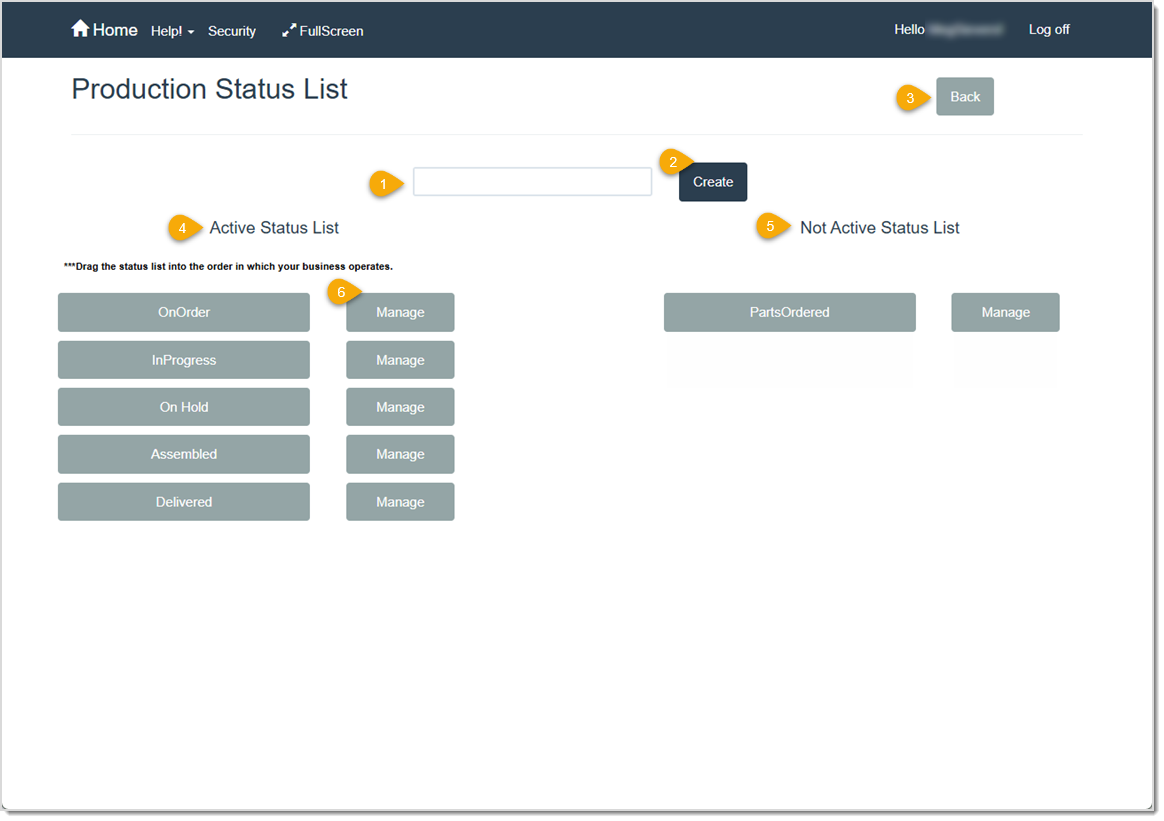
To access this page, click the Manage button for the Status on the Production Status page.
- Status Name – Enter a name for the new production Status in this field, such as In Progress or On Order.
- Create – Click this button to create a new production Status. Your newly created status will appear at the top of the Active Status List and you can drag and drop work orders into this Status column in the Production window.
- Back – Click this button to go back to the Production Status page.
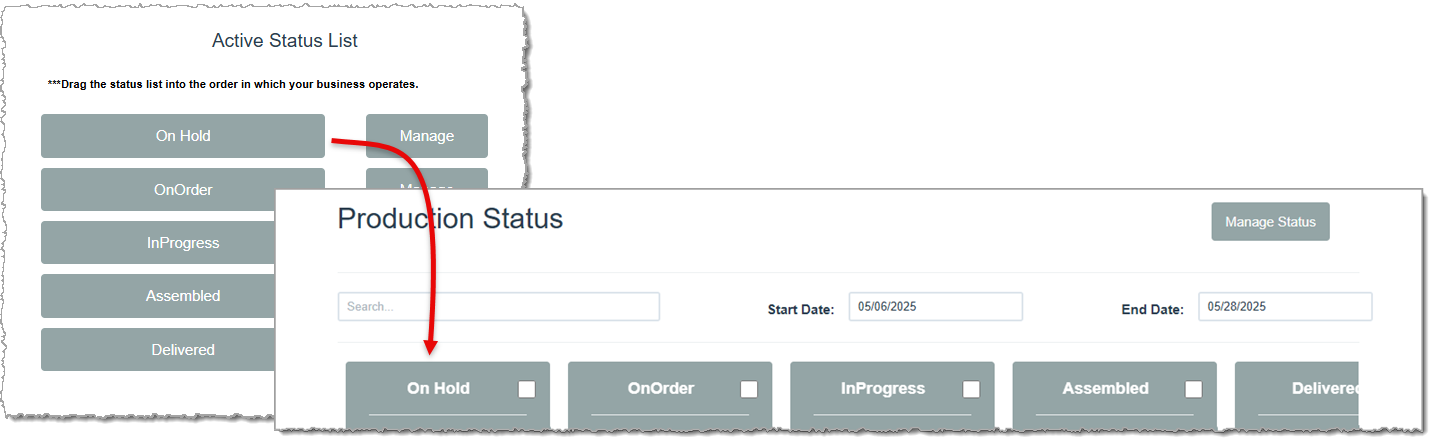
- Active Status List – View all currently active production Statuses in your LifeSaver Software software. LifeSaver Software displays these Statuses from left to right on the Production Status page, following the top-to-bottom order in this list. In other words, the Status at the top of the list is the first Status you’ll assign to a work order. In the example image below, the On Hold Status appears first in both the Active Status List and the Production Status progression.
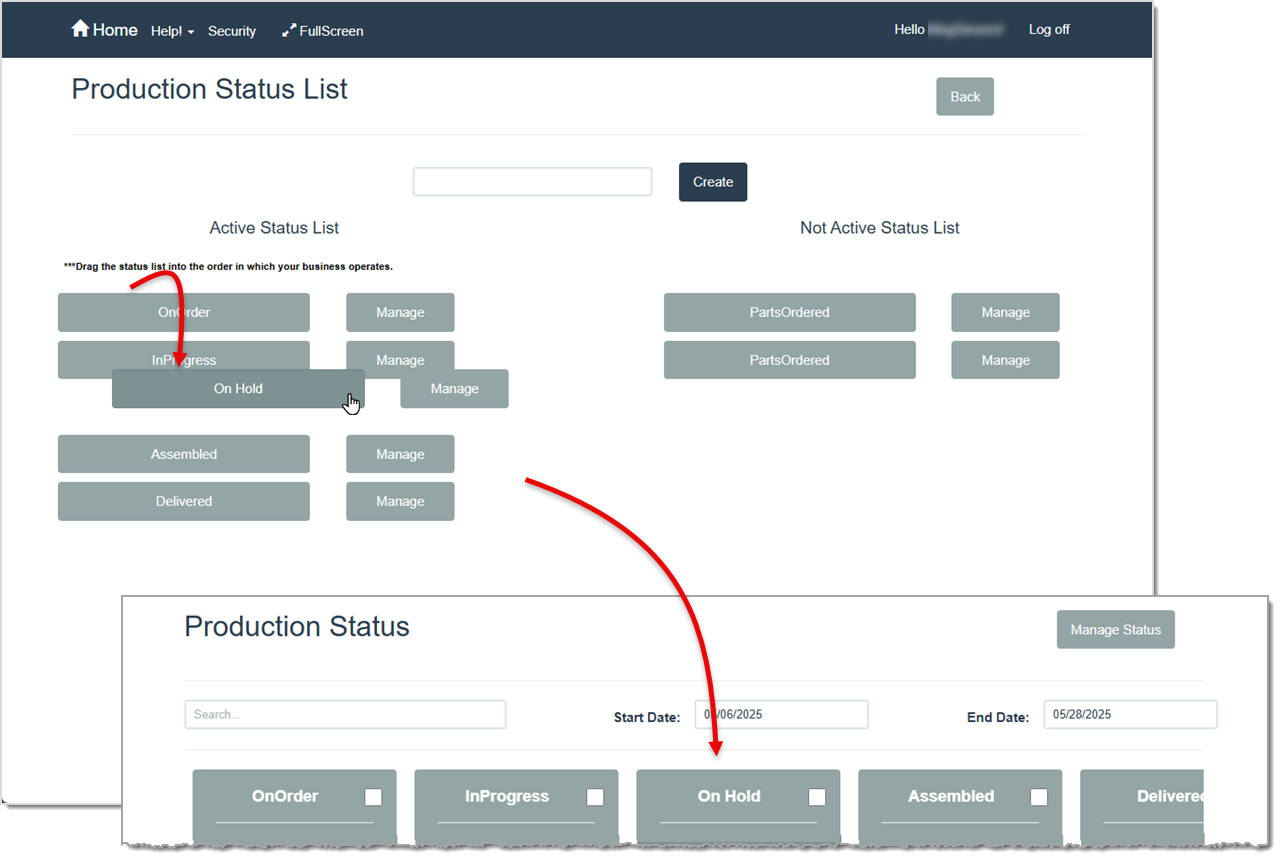
If this order does not suit your workflow, you can rearrange it. Click and drag a Status into a new position in the Active Status List. In the example image below, the “On Hold” Status is being moved from the first position into the third. When you release your mouse and drop it into place, LifeSaver Software immediately rearranges the order on the Production Status page
- Not Active Status List – View all currently inactive production Statuses. LifeSaver Software does not display these statuses on the Production Status page.
- Manage – Click this button next to any Status to open the Manage Status window. From there, you can deactivate or reactivate the status and assign additional rules or configurations.
The Manage Status Window
This window allows you to create and manage specific rules and configurations for a production Status. You can also deactivate (or reactivate) a production Status from this window. If a Status includes required rules, users must acknowledge those rules in the Production Rules window before they can move a work order to the next Status.
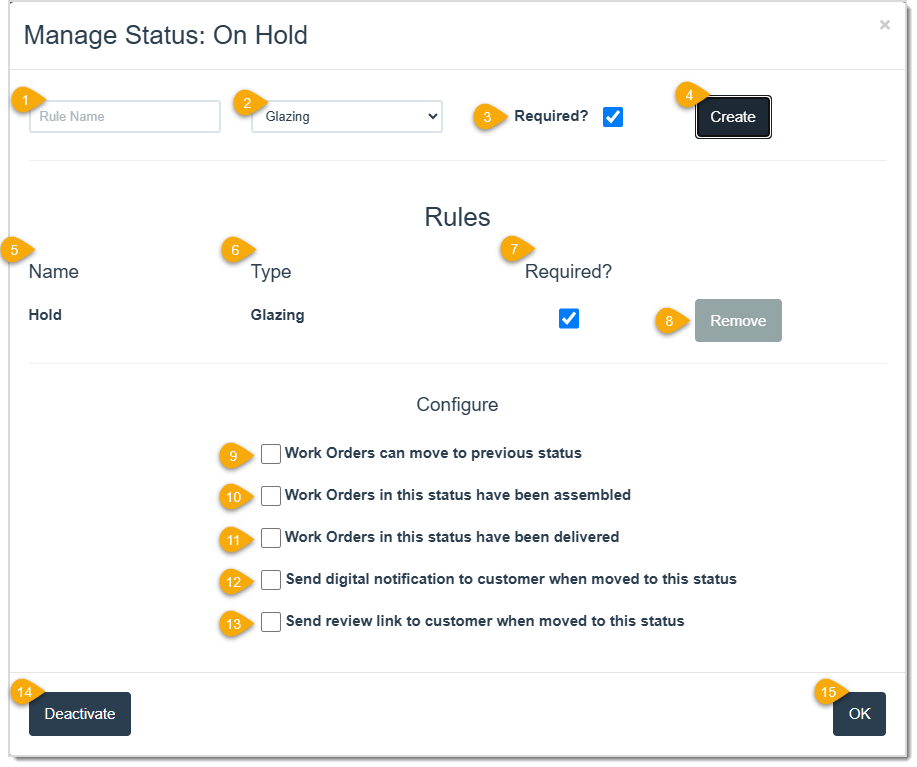
To access this window, click the Manage button next to a Status in either the Active Status List or the Not Active Status List on the Production Status List page.
- Rule Name – Enter a rule that users must acknowledge before moving a work order to the next Status. For example, you might require users to double-check measurements before moving a work order from “To Do” to “In Progress.” LifeSaver Software prevents the Status change until the user satisfies the rule.
- Type – Use the drop-list to select the component or labor type that applies to the rule.
- Required – Click this check box to make the rule mandatory before users can move a work order to the next Status.
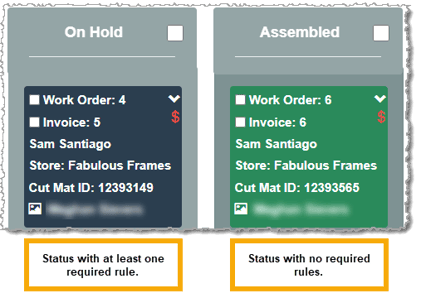
When a Status includes a required rule, LifeSaver Software displays it in dark blue in the Production Status page (as in the example image below). This visual clue indicates that at least one action is required before the work order can move forward. To confirm the rule is complete, click the down arrow (shown above the red dollar sign in the image below) to open the Production Rules window and mark the rule as Done.
- Create – Click this button to save the rule and add it to the production Status.
- Name – View the name of each rule associated with the Status.
- Type – View the material component or labor type linked to the rule.
- Required – Click this check box to enforce the rule before the work order can move to the next Status. Clear the check box if you no longer want to require it.
- Remove – Click this button to delete the rule.
- Work Orders Can Move to Previous Status – Click this check box to allow users to drag work orders back to a previous Status.
- Work Orders in This Status Have Been Assembled – Click this check box to indicate that work orders in this Status have completed assembly.
- Work Orders in This Status Have Been Delivered – Click this check box to indicate that work orders in this Status have been delivered.
- Send Digital Notification to Customer When Moved to This Status – Click this check box to automatically notify the customer when a work order moves to this Status.
- Send Review Link to Customer When Moved to This Status – Click this check box to automatically send the customer a link to your shop’s Google Reviews page when the work order reaches this Status.
- Deactivate / Activate – Click this button to deactivate or reactivate the production Status. LifeSaver Software does not delete the Status; it simply hides it from the Production Status window.
Important Note: Only Statuses with no current work orders can be deactivated. If you need to deactivate a Status with work orders, you must move the work orders to a new Status before continuing. A Warning window will pop up if the Status is active in any Invoices.
- OK – Click this button to save your changes and return to the Production Status List page.
The Production Status Page
The Production Status page shows the current Status of all active work orders in your system. You can use this page to move work orders through different stages in your production process and track the work that needs to be completed. By default only the last two weeks of work orders display, but you can adjust this as needed.
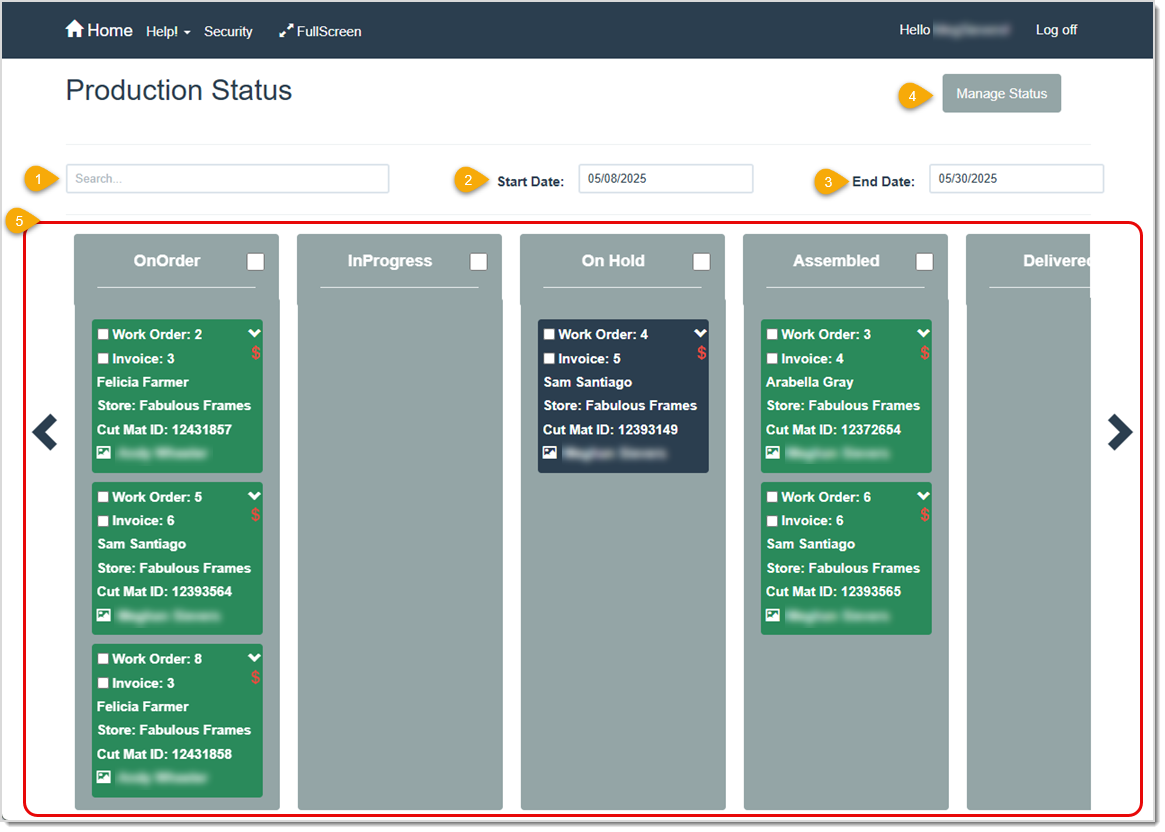
To access this area of the software, click the Production button on your Home page.
- Search – Enter a work order number, invoice number, first, last or partial name into this field. As you type, LifeSaver Software filters out any work orders that do not match your search criteria. You may need to scroll up, down, or across to locate the work order. Ensure the work order you are searching for falls within the Start Date and End Date range.
- Start Date – Click in this field to display a calendar and select the earliest date for viewing work orders and inventory orders. Use the right and left arrows to navigate between months, use the drop-list arrows to select a different month or year, or click a numeric date directly on the calendar.
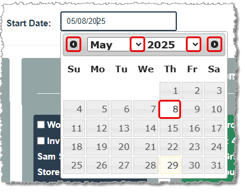
- End Date – Click in this field to display a calendar and select the latest date for viewing work orders and inventory orders. Use the same navigation options described under Start Date, above.
- Manage Status – Click this button to open the Production Status List page. From there, you can add new Statuses, deactivate or reactivate existing ones, and manage their details.
- Status Columns – View your work orders and their current positions in the production process. Click to drag a work order to move it forward (or backward) through the Statuses. LifeSaver Software displays statuses with required rules in blue indicating that users must acknowledge those rules before moving the work order to another status.
Defining the Blocks in a Status Column
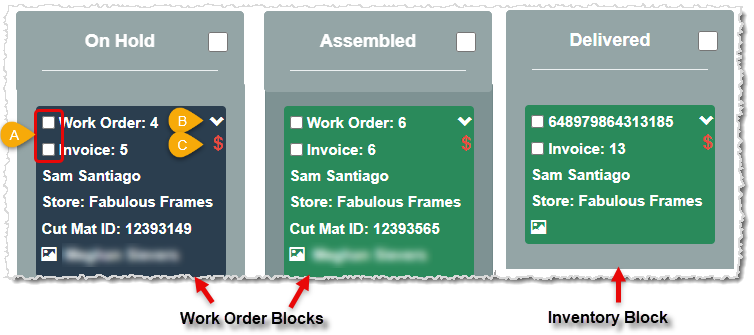
Each “block” on the Production Status page represents a separate work order or inventory item.
Work order blocks show you the work order number, invoice number, customer name, store name, cut mat ID number, and the name of the employee who entered the work order.
Inventory item blocks show you the inventory item code, invoice number, customer name, and store name. You can hide inventory items from the Production Status page by clearing the Include Inventory Items On Production Screen check box in Home > Configuration > Settings.
Icons you will see include:
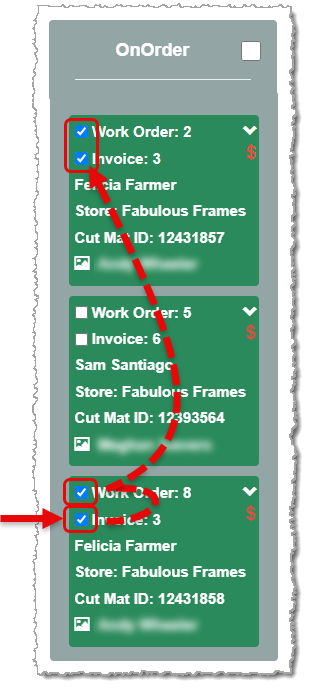
- Check boxes that allow you to select two or more work orders, inventory items, or invoices to move together to a new status. Select an Invoice box to select each work order associated with the invoice in a single click.
- A down arrow opens the Production Rules window where you can update a call status, bin number, add any notes, and mark any production rules as fulfilled (required).
- A dollar sign that indicates if the work order is paid in full (if paid, the dollar sign will be aqua colored) or if money is owed before it can be delivered (if unpaid, the dollar sign will be red, as in the image above).
Changing a Work Order’s Production Status
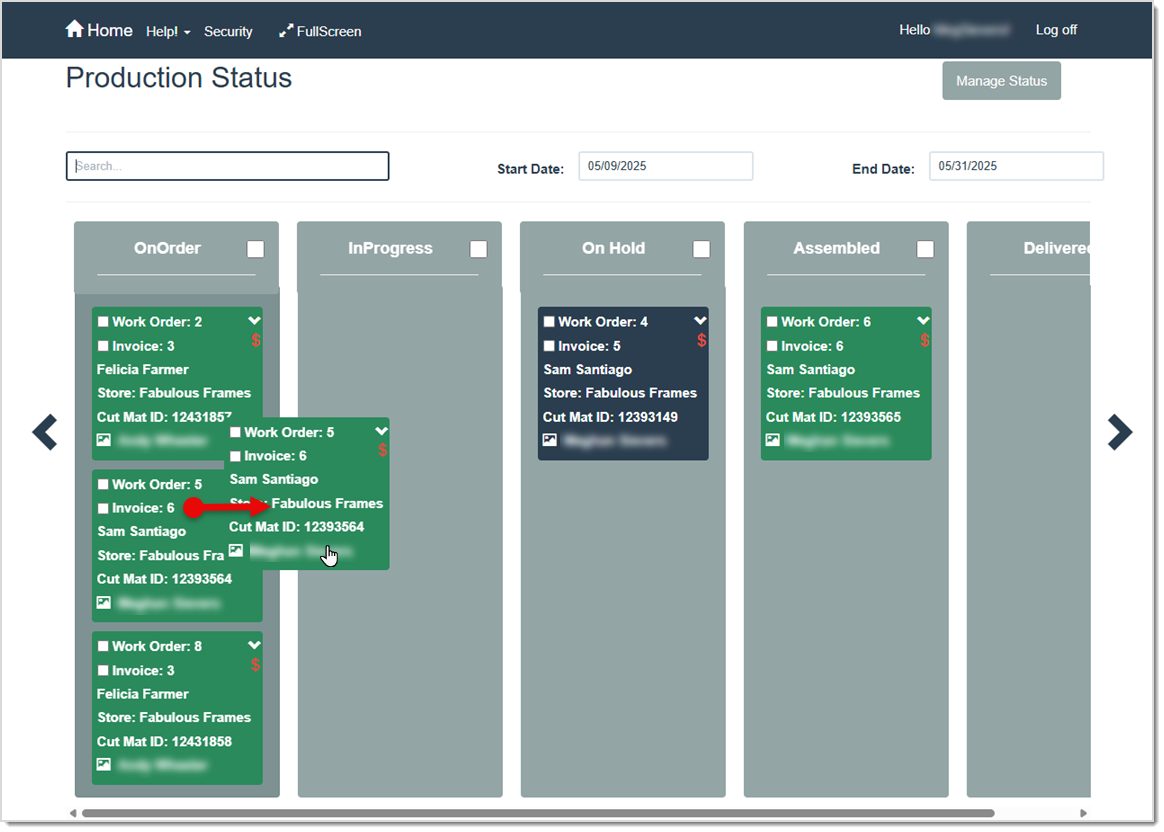
To move a work order to the next status, drag and drop its block into the appropriate column on the Production Status page.
Each work order on an invoice appears as its own block, allowing you to track and manage them individually. For example, if a new invoice includes three work orders, LifeSaver Software creates three separate blocks in the first column on the Production Status page. You can require all work orders on an invoice be assembled before any can be delivered by selecting the Require All Work Orders On An Invoice To Be Delivered Together option in Store Configuration > Settings.
You can move a work order forward (to the right) through any number of Statuses except into the Delivered status (or any Status with the Work Orders in this status have been delivered option turned on). To move a work order into Delivered, it must be paid in full (the dollar sign icon should be aqua).
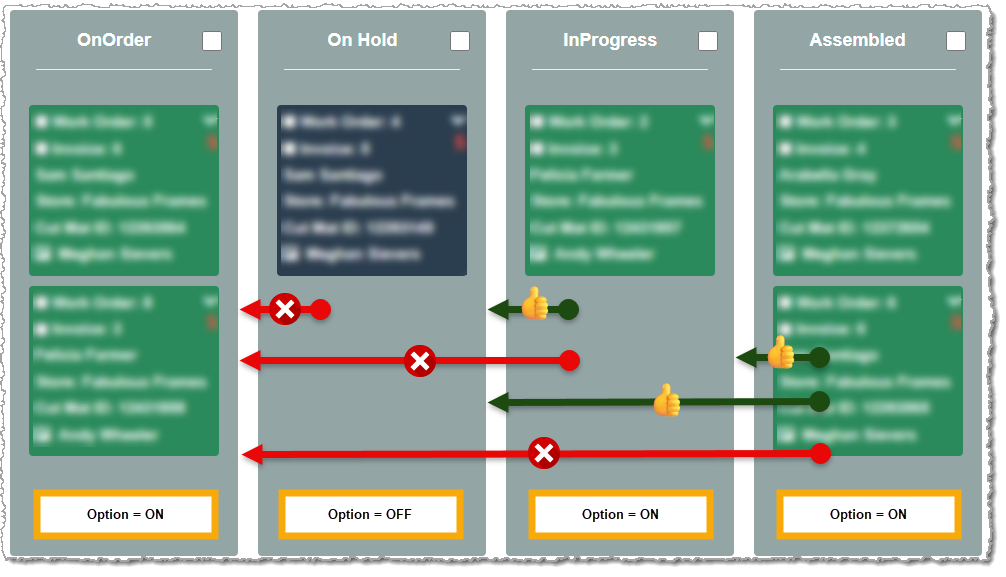
To move a work order backward (to the left), the Work Orders can move to previous status setting must be enabled for the current Status. If disabled, LifeSaver Software creates a “barrier” that prevents movement across or back into earlier Statuses. For example, if the second status in your workflow does not allow backward movement, you cannot move a work order from the third or fourth status back into the first. However, you can still move a work order from the fourth to the third if the third status allows it. See the image below for a visual representation of this.
Moving Multiple Work Orders at Once
You can move more than one work order to the next status in a single action using one of two methods:
Option 1: Use the Column Check Box
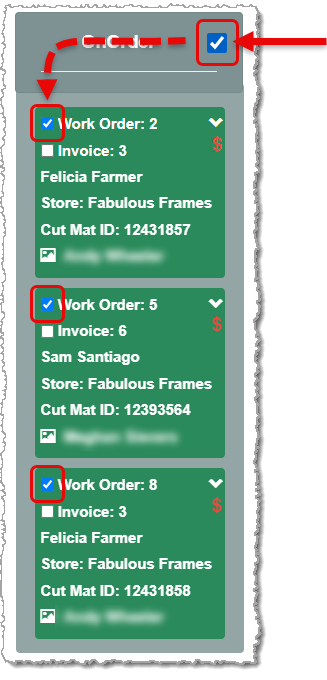
Select the check box at the top of a status column to highlight all work orders in that column. Then, drag and drop the entire group into the next status.
Option 2: Use Individual Check Boxes
Select the check boxes next to two or more work orders or invoices in the same column. Then, drag and drop the selected work orders into a new status column. When you select an invoice check box, LifeSaver Software automatically selects all work orders in that column that belong to the same invoice.
Other Areas Where You Can Set Production Status
Although the Production Status page primarily displays your work order Statuses, you can also update a work order’s Status in other areas of the software. These include the Order page and the Work Order Details window. Both features provide a Set Status field that allows you to change a work order’s Status directly.
The Production Rules Window
The Production Rules window allows you to enter details such as bin number and notes about a work order. You can also acknowledge any rules associated with the work order’s current production status, if required.

To open this window, click the down arrow on a green or blue work order on the Production Status window.
- Call Status – Use the Call Status field to track your communication with the customer. For example, if you need to confirm sizing before beginning work, call the customer and select “Reached Customer” here if you spoke with them or select “Called, Left Message” if you did not. LifeSaver Software uses this status to populate the Call List report. Keeping this field up-to-date ensures your call list remains accurate.
- Bin – Enter a bin number (where the project is stored) for this work order in this field.
- Required – A checkmark in this column indicates that the rule must be marked “Done” before you can move the work order to the next Status. This field may be blank if the rule is not required or if no rules are set up for this production Status.
- Name – View the name of each rule set up for this production status.
- Type – View the component or labor type to which each rule applies. This may be blank if the rule is not required or if no rules are set up for this production Status. If a rule is not applicable to a certain work order you can still mark it Done to proceed.
- Done – Check this box to acknowledge or complete the rule. To mark all rules as complete at once, click the check box next to the column heading. This may be blank if the rule is not required or if no rules are set up for this production status.
- Bin – Use this field to enter a bin number for each rule, if applicable.
- Work Order Notes – Use this field to enter any notes about the work order.
- Print Work Order – Click this button to open a print preview of the work order. Use the Save icon to export the work order as an Excel file, PDF file, or CSV (comma delimited) file, or click the Print icon to send it to a connected printer.
- Customer – View the name of the customer associated with the work order.
- OK – Click this button to save your work and close the Production Rules window.
Related Topics
Working with Work Orders
Working with Invoices
The Production Log
Working with the Call List
Frequently Asked Questions
Q: Why can’t I deactivate a status?
A: If work orders are still assigned to that status, you must move them to a different active status before deactivating.
Q: Can I add a new status to replace an old one?
A: Absolutely. Create the new status in Manage Status, move any existing work orders from the old status column to the new one, then deactivate the old status.
Q: Can I move a work order back to a previous status?
A: Yes. You can configure each status to allow work orders to move backward by checking the Workorder can move to previous status option on the Manage Status window. If that option is not selected, you cannot move the work order backward.
Q: What if multiple work orders share one invoice?
A: Each work order can progress independently through statuses. However, you can set an option in the Settings of your Store Configuration to require that multiple work orders on a single invoice be delivered at once.
Q: I have a question, but I can't find my answer here, how do I get more assistance?
A: You can ask any question at the link below, once received one of our technicians will be in touch! If you need immediate assistance, the LifeSaver Software team is available Monday through Friday, from 9:00am to 6:00pm Eastern time. Feel free to contact our support team at: 1-800-381-0600, extension 2. Or you can email us at support@lifesaversoft.com and we will respond within 24-hours.


 October 10, 2025
Is this page helpful?
×Help us improve our articles