Providing Quotes to your customers offers them a clear summary of framing details and costs without committing to an immediate payment. Learn how to edit, update, and convert Quotes to live invoices in the article below.
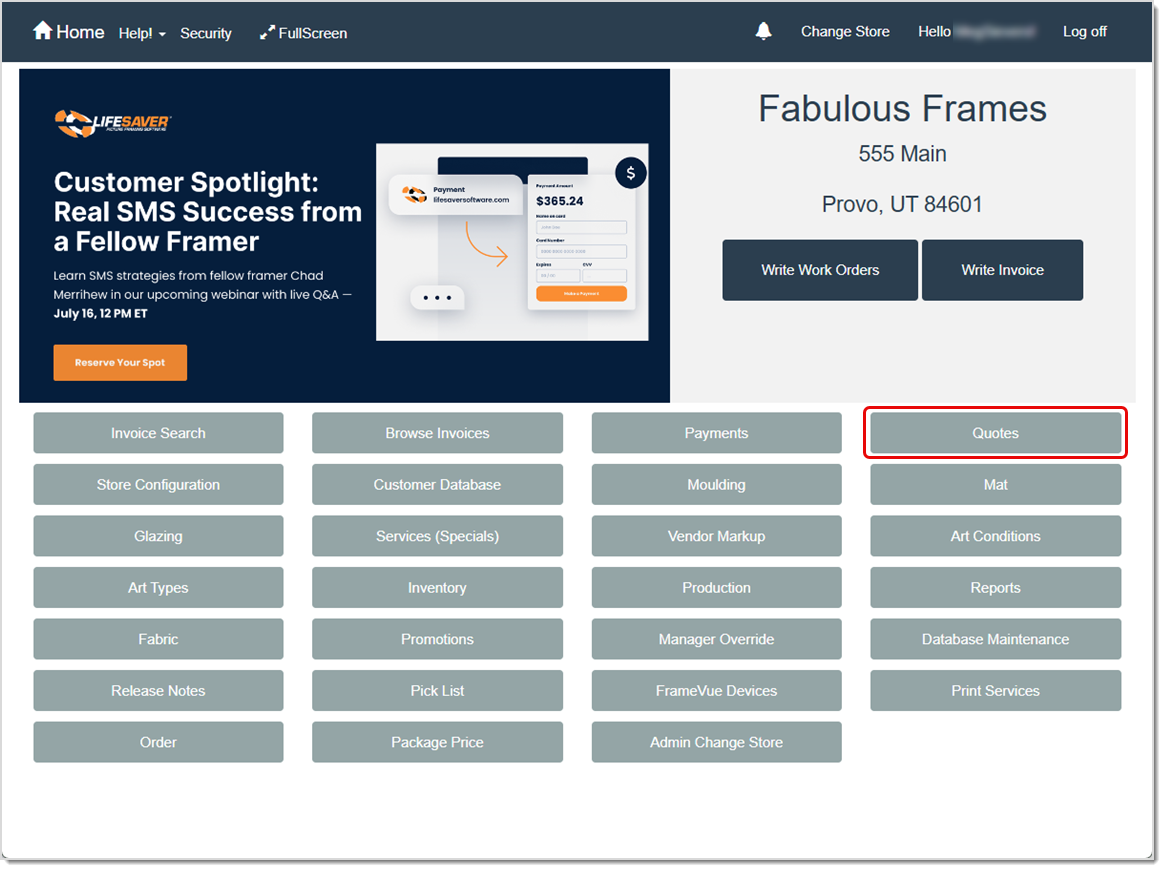
To access this area of the software, click the Quotes button on the Home page.
The Quotes Page
Use the Quotes page to:
- Recall and bring a Quote into an invoice.
- Edit a Quote.
- Delete a Quote.
- Print or email a Quote.
To get to this area of the software, click the Quotes button on your Home page.
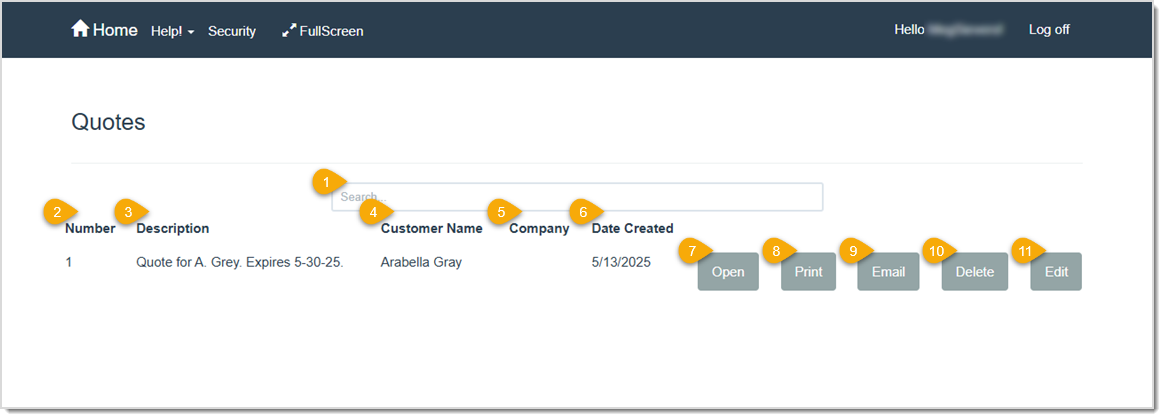
- Search – Enter text into this field to search for a quote. LifeSaver Software filters out non-matching quotes as you type.
- Number – This field shows the unique number LifeSaver Software assigned to the quote.
- Description – This field shows the description that was entered when the quote was created.
- Customer Name – This field shows the name of the customer associated with the quote.
- Company – This field shows the name of the company or business associated with the quote.
- Date Created – This field shows the date the quote was created.
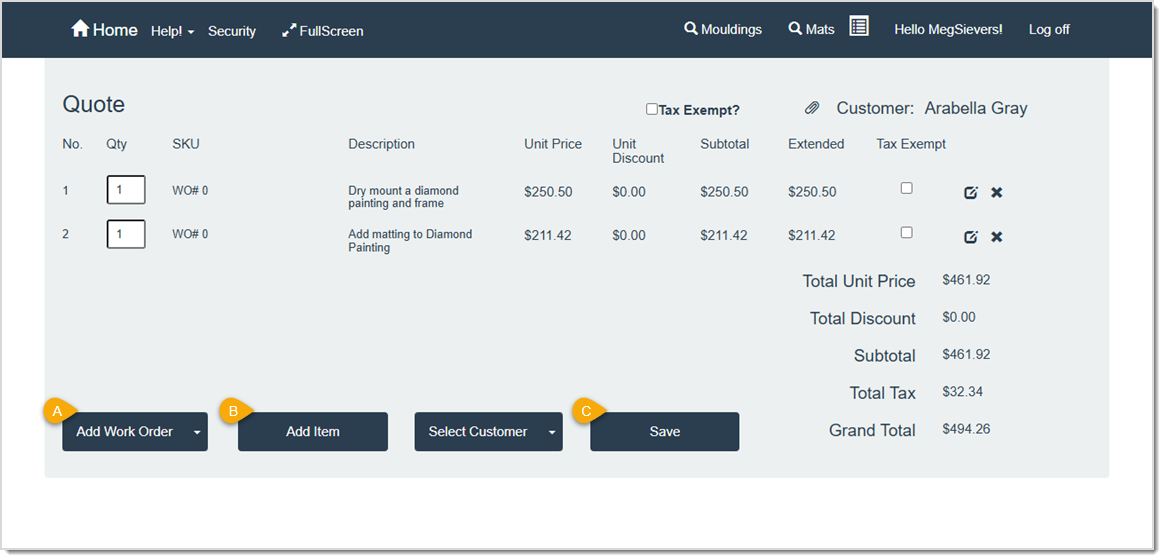
- Open – Click this button to open the quote on the Quote page (image below).
This Quote page functions in much the same way as the Invoice page; the only difference is that a quote is uncommitted. From here you can add additional work orders (A) and items (B) to the quote or you can convert the quote into a live invoice by clicking the Save button (C) followed by the Invoice button. If you click the Save button followed by the Quote button, your revisions will be saved to the original quote.
Please Note: The due date on the work order will automatically update when you click the Open button. If any vendor pricing updates since the quote was created, those will be reflected.
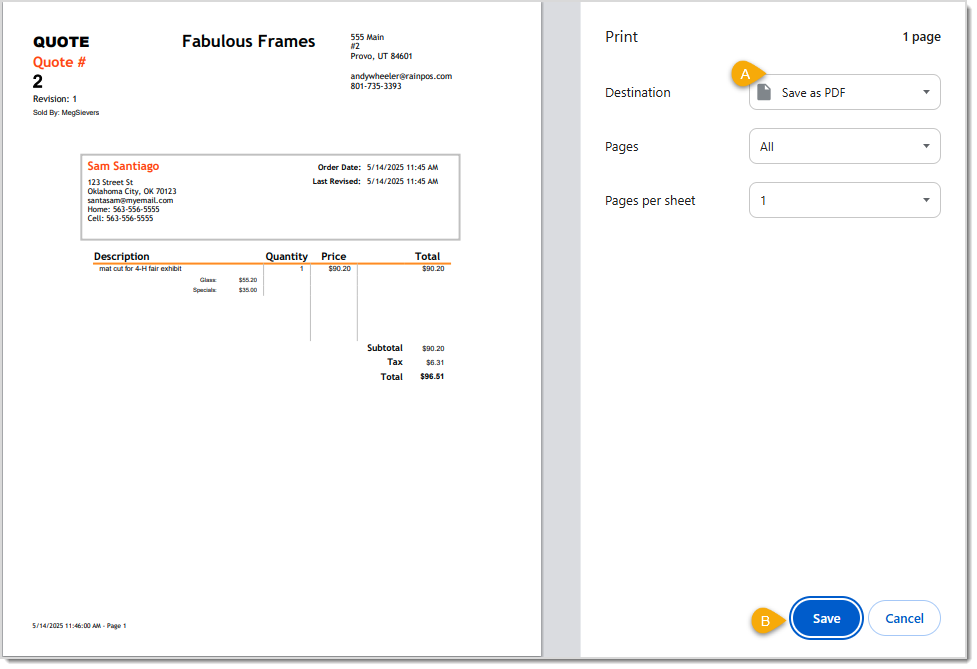
- Print – Click this button to print the quote or save it as a PDF (image below). Make your desired selection in the (A) Destination field before you click (B) Save (for a PDF selection) or Print.
Please Note: You can choose whether the printed quote shows only the total amount or includes both component prices and the total. To change this setting, go to Home > Store Configuration > Settings. By default, both component totals and the overall total are displayed.
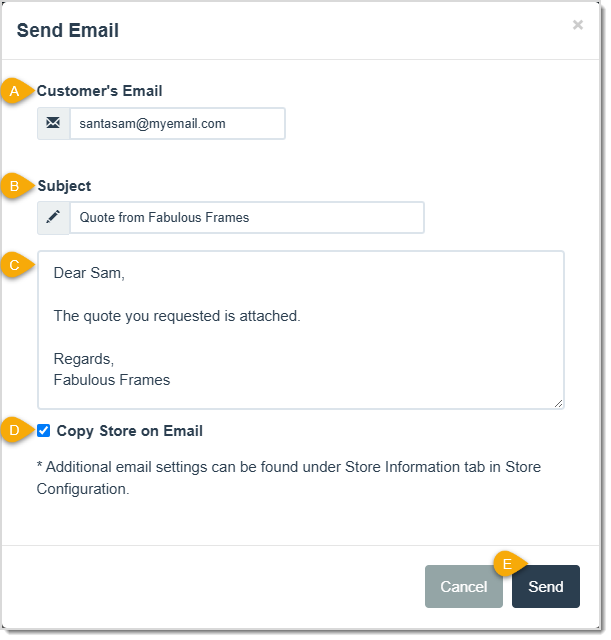
- Email – Click this button to open the Send Email window (image below) and email a copy of the quote to the customer.
On the Send Email window you can (A) enter the customer’s email address, if necessary. Review and edit the (B) Subject Line and (C) Message areas of the email as needed. (D) If you do not want a copy of this email sent to your store email address, uncheck the Copy Store on Email box. (E) Click the Send button when you are ready to send it to your customer.
Please Note: Your store’s email settings are configured in Store Configuration > Store Information.
- Delete – Click this button to permanently remove the quote from LifeSaver Software.
- Edit – Use this button when you want to convert a partial quote to an invoice.
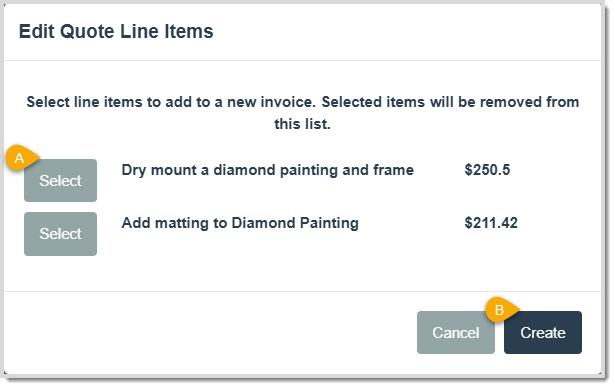
When you click the Edit button, LifeSaver Software opens an Edit Quote Line Items window (image below) where you can (A) select one of the work orders on the quote that you want to make live. The window will refresh and display the Select option for the remaining work orders. Select another, if desired, then (B) click the Create button to add the selected work orders to an active invoice. The remaining work orders will stay in the quote.
Convert a Quote to a Live Invoice (Resume a Quote)
Once a customer is ready to commit to some or all of a quote, you can add it as a live invoice in your LifeSaver Software software. To get started, access the Quotes page by clicking on the Quotes button on your Home page. Then, search for the quote you want to turn into a live invoice.
Convert an Entire Quote to a Live Invoice
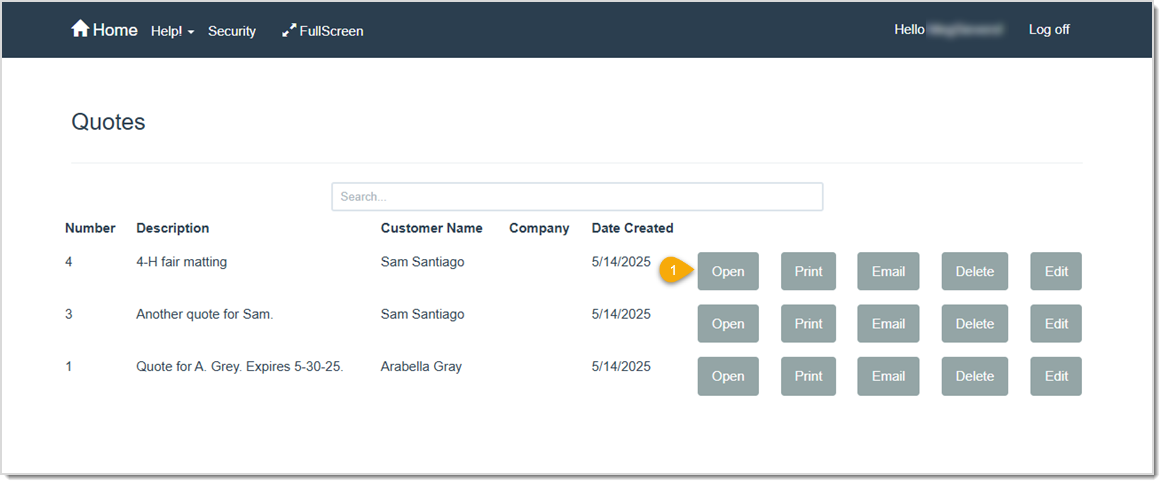
- Click the Open button on the Quotes page to open the Quote page.
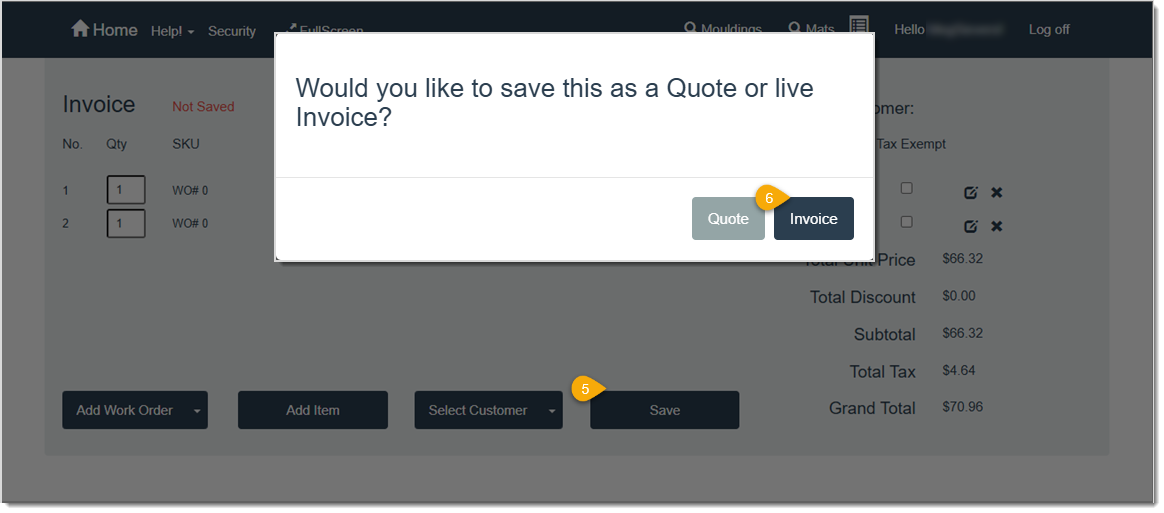
- Click the Save button to open a confirmation pop-up.
- Click the Invoice button.
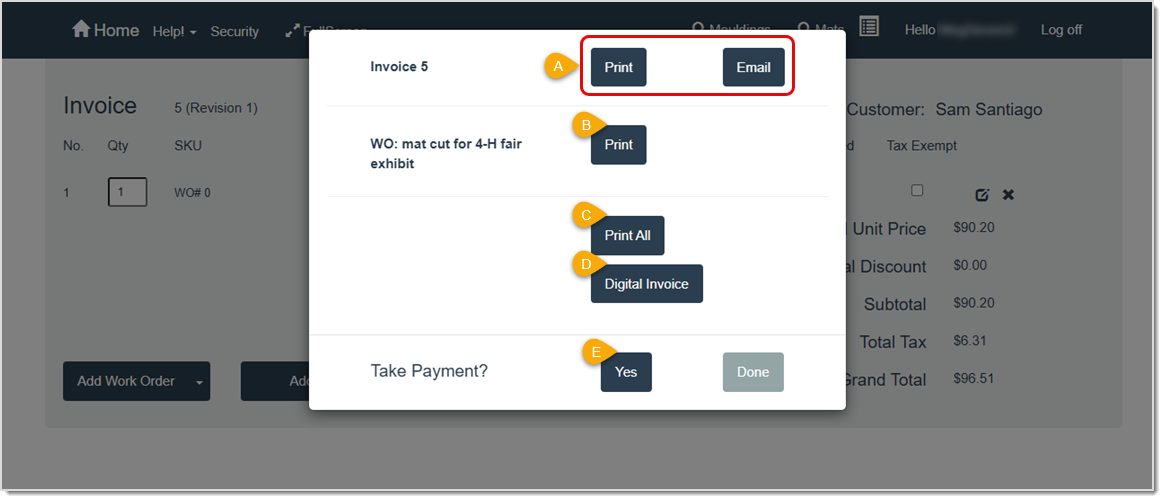
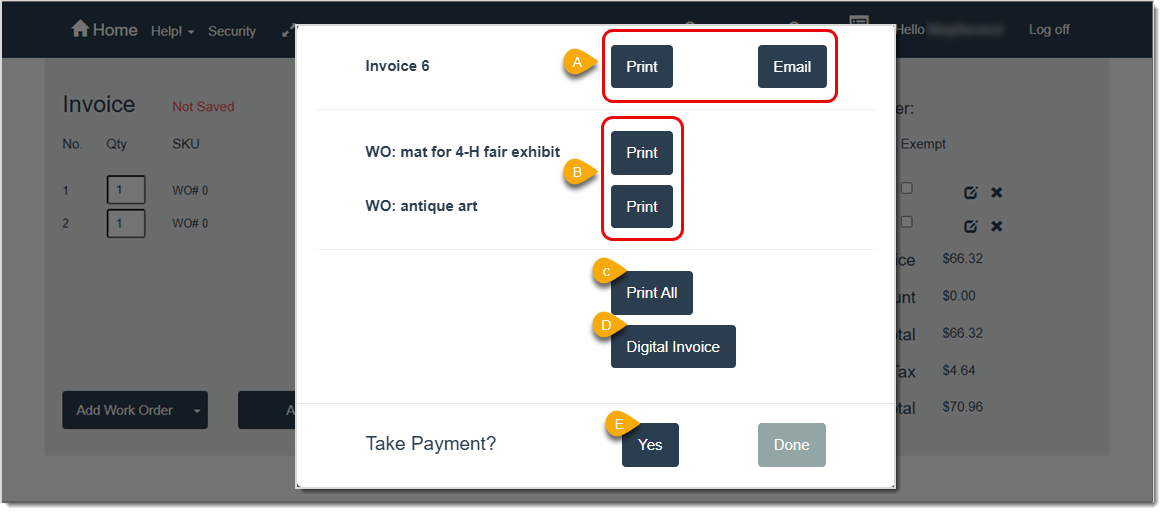
LifeSaver Software will load the Invoice page and display a pop-up window for invoice actions. From here, you can:
- Print or email a copy of the invoice for the customer.
- Print a copy of the work order for your use.
- Print both the invoice and work order.
- Create a digital invoice.
- Take payment and finalize the invoice on the Accept Payment window.
Convert a Portion of a Quote to a Live Invoice
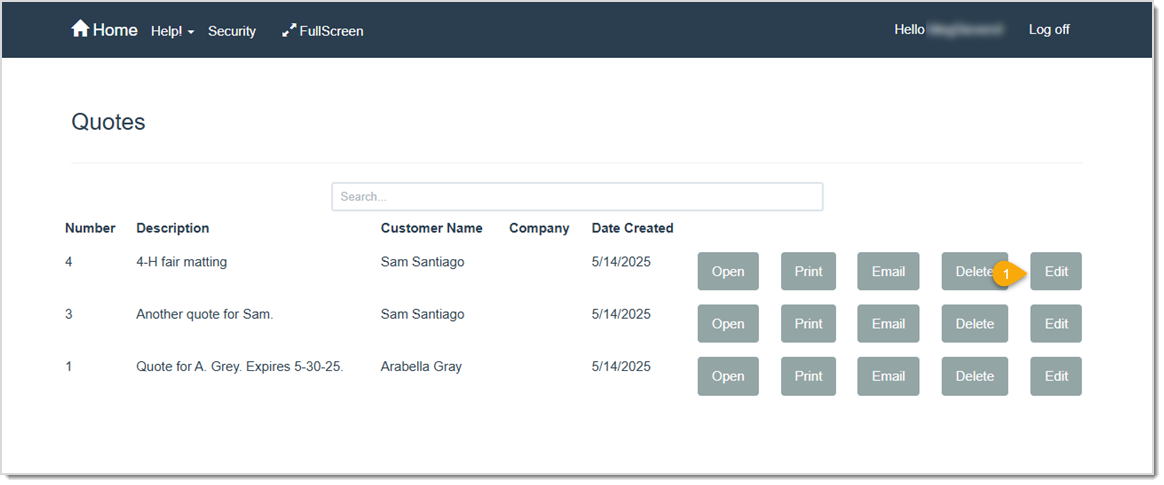
- Click the Edit button on the Quotes window and open the Edit Quote Line Items window.
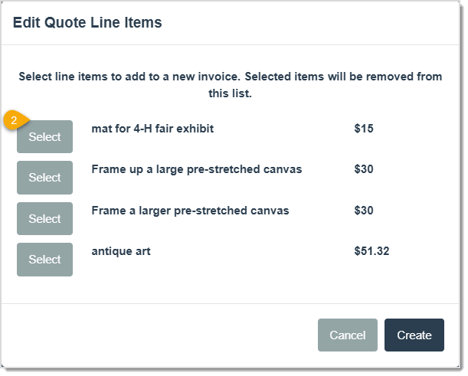
- Click the Select button for the work order you want to add to a live invoice. The window will refresh and display the remaining work orders on the quote.
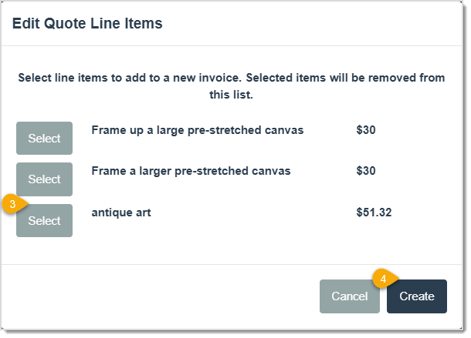
- Click the Select button to add another work order to the invoice, if desired.
- Click the Create button to open the Invoice window and begin working on the invoice in the Invoice page.
 From here, you can:
- Click the Edit Icon to make changes to the work order,
- Click the Add Work Order button to add another work order to the quote, and
- Click the Add Item button to add inventory items to the quote.
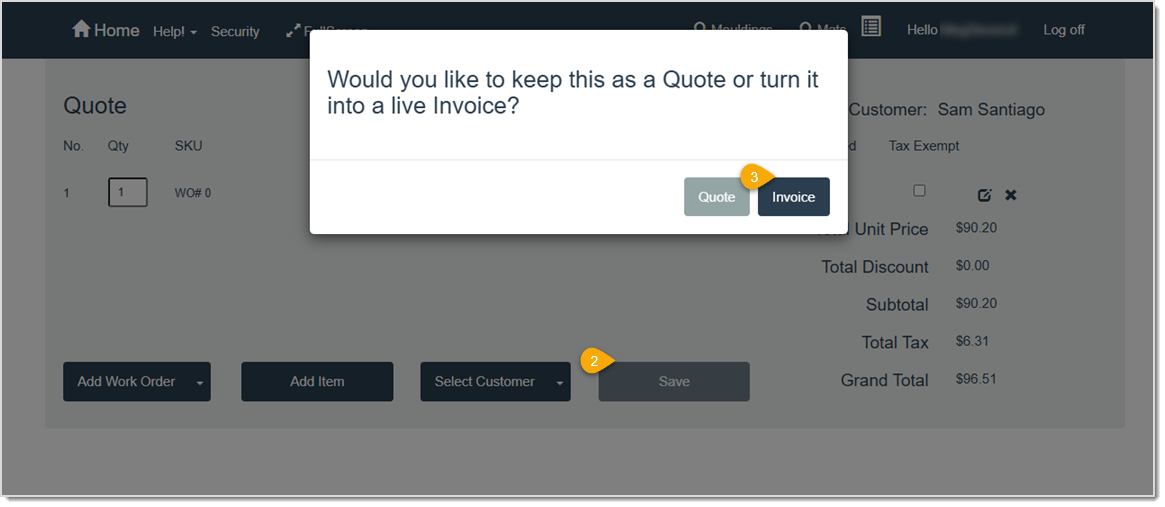
- Click the Save button to open a confirmation pop-up.
- Click the Invoice button.
LifeSaver Software will load the Invoice page and display a pop-up window for invoice actions. From here, you can:
- Print or email a copy of the invoice for the customer,
- Print a copy of the work order for your use,
- Print both the invoice and work order,
- Create a digital invoice, and
- Take payment and finalize the invoice on the Accept Payment window.
Please Note: The quote will still contain the original work order and or inventory items.
Create a New Quote From an Existing Quote
To create a new quote from an existing quote, you’ll need to access your held quotes by clicking the Quotes button on the Home page.
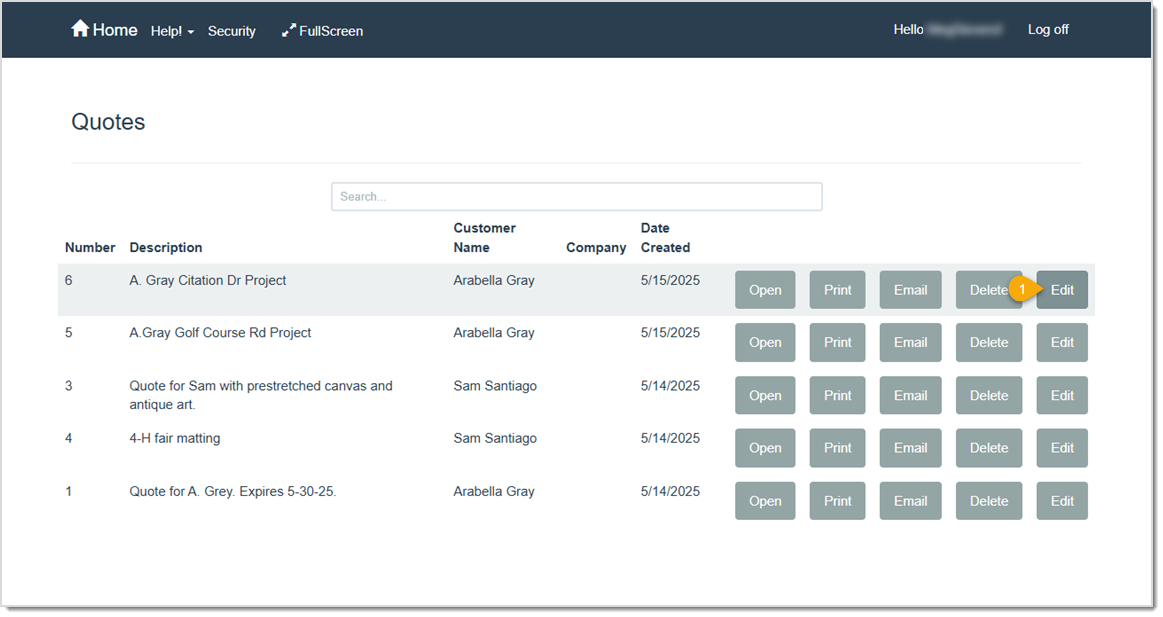
- Click the Edit button on the Quotes window for the quote you want to use. On the Edit Quote Line Items window opens.
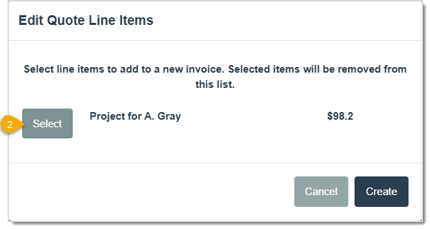
- On the Edit Quote Line Items window, click the Select button for the line item you would like to use as the basis for your new quote. The work order will be removed from the window.
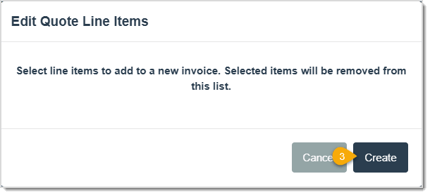
- Click the Create button to create the new work order. A new Invoice window will display with the work order/inventory items listed.
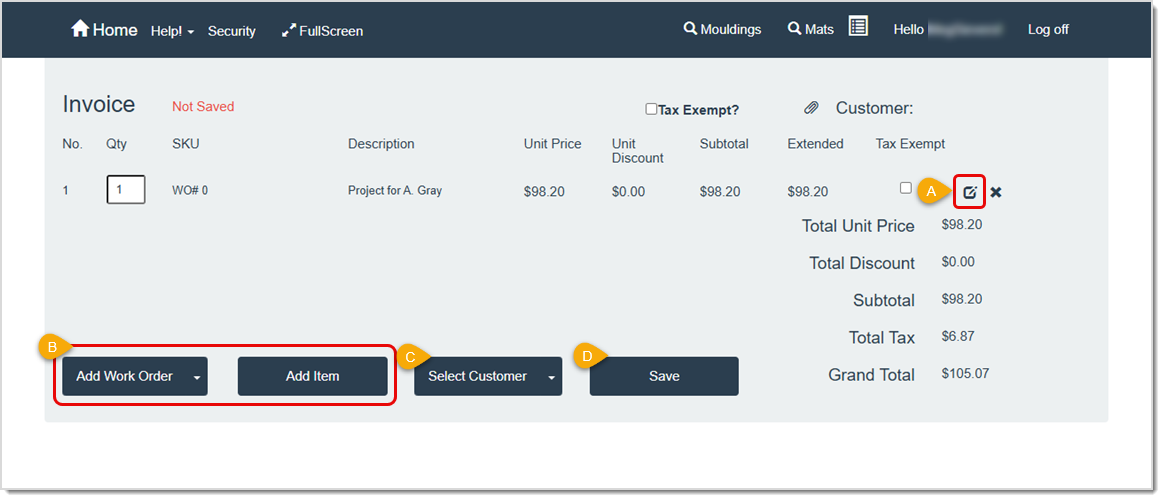
The following functions are now available:
- Click the Edit icon to open the Work Order details and make adjustments to this line item (in the image below, a discount was applied),
- Use the Add Work Order and Add Item buttons to add an additional work order / item (in the image below, inventory was added), and,
- Click the Select Customer button to assign a customer to this quote (this will pop up after you click the Save button if you don’t do it now).

- After you’ve made your adjustments, click the Save button and a pop-up window displays. Click the Quote button on this window (clicking the Invoice button will create a live invoice).
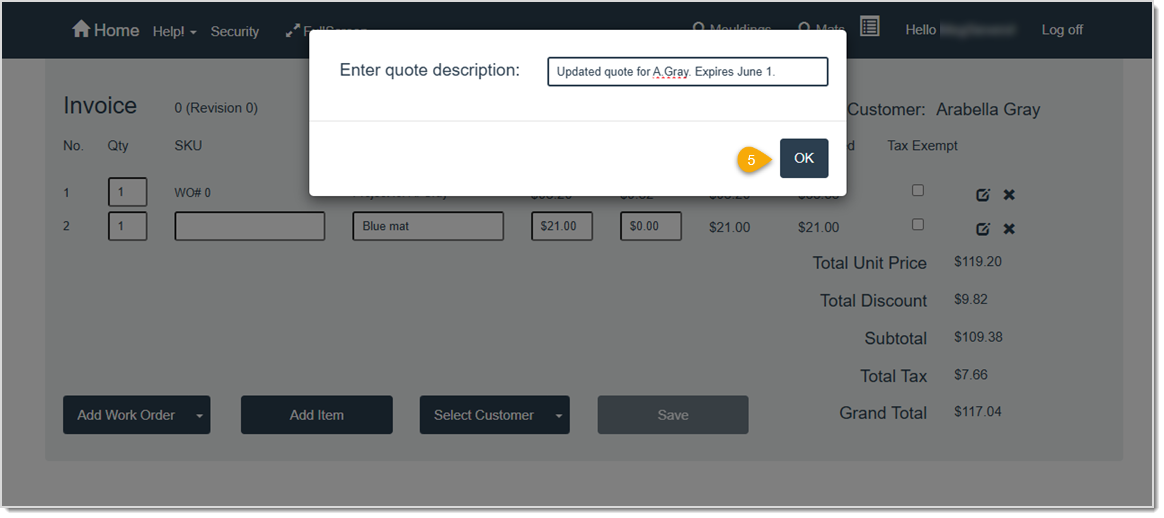
- Enter a description for the quote and click the OK button.
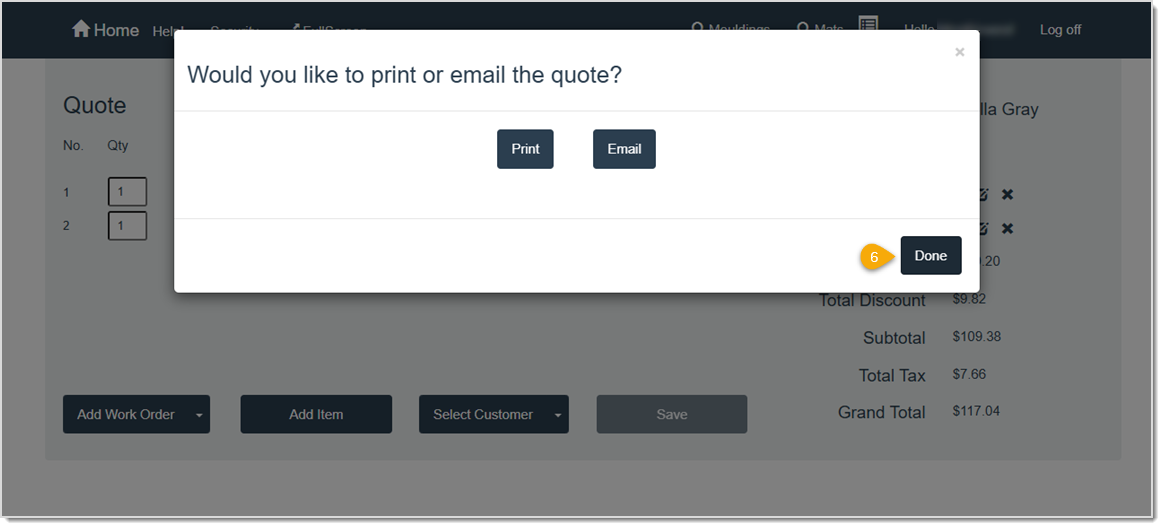
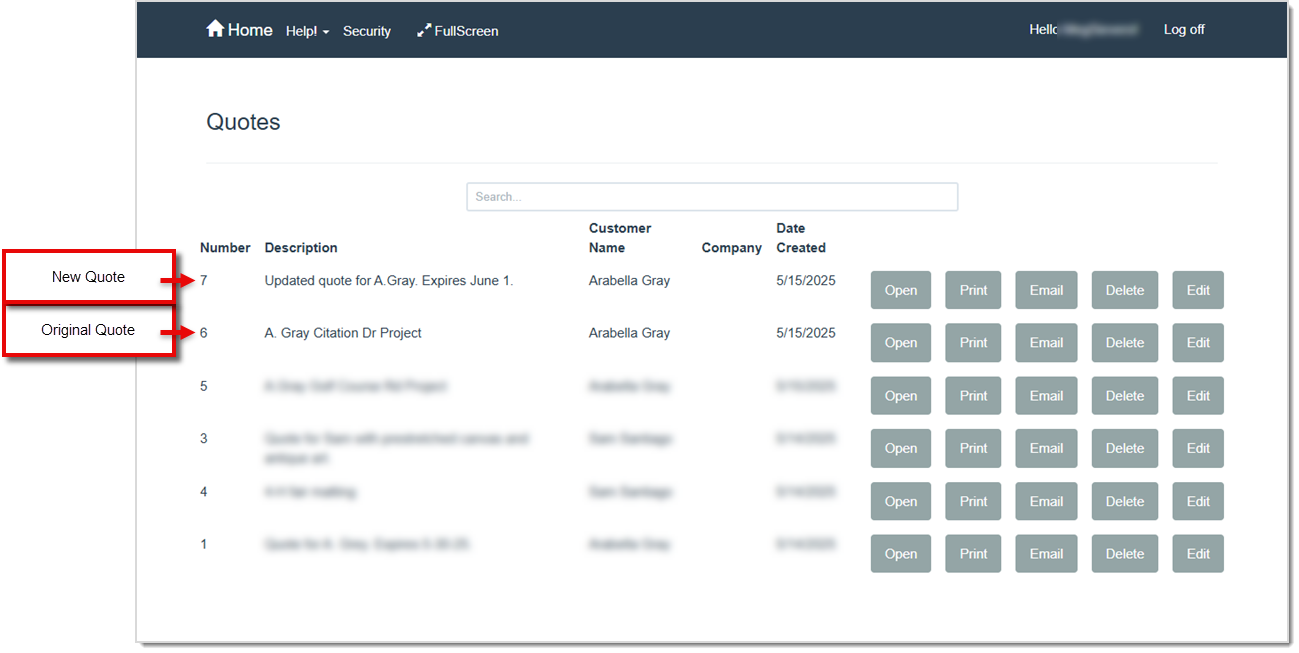
- In the popup window that opens, Print or Email the quote (if desired) and click the Done button. The quote will be saved as a new quote and the original quote will still be available from the Quotes window (image below).
Related Topics
Working with Work Orders
Processing a Payment on an Invoice
Create an Invoice
Frequently Asked Questions
Q: How do I email a quote to a customer?
A: On the Home page, click the Quote button. Find your quote and click the Email button. In the Send Email window, confirm or update the customer’s email address and subject line. Click the Send button to email the quote.
Q: Can I print a quote at a later time?
A: Yes. On the Home page, click the Quote button. Find your quote and click the Print button to see the preview and finalize printing.
Q: Can I add additional work orders or items to a quote that’s already been saved?
A: Yes. On the Home page, click the Quote button. Find your quote and click the Open button to add additional work orders or items.
Q: Can I make changes to a work order that is part of a quote?
A: Yes. On the Home page, click the Quote button. Find your quote and click the Open button to edit the entire quote or click the Edit button to select a specific work order on the quote. On the Quote window or Invoice window (depending on whether you clicked Open or Edit), use the icons in the data table to make changes to the work orders in the quote or use the buttons below the table to make global changes to the quote. When you are done, click the Save button followed by the Quote button.
- If you started from the Open button, LifeSaver Software saves your changes to the original quote.
- If you started with the Edit button, LifeSaver Software keeps the original quote (unchanged) and creates a new quote that reflects your edits.
Q: I have a question, but I can't find my answer here, how do I get more assistance?
A: You can ask any question at the link below, once received one of our technicians will be in touch! If you need immediate assistance, the LifeSaver Software team is available Monday through Friday, from 9:00am to 6:00pm Eastern time. Feel free to contact our support team at: 1-800-381-0600, extension 2. Or you can email us at support@lifesaversoft.com and we will respond within 24-hours.


 October 10, 2025
Is this page helpful?
×Help us improve our articles