Working With Work Orders

October 10, 2025October 10, 2025

Work Orders are the cornerstone in any framing business, and knowing how to use LifeSaver Software’s Work Order features are essential to making sure your business runs smoothly. Keep reading to learn how to search, update, add notes to, as well as print work orders. 


Searching for a Workorder - Two Ways

In the LifeSaver Software System, you’re able to search for work orders two separate ways: the Invoice Search button or the Order button, both on the Home page. Look below to learn more.
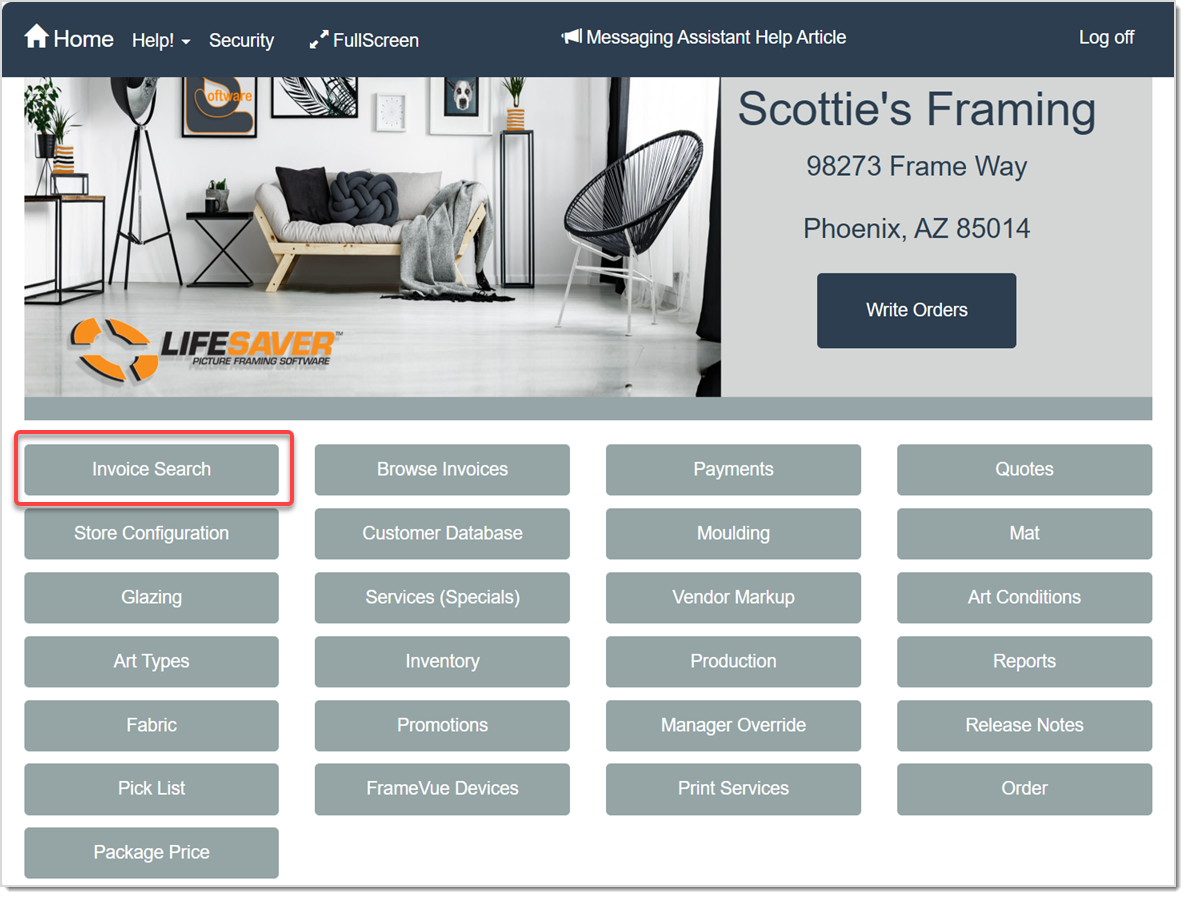
 

Search Using the Invoice Search Page

Image displaying the LifeSaver Home page, highlighting the Invoice Search button.

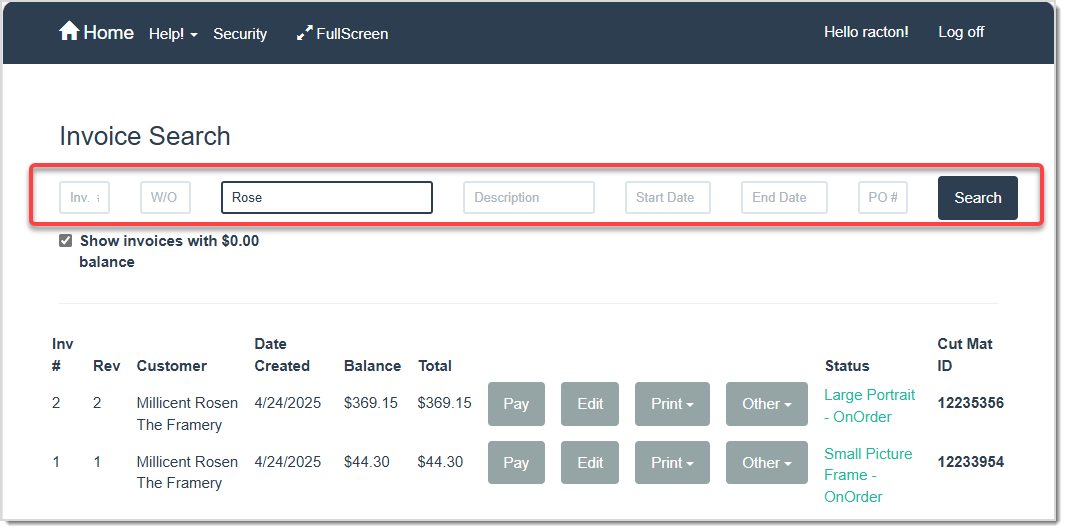
On the Invoice Search page, click into the desired Search box. For example, if you want to search for the customer by purchase order number, you would click into the box labeled PO # and type in the number. Click the Search button and view the work orders that match your criteria in the table below. If you want to limit your search to a specific date range, enter both a Start Date and End Date

Image displaying the Invoice Search page.


Search Using the Order Page

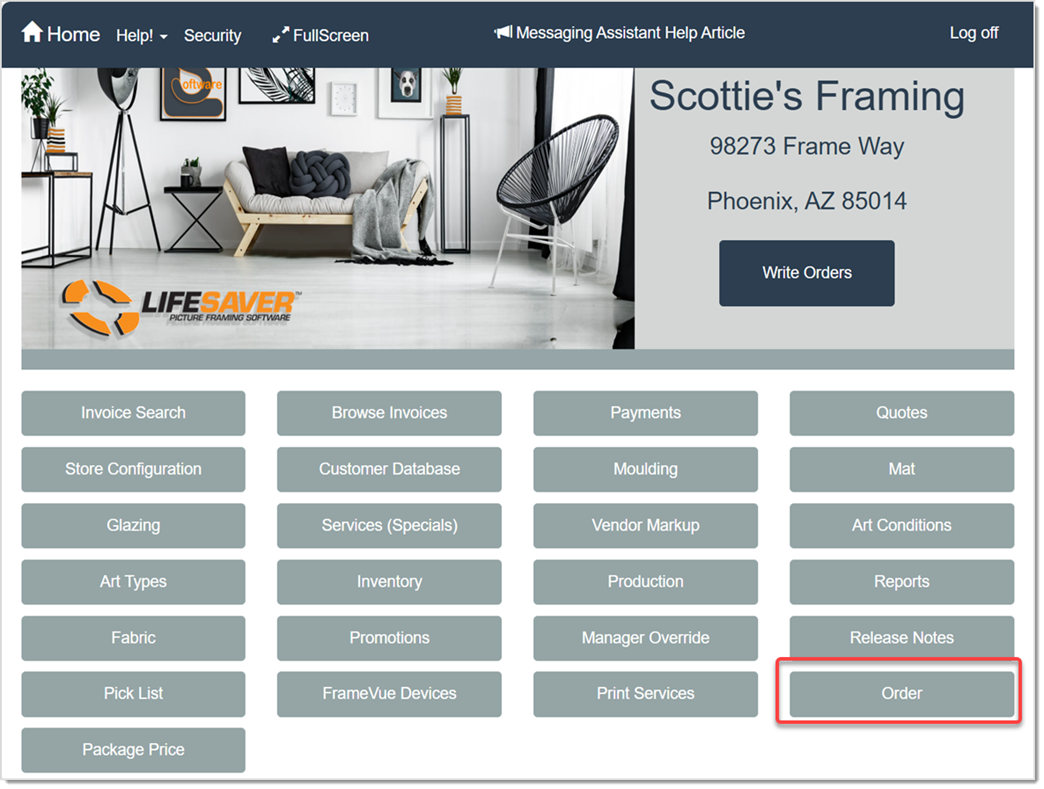
Image displaying the LifeSaver home screen, highlighting the Order button.

If you prefer a grid-based layout, the Order screen is a great management tool for updating work order statuses. On the LifeSaver Software Home page, click the Order button. The Order page will then display: 
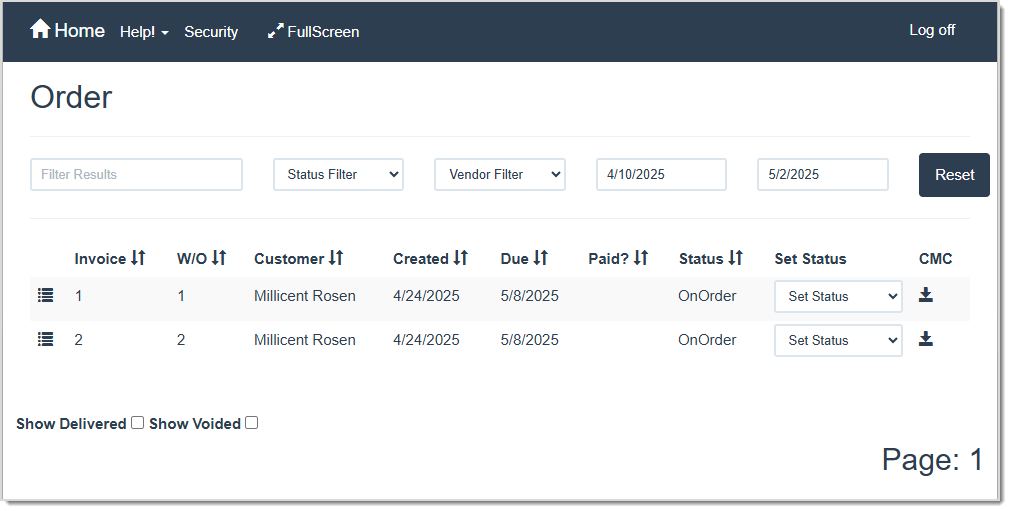
Image displaying the Order page of the LifeSaver software.

The Order page automatically populates the table with all of your work orders. If you need to narrow down the list, click into the Filter Results search field and enter in the Invoice Number, Work Order Number, or Customer’s First / Last Name then press your Enter key to see the results. 

💡Pro Tip: Use the Reset button in the upper right to clear your filters and restore the original list. 
 

Updating the Work Order Status

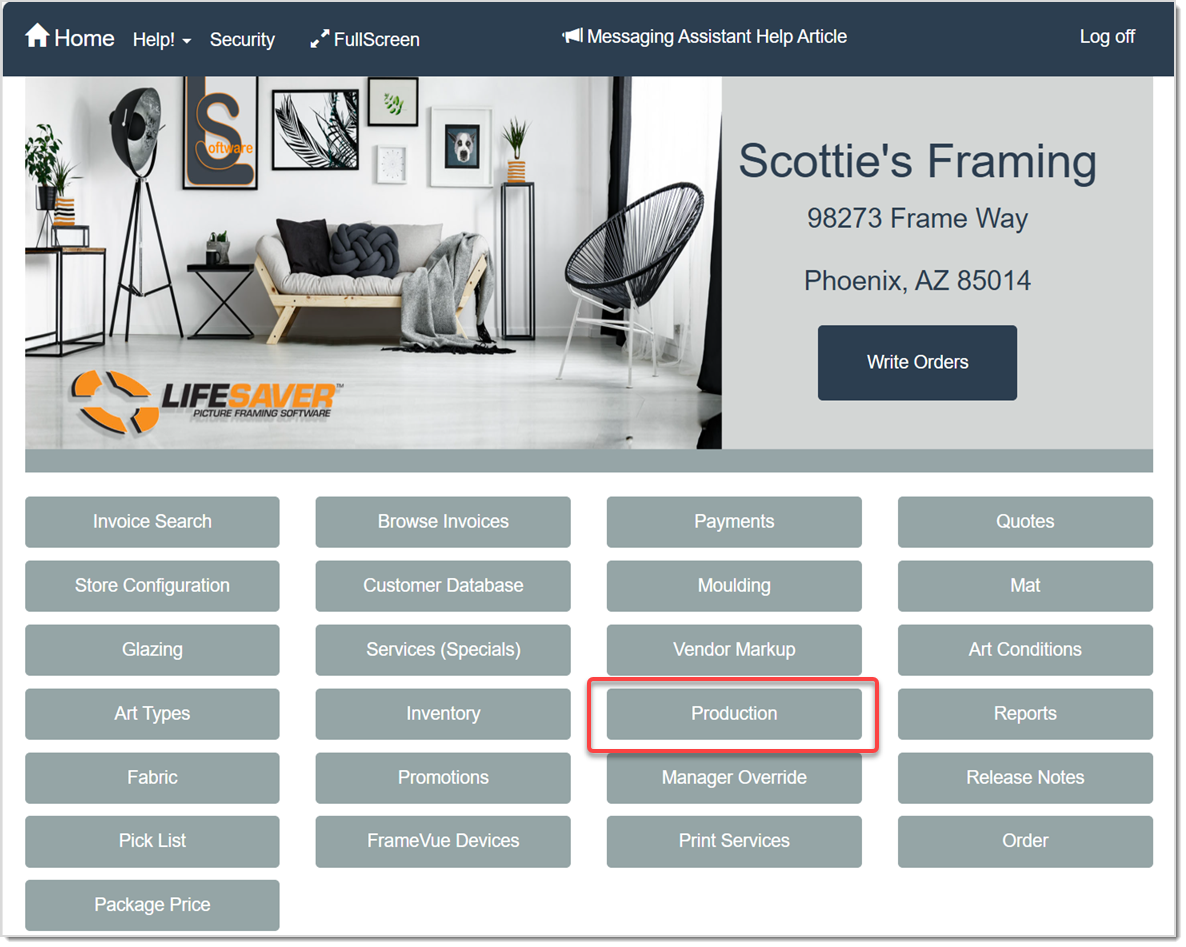
Image displaying the LifeSaver Home page, highlighting the Production button.

The ability to update your work order status is helpful for keeping up-to-date on all of your work orders in LifeSaver Software. To get started, log into your LifeSaver Software system. On the Home page, click the Production button. 
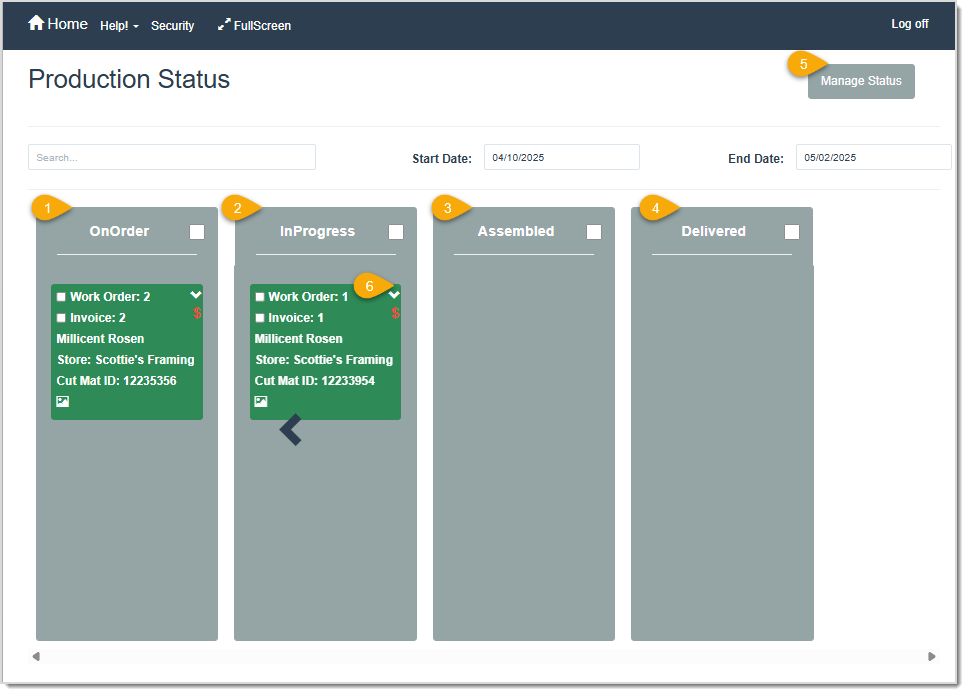
Image displaying the Production Status page.

  1. OnOrder – This column represents orders that have been placed but that haven’t been started yet. 
  2. InProgress – This column represents orders that have begun being filled.
  3. Assembled – This column represents orders that are complete.
  4. Delivered – This column represents orders that have been delivered to the customer. If a balance is still due on a Work Order, it cannot be dragged to this column.
  5. Manage Status – Click this button to access the Production Status List page where you can edit the Status columns and create new ones.
    Image displaying the Production Status List page.
  6. Down Arrow – Click this to open the Production Rules window to set a Call Status, add Bin locations, enter Work Order Notes, or Print a copy of the work order.
    Image displaying the Production Rules window.

    Please Note: If a Work Order block is navy blue, you must acknowledge a Production Rule before updating the status:
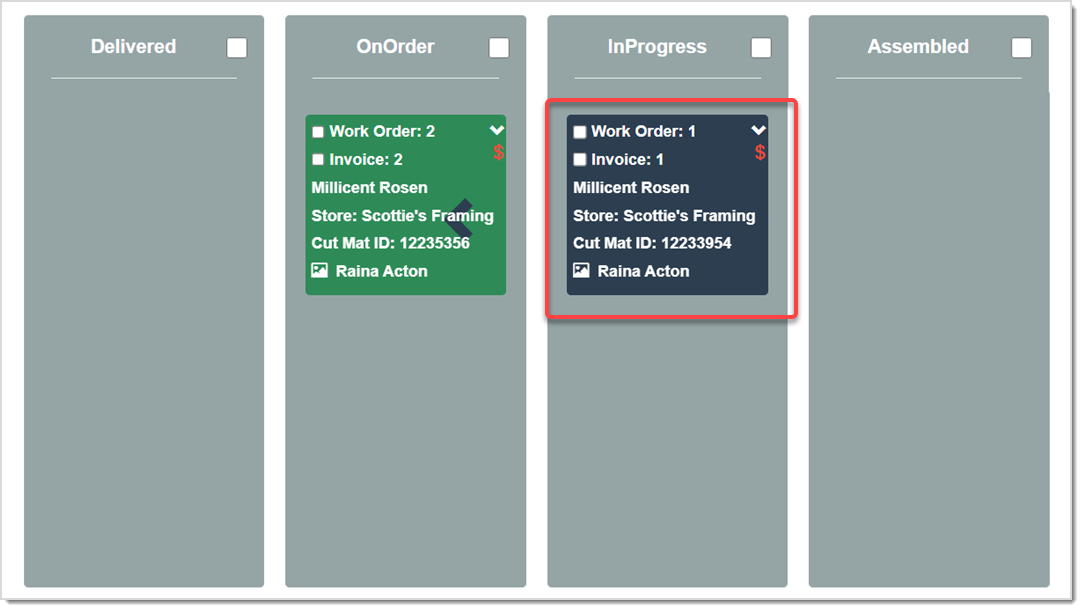
    Image showcasing the color change to navy blue due to a Rule associated with that Status.

💡Pro Tip: To drag multiple orders at once into a new status, check the boxes at the top of the Status column that the orders are in and then drag them to the new Status. You can also click the checkboxes for each block in a column that you want to move if you don’t want to move every block in a column.


The Manage Status Window

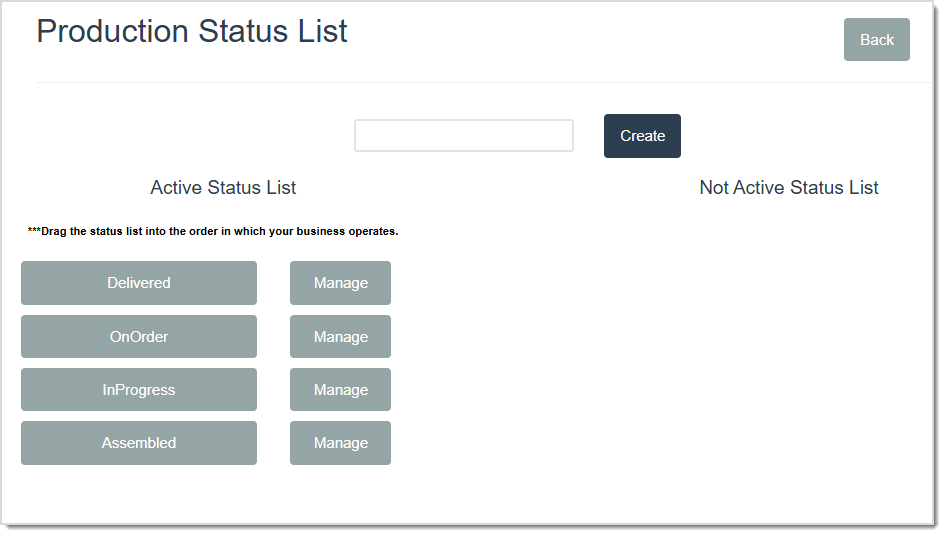
By clicking the Manage Status button, you will be taken to the Production Status List page where you can edit the Status columns, Deactivate / Reactivate them, and create new ones:
  1. Active Status List – This section displays the Status columns that are Active, meaning these statuses are displayed on the Production Status page. 
  2. Manage – Clicking this will take you to the Manage Status window for the associated Status:
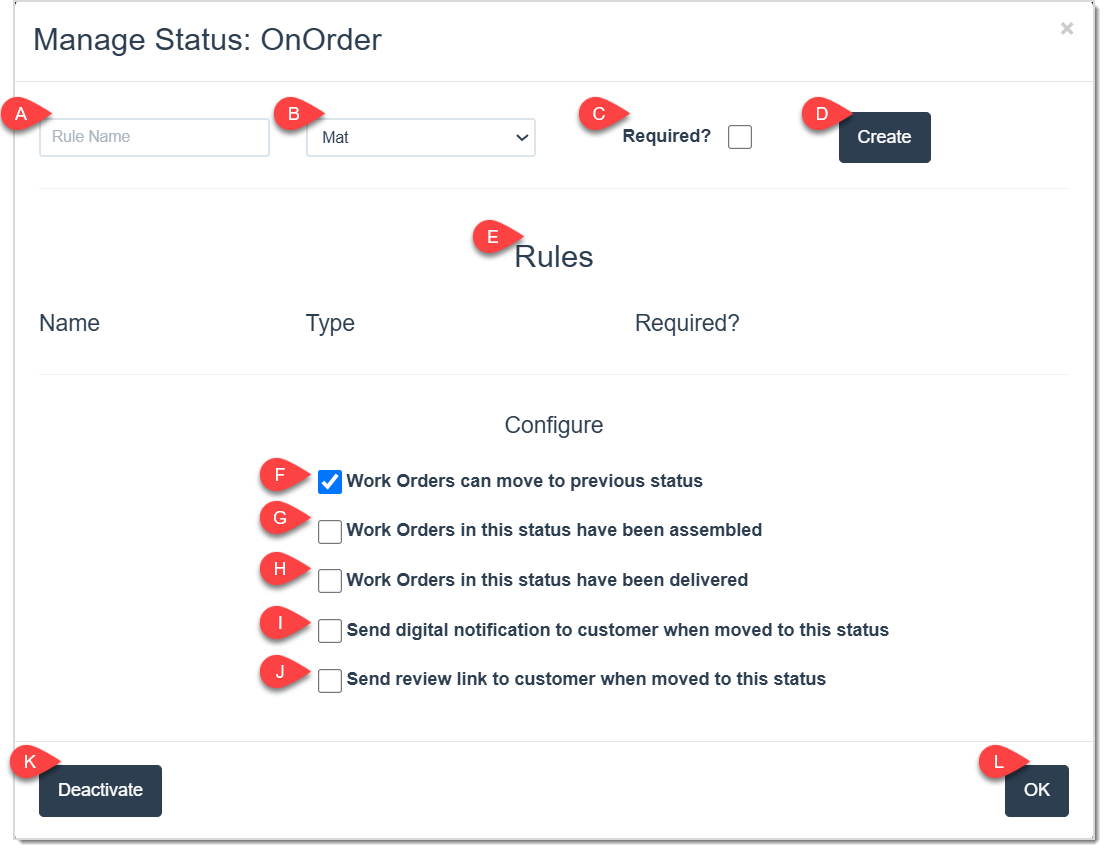
    Image displaying the Manage Status window for the OnOrder Status column.
    1. Rule Name – Create a rule that the user has to acknowledge before they are able to move a work order from the selected status to another. An example of this would be before a work order can be moved from OnOrder to InProgress status, the user needs to double check the workorder’s measurements. 
    2. Material Drop-List – This is where you would select the material you would like associated with the Rule you entered, to be double-checked before being able to move on as in the example above.
    3. Required? – Check this to make this Rule a requirement to fulfill before being able to move statuses.
    4. Create – Click this to Create the Rule and add into the Rules table below.
    5. Rules Table – This table will display all of the added Rules.
    6. Work Orders Can Move to Previous Status – Check this for Work Orders in this status to be able to move to a previous status. For example, if this box is checked for the Assembled status, that allows you to move the Work Order from Assembled back to InProgress or OnOrder.
    7. Work Orders in This Status Have Been Assembled – Check this if this Status means that the Work Orders are Assembled.
    8. Work Orders in This Status Have Been Delivered – Check this if this Status means that the Work Orders have been delivered.
    9. Send Digital Notification to Customer When Moved to This Status – Check this to send a digital notification to all of the customers with Work Orders that are in this Status column.
    10. Send Review Link to Customer When Moved to This Status – Check this to send a review link to customers with Work Orders in this Status column.
    11. Deactivate – Click this button to make this Status inactive, moving it from the Status Active List to the Not Active Status List on the Production Status List page and removing it from use on the Production Status page.
    12. OK – Click this button to save your changes made to this page.
  3. Create – Enter the name of the Status you want to create and then click the Create button to start using it.
  4. Not Active Status List – This section displays the Status columns that you have deactivated and are not in use. You can change these statuses back to Active by clicking the Manage button and clicking Activate on the Manage Status window.


Adding Notes to Workorders

Adding notes to a work order is an easy way to keep a record of specific details for your custom projects. To get started, log into your LifeSaver Software system. From the Home page, click the Order button on the main menu. 

Image displaying the LifeSaver Home page, highlighting the Order button.

Once on the Order page, you will see a list of active invoices and work orders for the past three weeks. If you need to look up a specific one, you can use the Search field to find it by invoice number, work order number, or customer name. Once you locate your work order, click the List Icon on the line item to open the details, shown below:  
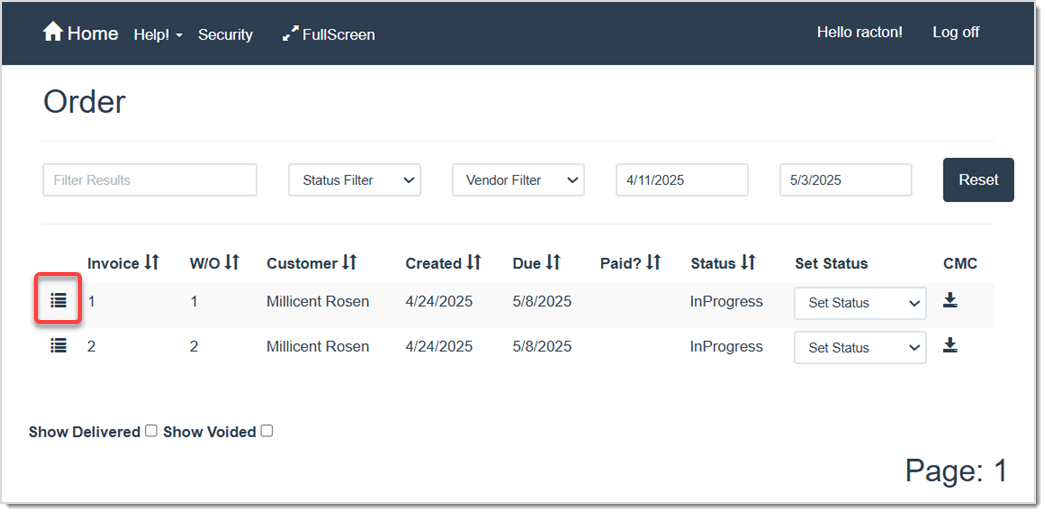
Image displaying the Order page, highlighting the list icon.

In the Work Order Details window, complete the following steps to add notes to the work order:
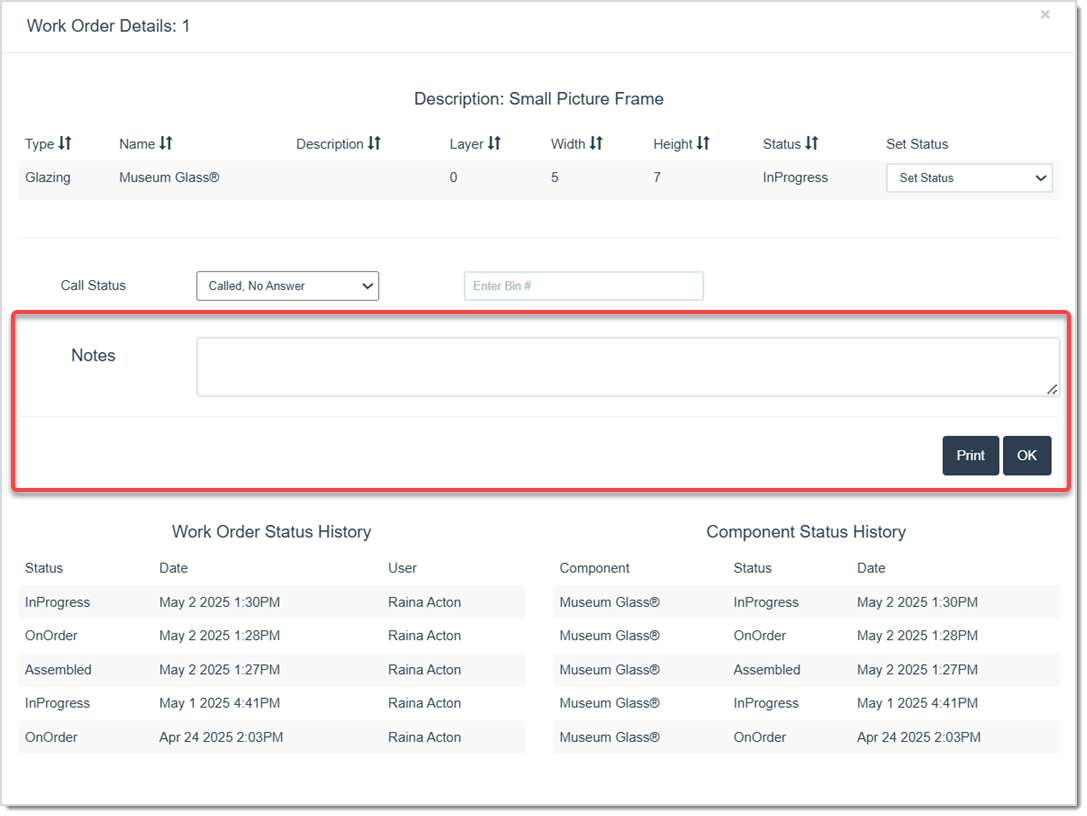
Image displaying the Work Order Details window.
  • Look for the Notes section in the middle of the Work Order Details window, shown above.
  • Click into the Notes field, type your note, and include any relevant instructions about the Work Order.
  • Click the OK button to save your notes and return to the Order page.

💡Pro Tip: You can also add notes from the Production Status page by clicking the Down Arrow in a work order block. This allows you to update or add new notes on the fly on the Production Rules window. 


Printing a Work Order

Generate a clear record of each framing job by printing your work orders. To get started, log into your LifeSaver Software system. From the Home page, click the Order button on the main menu. 


Print a Workorder From the Order Page

On the Order page, click the List Icon on the invoice or work order line item to open the details. Continue following the steps below.
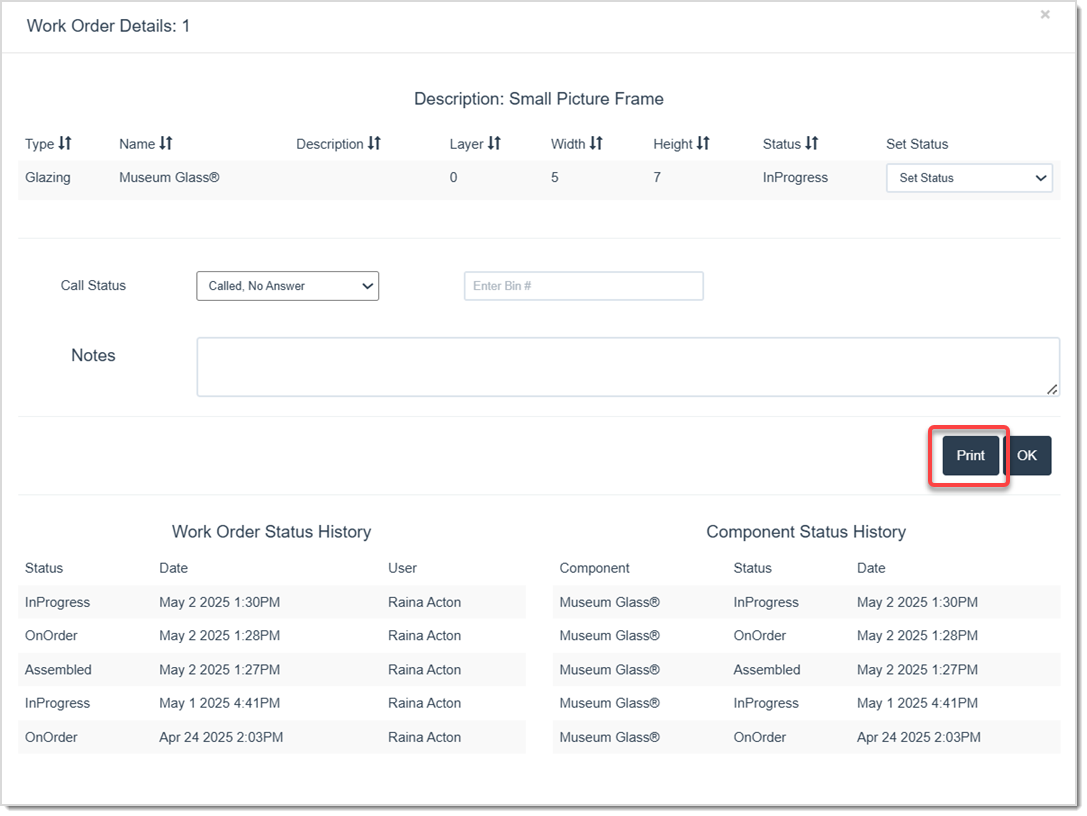
Image displaying the Order page, highlighting the List icon.
  • On the Work Order Details window, click Print

Image displaying the Work Order Details window, highlighting the Print button.

  • The work order will appear in a preview window. Make sure your print settings are correct, then click Print.  


Printing at Checkout

When you complete an invoice and apply payment, the Print Options window will pop up. You can choose among these printing options:
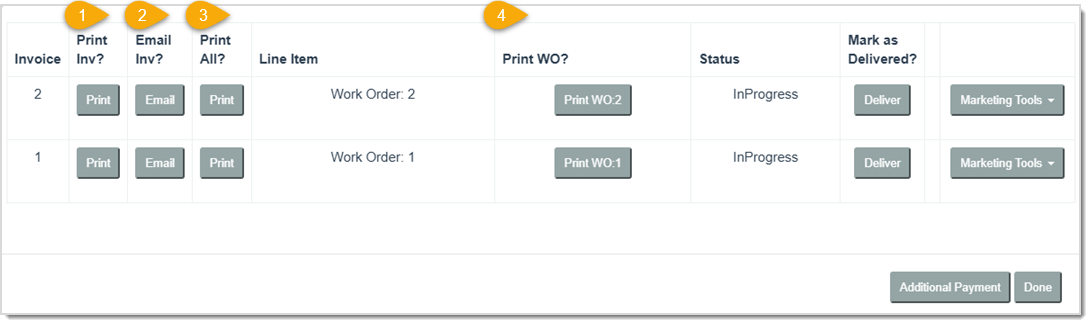
Image displaying the Print Options window.

  1. Print Inv – Click this button to print only the invoice.
  2. Email Inv – Click this button to email the invoice.
  3. Print All – Click this button to print both invoice and work order.
  4. Print WO – Click this button to print only the work order.


Related Topics

Viewing Work Order History

Working with Customers

Managing Your Pick List

Getting Started with Your Production


Frequently Asked Questions

Q: Why is my Work Order highlighted in navy blue?  

A: It means a Production Rule must be acknowledged before you can update the status. Click the down arrow on the Work Order block, review the rule, and click Done to proceed.  


Q: How do I notify a customer their order is ready for pickup?  

A: Use the Call Status option on the Work Order Details window. For example, you can set it to Reached Customer or Left Message to keep your employees up-to-date.


Q: Are any notes made visible to the customer on printed forms?  

A: Depending on your configuration, Work Order Notes may be printed. You can choose whether or not to include them when printing or emailing the Work Order. 


Q: I have a question, but I can't find my answer here, how do I get more assistance?

A: You can ask any question at the link below, once received one of our technicians will be in touch! If you need immediate assistance, the LifeSaver Software team is available Monday through Friday, from 9:00am to 6:00pm Eastern time. Feel free to contact our support team at: 1-800-381-0600, extension 2. Or you can email us at support@lifesaversoft.com and we will respond within 24-hours.

Need Help?

Can't quite find the answer you're looking for? Our support team is just a call away.