
Your Processing Payment Portal
Payment Portal The Payment Portal is a dashboard included as part of our payments offering. It allow

 October 13, 2025
Enterprise Reports let you consolidate data across all stores integrated with LifeSaver Software and manage it in one central location. You can review metrics such as sales, promotions, production status, delivered and undelivered orders, and more. When you select a report, the system will show relevant filters (e.g., date range, status, stores) so that you can tailor the results to your needs. You can then view, print, or export the data for further analysis.
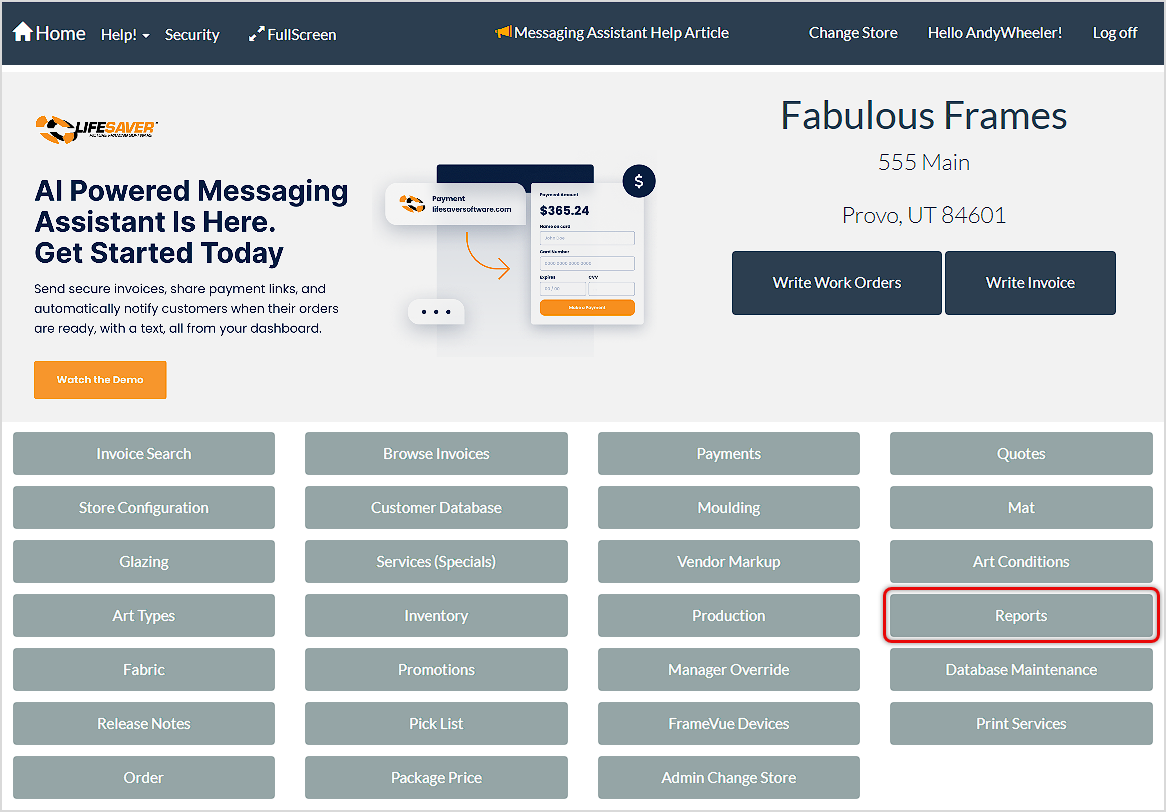
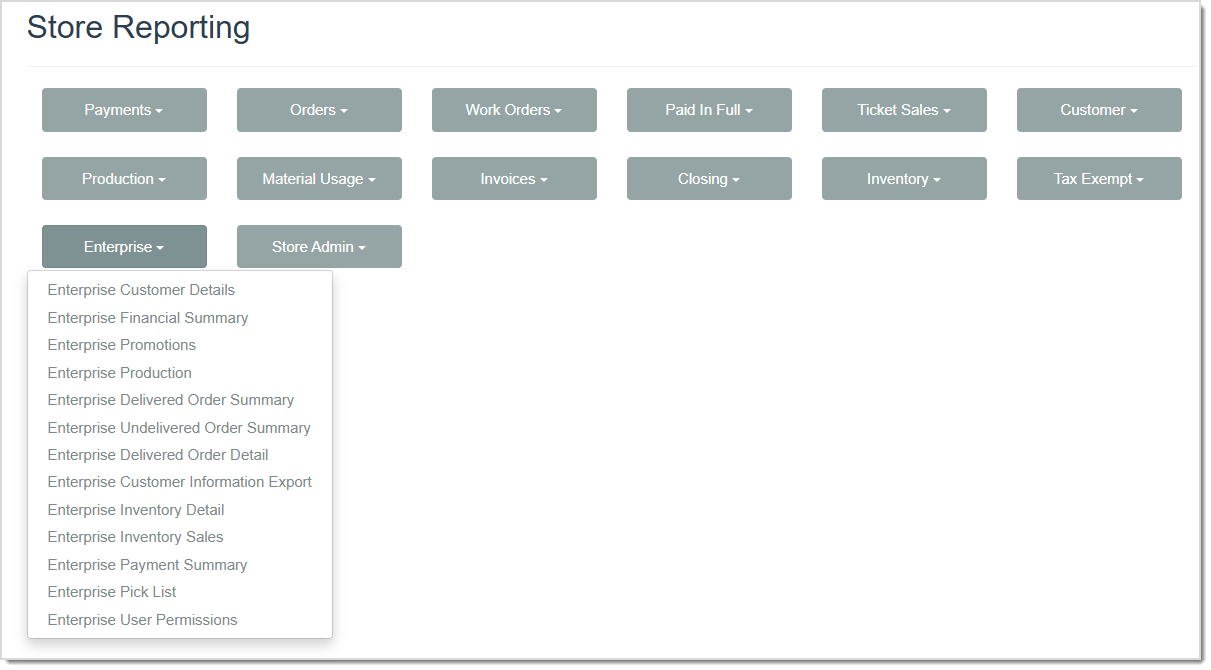
From the Home page, click the Reports button. On the Store Reporting page, click Enterprise to see a list of available Enterprise Reports.
As with your standard reports, your Enterprise reports all have the following functions:
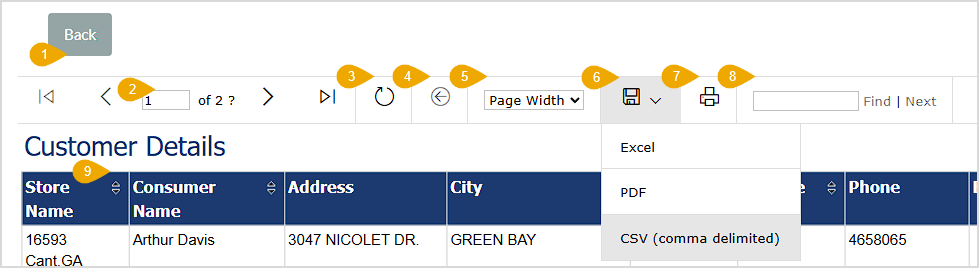
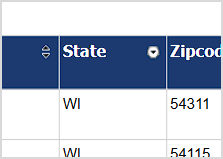
The Enterprise Customer Details Report
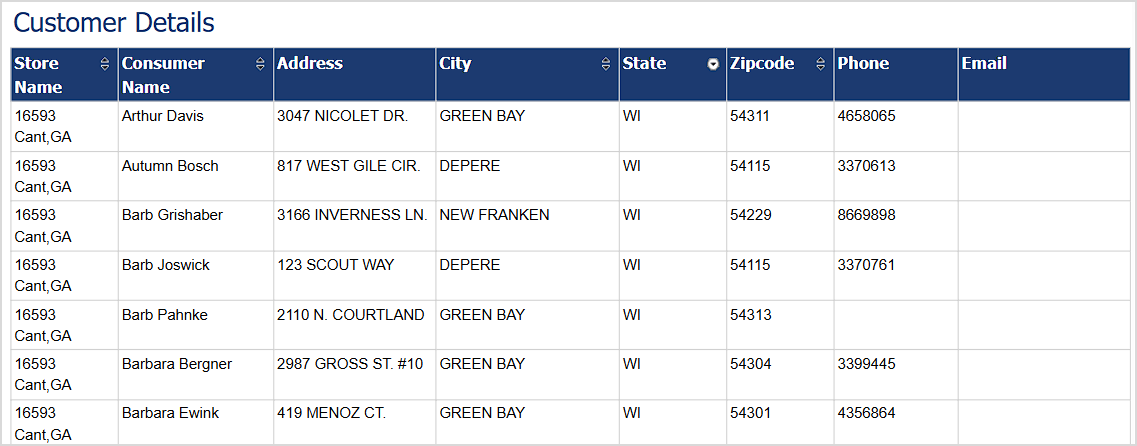
The Customer Details report is a great tool for targeting promotions in specific areas. It gives you the following data for each of your customers:
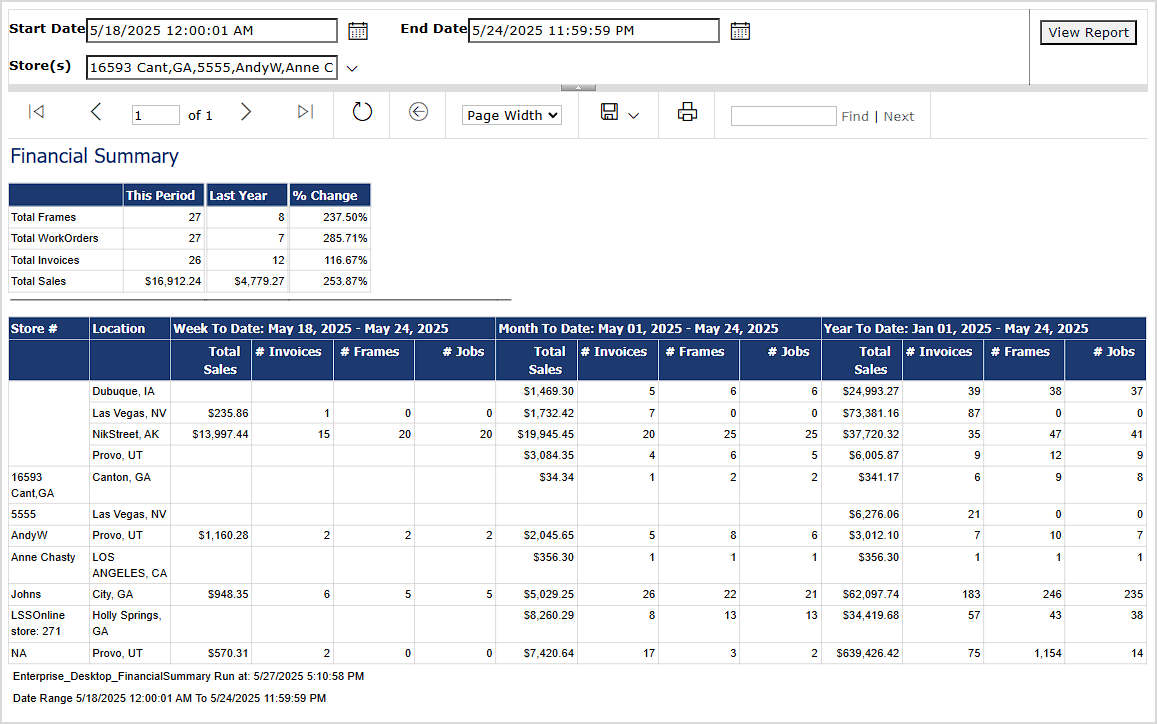
The Financial Summary Report gives you critical information about the work your stores are doing and how they are performing financially. You are able to set a date range for the report using the Start Date and End Date fields. By default, the report will display the last seven days. You can also view data for a specific store, for multiple stores, or for all of your store locations using the Store(s) filter. By default, data for all of your stores will load. If you change any of the filters, click the View Report button to load the selected data.
It gives you the following data for each of your stores:
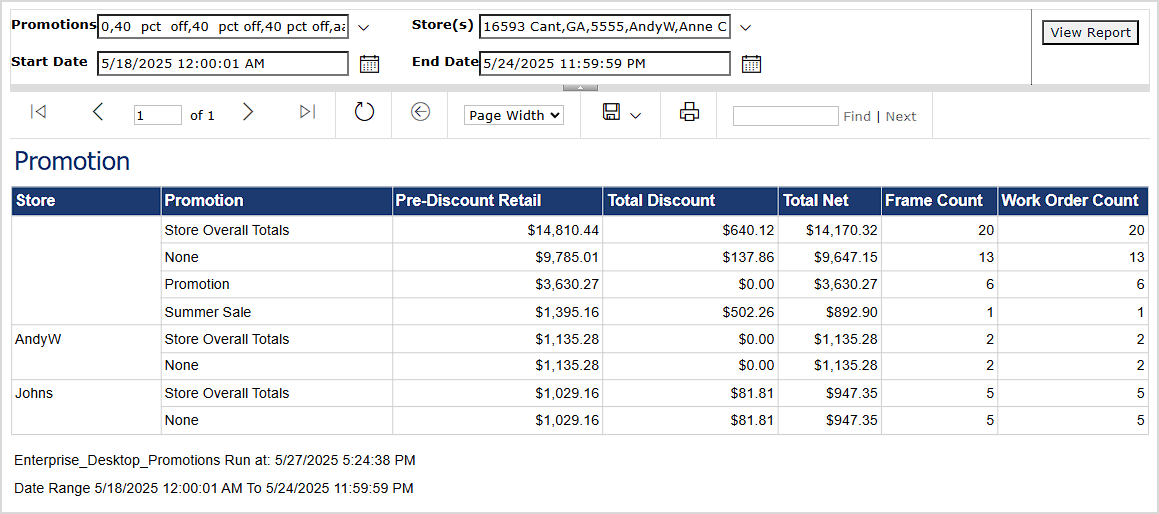
The Promotions Report gives you discount amounts by store for whatever period you choose to view. You are able to set a date range for the report using the Start Date and End Date fields. By default, the report will display the last seven days. You can also view data for a specific store, for multiple stores, or for all of your store locations using the Store(s) filter. By default, data for all of your stores will load. You can also choose which Promotions display in the report, and that filter will default to showing all of your active promotions. If you change any of the filters, click the View Report button to load the selected data.
It gives you the following data for each of your stores:
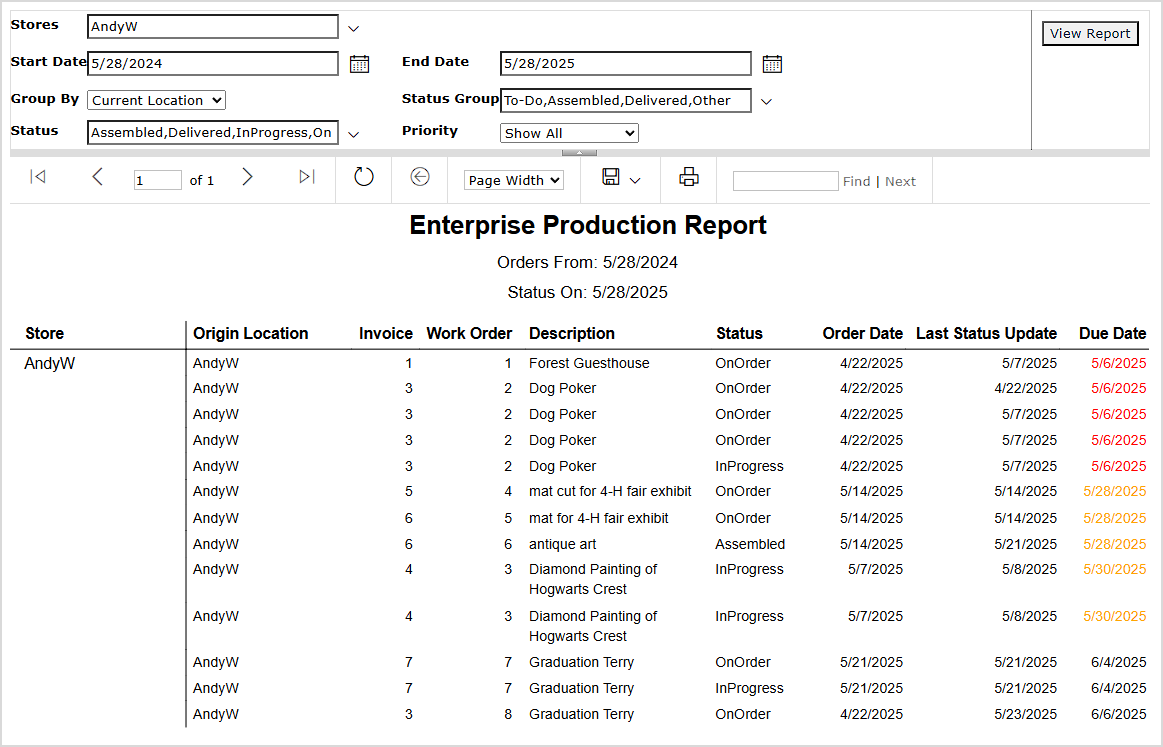
The Production Report details all invoices and work orders for your stores for whatever period you choose to view. You are able to set a date range for the report using the Start Date and End Date fields. By default, the report will display the last seven days. You can also view data for a specific store, for multiple stores, or for all of your store locations using the Store(s) filter. By default, data for all of your stores will load. You can Group By invoice and work order Origin Location (default) or the Current Location you’re logged into (pictured above). You can also filter by Status Group, with To-Do, Assembled, Delivered, and Other selected by default, and Inactive available as well if needed. And for specific statuses, there is a Status filter that defaults to showing All, including Assembled, Delivered, In Progress, On Hold, and On Order (other statuses are possible). You also have a Priority filter that shows both Overdue and Undelivered by default. If you change any of the filters, click the View Report button to load the selected data.
It gives you the following data for each of your stores:
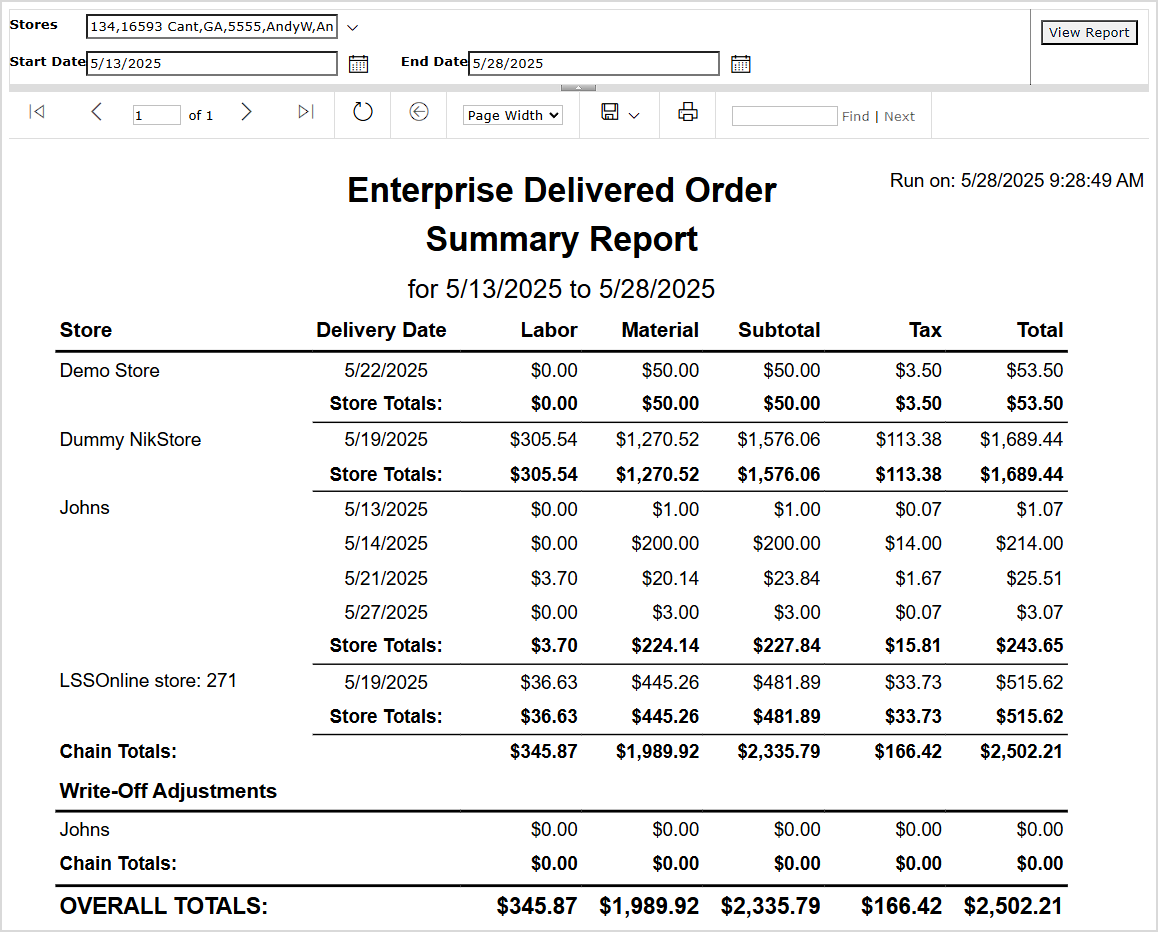
The Delivered Order Summary report lists delivery dates for work orders by store for whatever period you choose to view. You are able to set a date range for the report using the Start Date and End Date fields. By default, the report will display the last seven days. You can also view data for a specific store, for multiple stores, or for all of your store locations using the Store(s) filter. By default, data for all of your stores will load. If you change any of the filters, click the View Report button to load the selected data.
Please Note: This report can take some time to load, so please be patient.
It gives you the following data for each of your stores:
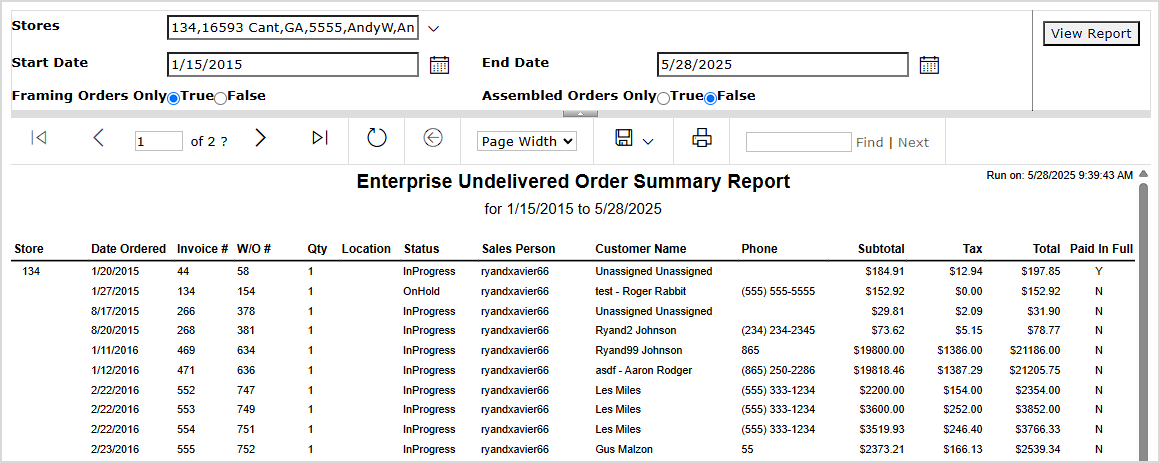
The Undelivered Order Summary report lists all undelivered invoices and work orders for your stores for whatever period you choose to view. You are able to set a date range for the report using the Start Date and End Date fields. By default, the report will display all time in the history for your system. You can also view data for a specific store, for multiple stores, or for all of your store locations using the Store(s) filter. By default, data for all of your stores will load. You can choose to view Framing Orders Only (default), Assembled Orders Only, or if you set both to False, you can view both types. If you change any of the filters, click the View Report button to load the selected data.
It gives you the following data for each of your stores:
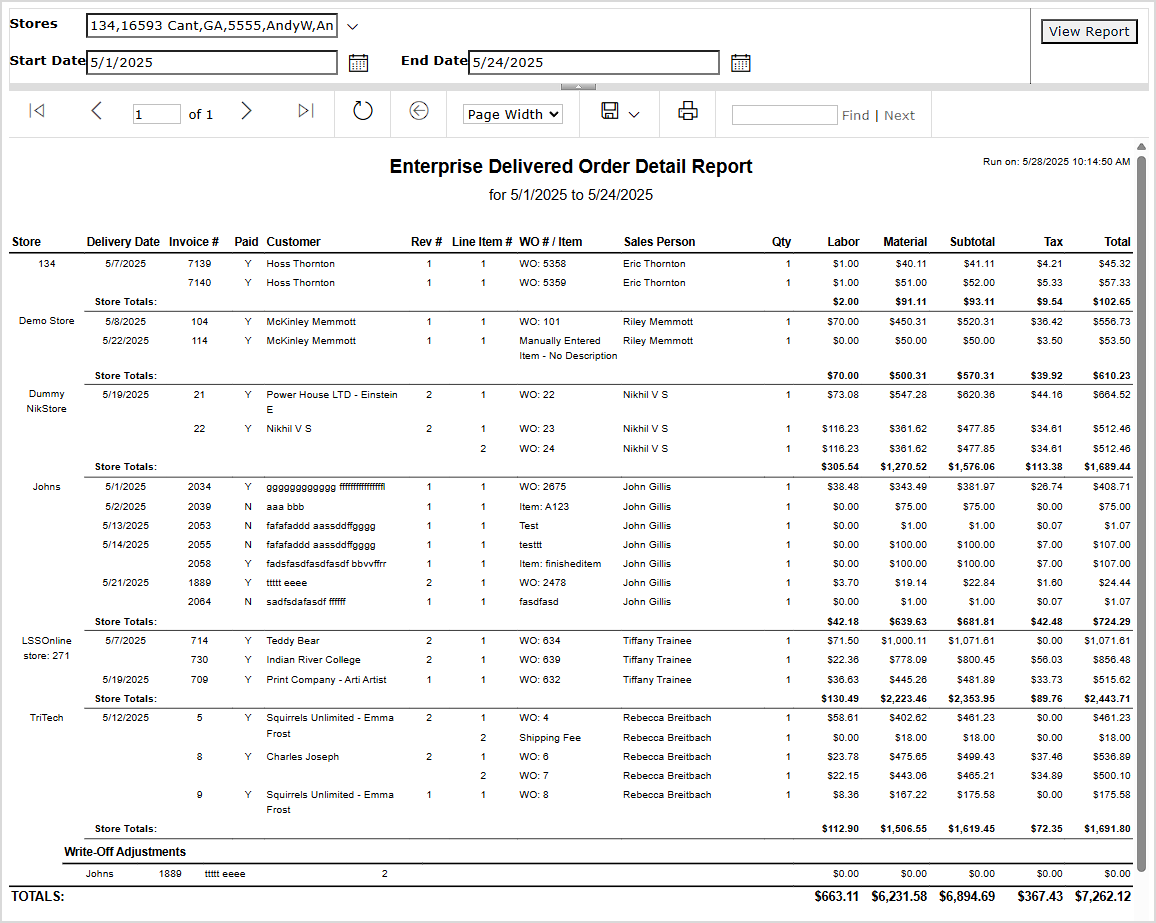
The Delivered Order Detail Report details all delivered invoices and work orders for your stores for whatever period you choose to view. You are able to set a date range for the report using the Start Date and End Date fields. By default, the report will display the last seven days. You can also view data for a specific store, for multiple stores, or for all of your store locations using the Store(s) filter. By default, data for all of your stores will load. If you change any of the filters, click the View Report button to load the selected data.
It gives you the following data for each of your stores:
Please Note: This report can take some time to load, so please be patient.
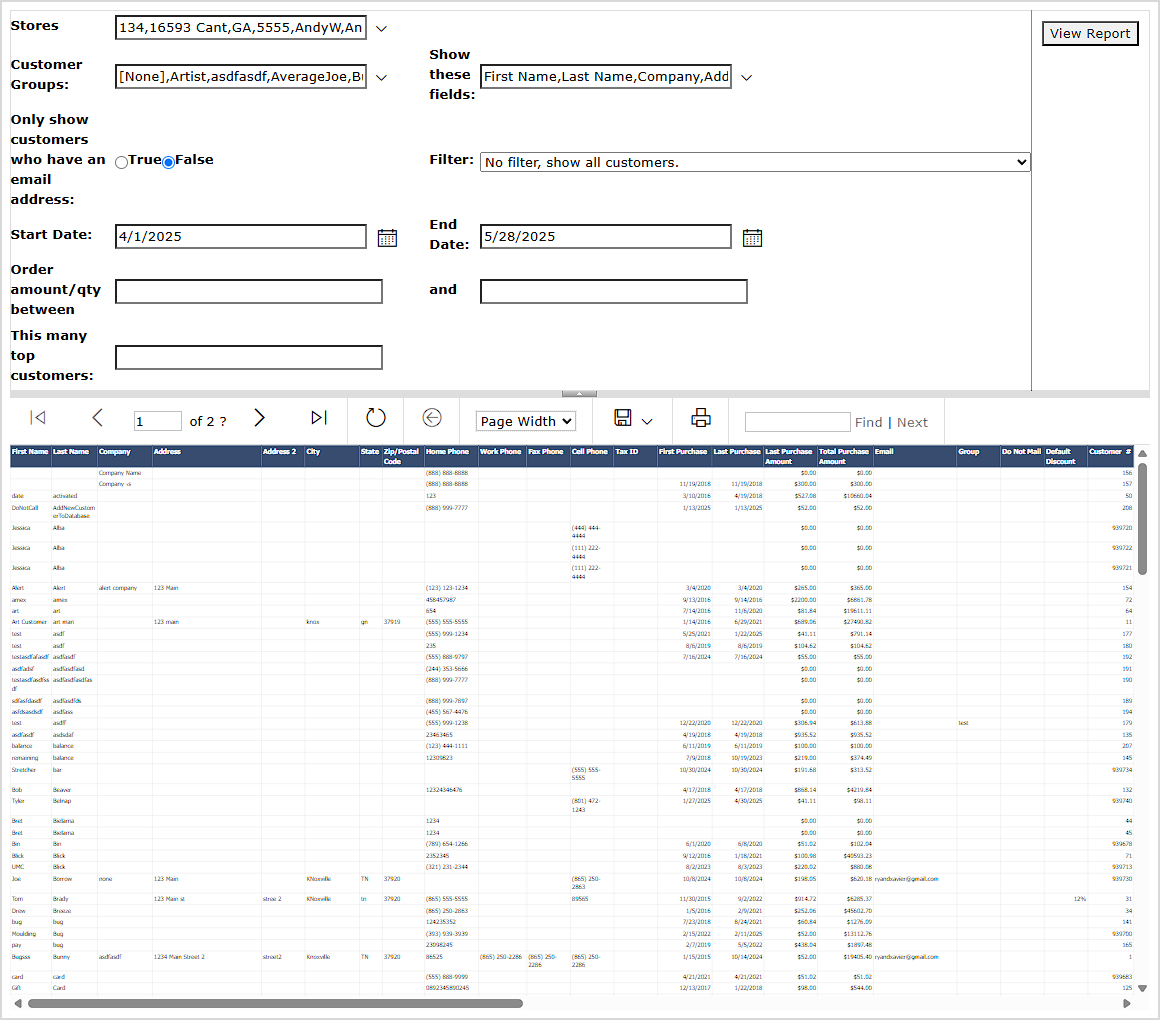
The Customer Information Export has complete details of customers for your stores for whatever period you choose to view. You are able to set a date range for the report using the Start Date and End Date fields. By default, the report will display the last seven days. You can also view data for a specific store, for multiple stores, or for all of your store locations using the Store(s) filter. By default, data for all of your stores will load. You can filter by Customer Groups if you have created any. You can set the data table to Show These Fields from a list of all data available (by default, all data columns display). You have the option to Only Show Customers Who Have an Email Address. You have Filter options showing All Customers, those who placed orders in the date range, those who ordered within a dollar amount range you can specify, those who placed a specified number of orders in the date range, or you can view only top customers, and you can specify the number you view. If you change any of the filters, click the View Report button to load the selected data.
It gives you the following data for customers from each of your chosen stores:
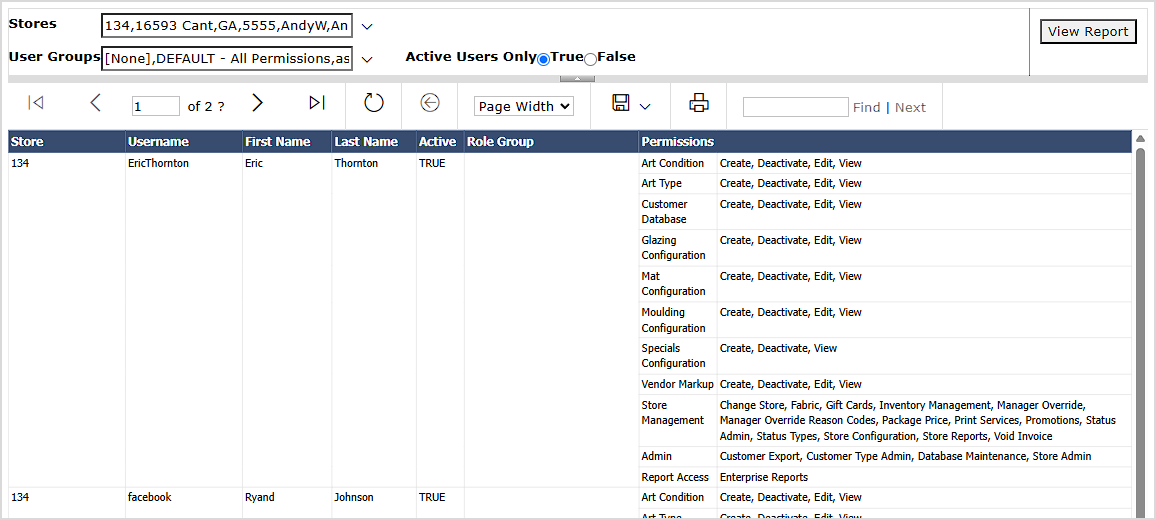
The Enterprise User Permissions report lists permissions for all users for the different areas of the system. You can also view data for a specific store, for multiple stores, or for all of your store locations using the Stores filter. By default, data for all of your stores will load. You can choose which User Groups display in the report. You can also view Active Users Only, if you choose. If you change any of the filters, click the View Report button to load the selected data.
It gives you the following data for each of your stores:
Getting Started With Your Production
Q: What if I can’t see the Enterprise button in the Reports menu?
A: This feature is only for stores with multiple locations set up. You might also need to confirm that your user roles and store selections are set correctly. Go to Security, check Roles, and select Corp. Admin in the User Group drop-list. Make sure you have all stores selected under Security > Stores. Then log out and log back in.
Q: Can I export an Enterprise Report to CSV or Excel?
A: Yes. Click the Export icon at the top of the report menu. Choose Excel or CSV. The report is downloaded to your device, letting you print or email it.
Q: How do I filter the results to just one store?
A: Use the Store drop-list under each Enterprise Report’s filter panel. Select the store you need, then click View Report.
Q: Do date ranges reset each time I open a new report?
A: Some reports use defaults (like the past 5 days or current week). You can always change the date by clicking the Calendar icons and then clicking View Report.
Q: I have a question, but I can't find my answer here, how do I get more assistance?
A: You can ask any question at the link below, once received one of our technicians will be in touch! If you need immediate assistance, the LifeSaver Software team is available Monday through Friday, from 9:00am to 6:00pm Eastern time. Feel free to contact our support team at: 1-800-381-0600, extension 2. Or you can email us at support@lifesaversoft.com and we will respond within 24-hours.
Is this page helpful?
×Help us improve our articles