
Your Processing Payment Portal
Payment Portal The Payment Portal is a dashboard included as part of our payments offering. It allow

 October 10, 2025
Efficient production is essential to running your business smoothly. By creating statuses for your production schedule and making sure to move work orders between these statuses as work progresses, you can keep operations on track and ensure timely delivery of completed work orders.
To begin using a production schedule, complete a few initial setup steps. You can adjust these settings later as your needs change.
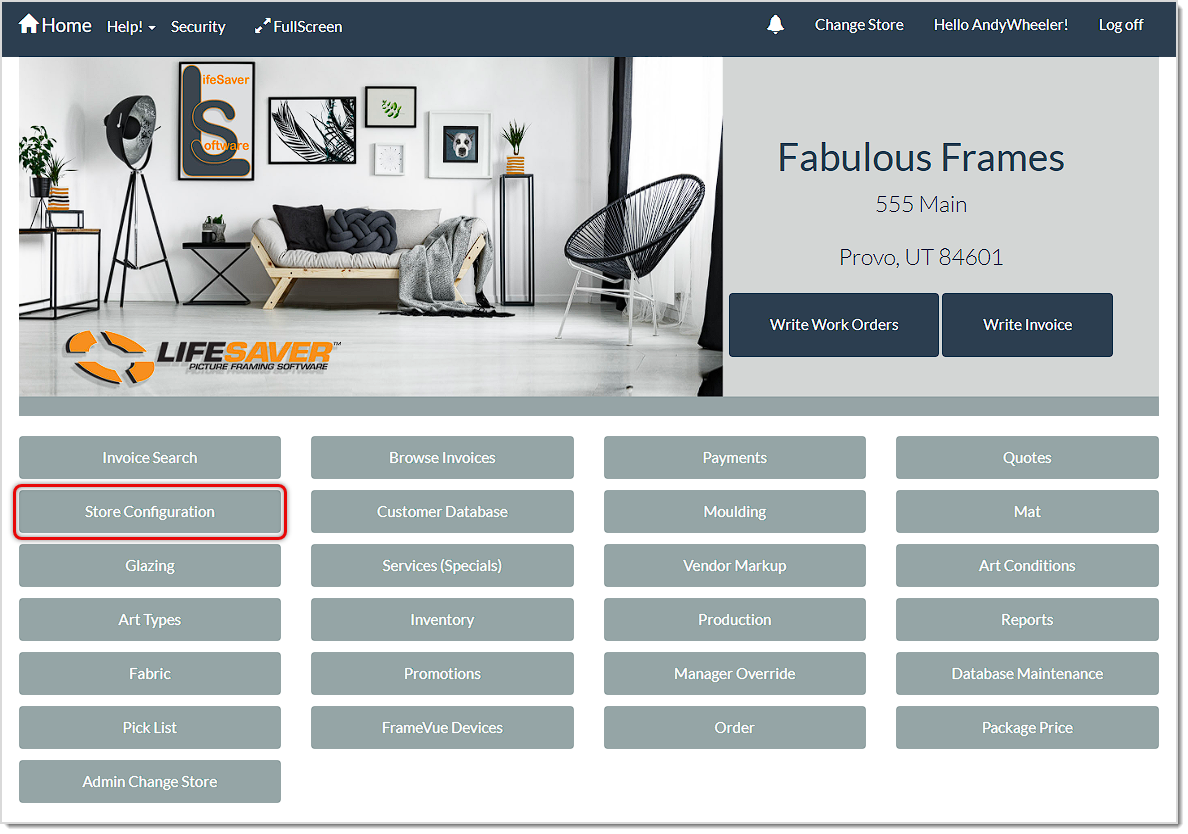
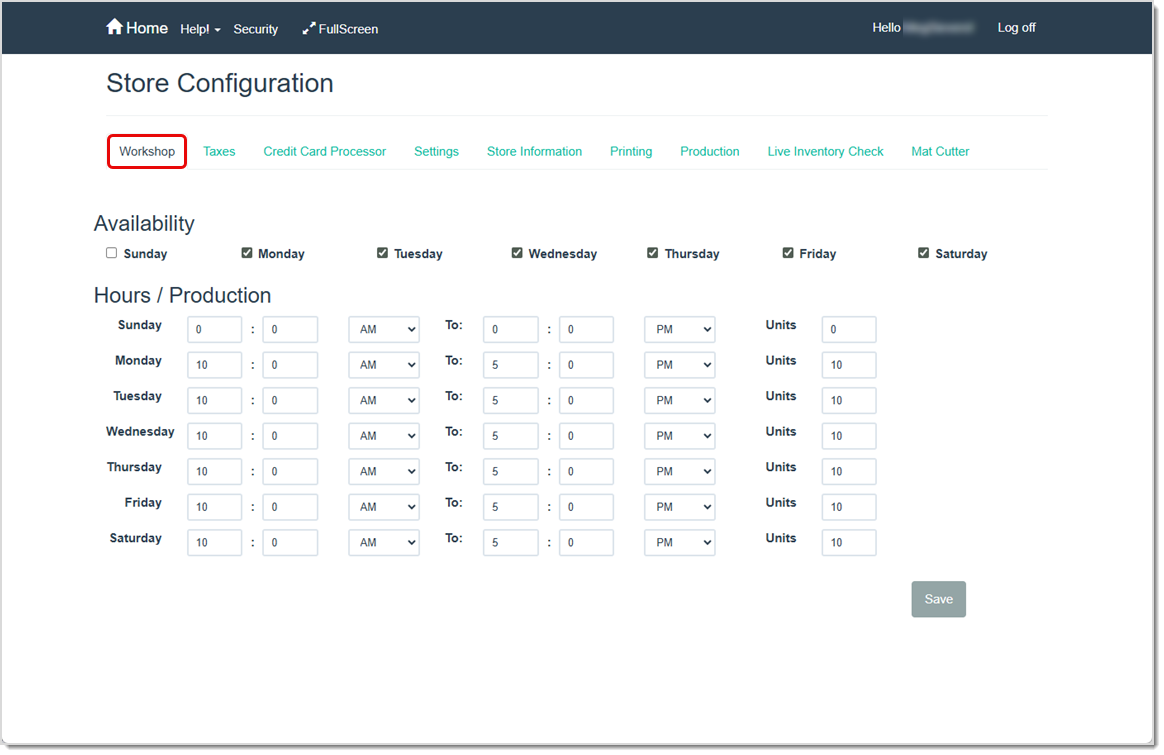
Set your store’s production hours and capacity in Store Configuration > Workshop. LifeSaver Software uses the number of units you enter here to calculate your work schedule and assign due dates automatically.
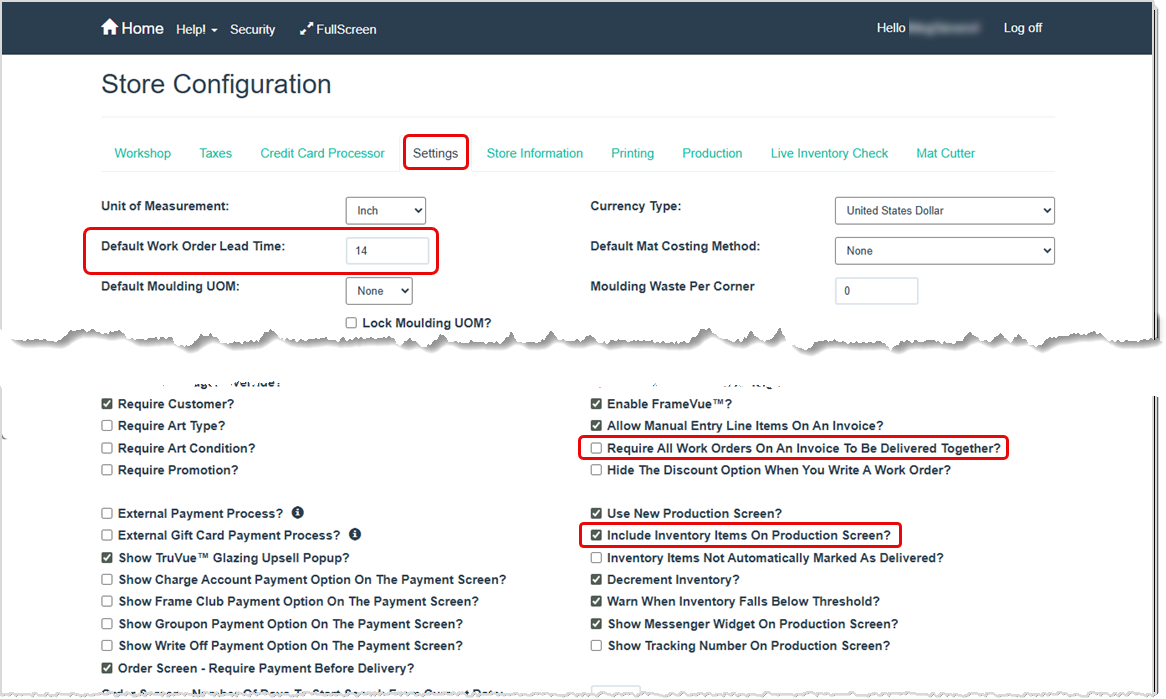
Set the default lead time for completing work orders in Store Configuration > Settings. Enter the number of days you typically need in the Default Work Order Lead Time field. LifeSaver Software uses this value to calculate due dates automatically.
While you're on the Settings tab, consider enabling the following options to better align the system with your workflow:
Pro Tip: Review these settings periodically to make sure they still match your production process as your business evolves.
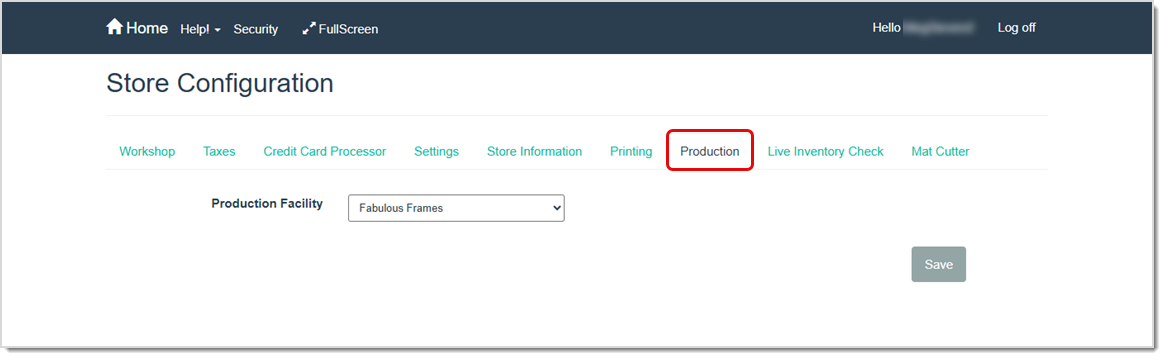
If your business operates more than one store location, go to Store Configuration > Production and specify the location where you complete work orders. This ensures that LifeSaver Software assigns production tasks and schedules accurately based on the correct location.
Set up the production statuses you will use for your work order life-cycle in Production > Manage Status.
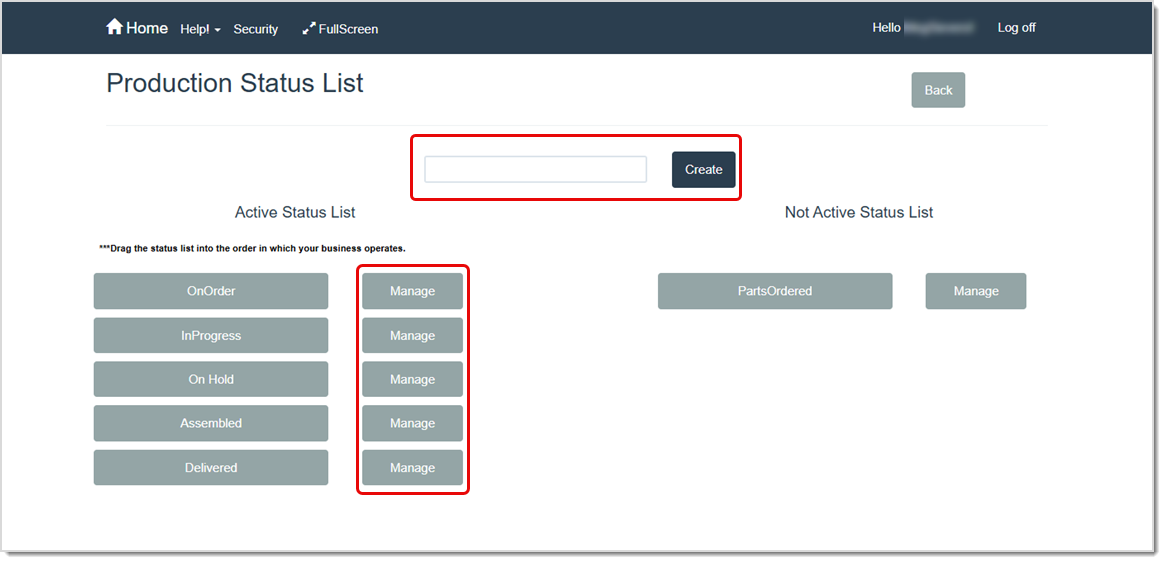
Once you complete the setup steps, you’re ready to start using LifeSaver’s Production feature.
You’ll primarily do this through the Production button on the Home page. From the Production Status page you can:
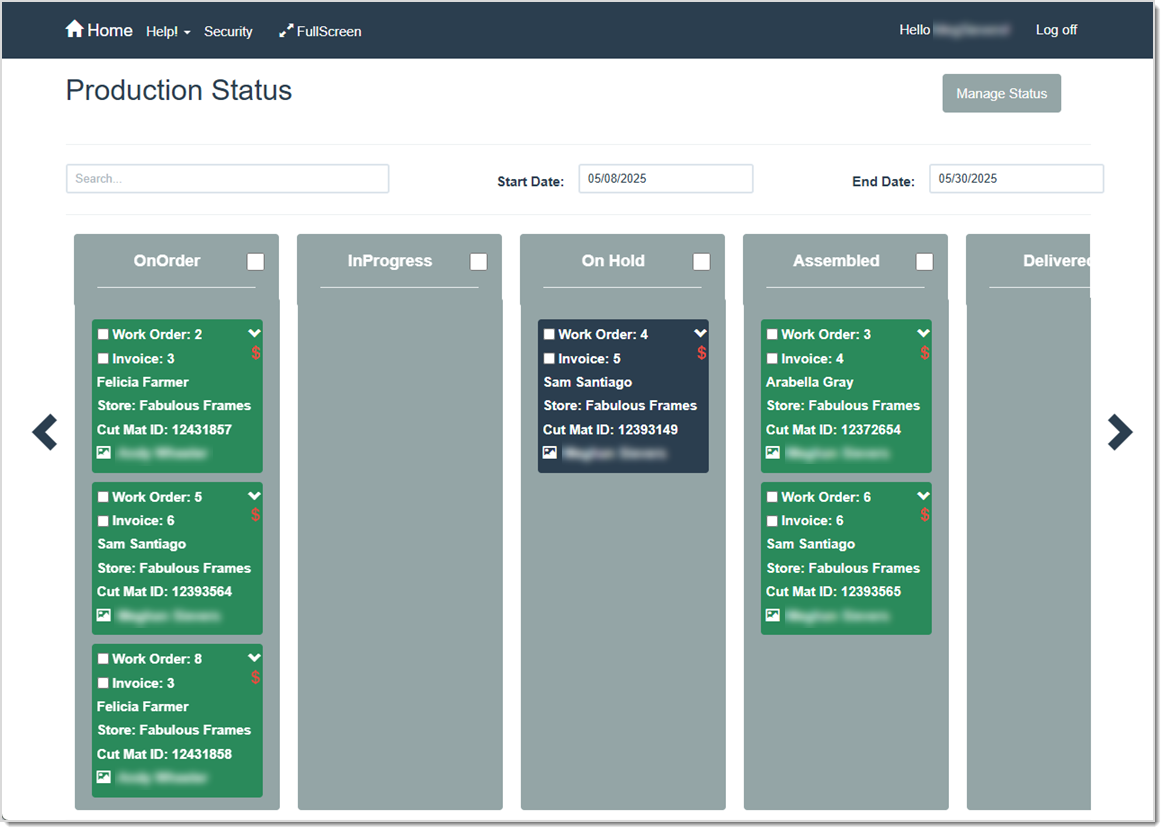
In addition to the Production Status page, LifeSaver Software integrates production functionality into several other areas of the software, including reporting, customer communication, and work order statuses outside of the Production Status page.
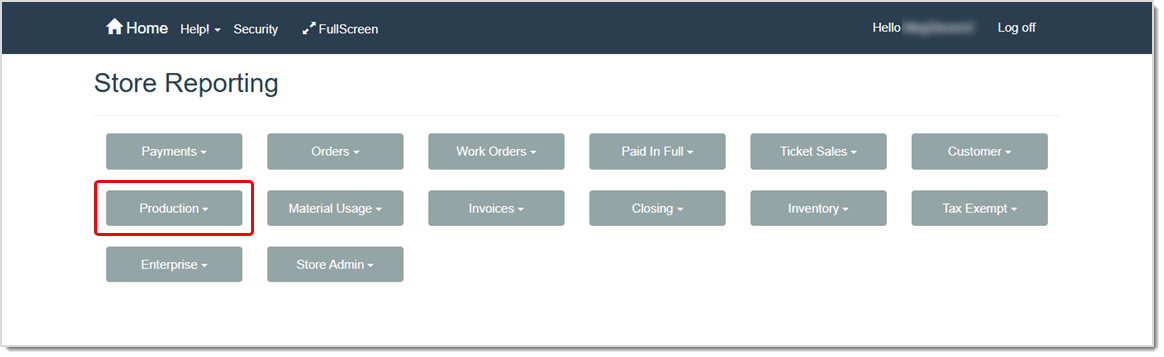
Go to Reports > Production to access a variety of reports there that provide insight into your production workflow. These reports include everything from past-due work orders to a production log (or schedule of work) and even a list of customers who need a call from your store regarding their work orders.
Call Status helps you stay in touch with customers and ensure their orders meet expectations. By tracking who needs a call and who has already been contacted, you can build customer confidence in your store’s ability to manage their orders effectively.
You can set up different call requirements for specific production stages. For example, you might require technicians to call a customer and confirm sizes before they move a work order into an In Progress status.
Record a customer call status in the work order in Production or in the order details and both places will update the Production > Call Status report.
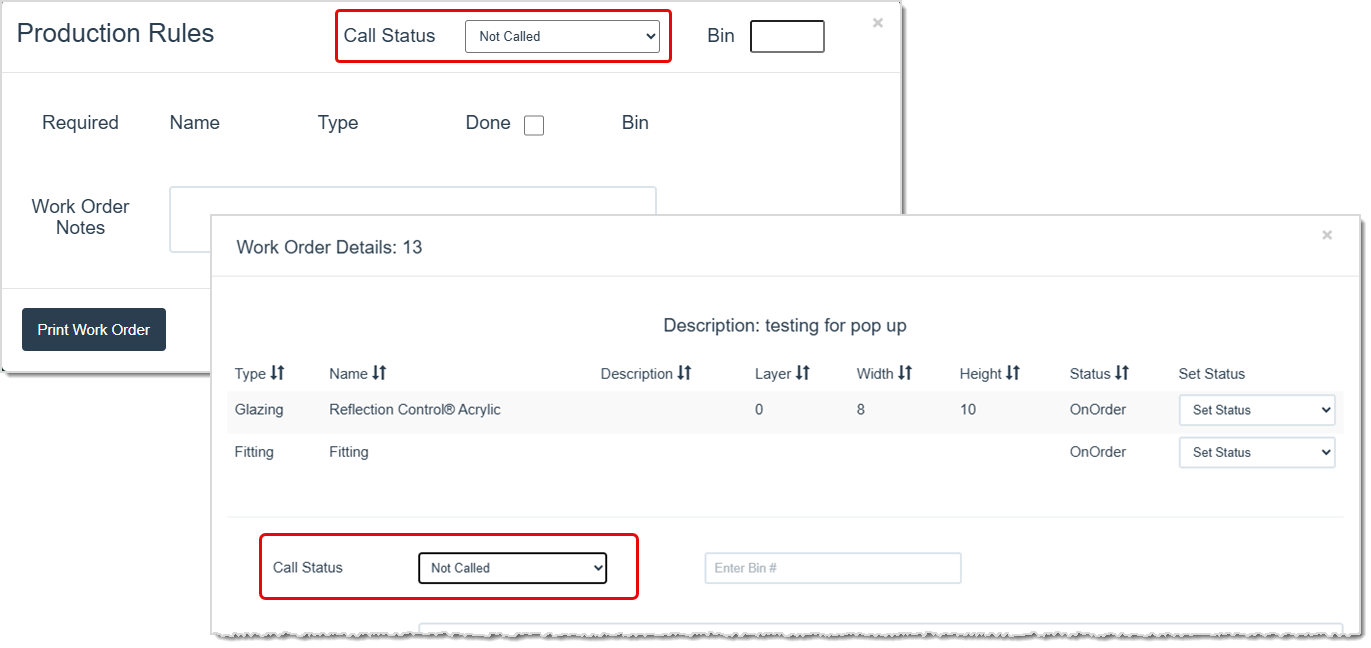
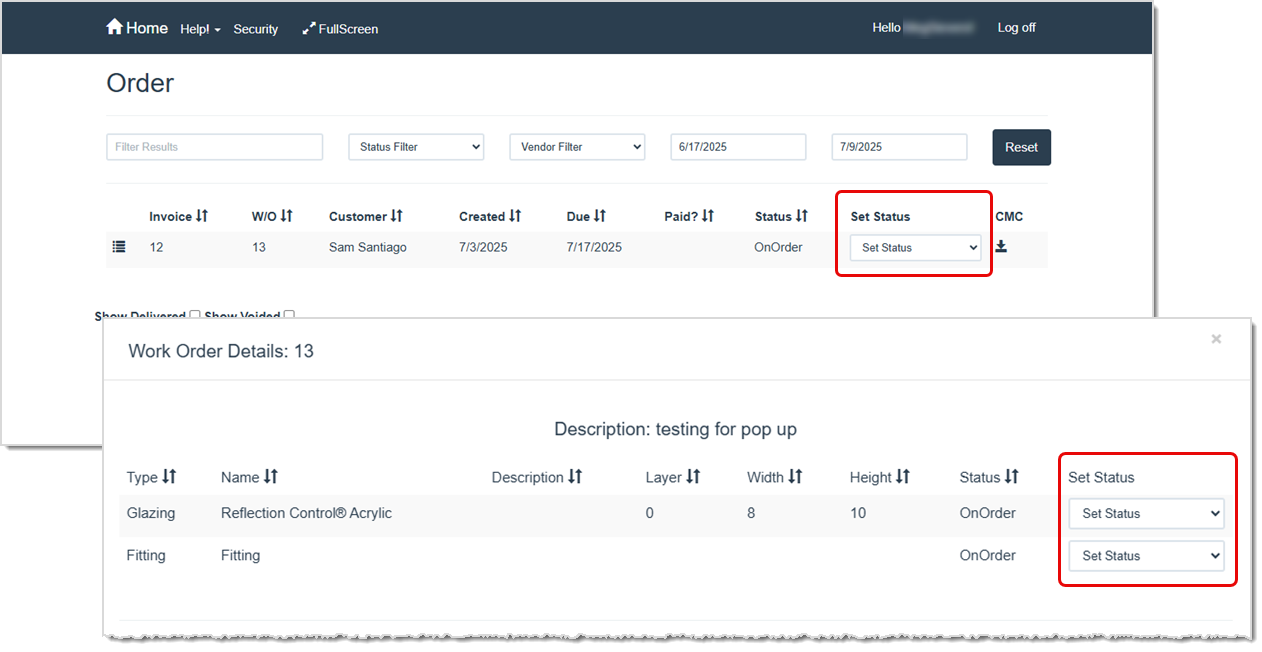
In addition using the Production Status page, you can change a work order’s status directly from the Order page or the Work Order Details window. Select a new status in the Set Status field and LifeSaver Software will immediately update the work order’s position in the production schedule.
Store Configuration - Workshop
Store Configuration - Settings
Store Configuration - Production Location
Working With Production Statuses
Q: Is there a way to let our customers know what stage their project is at in the production process?
A: Yes! Simply select the Send digital notification to customer when moved to this status option when you set up your statuses. When a work order is moved into the status, your customer will be notified.
Q: I have a question, but I can't find my answer here, how do I get more assistance?
A: You can ask any question at the link below, once received one of our technicians will be in touch! If you need immediate assistance, the LifeSaver Software team is available Monday through Friday, from 9:00am to 6:00pm Eastern time. Feel free to contact our support team at: 1-800-381-0600, extension 2. Or you can email us at support@lifesaversoft.com and we will respond within 24-hours.
Is this page helpful?
×Help us improve our articles