
Your Processing Payment Portal
Payment Portal The Payment Portal is a dashboard included as part of our payments offering. It allow

 October 13, 2025
Knowing what the Store Reports are and how to use them is important for frame store owners and employees. This article will help you understand how to navigate, filter, and export store reports so that you can get key insights, track your sales and production, and optimize operations. Take a look to see how the reporting tools can help your business!
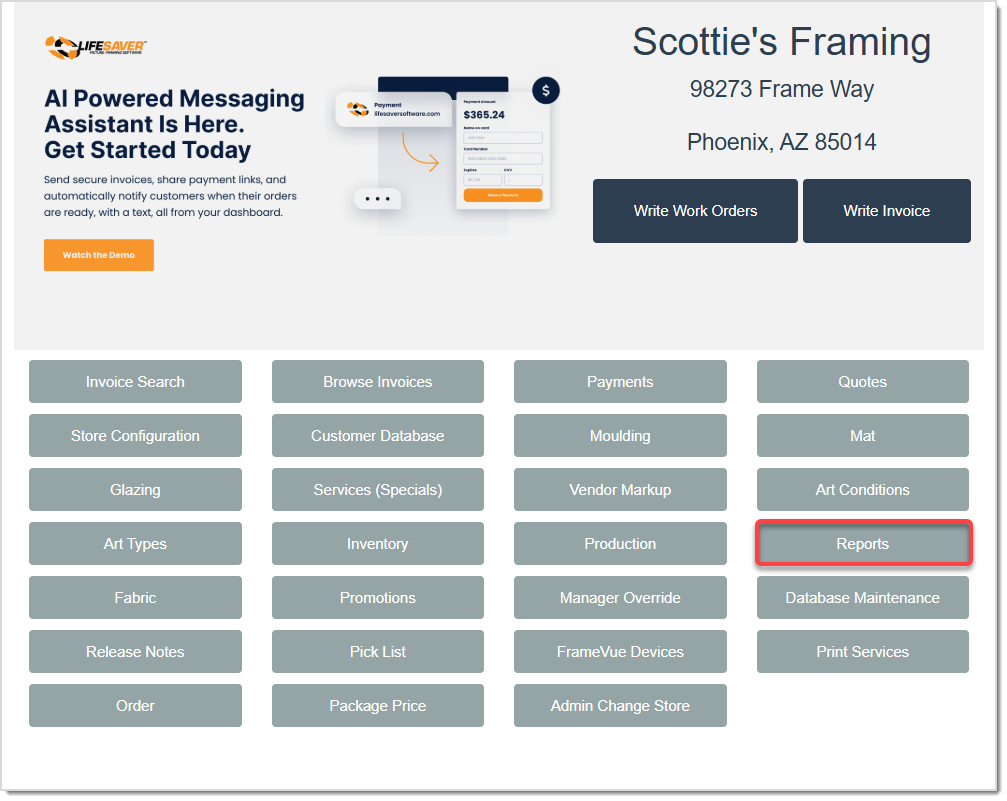
On the LifeSaver Software Home page, click the Reports button in the main menu. Click on the Report Type drop-list, then pick the type of Store Report you want to generate. From there, you can choose a date range, search criteria, and filters to customize your report!
Below you will find the list of Reports you can work with on the Reports page and what each of them show you:
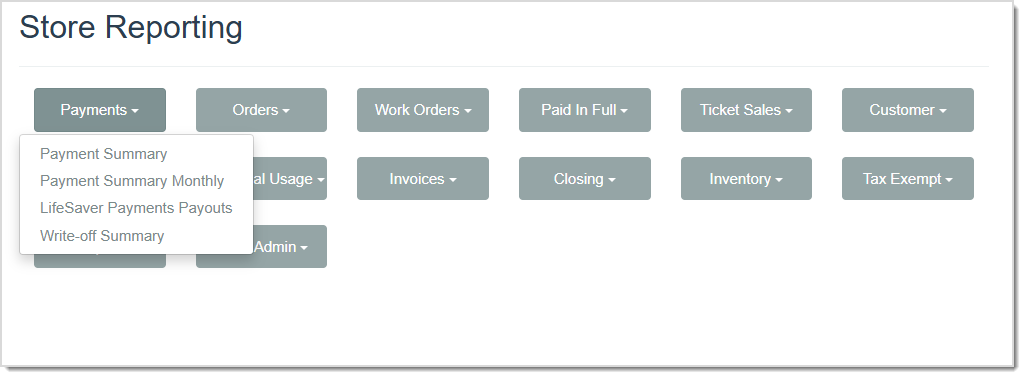
The Payments Reports help track payments, covering Payment Summaries for date ranges as well as months you select. The LifeSaver Software Payments Payout Report lists the transfer of funds from your card processing to your store's bank account for the time period you select. Lastly, the Write-Off Summary Report lists the invoices that have been written-off for the time period you select. Click here to learn more: Payment Reports
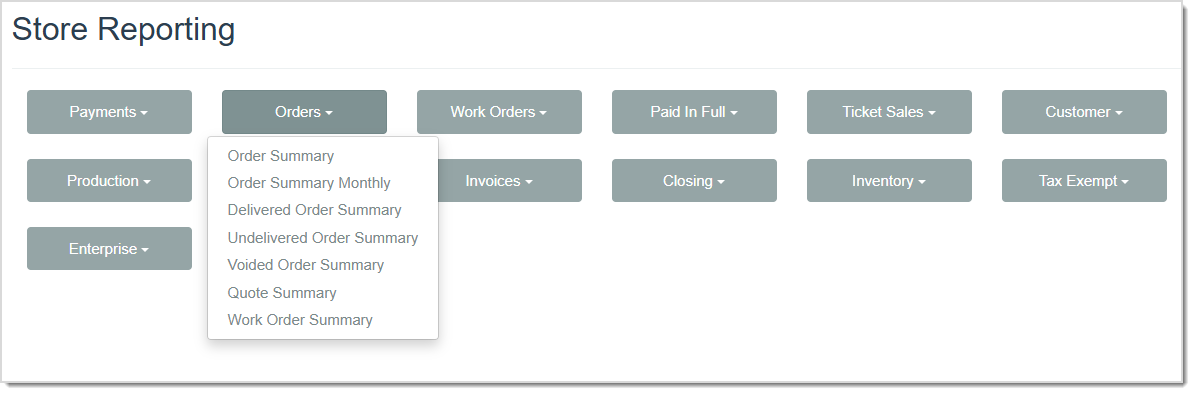
The Orders section of the Store Reporting page gives you a variety of Report Summaries for different Order scenarios. The Order Reports cover Order Summaries with specific date ranges you select as well as Monthly for any Month you select. These Reports also cover Summaries of Delivered, Undelivered, and Voided Orders. The last Reports you’ll find in the drop-list will be Summaries for Quoted Orders as well as Work Orders. Click here to learn more: Order Reports
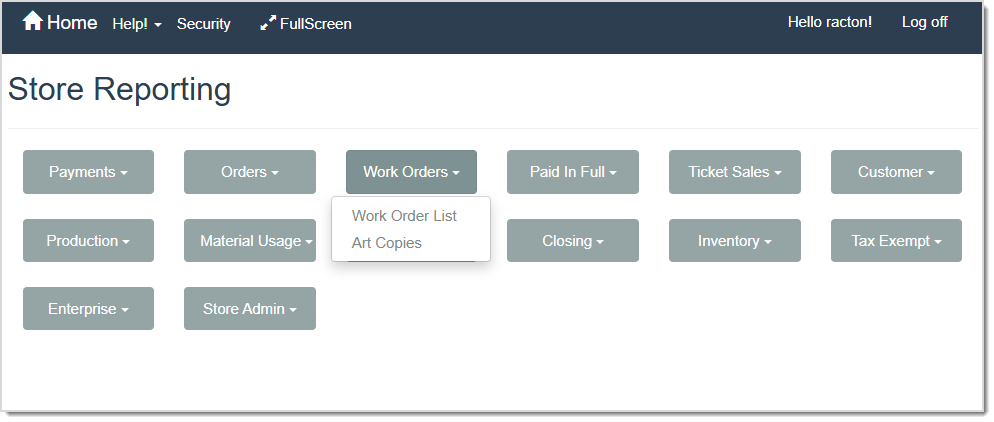
The Work Order section of the Store Reporting page gives you the Work Order List Report which is a list of all Work Orders created within the Date Range you select as well as the Art Copies Report which displays the Tags to identify the customer's artwork or components. Click here to learn more: Work Order Reports
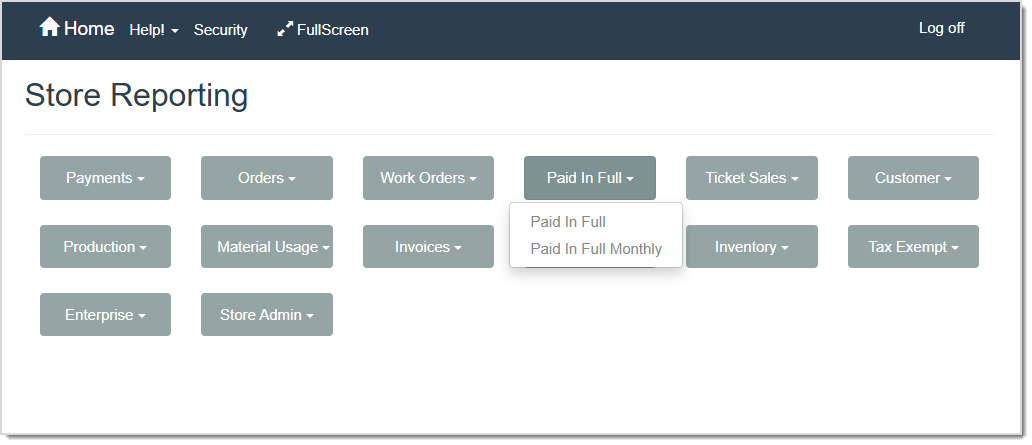
The Paid in Full Reports are for anyone who needs to track orders that have been fully settled. On the Paid In Full Report drop-list, you’ll see the Paid In Full Report which gives you a list of all orders that have been completely paid for within the date range you select as well as the Paid In Full Monthly which lists all orders that have been completely paid for within a full Month you select. Click here to learn more: Paid In Full Reports
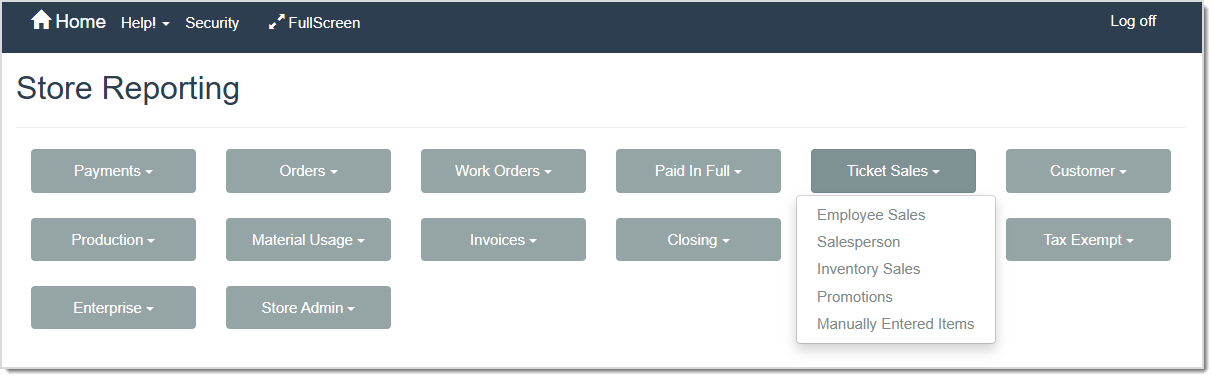
The Ticket Sales Reports help track and analyze the performance of members of your team as well as your inventory and promotions. The Employee Sales Report displays charts for the Total Framing Dollar Amount by Employees percentages for the time period you select. The Salesperson Report lists your salespeople’s productivity statistics with or without Invoice Detail for the time period you select. The Inventory Sales Report lists details on inventory items and the sales information regarding each item. The Promotions Report tracks the performance of your Promotions. The Manually Entered Items Report lists all of your manually entered items for the time period you select. Click here to learn more: Ticket Sales Reports
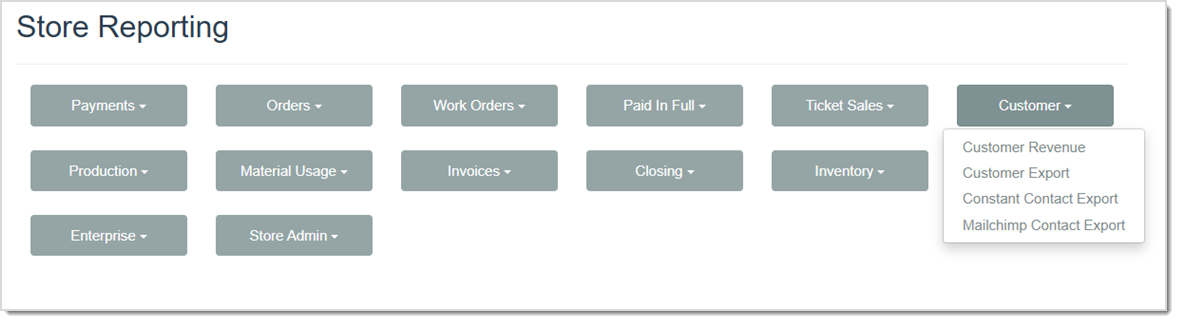
The Customer Report functionality displays how much revenue your customers are generating in your store as well as giving you tools for exporting your customer data in useful ways. The Customer Revenue Report gives you critical sales information about the customers that used your framing services within the date range you select. The Customer Export, Constant Contact Export, and Mailchimp Contact Export displays your store’s customer roster according to the report filters you select. Click here to learn more: Customer Reports
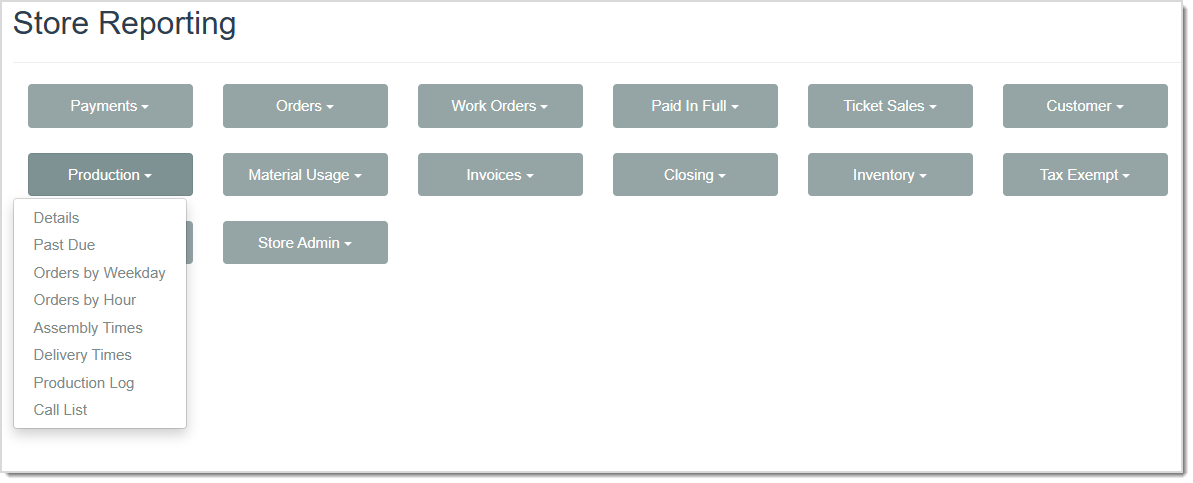
The Production Reports in LifeSaver Software deliver important details about your work. The Production Details Report gives you information about orders within the date range you select. The Past Due Report gives you details about all Past Due, Undelivered, and To-Do orders in the system. The Orders by Weekday Report breaks down your sales by day of the week for whatever period you choose to view. The Orders by Hour Report breaks down your sales by hour of the day for whatever period you choose to view. The Assembly Times Report breaks down your sales by the amount of time used to complete assembly for whatever period you choose to view. The Delivery Times Report breaks down your sales by the amount of time used to deliver orders for whatever period you choose to view. The Production Log Report gives important details on your work orders for whatever period you choose to view. And lastly, the Call List Report details customers needing a call from you. Click here to learn more: Production Reports
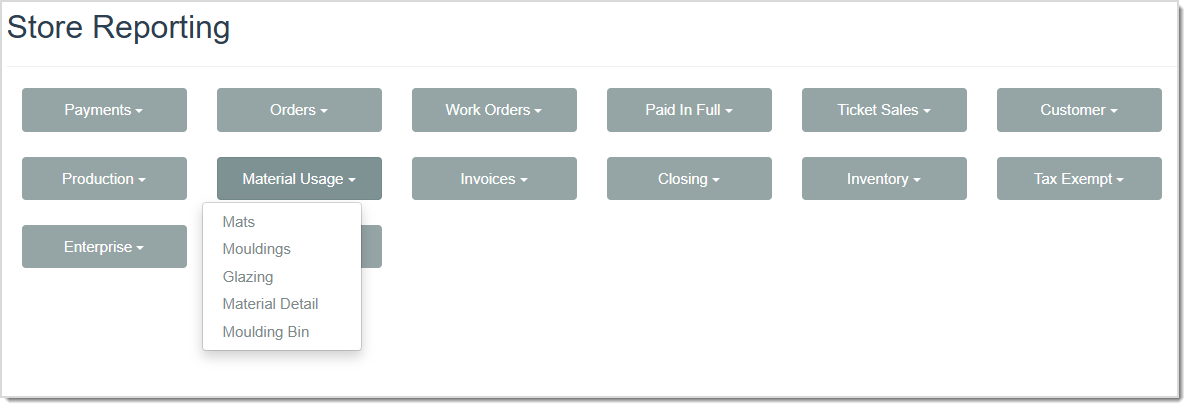
The Material Usage Reports analyze and optimize the use of your framing materials. The Mats Report gives you data for your mat usage for the date range you select. The Mouldings Report gives you information for your moulding usage for the date range you select. The Glazing Report gives you details for your glazing usage for the date range you select. The Material Details Report gives you data for your material costs for the date range you select. The Moulding Bin Report gives you inventory data for your moulding for the date range you select. Click here to learn more: Material Usage Reports
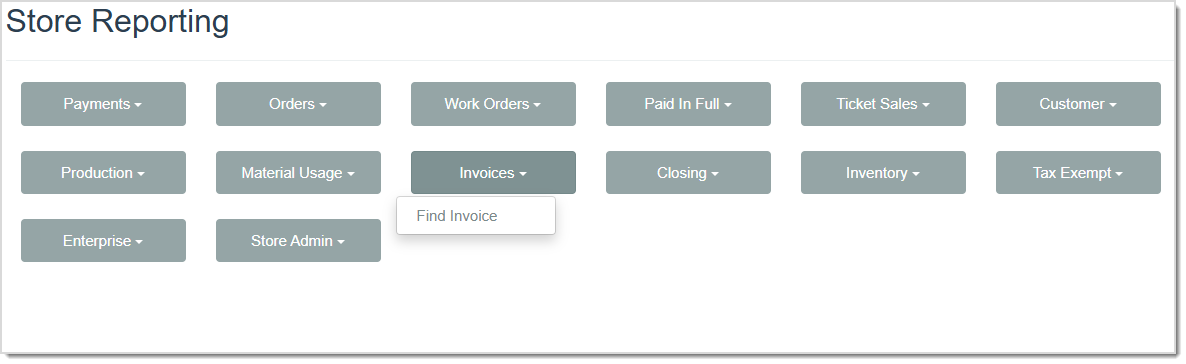
The Find Invoice Report allows you to search for an Invoice using the Invoice ID then view the desired Invoice Report. Click here to learn more: Invoice Reports
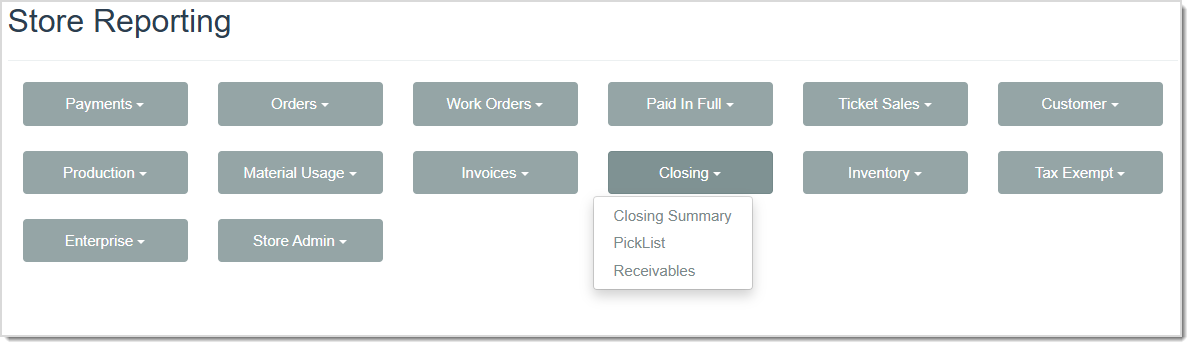
The Closing Reports give you key details about how your store has performed, how much to deposit at the bank, your pick lists, and your receivables. The Closing Summary Report gives you a summary of earnings information, orders paid in full, and payment details. The Pick List Report shows you materials needed for your orders and allows you to filter by Work Order Number. The Receivables Report shows you amounts your customers owe the store for work you are doing. Click here to learn more: Closing Reports
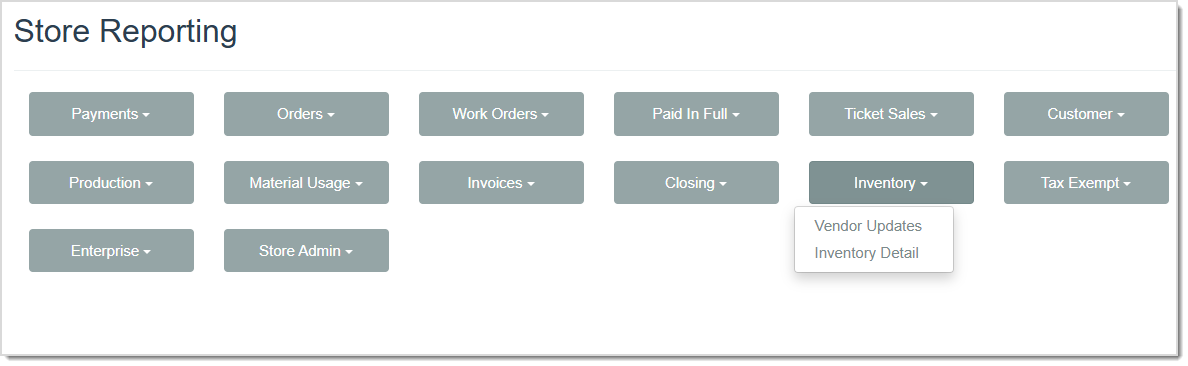
The Inventory Reports offer you a detailed overview of your active inventory. The Vendor Updates Report displays updates that your vendors make to their catalog listings. Your Inventory Detail Report displays important inventory details and data. Click here to learn more: Inventory Reports
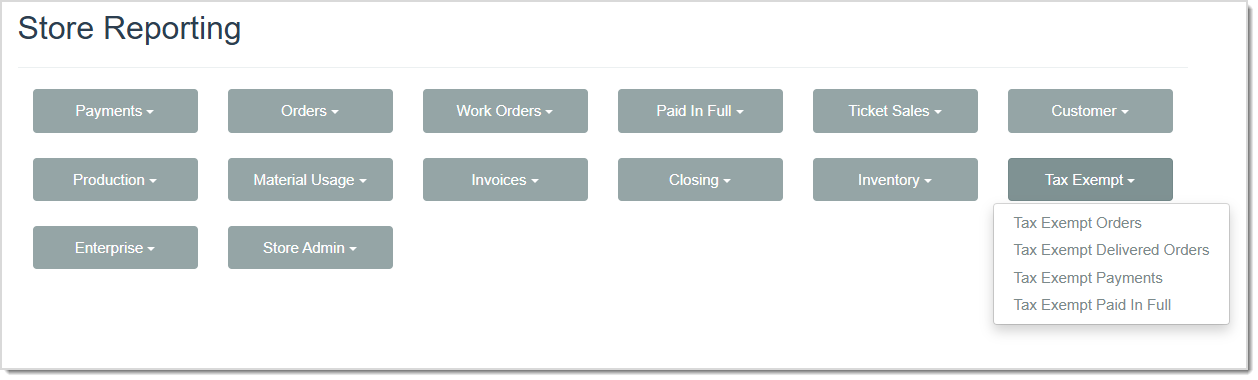
The Tax Exempt Reports give you key details about any tax-exempt work you have done in whatever period you select. The Tax Exempt Orders Report displays the details on Tax Exempt Orders. The Tax Exempt Delivered Orders Report shows information on Tax Exempt Orders that have been marked as Delivered. The Tax Exempt Payments Report gives details on Tax Exempt Payments. The Tax Exempt Paid In Full Report gives you details on Tax Exempt Orders that have been paid in full. Click here to learn more: Tax-Exempt Reports
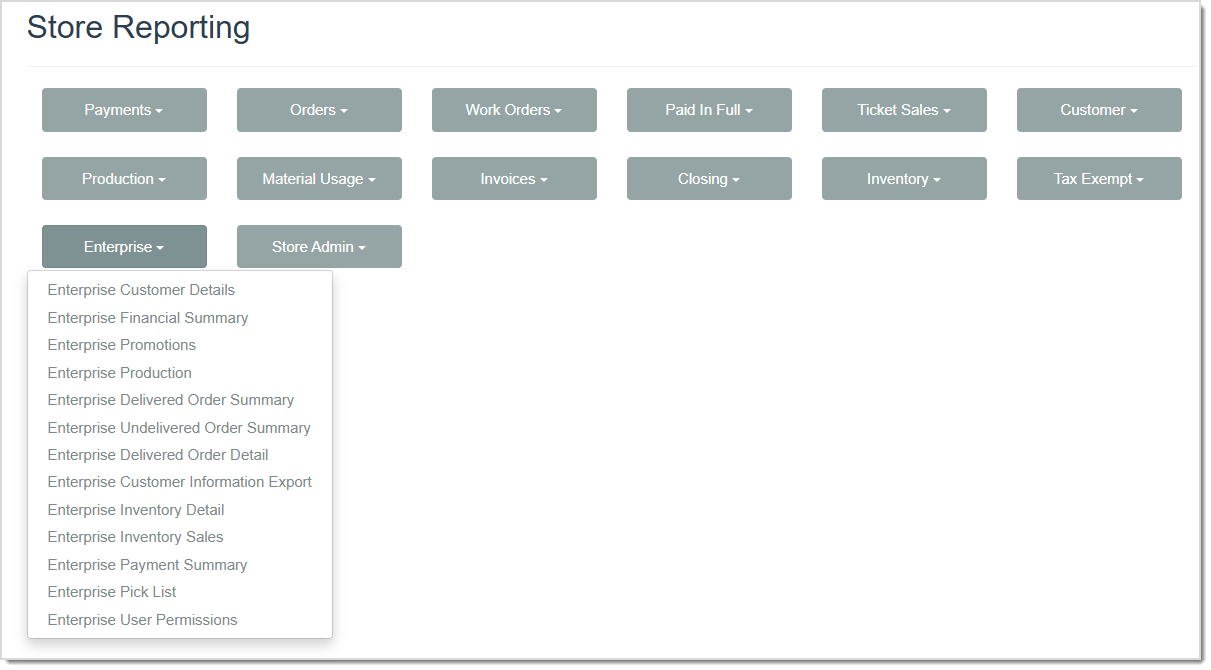
Please Note: You will not see this section of reports if you have only a single store. They are available only for the Enterprise version of LifeSaver Software.
The Enterprise Reports let you consolidate data across all stores integrated with LifeSaver Software and manage it in one central location. The Customer Details Report is a great tool for targeting promotions in specific customer areas. The Financial Summary Report gives you critical information about the work your stores are doing and how they are performing financially. The Promotions Report gives you discount amounts by store for whatever period you choose to view. The Production Report details all invoices and work orders for your stores for whatever period you choose to view. The Delivered Order Summary Report lists delivery dates for work orders by store for whatever period you choose to view. The Undelivered Order Summary Report lists all undelivered invoices and work orders for your stores for whatever period you choose to view. The Delivered Order Detail Report details all delivered invoices and work orders for your stores for whatever period you choose to view. The Customer Information Export has complete details of customers for your stores for whatever period you choose to view. The User Permissions Report lists permissions for all users for the different areas of the system. Click here to learn more: Enterprise Reports
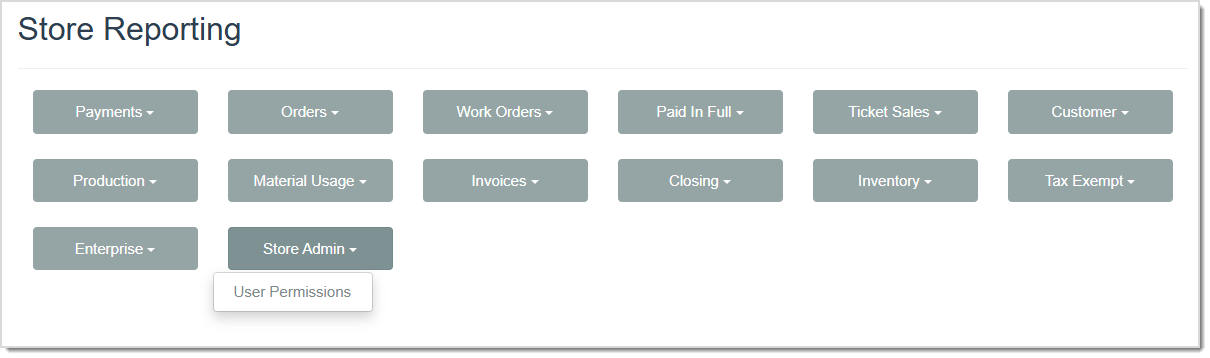
The User Permissions Report gives you an overview of the permissions all of your users have for the different parts of the system. Click here to learn more: Store Admin Reports
Running store reports helps you view what is happening with orders, deliveries, invoicing, and daily sales. You can generate reports for Payment Summaries, Orders, Production, Customer Data, Material Usage, and more. Below are the fields that appear on almost all of the Reports:

Q: Can I export reports to Excel?
A: Yes. Many reports have an Export drop-list in the top tool bar. You should select the desired format, such as Excel, CSV, or PDF.
Q: Why don’t I see any data in my report?
A: Verify that your filters (e.g., date range, store, promotions) are set correctly, and that you have updated your order statuses in Production. If you’re using multiple stores, ensure you have the correct stores selected.
Q: I have a question, but I can't find my answer here, how do I get more assistance?
A: You can ask any question at the link below, once received one of our technicians will be in touch! If you need immediate assistance, the LifeSaver Software team is available Monday through Friday, from 9:00am to 6:00pm Eastern time. Feel free to contact our support team at: 1-800-381-0600, extension 2. Or you can email us at support@lifesaversoft.com and we will respond within 24-hours.
Is this page helpful?
×Help us improve our articles