This article will help you store, organize, and sell your inventory while tracking quantities and other details. Take a look below to see how this feature can help your business grow.
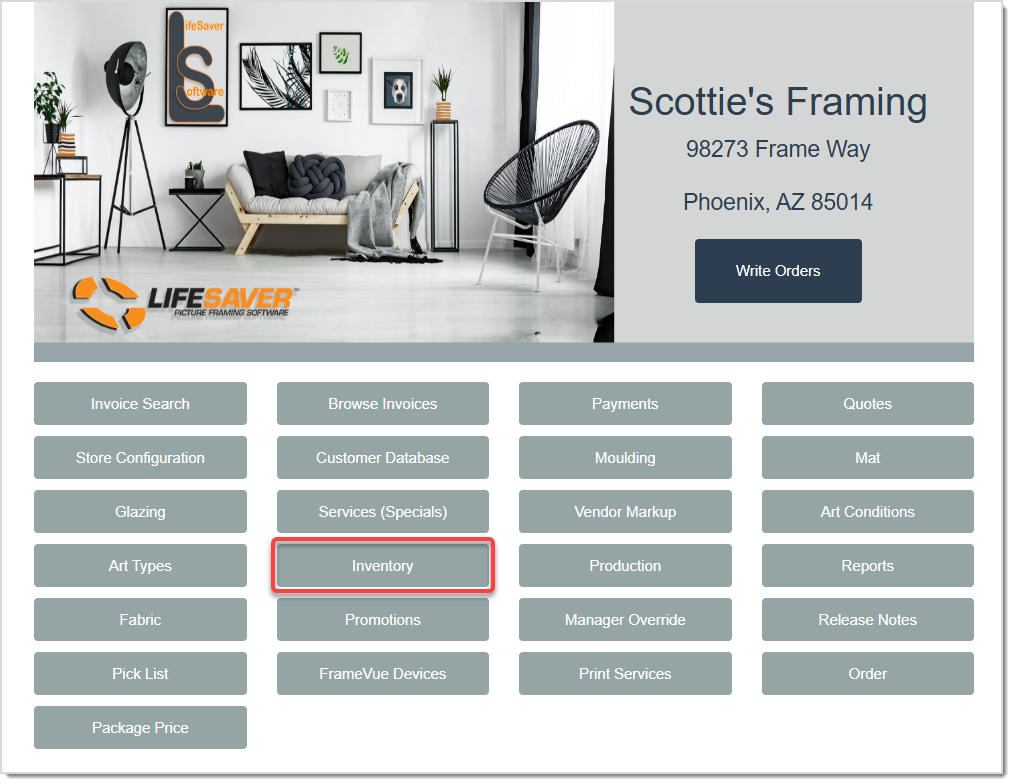
From the Home page, click the Inventory button to open your store’s main Inventory page.
Creating New Inventory Items

- Click the Create New button.
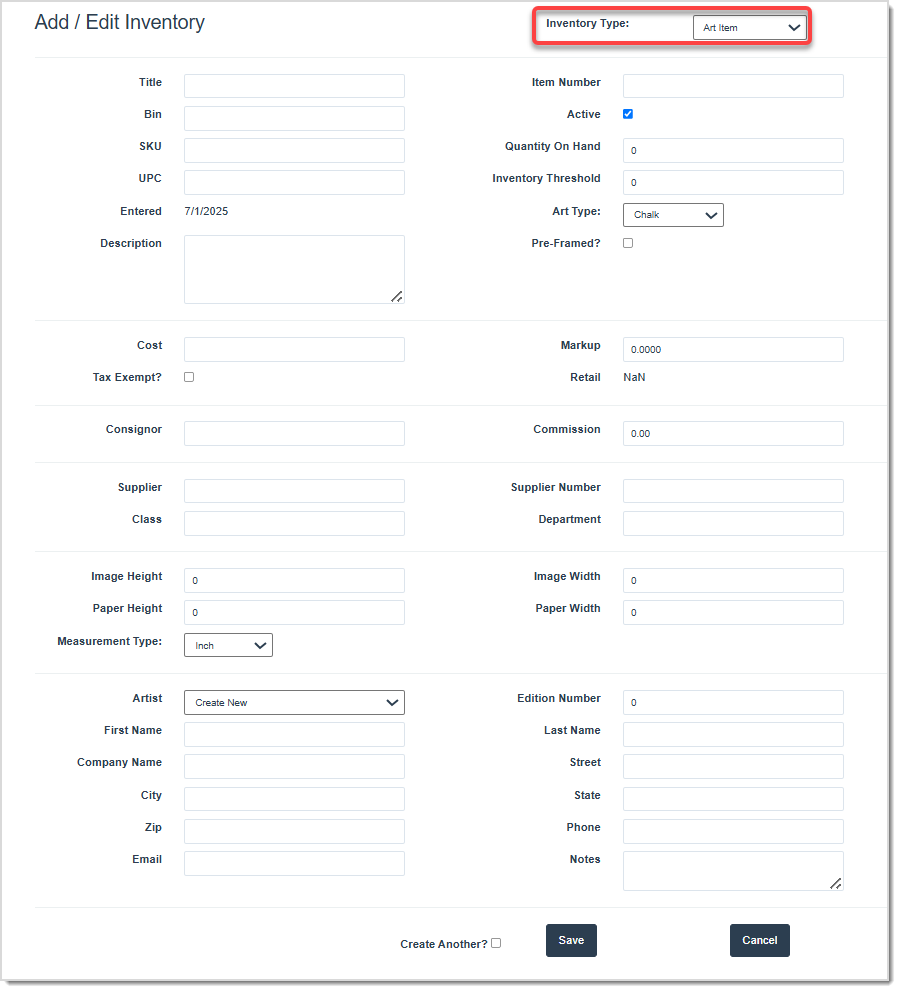
- Choose the new Item’s Inventory type: Supply, Finished Product, or Art Item. Depending on your selection, this page will look differently.
- Fill out all of the required fields. If you selected Art Item as the item’s inventory type, the required fields are Title, Item Number, Description, Cost, First and Last Name, and Phone number. If you selected either Supply or Finished Product, only the Title, Item Number, and Description fields are required.
- If you’d like to add more inventory items, check the Create Another? checkbox before saving.
Don’t forget to click the Save button to finalize.
Managing Inventory Levels
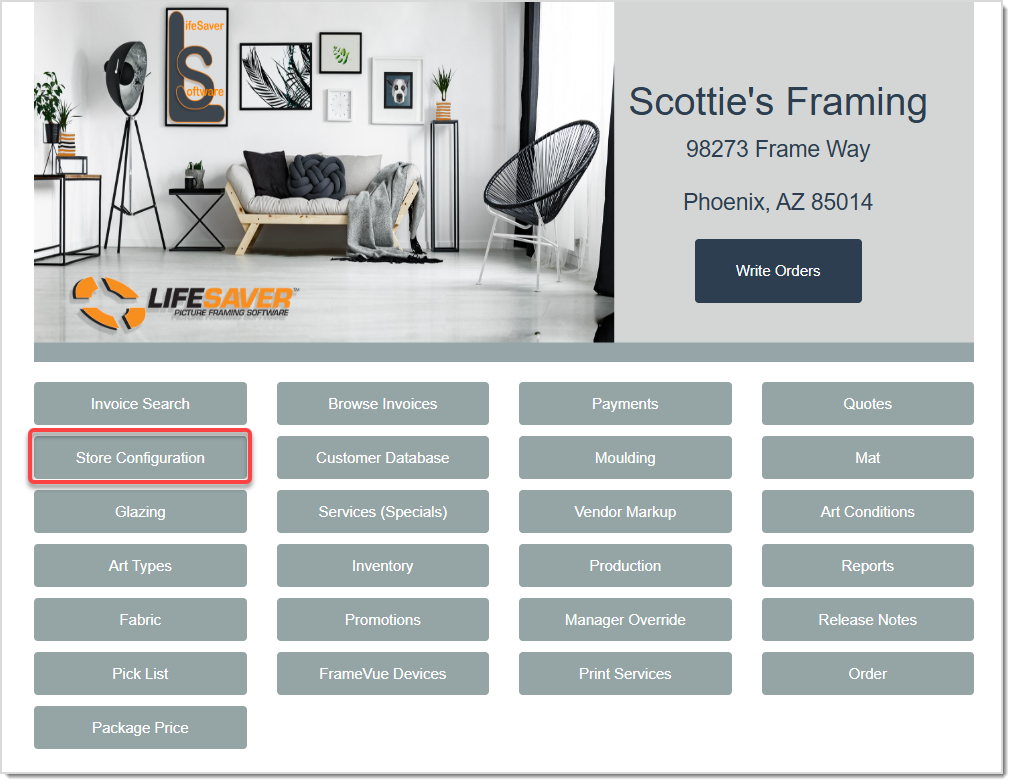
To manage your Inventory levels, click on the Store Configuration button on the Home page.

- On the Store Configuration page, click on the Settings tab.
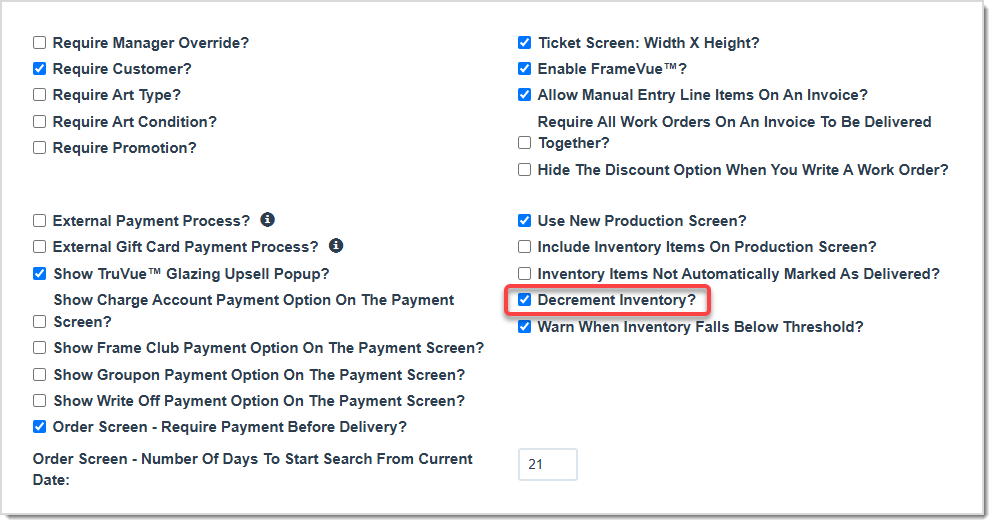
- On the Settings tab, navigate to the middle of the page. You should see a checkbox labeled Decrement Inventory, check the box to enable it.
- If you want to see alerts when an item is nearly out of stock, check the Warn When Inventory Falls Below Threshold box. Then, enter your threshold level in the item’s record labeled Inventory Threshold. When you’re finished, click the Save button at the bottom of the page.
- Return to the system Home page and click the Inventory button. Then, enter your on-hand quantity in the item’s record on the Inventory page. The system will remove those sold units automatically.
Searching, Editing, and Deactivating Items
Click the Inventory button on the Home page to search, edit, and deactivate inventory items. You can search for items within your store’s inventory by Name, Title, SKU, UPC, or Bin number.
- Search by entering text into the Search field and clicking the Search button.
- Edit an item by clicking Edit and updating information on the Add / Edit Inventory page. Click the Save button to confirm.
- Remove an item from the active Inventory list by clicking the Deactivate button next to the item in the list.
- Reactivate a deactivated item by clicking the Show Deactivated Inventory box near the top right of the Inventory page. Then, click the Activate button on the item’s line.
Uploading Art Images
You can upload images for art items that will appear on the main Inventory page:
- Click on the word Upload for the art line item to which you want to add images.
- Select the desired image from your Photos or system library.
- Click the OK button on the success message to finalize.
- The preview image will be attached to the inventory record.
Related Topics
Working With Promotional Discounts
Working With Work Orders
Frequently Asked Questions
Q: Can I track consignments and artist commissions using Art Inventory?
A: Yes, you can list consignment details and pay commissions to the artist when you sell consignment art. Enter consignment or commission-related information in the inventory item’s record.
Q: I have a question, but I can't find my answer here, how do I get more assistance?
A: You can ask any question at the link below, once received one of our technicians will be in touch! If you need immediate assistance, the LifeSaver Software team is available Monday through Friday, from 9:00am to 6:00pm Eastern time. Feel free to contact our support team at: 1-800-381-0600, extension 2. Or you can email us at support@lifesaversoft.com and we will respond within 24-hours.


 August 26, 2025
Is this page helpful?
×Help us improve our articles