Refunding a payment on an invoice or Voiding an invoice in LifeSaver Software is straightforward and you can be done in just a few clicks. Keep reading to learn more!
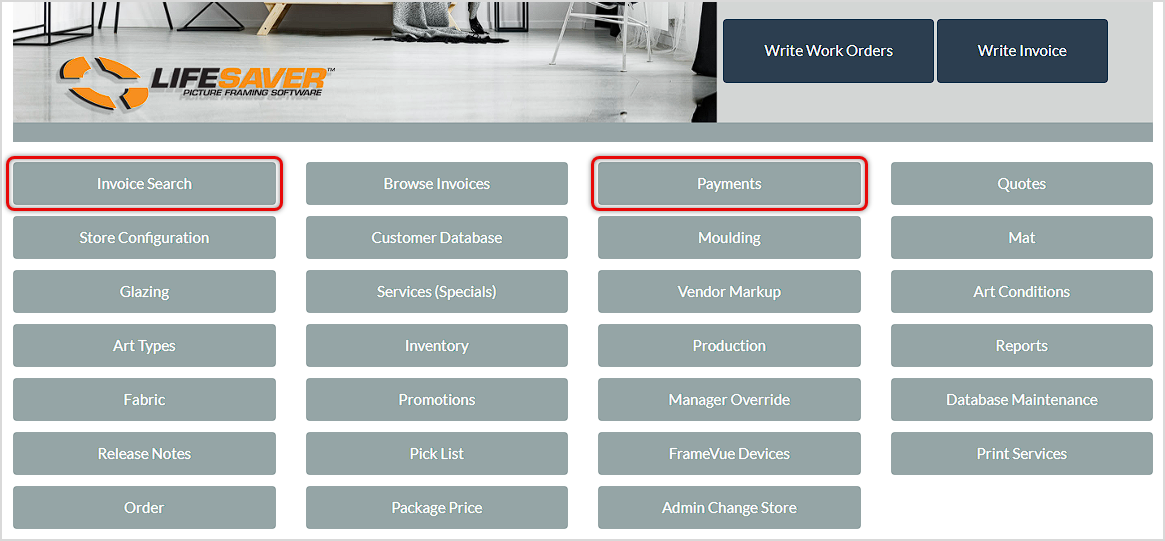
On the Home page, click either Invoice Search or Payments to locate the invoice you want to refund or void.
Please Note: If you’ve taken one or more payments on an invoice you will need to refund all payments before you can void the invoice.
How to Refund a Payment
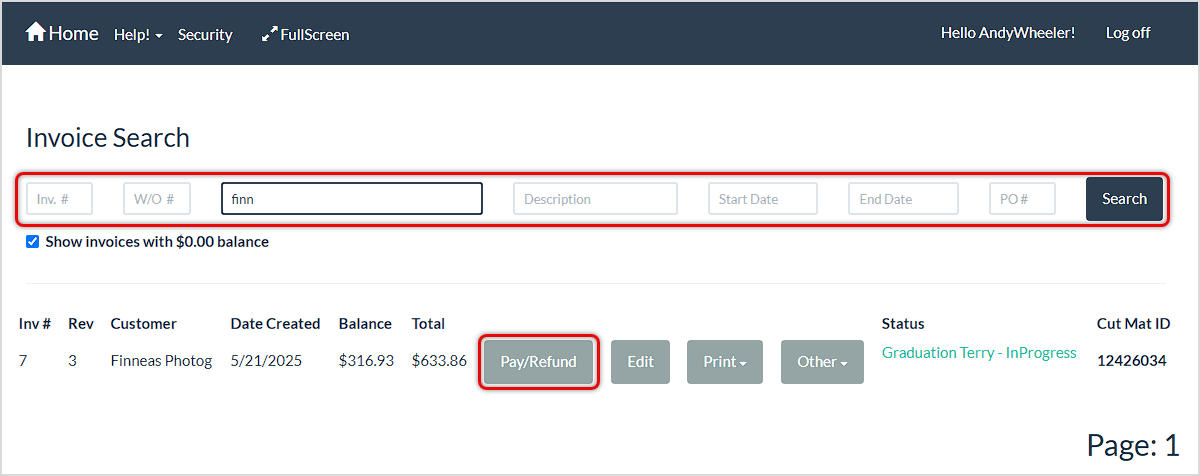
For refunds, you can return either a full or partial amount, depending on the situation:
- On the Invoice Search or Payments page (they are identical), use the search fields at the top to find the invoice you want using whatever information you have. Click the Refund button (or it may be the Pay / Refund button) for the invoice you want. If you do not see the Refund button directly on the line item, click into the Pay/Refund or Edit options to reach the payment details. The Accept Payment page will load with information about the invoice and any payments that have been made.
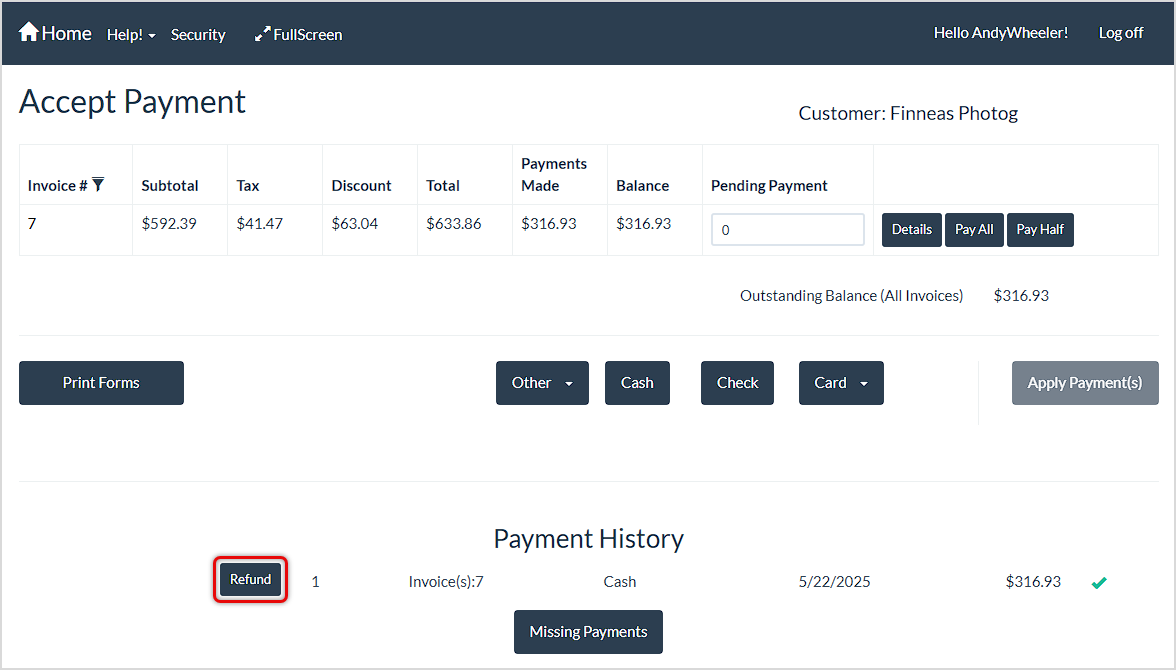
- Click the Refund button for the payment you wish to refund. If you do not see the payment, click the Missing Payments button and you’ll be able to find it if it was completed recently. Please note, this only works if you use the EVO credit card processing, and only within the current day’s batch of processed transactions.
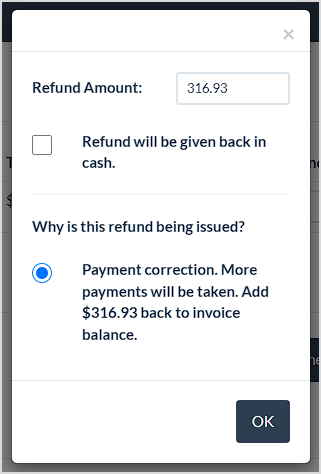
- When refunding, a window will open with options for the refund. By default, the option to do a Full Refund is selected. If you’re not refunding the full amount you can do a Partial Refund and enter the desired amount in the Refund Amount field. If the funds are being returned in cash, check the box for Refund will be given back in cash. Click OK to refund the amount you selected.
Please Note: If you have the Write Off option configured for your refunds in the system settings and you do a refund, the funds never show in the reporting as taxable income. You’ll see an additional option for ‘No Further Payments’ if the Write Off option is enabled it applies the write-off payment for the refund amount so it doesn’t add the balance to the Balance Due.
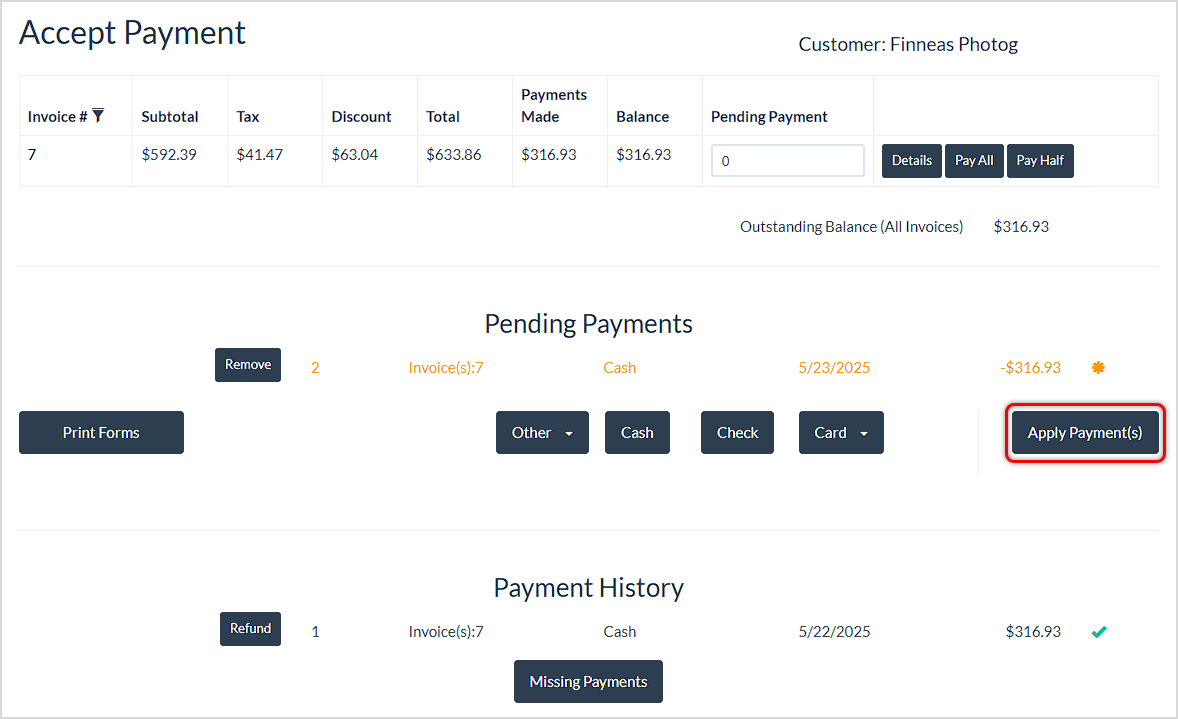
- You’ll see the Pending Payment for the refund showing the negative amount on the Accept Payment page as in the image below. If you’re using LifeSaver Payments and the payment was made by card, the refund will be automatic. Depending on your store setting, you can select the original form of payment (cash, check, etc.) to accurately record the refund transaction. If you selected Cash as the refund method in the previous step, the refund item will show that as in the example below and the Apply Payment(s) button will be active. Click the Apply Payment(s) button.
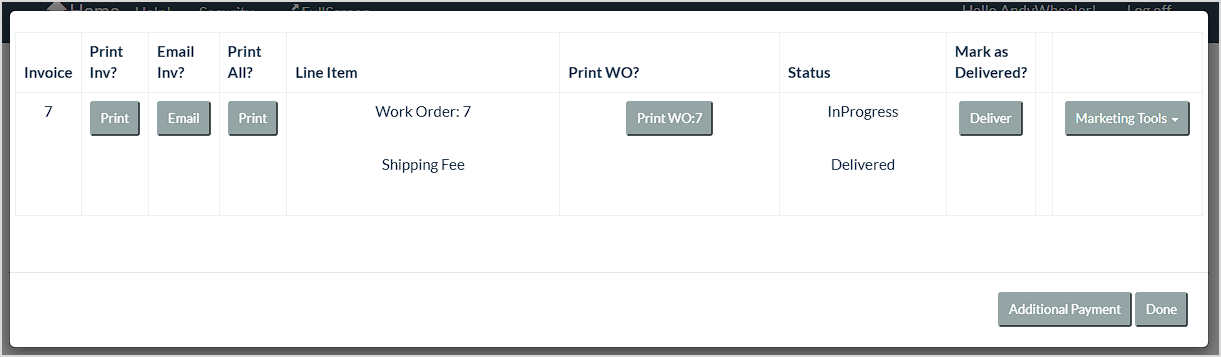
- After applying your refund, your print options window will open. Click the Print button under the Print Invoice area to provide the customer with a revised receipt if needed.
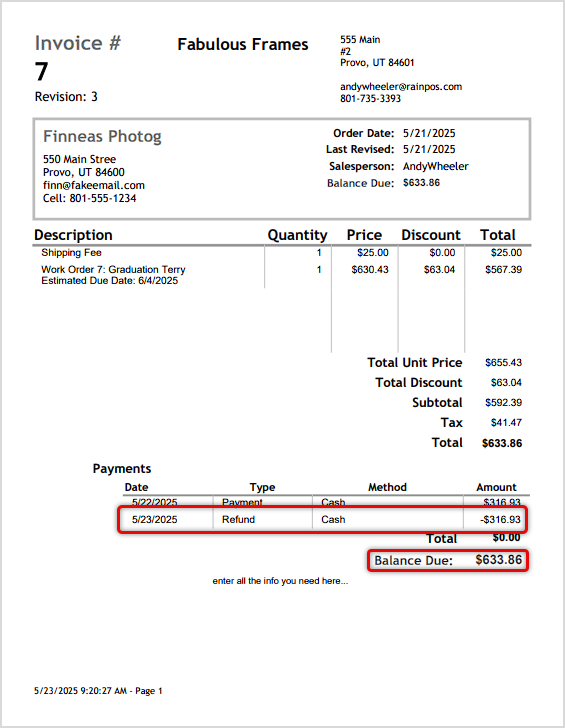
- The invoice will show both the original payment and the refund, and the remaining balance on the invoice after the refund, as pictured below.
- If you need to take a payment on the invoice, in the Print Options window in the lower right, you can click the Additional Payment button and you’ll be returned to the Accept Payment page with the updated invoice loaded for you.
How to Void an Invoice
In the LifeSaver system, voiding is canceling and deleting an invoice. In order to Void an invoice, it must have no payments toward the balance, so if there are any payments, you will need to refund all of them using the steps above before you’ll be able to proceed with voiding the invoice.
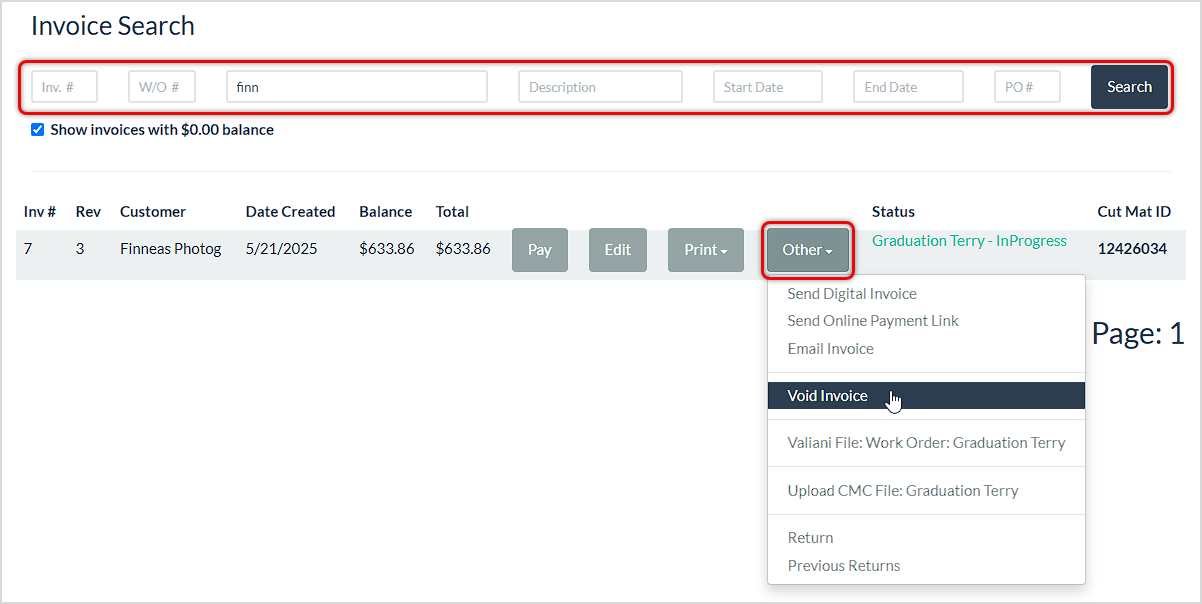
- On the Invoice Search or Payments page (they are identical), use the search fields at the top to find the invoice you want using whatever information you have.
- Click the Other button and in the drop-list click the Void Invoice option.
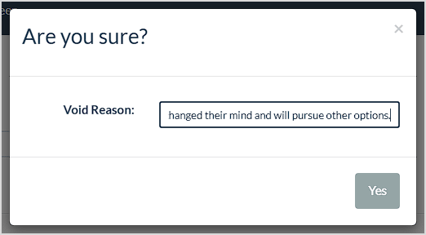
- A window titled Are you sure? will open and you can enter a Void Reason. Click the Yes button if you wish to proceed with the Void.
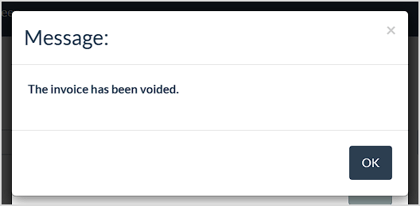
- A confirmation will pop up letting you know that the invoice has been successfully voided. Click the OK button to proceed.
Invoices that have been voided are in a VOIDED status can only be viewed and no actions can be taken. They are just available in this way for reference.
Related Topics
Working with Invoices
How to Take a Payment on an Invoice
Print, Email, or Generate a Digital Invoice
Frequently Asked Questions
Q: Can I refund or void more than one invoice at a time?
A: You should process each invoice separately. Perform the steps above for each invoice you need to refund.
Q: What if I need to refund only part of a payment?
A: Enter the new amount in the Refund Amount field, then click OK. This processes a partial refund instead of the full amount.
Q: Do I need to note a reason for my refund?
A: LifeSaver Software does not require a reason, but you can add notes if needed to keep track of refund reasons.
Q: Can I void an invoice if there are already payments applied?
A: No. If any payments were applied, you must first refund any payments. Once you process the refund(s), you can then void the invoice.
Q: Can I undo a voided invoice?
A: No. When you void an invoice, it is permanently deemed inactive. If you voided an invoice in error, consider creating a new invoice or reaching out to support for assistance.
Q: I have a question, but I can't find my answer here, how do I get more assistance?
A: You can ask any question at the link below, once received one of our technicians will be in touch! If you need immediate assistance, the LifeSaver Software team is available Monday through Friday, from 9:00am to 6:00pm Eastern time. Feel free to contact our support team at: 1-800-381-0600, extension 2. Or you can email us at support@lifesaversoft.com and we will respond within 24-hours.


 October 10, 2025
Is this page helpful?
×Help us improve our articles