
Working With Tax Exemption
There are a lot of different reasons why you might mark a sale, or part of a sale, tax exempt. Often

 October 09, 2025
LifeSaver Software’s invoice feature lets you create professional invoices while capturing all your work order and item details in one place. This article will show you how to print, email, or generate digital invoices in LifeSaver Software. Take a look!
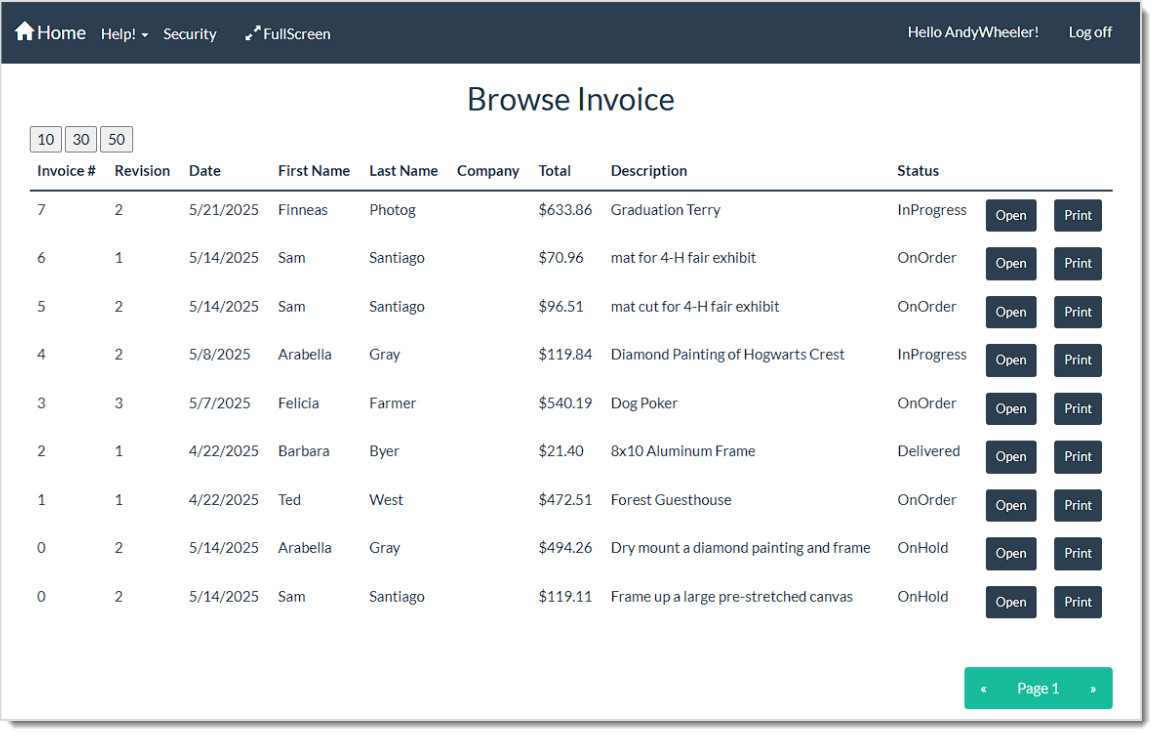
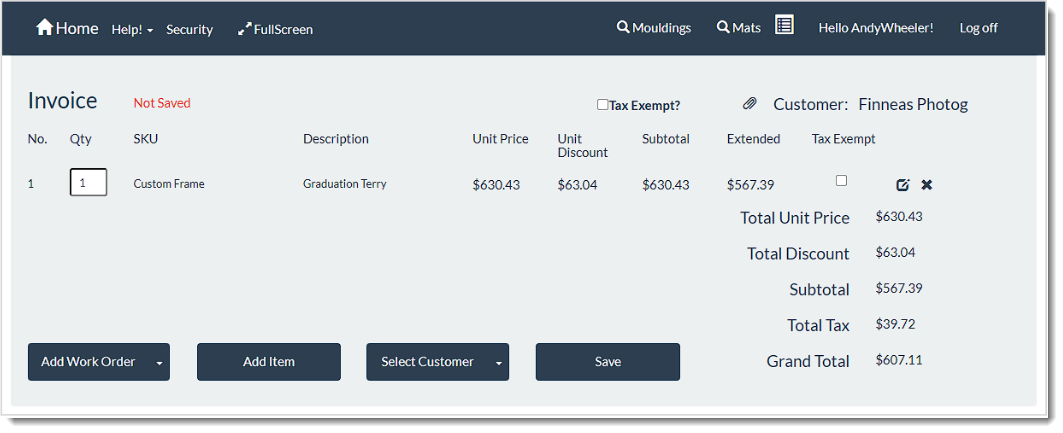
To get to this part of the system, from the Home page, click the Browse Invoices button or if you know the details of the invoice, do an Invoice Search. Follow these steps to work with your Invoice:
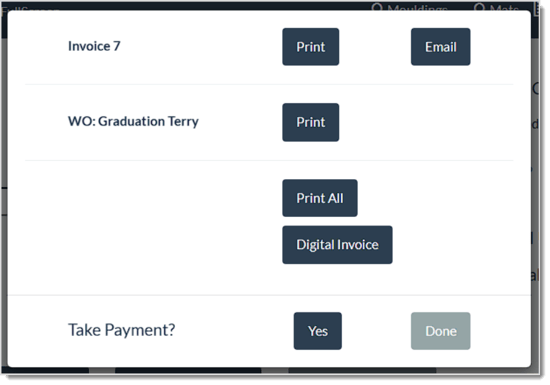
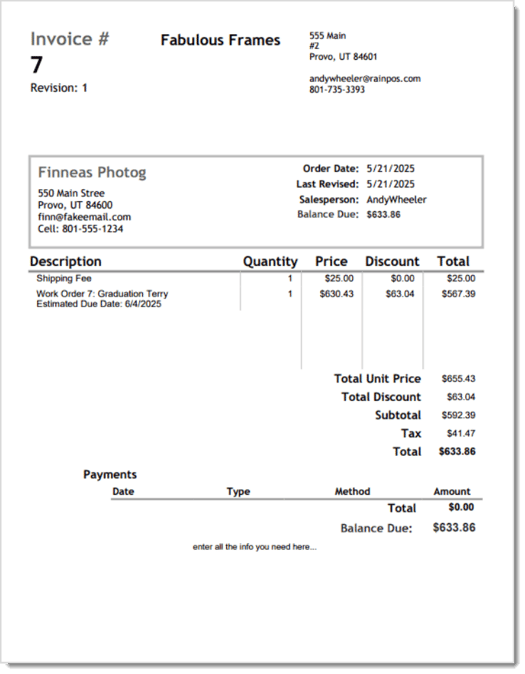
If you click the Print button for the Invoice, a dialog box will open from your browser and will allow you to print to a connected printer or to a PDF file. The print will look similar to this example:
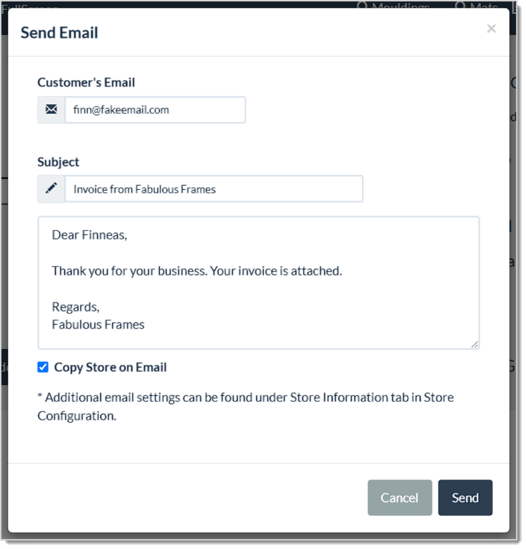
If you click the Email button for the Invoice, the Send Email window will open and will auto-populate the customer’s email address (if saved), template content for the Subject and Body, and will attach the invoice as a PDF file. You have the option of sending a copy of the email to the store as well using the Copy Store on Email checkbox.
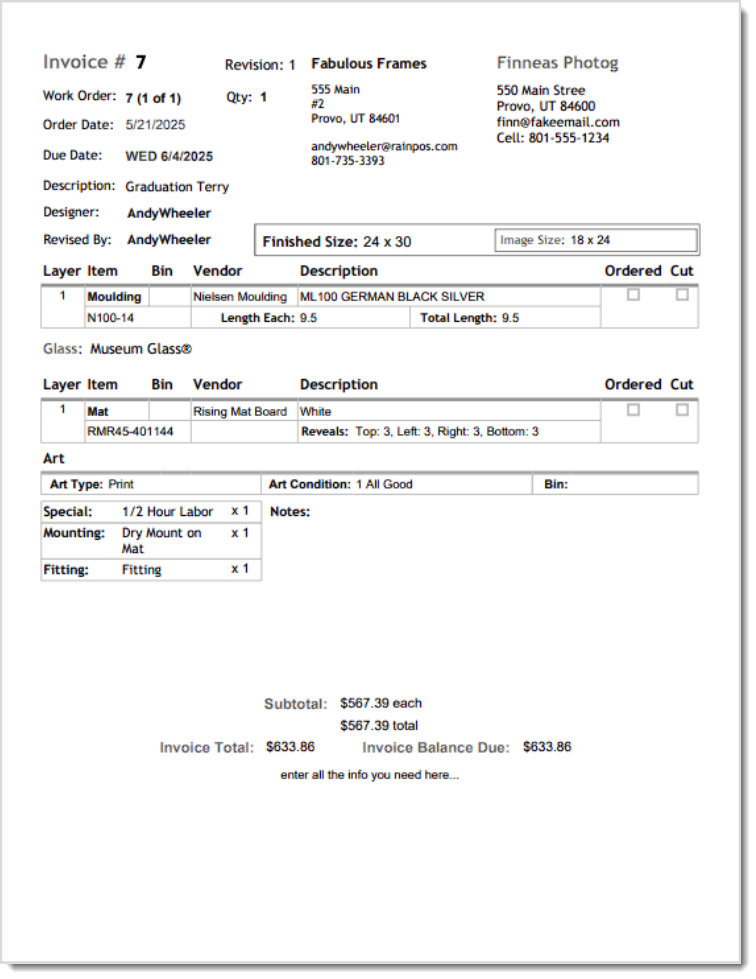
If you need a hard copy or a PDF of the source Work Order for the invoice, you can click the Print button for the Work Order. A dialog box will open from your browser and will allow you to print to a connected printer or to a PDF file. The print will look similar to this example:
If you click the Print All button, LifeSaver will print both the Invoice and the Work Order in the same print job, as described and pictured above. Please note that if you’re printing to an Acrobat PDF file, it will produce a single PDF with a page for each document.
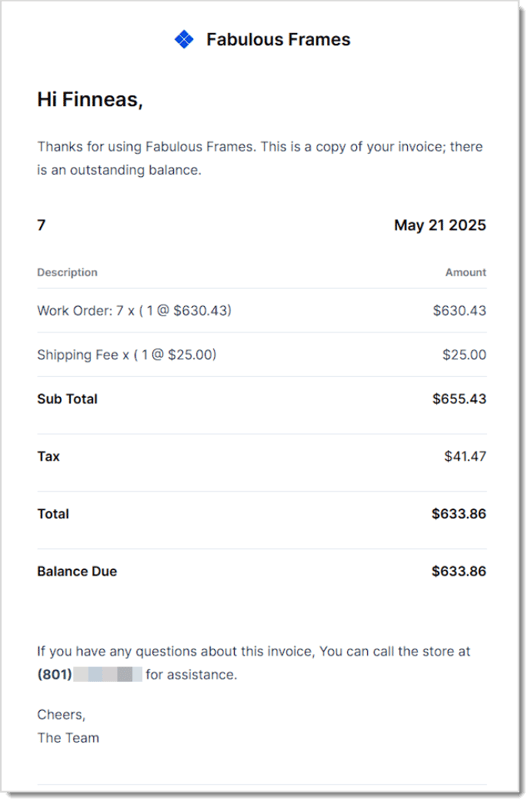
If you click the Digital Invoice button, you’ll have options for sending a digital receipt by text message or by email to the customer. If the customer has a mobile number or an email or both saved, the system will populate them for you, but you can manually change them in the Send Digital Receipt window.
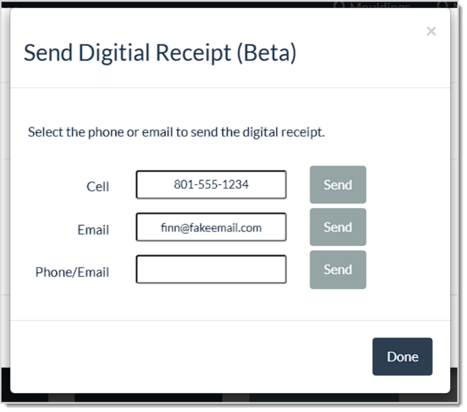
If you send a text receipt, the mobile number will get a brief text message with a link to view the receipt online, and it will look similar to the email version pictured below. If you Email the receipt, an email like the one pictured below will be sent.
Process a Payment on an Invoice
Q: What if I need to add a non-inventory charge, like shipping?
A: Click Add Item, choose Manual Item Entry, and fill in the Description, Price, or any discount you want to apply.
Q: Can I add multiple workorders to the same invoice?
A: Yes. In the Invoice window, click Add Workorder to attach additional workorders to your current invoice.
Q: What if my customer doesn’t want to pay right away?
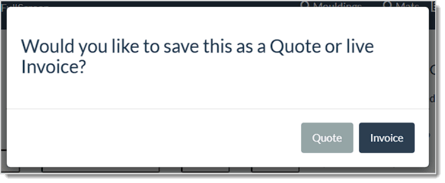
A: Click Save and choose Invoice if you want a running balance on the account, or use Quote if you only want to hold the information temporarily.
Q: Does the Quote option create a permanent record?
A: A quote is stored as “on hold.” You can convert it to a live invoice any time.
Q: How can I attach a customer to an invoice later?
A: If you did not select a customer before saving, the system will remind you. You can later open the invoice, choose Select Customer, and pick an existing or new profile.
Q: Can I undo an update after I save the edited invoice?
A: You can reopen the invoice and edit it again. However, if you need to revert to the original pricing entirely, you may want to use Price Lock Edit to avoid altering the total amount.
Q: Why do I get prompted to take payment after an edit?
A: If the total increases when you do a Full Edit, the system asks if you want to accept additional payment. Similarly, it prompts for a refund if the total decreases.
Q: Can I lock the price for only part of the invoice?
A: If you want to prevent price changes to line items yet still adjust other fields, choose Partial Edit to keep all charges intact.
Q: How do I remove an inventory item from my invoice?
A: Click on the Delete icon for the corresponding line item within the invoice window, then confirm the deletion.
Q: I have a question, but I can't find my answer here, how do I get more assistance?
A: You can ask any question at the link below, once received one of our technicians will be in touch! If you need immediate assistance, the LifeSaver Software team is available Monday through Friday, from 9:00am to 6:00pm Eastern time. Feel free to contact our support team at: 1-800-381-0600, extension 2. Or you can email us at support@lifesaversoft.com and we will respond within 24-hours.
Is this page helpful?
×Help us improve our articles