Store Admin User Permissions Report

October 13, 2025
Your Store Admin User Permissions report gives you an overview of the permissions your users have for the different parts of the system. You can view, print, or export the data for your records.
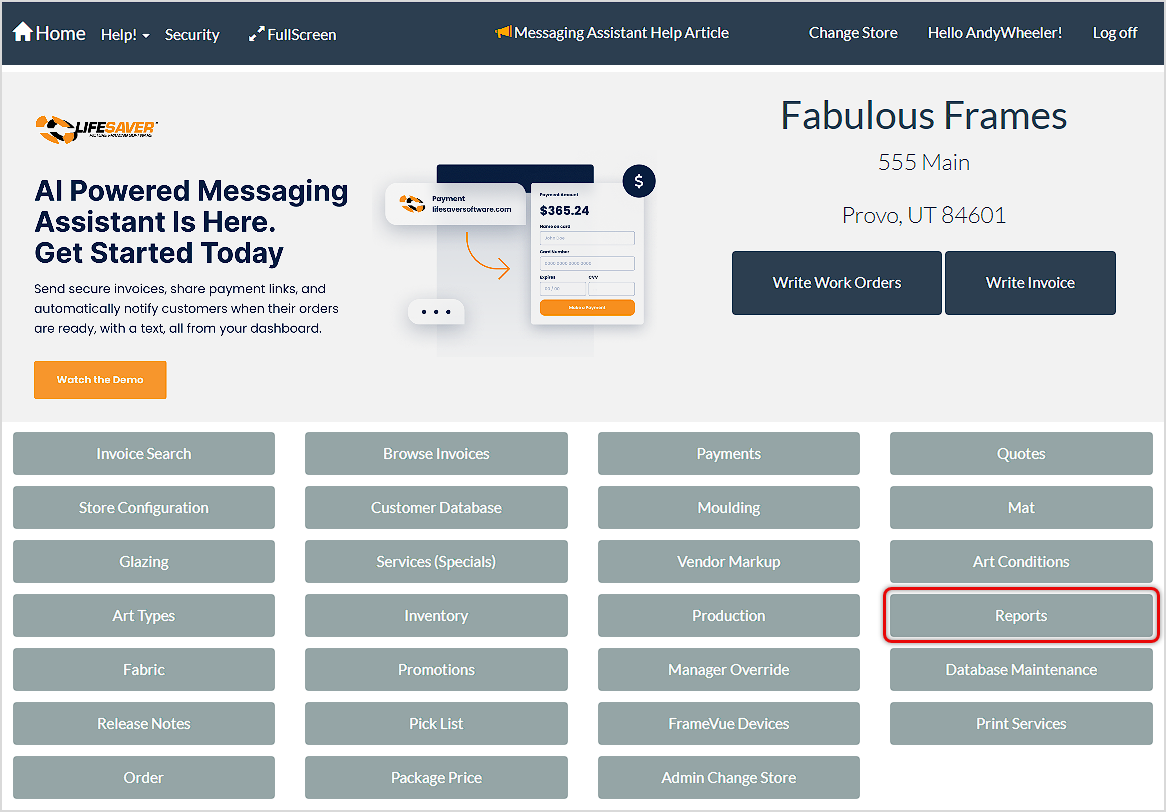
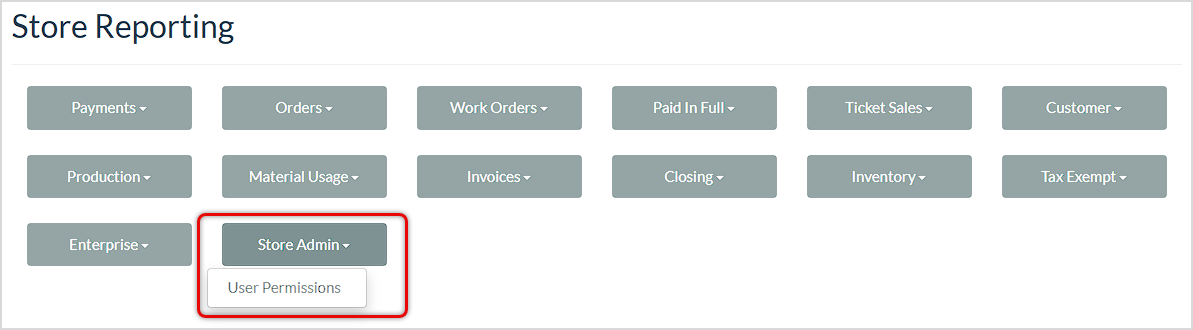
From the Home screen, click the Reports button. On the Store Reporting page, click Store Admin > User Permissions to open the report.
Report Major Functions
This report has the following standard functions:
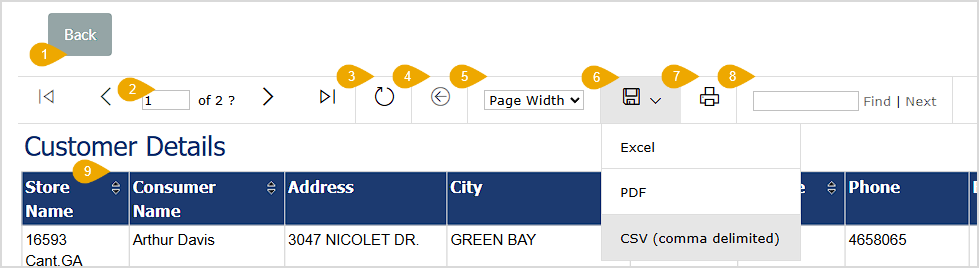
- Back Button – This button will take you back to the Store Reporting page.
- Navigation – If the report has multiple pages of data, you can use the arrows to go all the way to the beginning or end page (outer arrows), to the previous or next page (inner arrows), or you can enter the page you want to go to in the page number field.
- Refresh – If your report data might have changed since you loaded the page, or if you just want to reload to the initial view, click the Refresh button.
- Return to Parent Report – If the report you’re viewing is loaded from a parent report, the Return to Parent Report will take you back to that page. If there is no parent report, this button will not be active.
- Zoom – Using this control, you can set the Zoom level for the report’s viewing window. This feature does not enlarge the actual viewing window and will only control the zoom level within the frame below the control header.
- Save / Export – Click this button to download an Excel file, PDF document, or CSV spreadsheet of the report data. This function will export all pages of data.
- Print – Click this button to send a print of all report data to a browser print window. You will also see a window that will allow you to download a PDF file of the output. All pages of the report will print by default.
- Search – You can search by keyword or numeric data for anything in the report. Click Find to jump to the first search match. Click Next to jump to the next one until you find what you need.
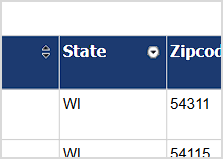
- Sort / Reverse Sort – Columns that have the Sort icon allow you to sort alphanumerically or click again to reverse the sort. The active sorted column will have its Sort icon changed to display either for Descending (down arrow icon) or Ascending (up arrow icon pictured below) results.
The User Permissions Report
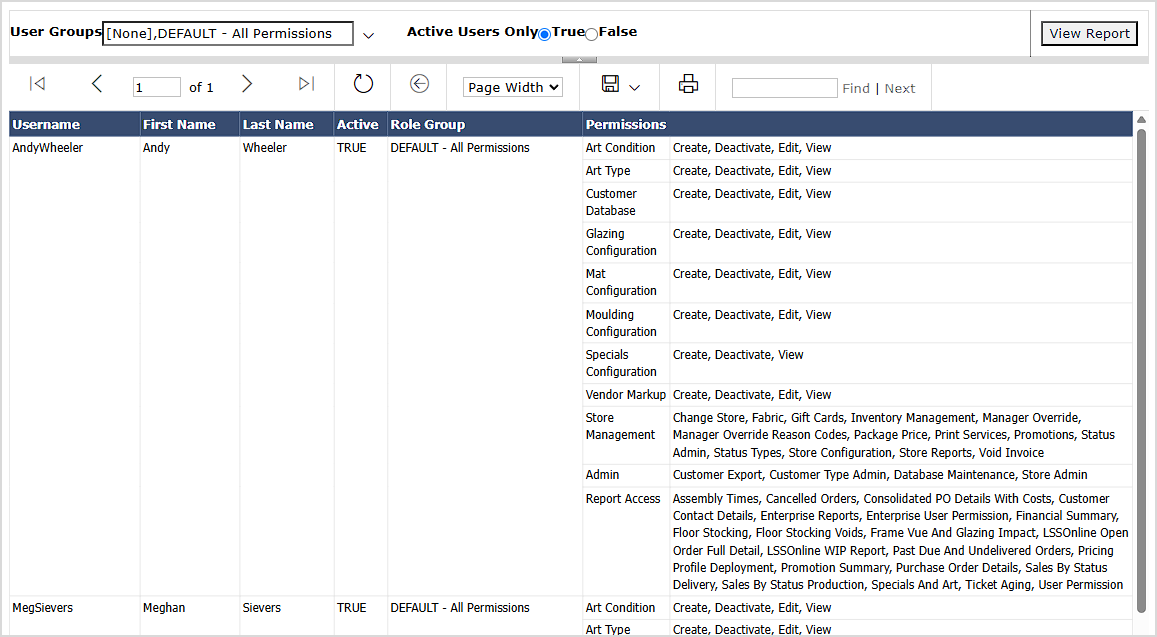
The User Permissions Report lists permissions for all users for the major areas of the system. You can choose which User Groups display in the report. You can also view Active Users Only, if you choose. If you change any of the filters, click the View Report button to load the selected data.
It gives you the following data for each of your stores:
- The Username.
- The user’s First Name and Last Name.
- The user’s Active status.
- The user’s Role Group, if any.
- The user’s Permissions in the following areas:
-
- Art Condition
- Art Type
- Customer Database
- Glazing Configuration
- Mat Configuration
- Moulding Configuration
- Specials Configuration
- Vendor Markup
- Store Management
- Admin
- Report Access
Related Topics
Generating Store Reports
Getting Started With Your Production
Frequently Asked Questions
Q: Do date ranges reset each time I open a new report?
A: Some reports use defaults (like the past 5 days or current week). You can always change the date by clicking the Calendar icons and then clicking the View Report button to load the results.
Q: I have a question, but I can't find my answer here, how do I get more assistance?
A: You can ask any question at the link below, once received one of our technicians will be in touch! If you need immediate assistance, the LifeSaver Software team is available Monday through Friday, from 9:00am to 6:00pm Eastern time. Feel free to contact our support team at: 1-800-381-0600, extension 2. Or you can email us at support@lifesaversoft.com and we will respond within 24-hours.
Payment Portal The Payment Portal is a dashboard included as part of our payments offering. It allow
Knowing what the Store Reports are and how to use them is important for frame store owners and emplo
Your Customer Report functionality in LifeSaver Software is a powerful way for you to see how much r


Is this page helpful?
×Help us improve our articles