
Working With Account Statements and Packing Lists
Statements – Creating a statement of account is a powerful feature for frame shops who need to manag

 August 26, 2025
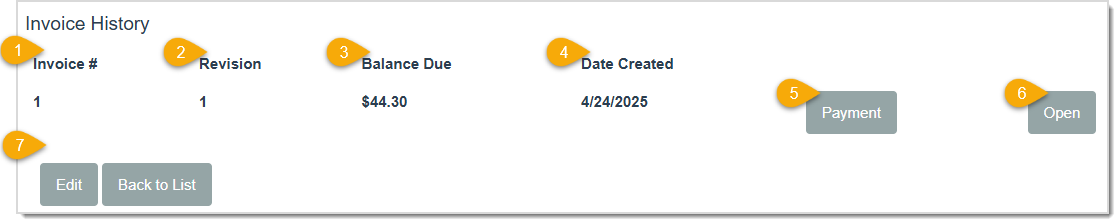
The Invoice History section is useful for anyone who needs quick access to past invoices in the LifeSaver Software Software. This article will show you how to locate and review detailed invoice information for a specific customer. Take a look to see how this feature can help you keep track of balances, payments, and more.
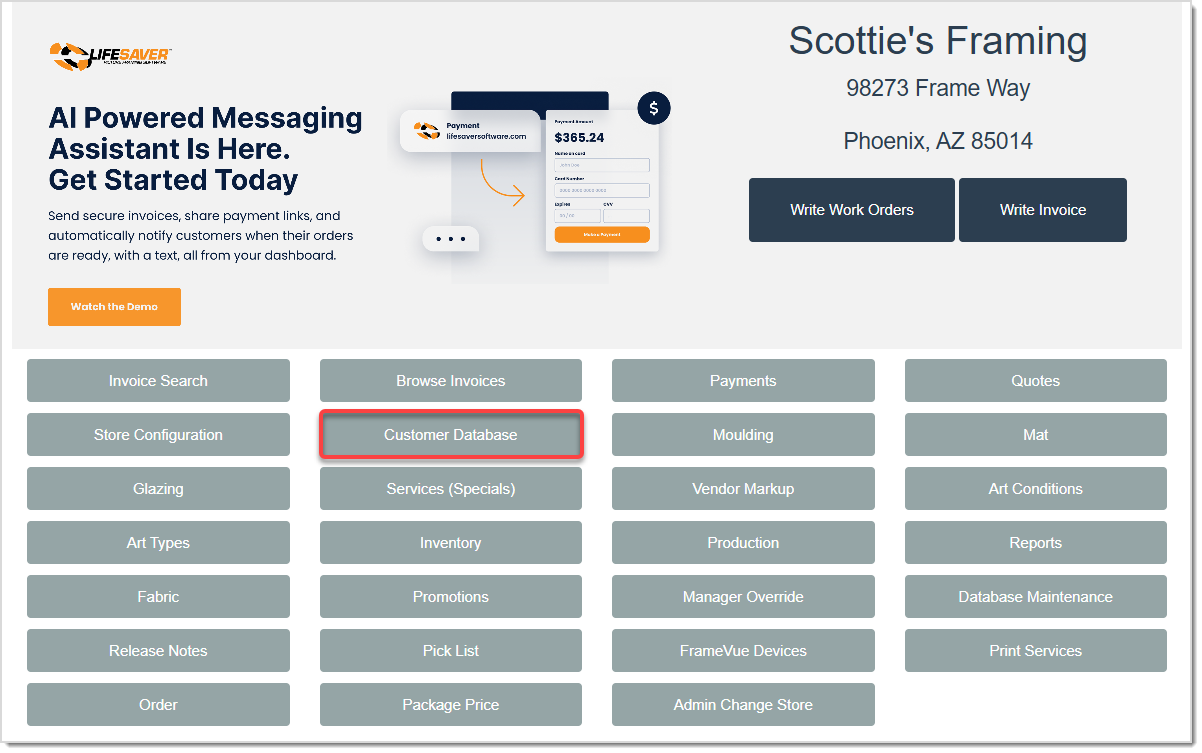
On the LifeSaver Software Home page, click the Customer Database button on the main menu.

On the Customer Database page, enter the customer’s name, phone number, or customer type in the search field at the top, and then click Search. When the list of matching customers appears, locate the Customer you want. From the search results, click the Details button next to the customer you want. The Customer Details page will then open. At the bottom of the page you will see the Invoice History section.
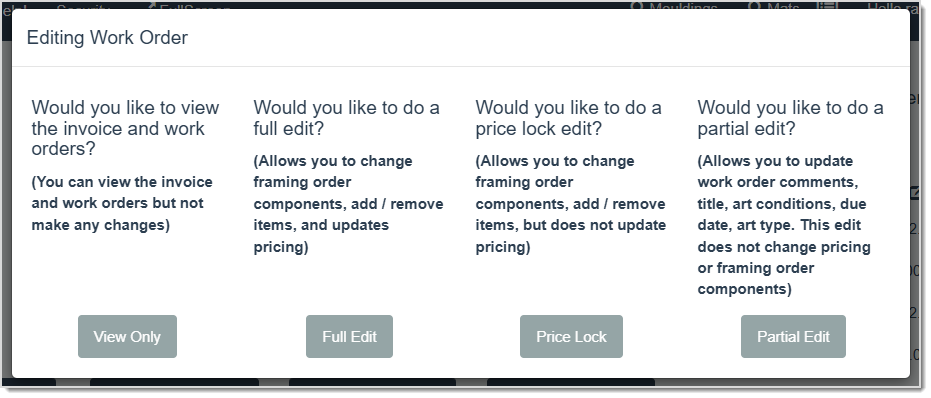
Process a Payment on an Invoice
Q: Can I see all invoices for a customer, even those with a zero balance?
A: Yes. The History section shows all invoices associated with that profile, regardless of balance.
Q: I have a question, but I can't find my answer here, how do I get more assistance?
A: You can ask any question at the link below, once received one of our technicians will be in touch! If you need immediate assistance, the LifeSaver Software team is available Monday through Friday, from 9:00am to 6:00pm Eastern time. Feel free to contact our support team at: 1-800-381-0600, extension 2. Or you can email us at support@lifesaversoft.com and we will respond within 24-hours.
Is this page helpful?
×Help us improve our articles