Processing a payment on an Invoice in LifeSaver is quick and easy. In this article, you will learn how to locate unpaid invoices, choose from multiple payment options, and successfully post the payment. Read on to explore LifeSaver Software’s easy payment system.
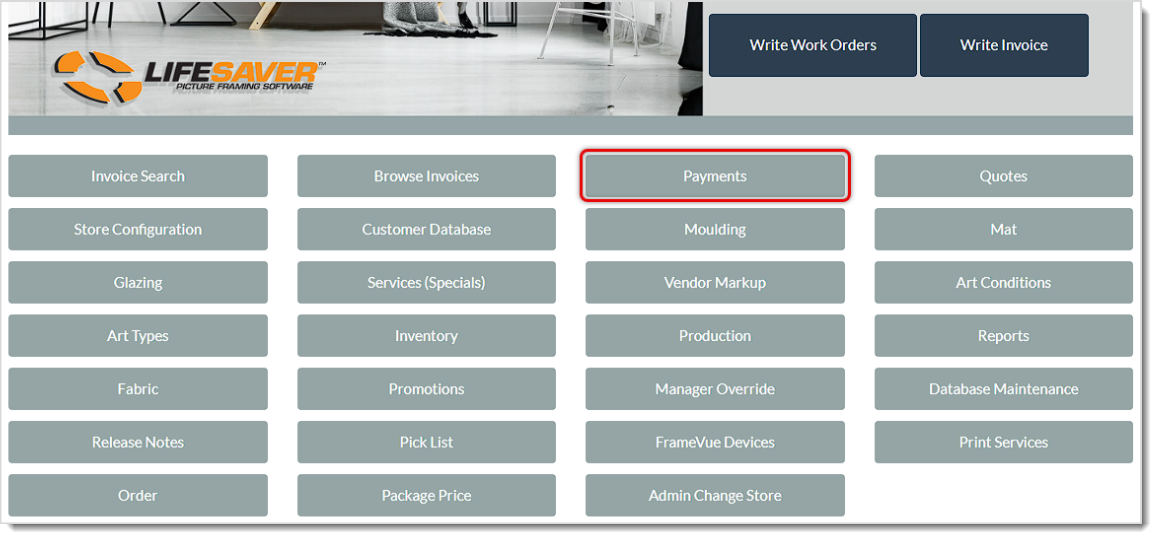
There are several ways to look up an Invoice, but when taking a payment on one, you’ll start on the Home page. Click the Payments button (or the Invoice Search button) and a page will open for you that will allow you to find the one you want and quickly take a payment.
How to Process a Payment on an Invoice
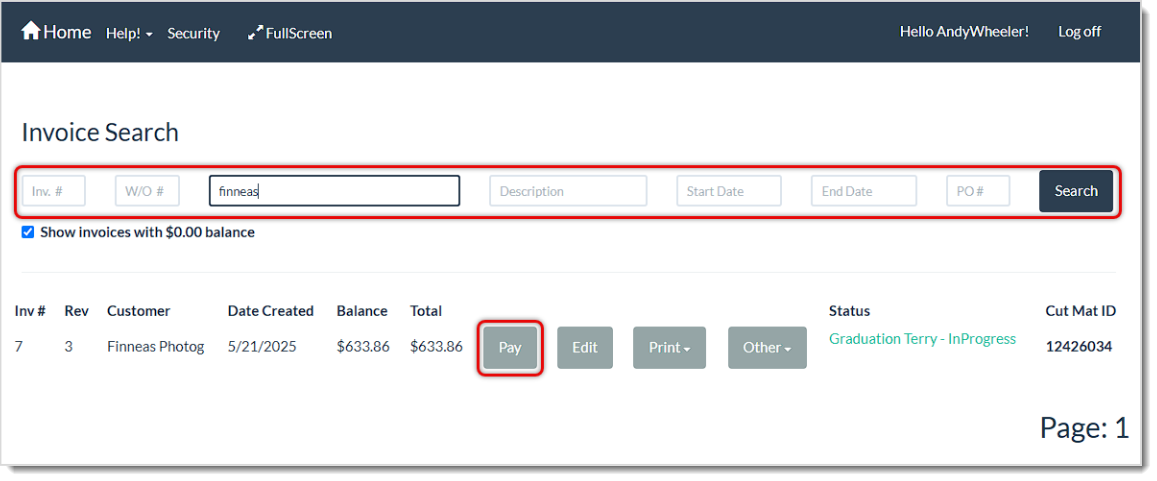
Once the Invoice Search page loads, follow these steps to take payment:
- Enter whatever information you have about the invoice or customer into the appropriate search field at the top and click the Search button or hit your Enter key on your keyboard. Matching invoices will load in the data table below along with their balances. You can search by Invoice Number, Work Order Number, Customer Name or Phone, Item Description, Start or End Date, or Purchase Order Number.
- Click the Pay button for the relevant line item. The Accept Payment page will load with the Invoice information.
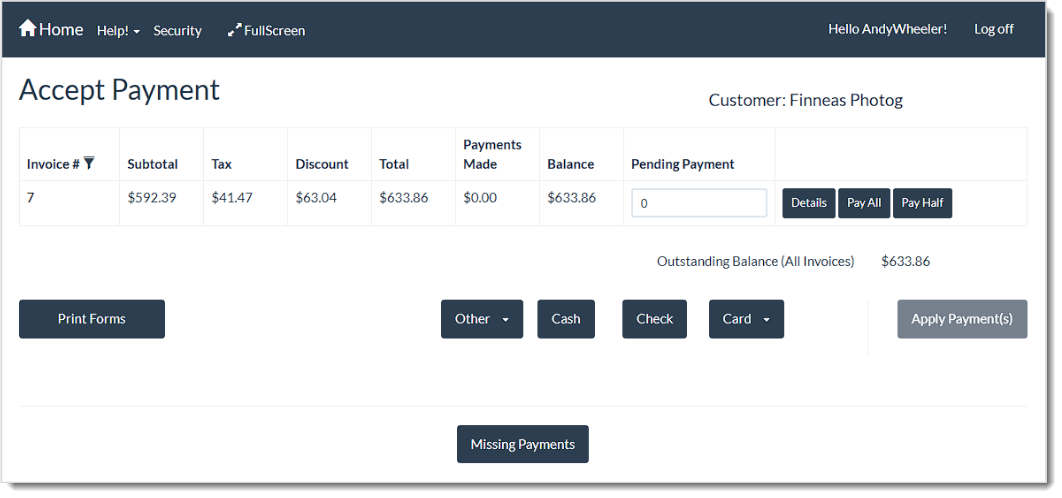
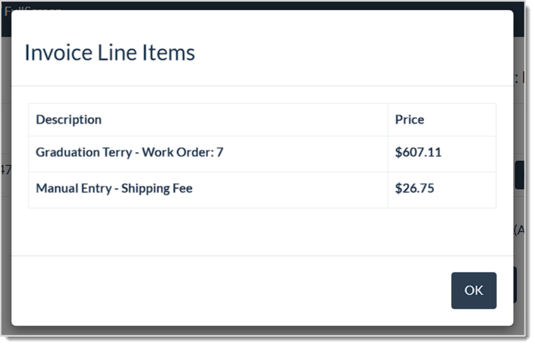
- In the Pending Payment field, enter the amount the customer is paying toward the invoice balance. You can use the Pay All or Pay Half buttons to automatically load those amounts, or you can manually enter a different amount. Please note that you can click the Details button to open a window showing the items in the Invoice, as pictured below.
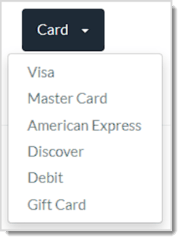
- Click the appropriate payment type button. For Cash, if the amount entered is more than the balance of the Invoice, the system will display the change due. If you choose Check, you will be asked to enter the check number. If you choose Card, a drop-list will open and you can choose the appropriate option. If you click the Other button, a drop-list will open with any custom tender options you have configured in the system settings.
Please Note: If the customer made a Card payment toward the invoice on this device and that payment is not showing toward the Invoice balance, you can click the Missing Payments button and refresh the information with that payment. This option is only available if you are using the EVO card processing.
A payment line item will appear, as pictured below. If the customer is paying using multiple payment types, you will need to repeat these steps for each one. When you print the receipt for this payment you’ll have the opportunity to take an additional payment, as described below.
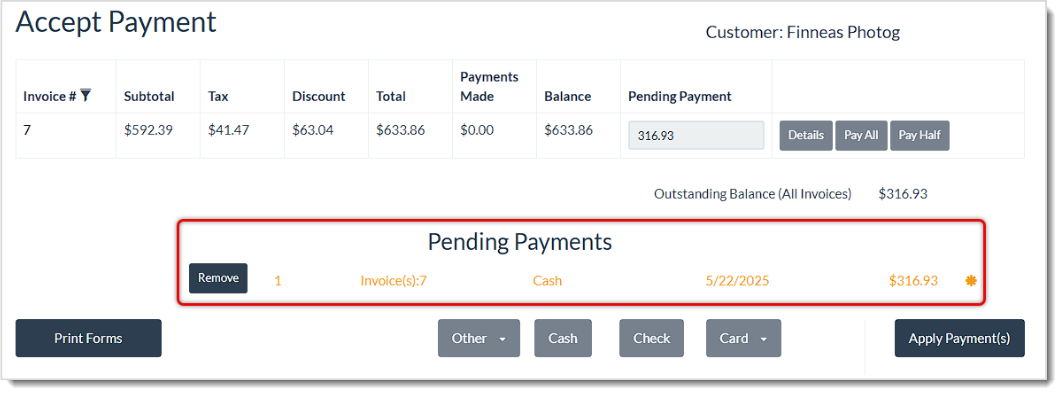
- Once you have everything you need for this payment, click the Apply Payment(s) button. The button will not be active until there is a payment amount in the Pending Payment field and a payment method selected.
- Once the payment has been completed, you have many options on what you can do:
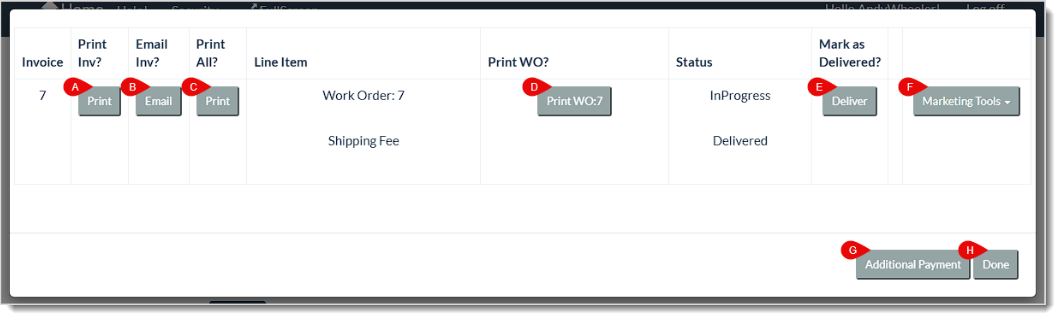
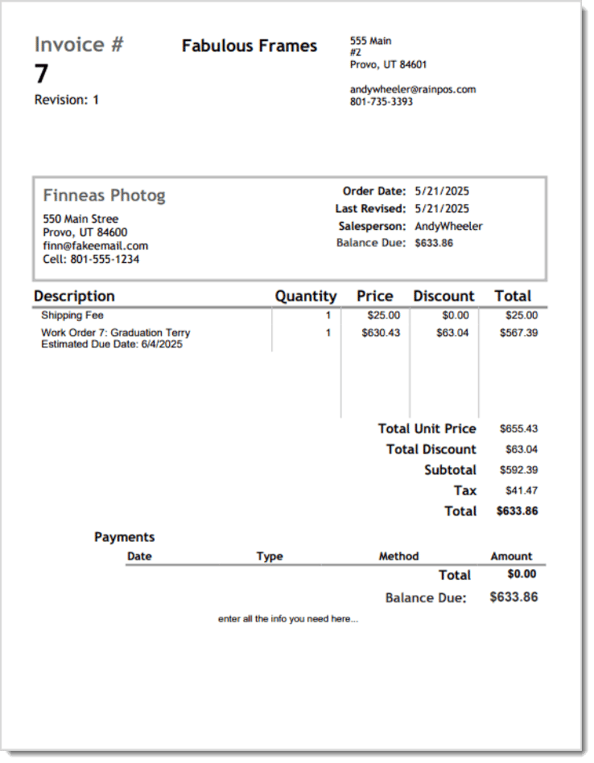
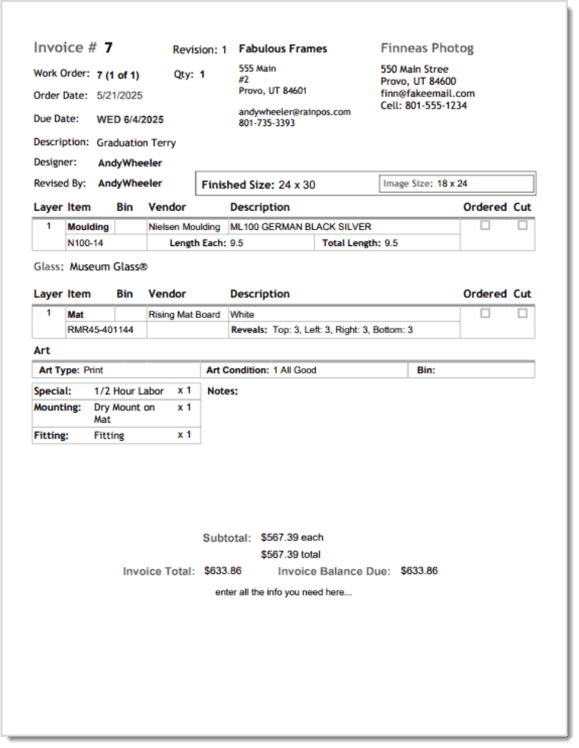
- Under the Print Inv? area, click the Print button to open a dialog box from your browser that will allow you to print to a connected printer or to a PDF file. The print will look similar to this example:
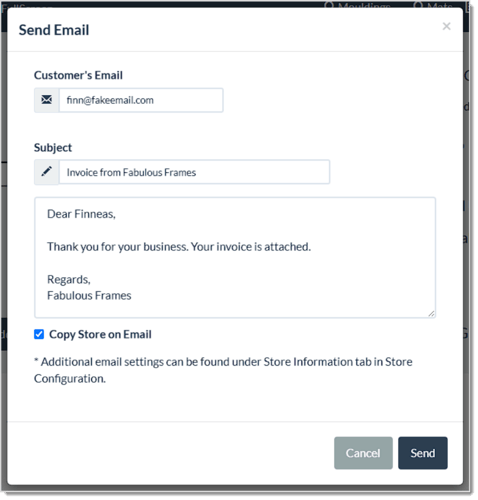
- Under the Email Inv? area, click the Email button to open the Send Email window. The system will auto-populate the customer’s email address (if saved), template content for the Subject and Body, and will attach the invoice as a PDF file. You have the option of sending a copy of the email to the store as well using the Copy Store on Email checkbox.
- If you click the Print button under the Print All? area, LifeSaver will print both the Invoice and the Work Order in the same print job, as described and pictured above. Please note that if you’re printing to an Acrobat PDF file, it will produce a single PDF with a page for each document.
- If you need a hard copy or a PDF of the source Work Order for the invoice, you can click the Print button under the Print Work Order? area. A dialog box will open from your browser and will allow you to print to a connected printer or to a PDF file. The print will look similar to this example:
- You can mark the Invoice as Delivered by clicking the Deliver button. This will change the Invoice status to Delivered for you.
- You can click the Marketing Tools button for several options of following up with the customer:
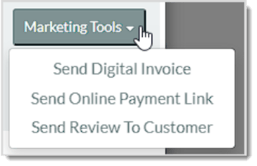
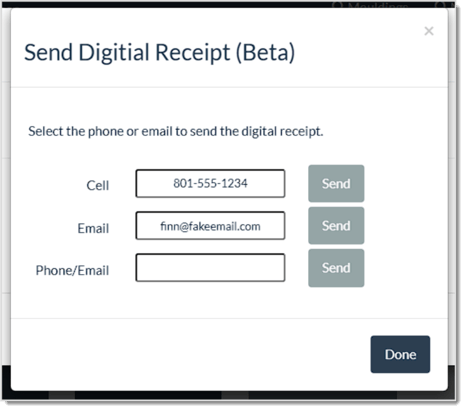
- If you click the Send Digital Invoice option, you’ll have options for sending a digital receipt by text message or by email to the customer. If the customer has a mobile number, an email, or both, the system will populate them for you, but you can manually change them in the Send Digital Receipt window.
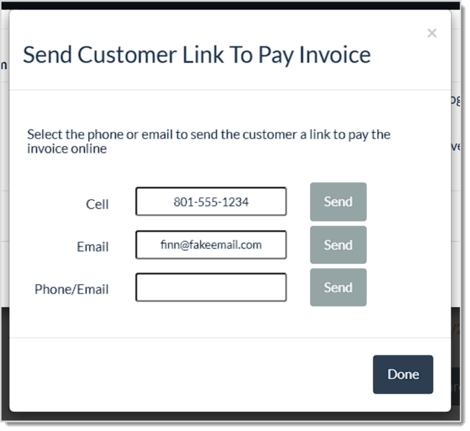
- If you click the Send Online Payment Link option, you’ll have options for sending a link to pay any remaining balance on the invoice by text message or by email to the customer. If the customer has a mobile number or an email or both saved, the system will populate them for you, but you can manually change them in the Send Customer Link to Pay Invoice window.
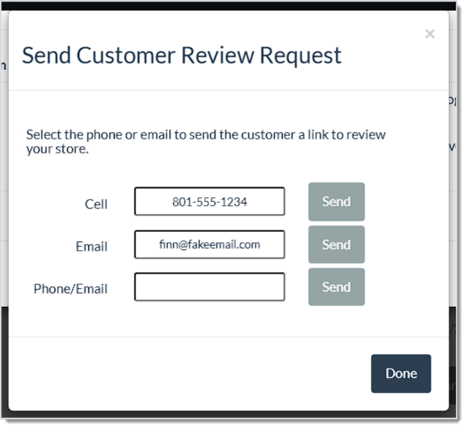
- If you click the Send Review to Customer option, you’ll have options for sending a review request by text message or by email to the customer. If the customer has a mobile number or an email or both saved, the system will populate them for you, but you can manually change them in the Send Digital Receipt window.
- If the customer wants to make another payment toward the invoice balance you can click the Additional Payment button and you’ll be taken back to the Accept Payment page.
- If you are not taking any more payments on the invoice, click the Done button.
After payments are completed, the invoice balance will be updated.
Related Topics
Writing Work Orders
Working with Invoices
Refund a Payment or Void an Invoice
Print, Email, or Generate a Digital Invoice
Frequently Asked Questions
Q: What if a customer wants to split payments between two methods?
A: On the Accept Payment page, enter the first amount in the Pending Payment field, choose a Payment Type, and click Apply Payment. From the print window that follows, click the Additional Payment button to enter the second payment using the other payment method.
Q: Can I apply payments to multiple invoices at once?
A: Yes. On the Accept Payment page you can see all open invoices for a particular customer. Enter a payment amount in the Pending Payment field for each invoice you want to pay. Then choose your Payment Type and click the Apply Payment(s) button.
Q: I have a question, but I can't find my answer here, how do I get more assistance?
A: You can ask any question at the link below, once received one of our technicians will be in touch! If you need immediate assistance, the LifeSaver Software team is available Monday through Friday, from 9:00am to 6:00pm Eastern time. Feel free to contact our support team at: 1-800-381-0600, extension 2. Or you can email us at support@lifesaversoft.com and we will respond within 24-hours.


 October 09, 2025
Is this page helpful?
×Help us improve our articles