
Working With Account Statements and Packing Lists
Statements – Creating a statement of account is a powerful feature for frame shops who need to manag

 August 26, 2025
In this article you will find information on adding new customer types, deactivating customer types that aren’t in use, and how to reactivate them. Keep reading below to find out more!

Adding a New Customer Type is a valuable way to categorize customers in the LifeSaver Software Software. By creating customer types, such as Interior Designer or Artist, you can better track discounts and marketing strategies for each segment.

On the LifeSaver Software Home screen, click on the Customer Database button which will take you to the Customer Database page. Then, click on the Customer Types button on the top right corner shown above.
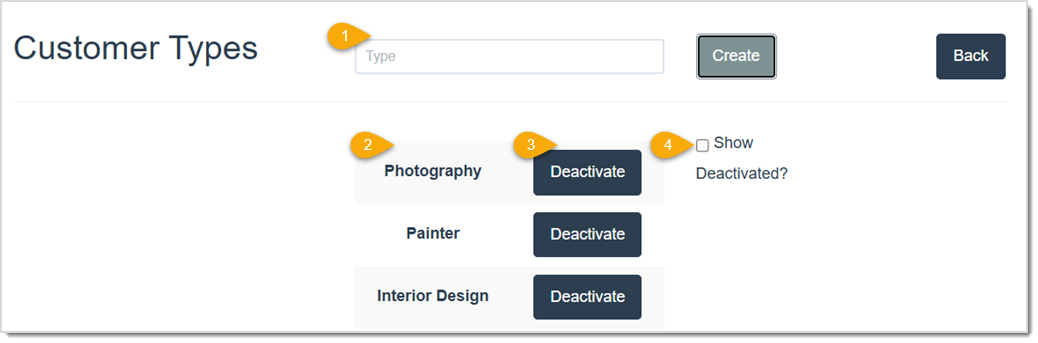
On the Customer Types page, you can manage, create, or update customer types:
By following these simple steps, you can quickly restore a previously deactivated Customer Type. This ensures that all relevant Customer Types are ready to be assigned to your customers.
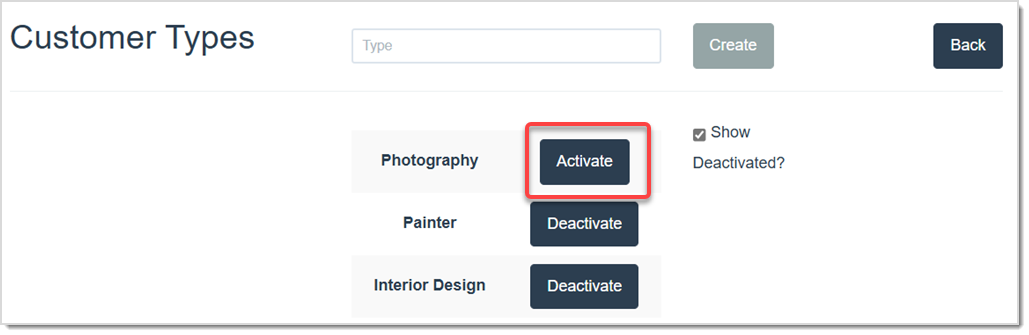
Once on the Customer Types page, you’ll see the list of Active Types. Check the Show Deactivated checkbox to view both the Active and Deactivated Types. When the Deactivated Types appear, find the one you want to restore and click the Activate button beside it. Once clicked, the Customer Type will be ready to use again.
Q: What if I can’t find my deactivated customer type in the list?
A: Make sure you have clicked the Show Deactivated checkbox so that all deactivated types display and can be activated again.
Q: Will deactivating a customer type remove it from existing customer profiles?
A: Deactivating a type only removes it from future use. Any customers already labeled with that type will remain so.
Q: I have a question, but I can't find my answer here, how do I get more assistance?
A: You can ask any question at the link below, once received one of our technicians will be in touch! If you need immediate assistance, the LifeSaver Software team is available Monday through Friday, from 9:00am to 6:00pm Eastern time. Feel free to contact our support team at: 1-800-381-0600, extension 2. Or you can email us at support@lifesaversoft.com and we will respond within 24-hours.
Is this page helpful?
×Help us improve our articles