
Your Processing Payment Portal
Payment Portal The Payment Portal is a dashboard included as part of our payments offering. It allow

 August 26, 2025
The Customer Database button on the LifeSaver Software Home page is your lifeline to all the information you might need regarding your Customers. In this article you will find details on how to Search, Add, Edit, Delete, and Merge Customers. Keep reading to learn how to utilize all of those key features.
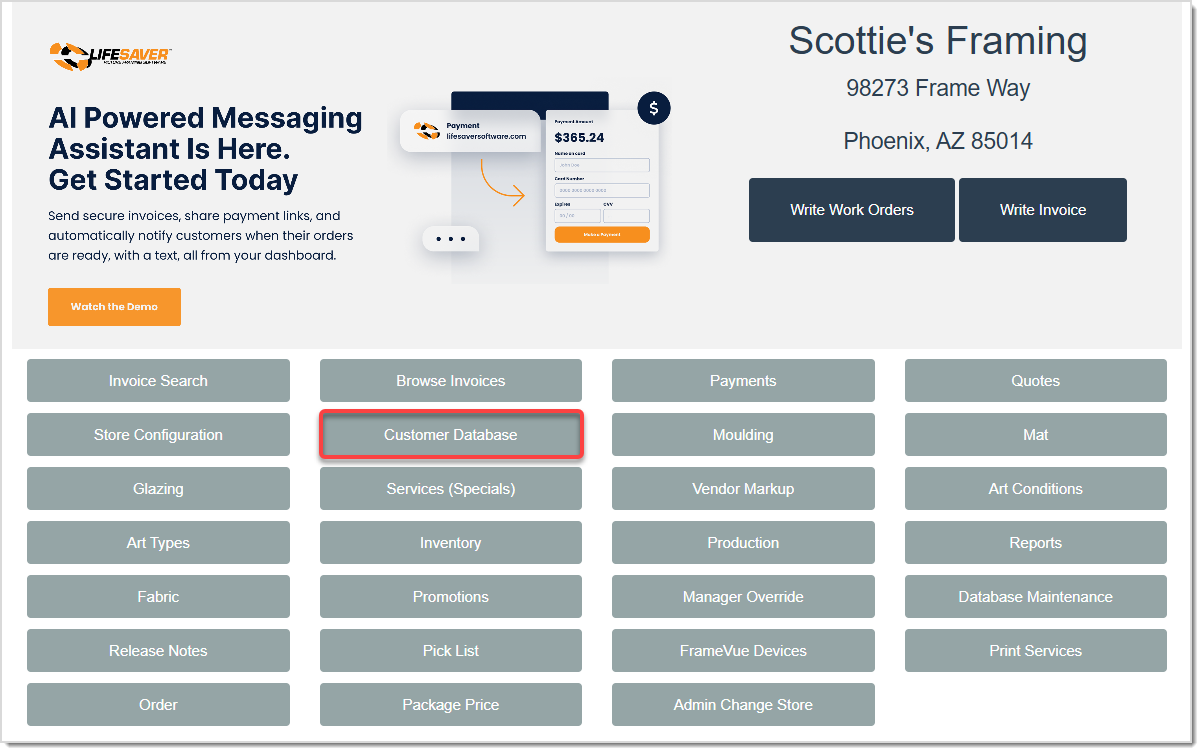
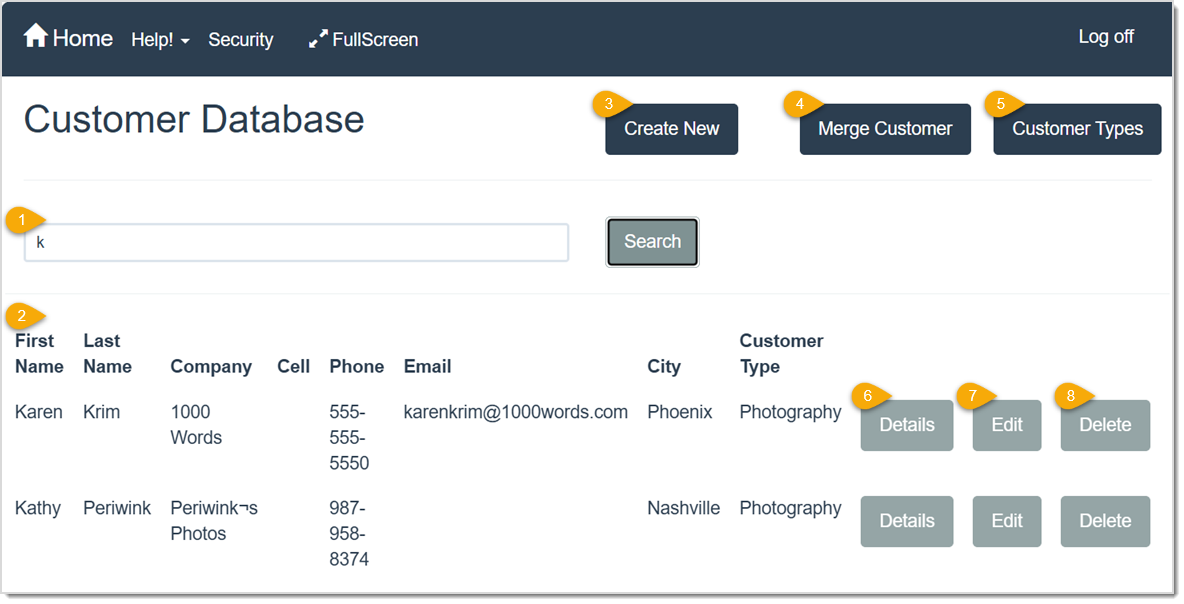
On the LifeSaver Software Home page, click the Customer Database button. When the Customer Database page opens, your first step will be to utilize the Search bar:
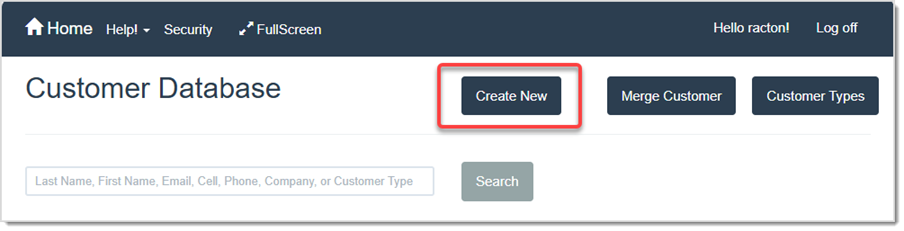
When you’re logged in and on the LifeSaver Software Home page, click the Customer Database button. When the Customer Database page loads, click the Create New button in the upper middle, as shown in the image above.
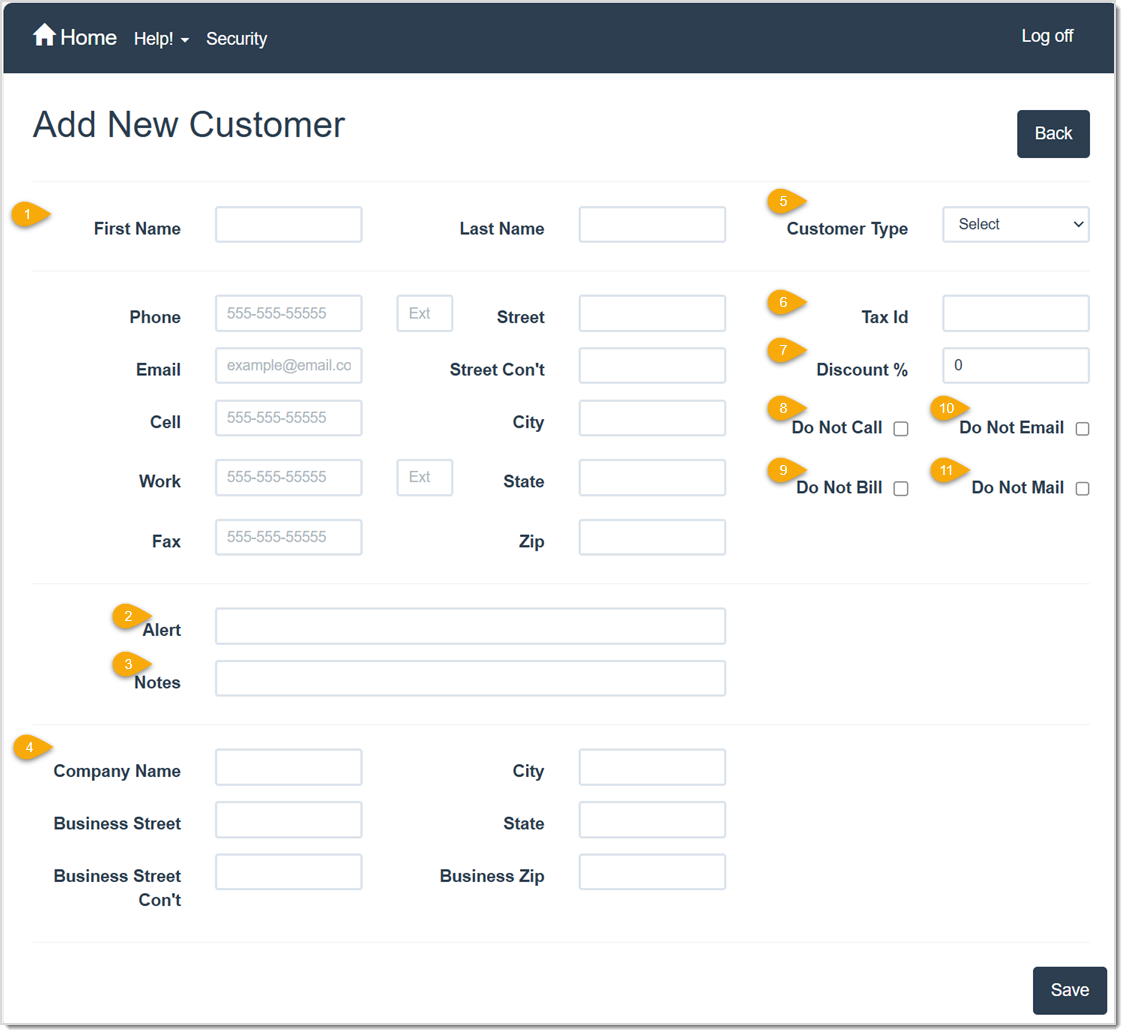
Once you have filled in all of the necessary fields, be sure to click the Save button to confirm your changes.
When you’re logged in and on the LifeSaver Software Home page, click the Customer Database button. When the Customer Database page loads, search for the customer by entering their name, phone number, or other details into the Search field. Then click the Search button to locate the correct profile. After finding the correct Customer, click the Edit button on their line item, as shown below.

Once you click the Edit button, the Add New Customer page will appear with the Customer’s information already filled in as shown here:
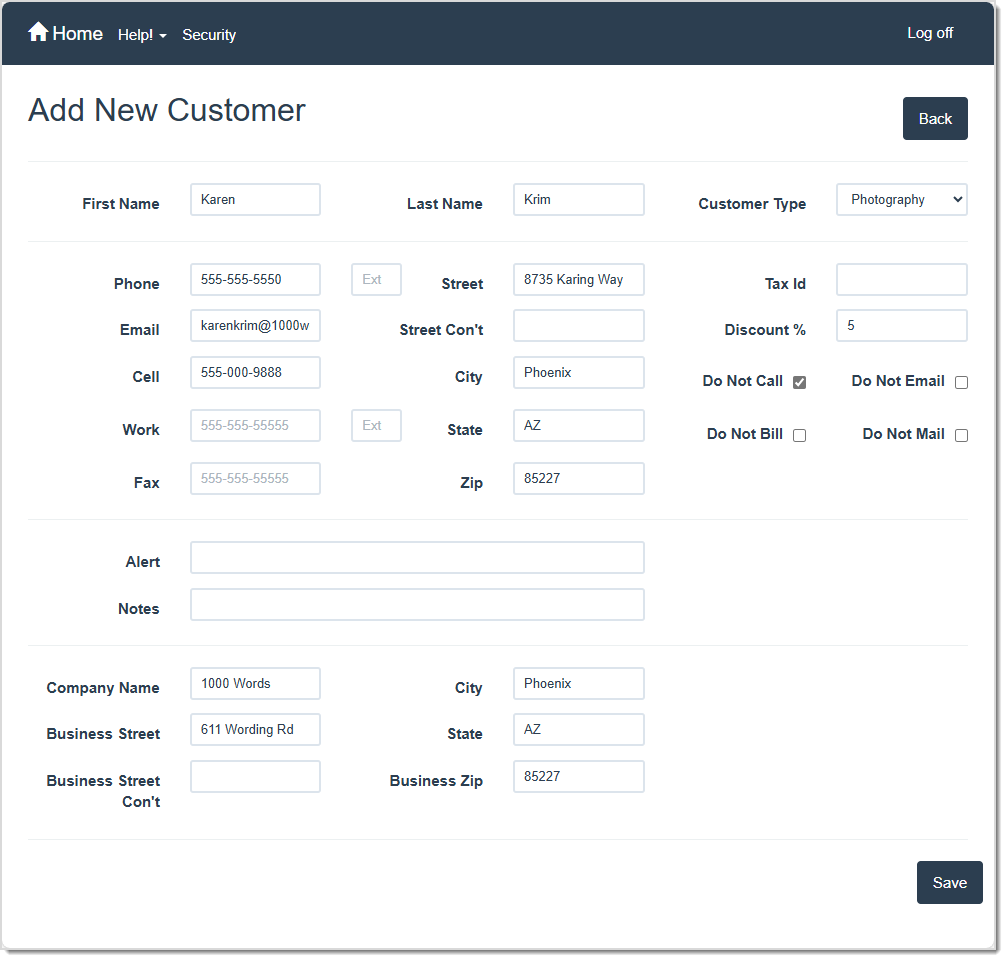
Here you can edit the Customer information as you see fit. When done, click the Save button to confirm your changes.
Merging Customers is a helpful process in the LifeSaver Software Software to copy one Customer’s work orders to another Customer. This is useful for Customers that have multiple accounts, maybe from employees adding them as new accounts versus searching for an already existing one or any other situation you might encounter.
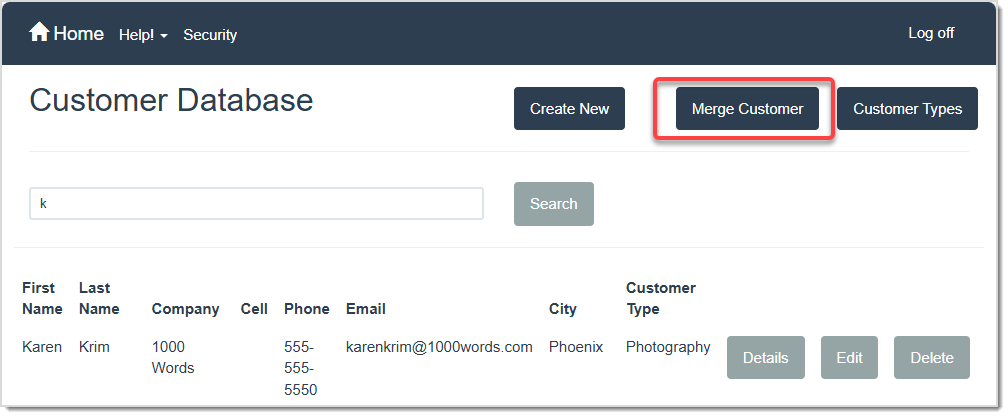
When you’re logged in and on the LifeSaver Software Home page, click the Customer Database button. When the Customer Database page loads, click on the Merge Customer button.
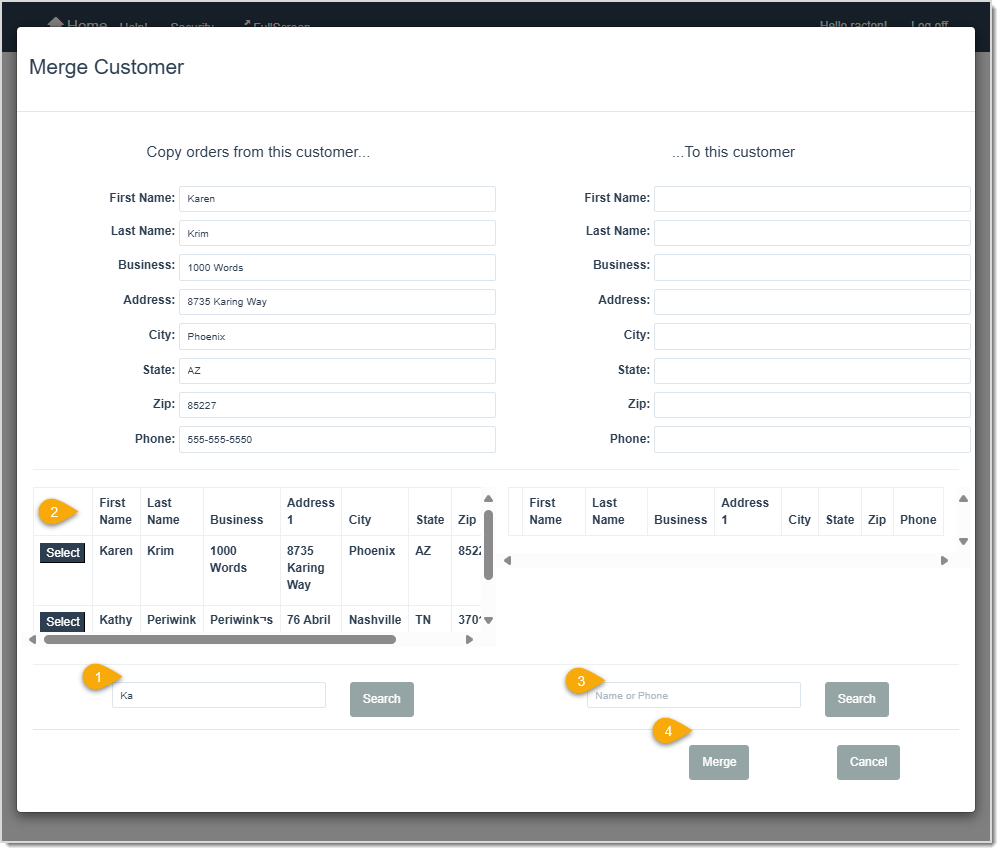
Once you click the Merge Customer button, the Merge Customer window will open. Here is how to merge customers:
When you’re logged in and on the LifeSaver Software Home page, click the Customer Database button. When the Customer Database page loads, search for the customer by entering their name, phone number, or other details into the Search field. Then click the Search button to locate the correct profile. After finding the Customer you want to remove, click the Delete button in that row.

After you click the Delete button, you’ll be prompted to confirm that you’re removing the correct Customer. If you still want to continue, click the Delete button at the bottom of the page. If not, click the Back to List button to keep the selected Customer.
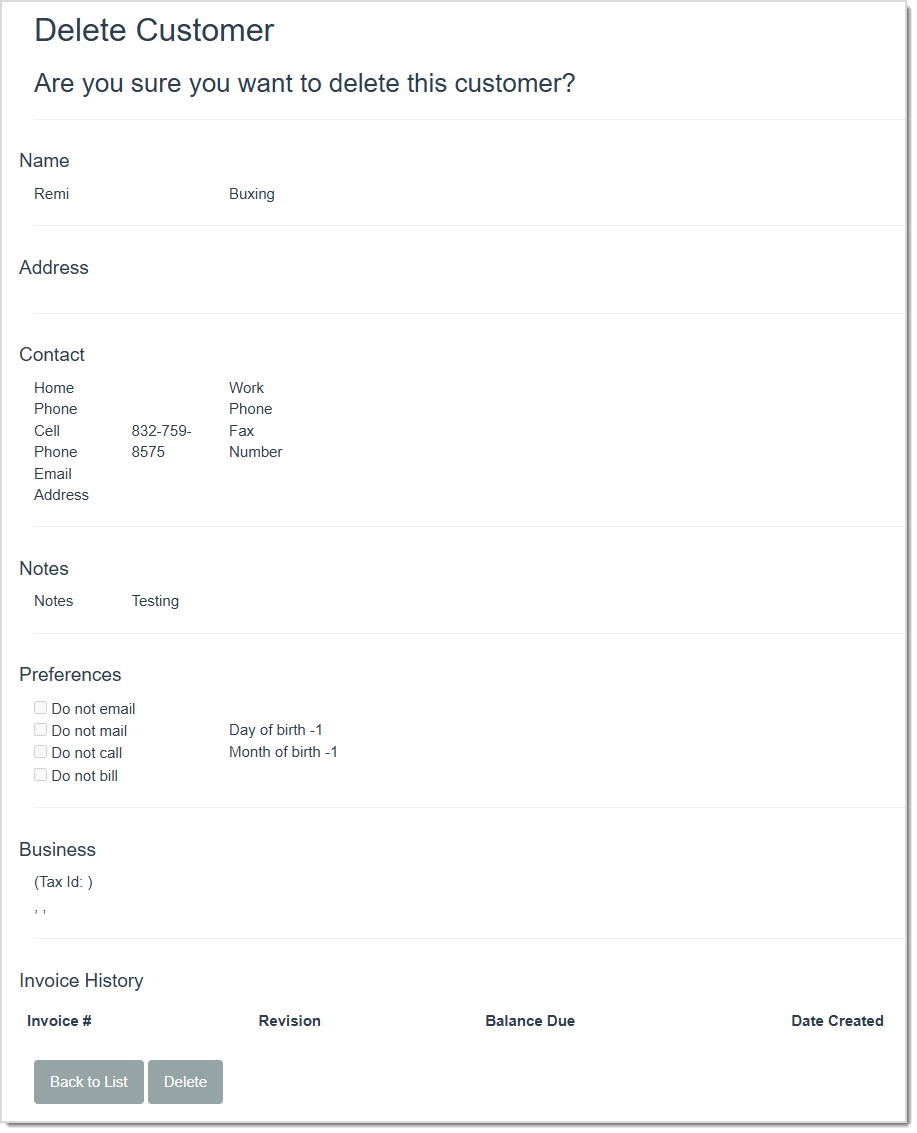
Please Note: You cannot delete a customer who has invoices or work orders. If you need to remove a customer with previous transactions, you should first ensure there are no outstanding invoices tied to that profile.
Working With Account Statements and Packing Lists
Q: Why can’t I delete a customer from the database?
A: If the customer has existing invoices or work orders, the system prevents you from deleting that record. You should archive them instead.
Q: How do I see a customer's invoice history?
A: Select the Details button next to the customer. You will see their invoice history with options to open the invoice for viewing or editing. (Link to View Customer Invoice History topic)
Q: I have a question, but I can't find my answer here, how do I get more assistance?
A: You can ask any question at the link below, once received one of our technicians will be in touch! If you need immediate assistance, the LifeSaver Software team is available Monday through Friday, from 9:00am to 6:00pm Eastern time. Feel free to contact our support team at: 1-800-381-0600, extension 2. Or you can email us at support@lifesaversoft.com and we will respond within 24-hours.
Is this page helpful?
×Help us improve our articles