Working With Database Maintenance

August 26, 2025August 26, 2025

Important Note: This function is only available if you are subscribed to LifeSaver Software’s Enterprise package. 

This article will help you understand how to quickly export as well as import data, so you can make updates and maintain consistent pricing and product information. Keep reading below to learn how to Export and Import Data as well as Viewing and Distributing Pricing Profiles.
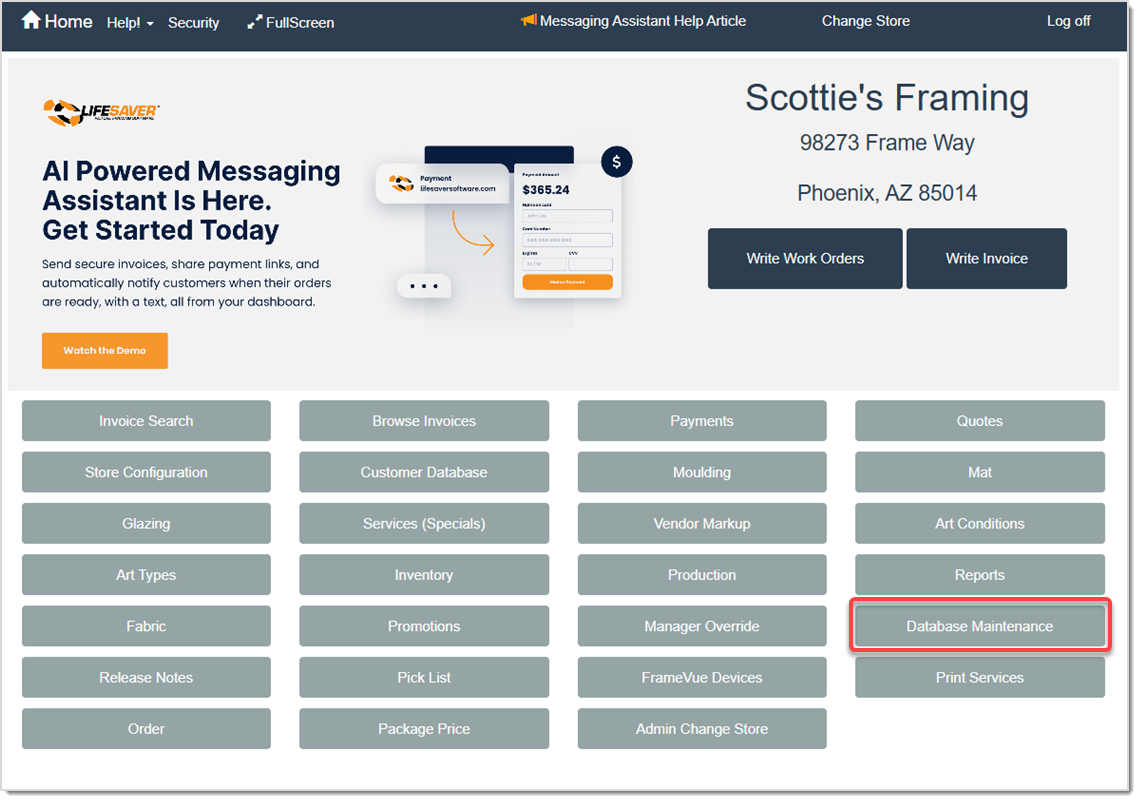
Image displaying the LifeSaver Home page, highlighting the Database Maintenance button.

On the LifeSaver Software Home page, click the Database Maintenance button to access what you need.
 

Understanding the Database Maintenance Page

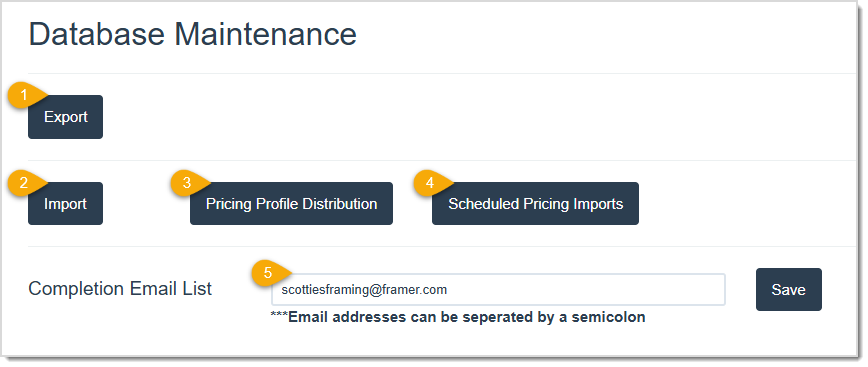
Image displaying the Database Maintenance page of the LifeSaver system with key features highlighted.

  1. Export – You can use this button to start a data export on the Export page. 
  2. Import – You can use this button to import a CSV file of data into LifeSaver. 
  3. Pricing Profile Distribution – You can use this button to schedule and distribute updates to your pricing and product profiles. 
  4. Scheduled Pricing Imports – You can use this button to view a schedule of imports and cancel or adjust them as needed. 
  5. Completion Email List – In this field, you can enter any email address you want LifeSaver Software to send an export file to, separated by semicolons. Click the Save button when done.


Exporting Your Store’s Database

When you export your store’s database from LifeSaver Software, you receive an email with an attachment that you can open and update. This is valuable for quickly updating product pricing. You can then import the modified file back into the system.
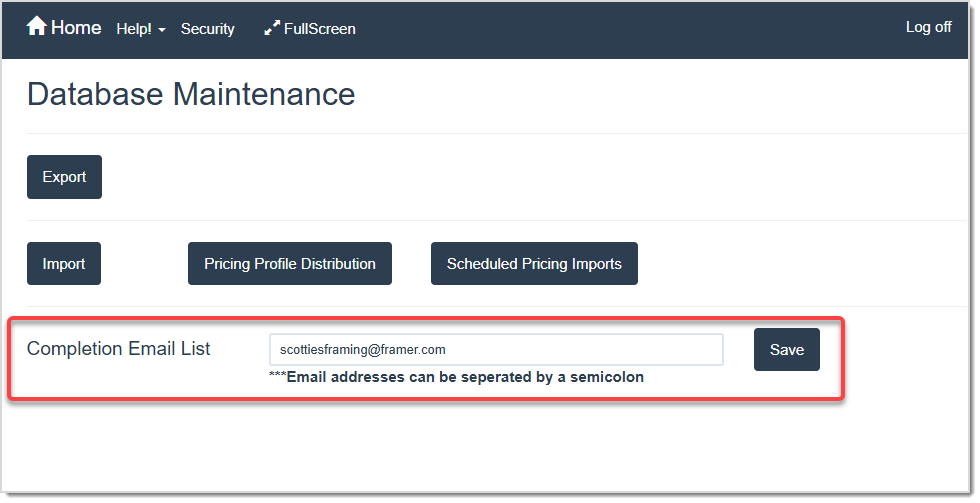
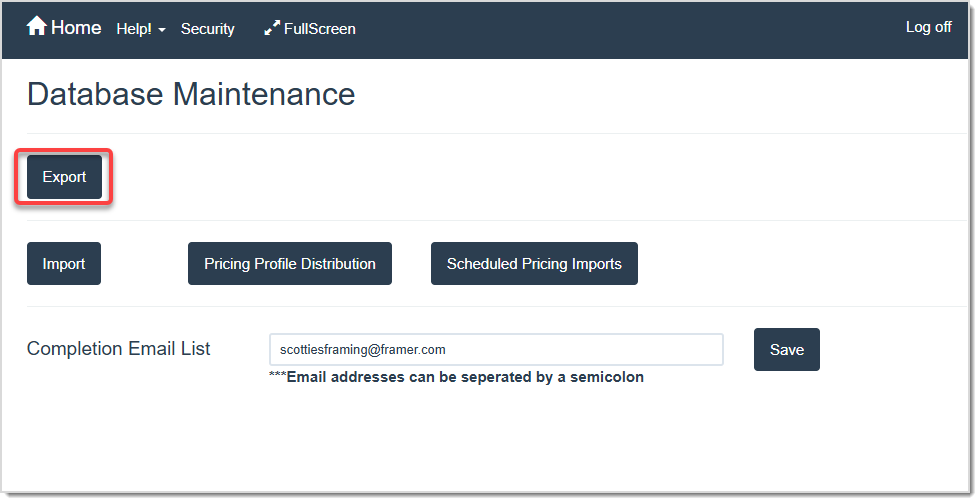
Image displaying the Database Maintenance page, highlighting the Completion Email List field.

  • On the Database Maintenance page, click into the Completion Email List field shown above and enter all of the email addresses to send the export file to. You can enter multiple addresses separated by semicolons. When finished, click the Save button. The exported file will be emailed to these addresses when complete.  
    Image displaying the Database Maintenance page, highlighting the Export button.
  • You can click the Export button to start the process and the Export page displays. 
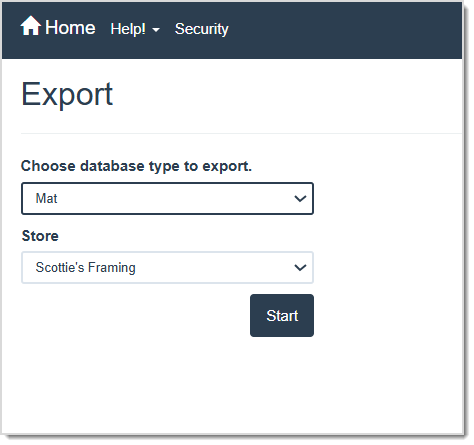
    Image displaying the Export page of the LifeSaver system.
  • Select the Database Type from the drop-list. This determines which data you are exporting.  
  • Select the Store from the drop-list to export that store’s data.  
  • After making the desired selections, click the Start button. You will see this confirmation message: “Your export has been received. We will email you the results when complete. Thank You.”  
  • After receiving the email, open the attachment and make any needed product or pricing changes. Then, save the document as a CSV file.  

Note: The file format should remain exactly the same (column headers, layout). If you need to add additional items, we recommend copying a previous one so that all fields are filled out. If they aren’t, the reimport will fail.  


Importing Data Into Your Database

Once you have made changes to your exported CSV file and you are ready to upload it back into your system, you can import the file into LifeSaver Software Software:
  • On the Database Maintenance page, click into the Completion Email List field shown above and enter all of the email addresses to receive the import confirmation. You can enter multiple addresses separated by semicolons. 
  • When done, click on the Import button to go to the Import page.  
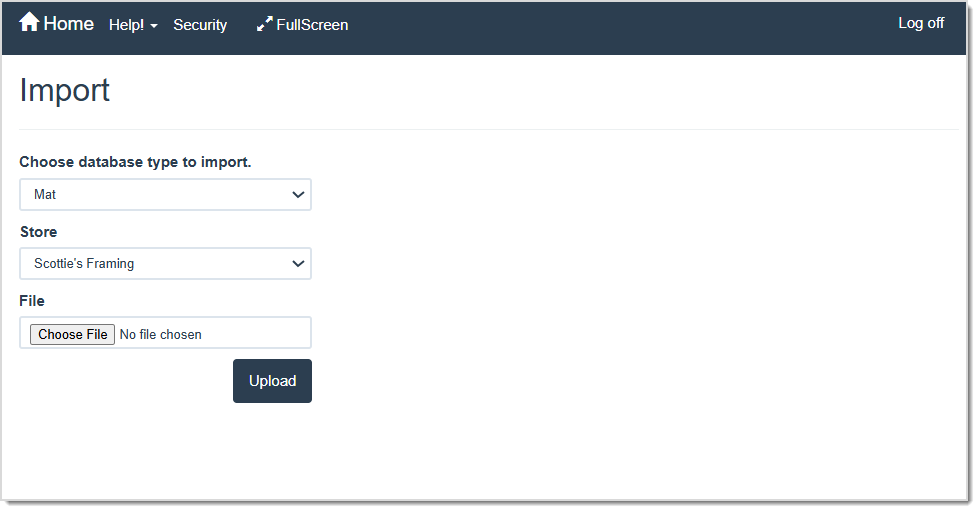
    Image displaying the Import page.
  • Select the Database Type you are importing from the drop-list.  
  • Select the Store that will receive the import.  
  • Click the Choose File button to locate and select your CSV file.  
  • Click the Upload button to initiate the import.  

You will see a message that your file and request have been received, and you should receive an email confirming the result of the import. If the import fails, correct any issues in the spreadsheet, formatting or typos, and reimport the file.  


Scheduling and Distributing Profile Updates

Distributing and scheduling updates to pricing and product profiles helps you ensure that each store uses the correct pricing. You can also use this feature to automate the rollout of new products and pricing changes to multiple locations at once. After importing changes to your database, you can also choose to distribute pricing and product information across selected stores:
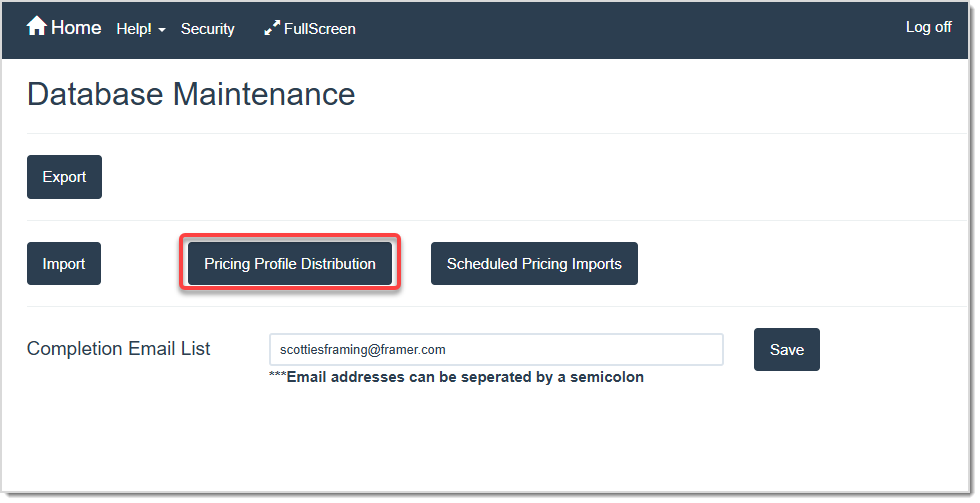
Image displaying the Database Maintenance page, highlighting the Pricing Profile Distribution button.

To access this feature, you can click the Pricing Profile Distribution button on the Database Maintenance page.  
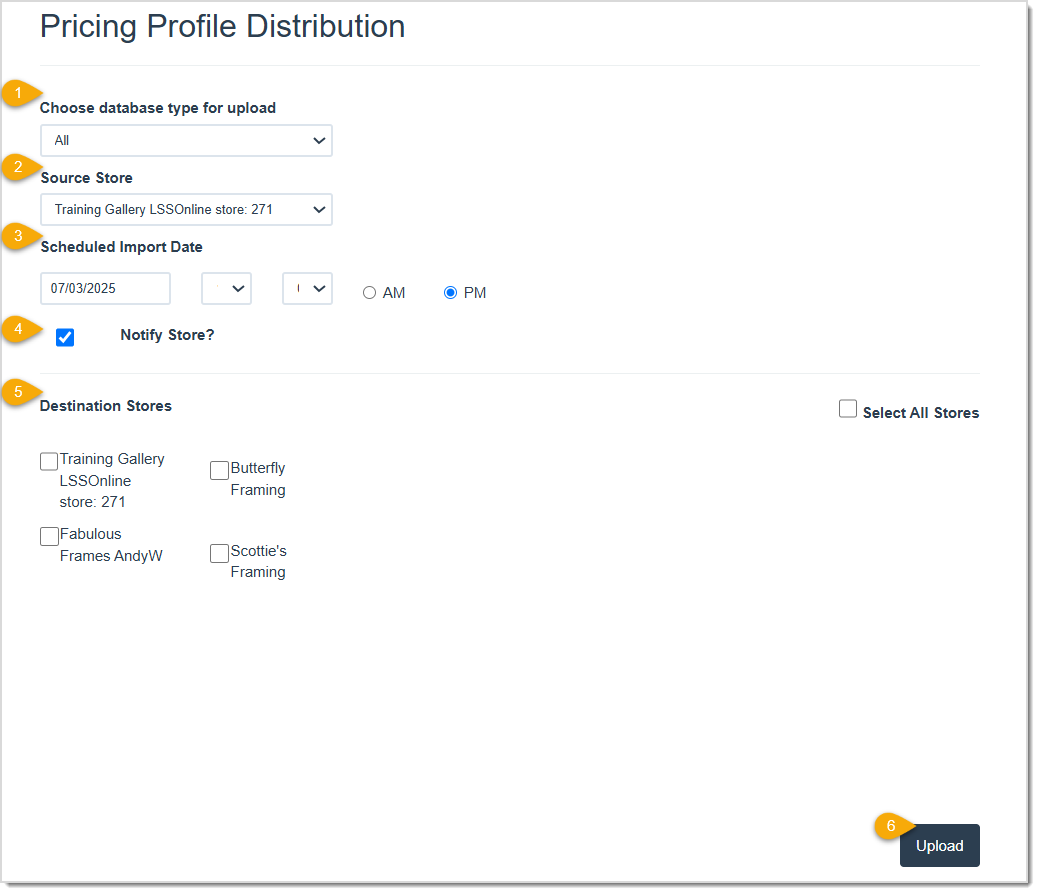
Image displaying the Pricing Profile Distribution page of the LifeSaver system with key features highlighted.

  1. Select the Database Type from the drop-list that you want to distribute.
  2. Select the Source Store that exported or updated the product profile.  
  3. Select the Scheduled Import Date / Time for the update to take place. Sometimes you will want to schedule an import as part of distributing pricing updates to multiple stores at once. By setting a future date, you can plan for new pricing to become active right when you want it.  
  4. Check the Notify Store box if you want to notify the store with the updated Pricing Profiles by email. 
  5. Check the Store(s) you want to which you want to Upload the Pricing Profiles.
  6. Click the Upload button after making the necessary selections to finalize them.  

After the schedule runs, you should receive an email from Support confirming if the Pricing Profile Upload was successful or if it failed. If it fails, confirm your spreadsheet format or call Support at 1-800-381-0600 for help.  


View Scheduled Pricing Imports

You can easily see when imports are scheduled to happen, and then cancel or adjust them as needed, ensuring that everyone stays up to date. These steps show you how to schedule pricing imports in LifeSaver Software Software so you can manage your product profiles and pricing with confidence.
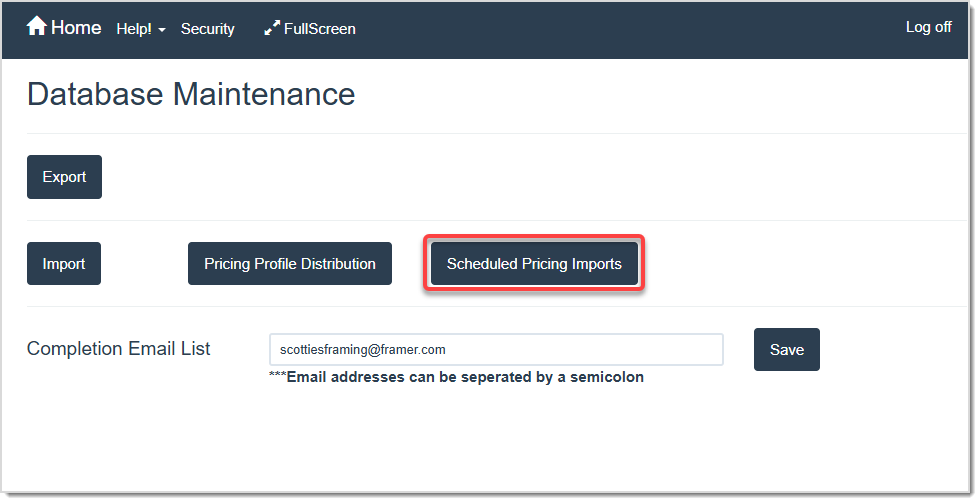
Image displaying the Database Maintenance page, highlighting the Scheduled Pricing Imports button.

Get started by clicking the Scheduled Pricing Imports button on the Database Maintenance page. 
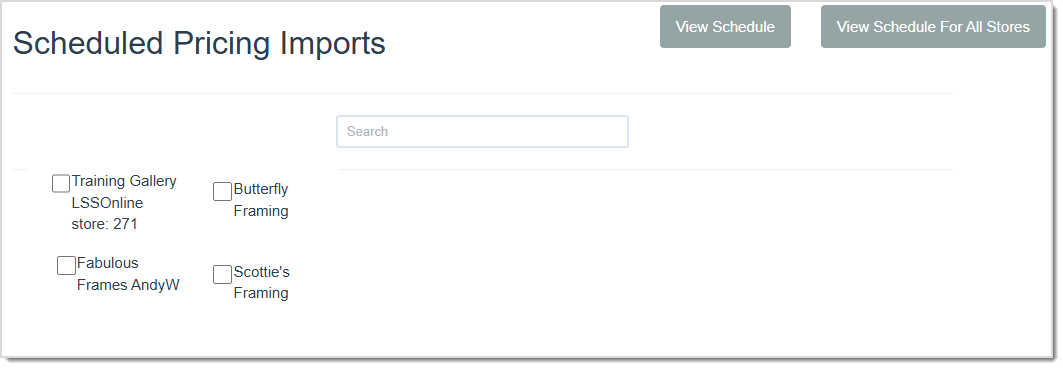
Image displaying the Scheduled Pricing Imports page of the LifeSaver system.

  • Select one or more stores to view upcoming imports.  
  • Click the View Schedule button or the View Schedule For All Stores button depending on the schedule you want to view.  
  • The schedule shows Store, Database Type, Date, and Source Store.  
  • Click the Cancel button on any row to cancel that scheduled import, if needed.  


Related Topics

Generating Store Reports

Managing Inventory


Frequently Asked Questions

Q: Can I export multiple types of data at once?  

A: Yes, simply repeat the export process for each type (Moulding, Mat, Inventory), or choose “All” where available if you want a complete export.  


Q: Can I cancel an export request after I click Start?  

A: There is no immediate cancel option. However, the export typically completes quickly, so you can simply discard the file if it is not needed.  


Q: Do I need special permissions to export data?  

A: Yes, you need to have the correct security-role assignments in LifeSaver Software to access the Database Maintenance area.  


Q: I have a question, but I can't find my answer here, how do I get more assistance?

A: You can ask any question at the link below, once received one of our technicians will be in touch! If you need immediate assistance, the LifeSaver Software team is available Monday through Friday, from 9:00am to 6:00pm Eastern time. Feel free to contact our support team at: 1-800-381-0600, extension 2. Or you can email us at support@lifesaversoft.com and we will respond within 24-hours.

Need Help?

Can't quite find the answer you're looking for? Our support team is just a call away.