Adding material vendors in the LifeSaver Software Software gives you access to the latest material options for your store. LifeSaver Software has an extensive list of integrated vendors for you. In this article, you will learn how to add new vendors, set default units of measure, and create custom markup tables to reflect your store’s pricing strategy. Keep reading to learn more.
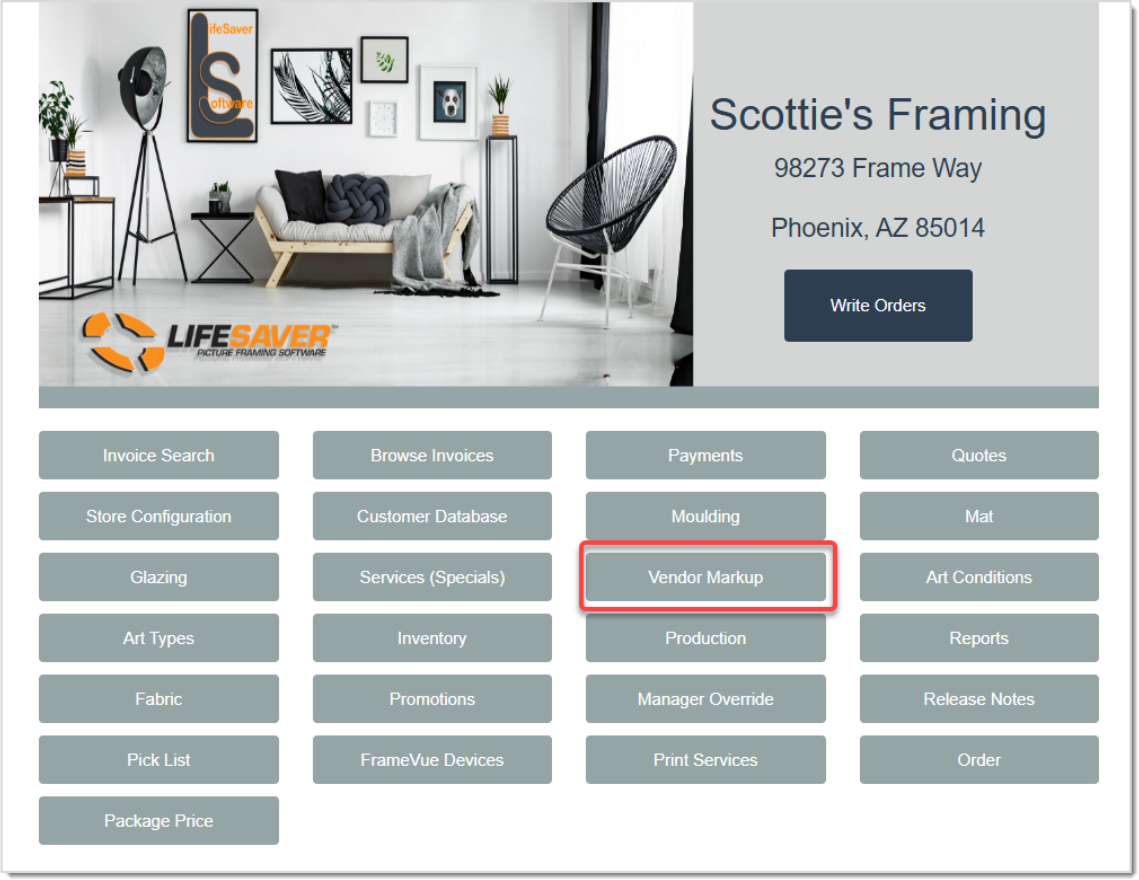
On the LifeSaver Software Home page, click the Vendor Markup button. This opens the Vendor Markup page where you can view and manage your vendor list. You can then add new vendors, edit existing ones, and set or adjust markups for your store.
Adding Mat and Moulding Vendors
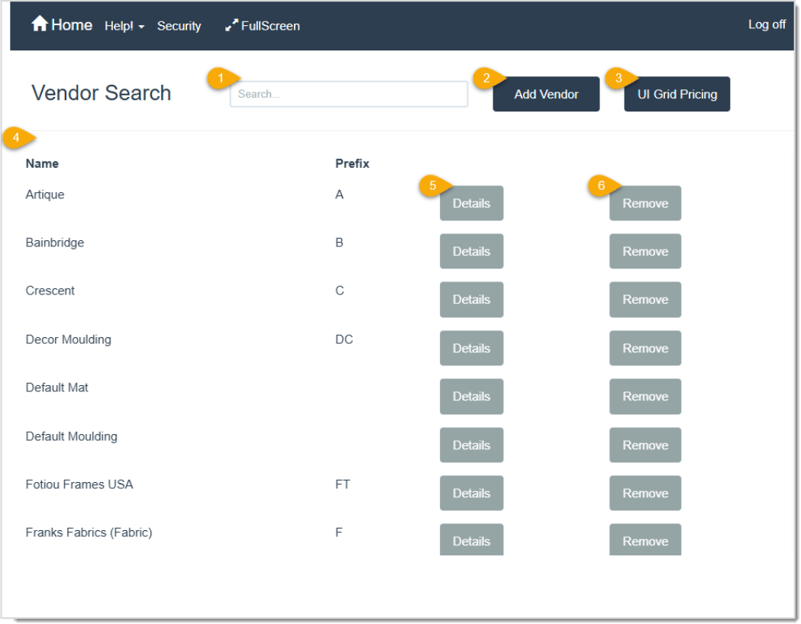
- Search – Click into the field and Search for a Vendor. You can Search by Prefix or Name.
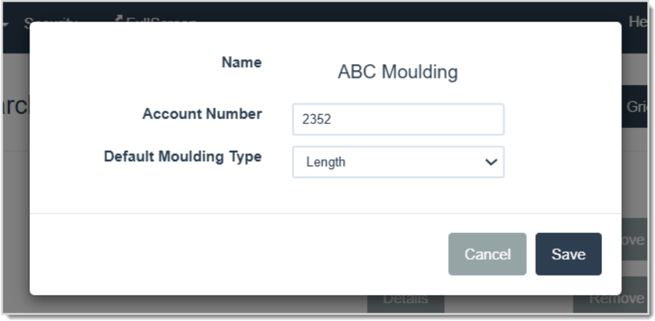
- Add Vendor – Click this button to view the Vendor window where you can select from a list of available Vendors. Use the search bar to type part or all of the vendor’s name if needed. Scroll through the list and click the Select button to the right of the one you want to add. Once selected, a new window will appear where you’re required to enter your Account Number. Some vendors will have additional settings like the one picture below. In this example, you would select the Default Moulding Type unit of measure from the drop-list. Your options vary depending on the vendor. When you’re finished, click the Save button.
- UI Grid Pricing – Click this button to go to the Grid Pricing page where you can view, edit, create or deactivate / activate Pricing Groups.
- Vendor List – This is where all of the Vendors you’ve added to the system are displayed.
- Details – Click this button to open the Vendor Details page for a vendor.
- Remove – Click this button to Remove the Vendor from the Vendor list. It will still appear in the Add Vendor list.
Once you have added the vendor, you can set custom markups for each vendor so your store’s pricing strategy stays consistent. You can also choose to apply a default markup template across multiple vendors at once.
Configuring Vendor Markups
The LifeSaver Software system contains default markups. We strongly encourage you to set your own markups that are appropriate for your store. After you add your new vendor, you will see it listed in the Vendor Markup page. Here’s how to set up or adjust material markups:
- On the Home screen, click on the Vendor Markup button.
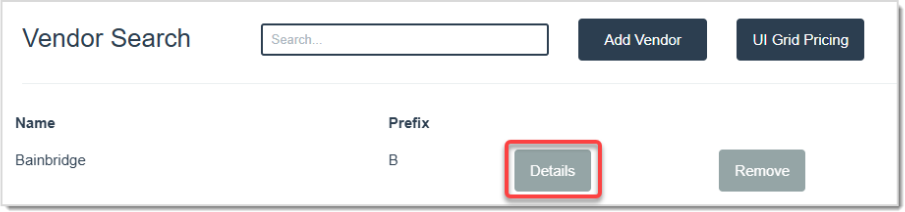
- Click the Details button next to the newly added vendor. A table will load for each type of material the vendor supplies (Mats pictured below). Then, select the desired tab and fill out the necessary information. The columns will vary by material type.
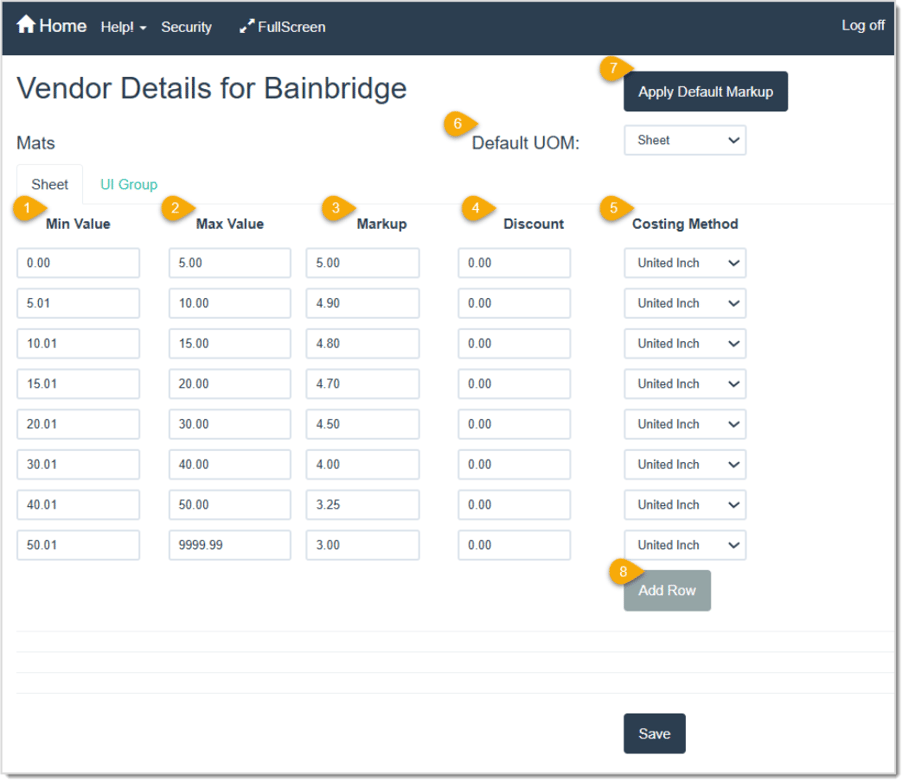
For Mats, on the Sheet tab there are a few fields you may not be familiar with:
- Min Value – Enter in the Minimum cost from this Vendor for the full Sheet.
- Max Value – Enter in the Maximum cost for this Vendor for the full Sheet.
- Markup – Enter in the multiple of Cost Markup for this Vendor.
- Discount – Enter in the Discount for this Vendor.
- Costing Method – Select the default mat Costing Method for this Vendor.
- Default UOM – Select either Sheet or UI Group for this Vendor’s Default Unit of Measurement.
- Apply Default Markup – Click this button if you’ve already set a default markup and would like to apply it to this Vendor.
- Add Row – Click this button to Add another Row as needed.
On the UI tab, since we’re working with Vendor supplies, you won’t need to use the United Inch Group. You only need that for in-store materials.
If you select a Moulding Vendor, your Vendor Details page will look like this:
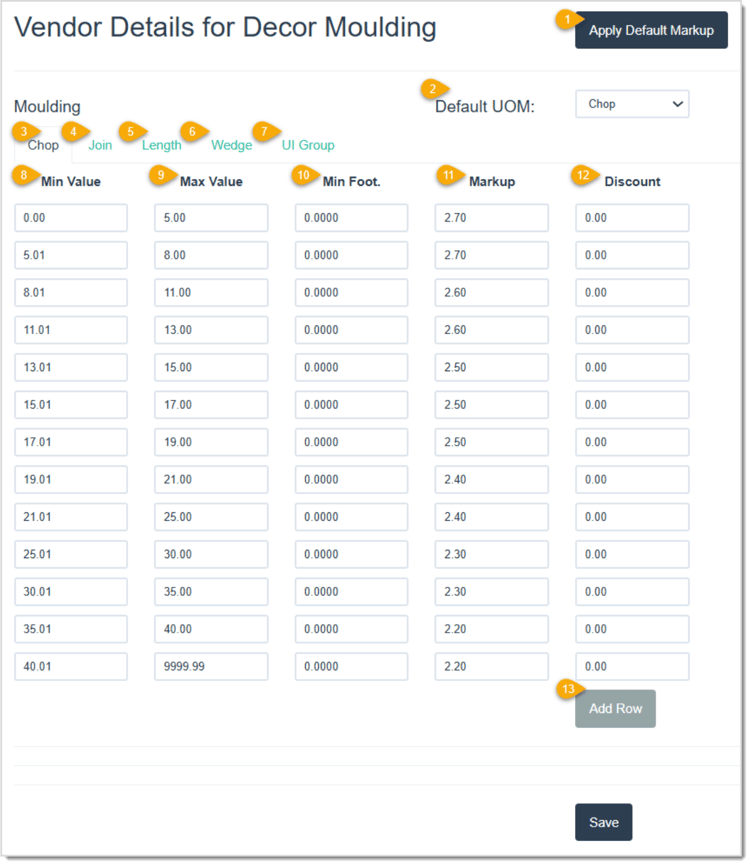
- Apply Default Markup – Click this button if you’ve already set a default markup and would like to apply it to this Vendor.
- Default UOM – Select the Unit of Measurement you want to Default to. The options are Chop, Join, Length, Wedge or UI Group.
- Chop – This refers to moulding that is cut to 45-degree ends and is ready for assembly. Enter in the values referring to Chop moulding.
- Join – This refers to moulding that is pre-assembled into a finished frame. Enter in the values referring to Join moulding.
- Length – This refers to ordering the moulding in long, uncut sticks, which you then cut and join yourself. Enter in the values referring to Length moulding.
- Wedge – There is currently no support in the LifeSaver system for this type of corner-join on mouldings.
- UI Group – On the UI tab, since we’re working with Vendor supplies, you won’t need to use the United Inch Group. You only need that for in-store materials.
- Min Value – Enter in the Minimum cost from this Vendor for the full Sheet.
- Max Value – Enter in the Maximum cost for this Vendor for the full Sheet.
- Min Foot. – Enter the Minimum Foot length the Vendor requires for an order.
- Markup – Enter in the multiple of Cost Markup for this Vendor.
- Discount – Enter in the Discount for this Vendor.
- Add Row – Click this button to Add another Row as needed.
If you select a Fabric Vendor, your Vendor Details page will look different:
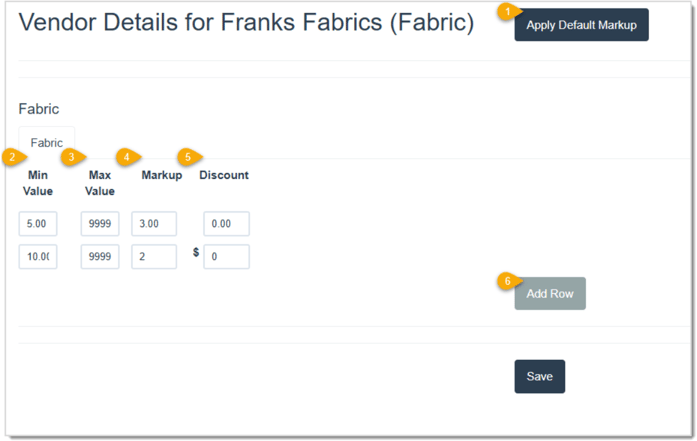
- Apply Default Markup – Click this button if you’ve already set a default markup and would like to apply it to this Vendor.
- Min Value – Enter in the Minimum cost from this Vendor for the full Sheet.
- Max Value – Enter in the Maximum cost for this Vendor for the full Sheet.
- Markup – Enter in the multiple of Cost Markup for this Vendor.
- Discount – Enter in the Discount, if any, you receive from this Vendor.
- Add Row – Click this button to Add another Row as needed.
💡Pro Tip - Use the Add Row button to build price ranges for different cost intervals.
Related Topics
Purchase Orders
Working with Mats
Working with Moulding
Working with Glazing
Working with Fabric
Store Configuration - Settings
Frequently Asked Questions
Q: How can I remove a vendor if I no longer need them?
A: On the Vendor Markup page, locate the vendor you want to remove and click the Remove button.
Q: I have a question, but I can't find my answer here, how do I get more assistance?
A: You can ask any question at the link below, once received one of our technicians will be in touch! If you need immediate assistance, the LifeSaver Software team is available Monday through Friday, from 9:00am to 6:00pm Eastern time. Feel free to contact our support team at: 1-800-381-0600, extension 2. Or you can email us at support@lifesaversoft.com and we will respond within 24-hours.


 October 09, 2025
Is this page helpful?
×Help us improve our articles