The LifeSaver Software System’s Material Usage Reports offer powerful ways for you to analyze and optimize the use of your framing materials. This article will help you understand how to review your top-selling mats, mouldings, and glazing to make informed decisions about inventory and pricing. Take a look to see how the Material Usage Reports can help you with your inventory.
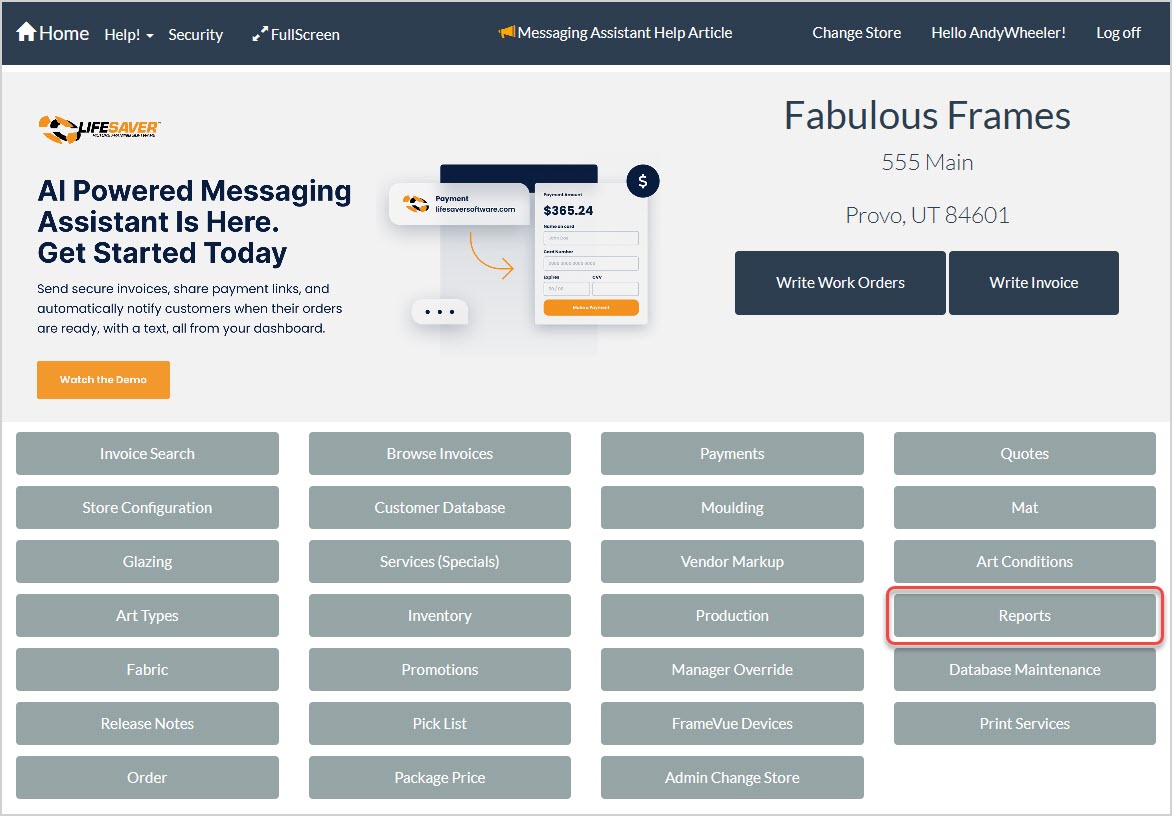
From the Home page, click the Reports button. On the Store Reporting page, click the Material Usage button to see a list of available Material Usage Reports.

Material Usage Reports Major Functions
As with your standard reports, your Material Usage reports all have the following functions:

- Back Button – This button will take you back to the Store Reporting page.
- Date Range – Enter the Start Date and End Date you need, then click the View Report button to load the data for that period. All reports in the Material Usage report list have these fields.
- Navigation – If the report has multiple pages of data, you can use the arrows to go all the way to the beginning or end page (outer arrows), to the previous or next page (inner arrows), or you can enter the page you want to go to in the page number field.
- Refresh – If your report data might have changed since you loaded the page, or if you just want to reload to the initial view, click the Refresh button.
- Return to Parent Report – If the report you’re viewing is loaded from a parent report, the Return to Parent Report will take you back to that page. If there is no parent report, this button will not be active.
- Zoom – Using this control, you can set the Zoom level for the report’s viewing window. This feature does not enlarge the actual viewing window and will only control the zoom level within the frame below the control header.
- Save / Export – Click this button to download an Excel file, PDF document, or CSV spreadsheet of the report data. This function will export all pages of data.
- Print – Click the Print button to send a print of all report data to a browser print window. You will also see a window that will allow you to download a PDF file of the output. All pages of the report will print by default.
- Search – You can search by keyword or numeric data for anything in the report. Click Find to jump to the first search match. Click Next to jump to the next one until you find what you need.
The Mat Usage Report

The Mat Usage report gives you the following data for your mat usage for the date range you selected:
- In the upper part of the report, it displays the Top Ten Most Popular Mats by Square Feet, the Average Mat Reveal (in inches) across all mats used, and the Top Ten Most Popular Mats by Count.
- The Invoice Number, Revision Number, and Work Order Number for each order.
- The Mat Name, Mat Price Before Discount, Mat Price After Discount, Mat Cost, and Mat Discount, if any.
- The Square Feet Used, and the UI (united inches) Used.
- The Mat Description, Average Reveal TBLR (top, bottom, left, and right), and Frame Dimensions for each order.
The Moulding Usage Report
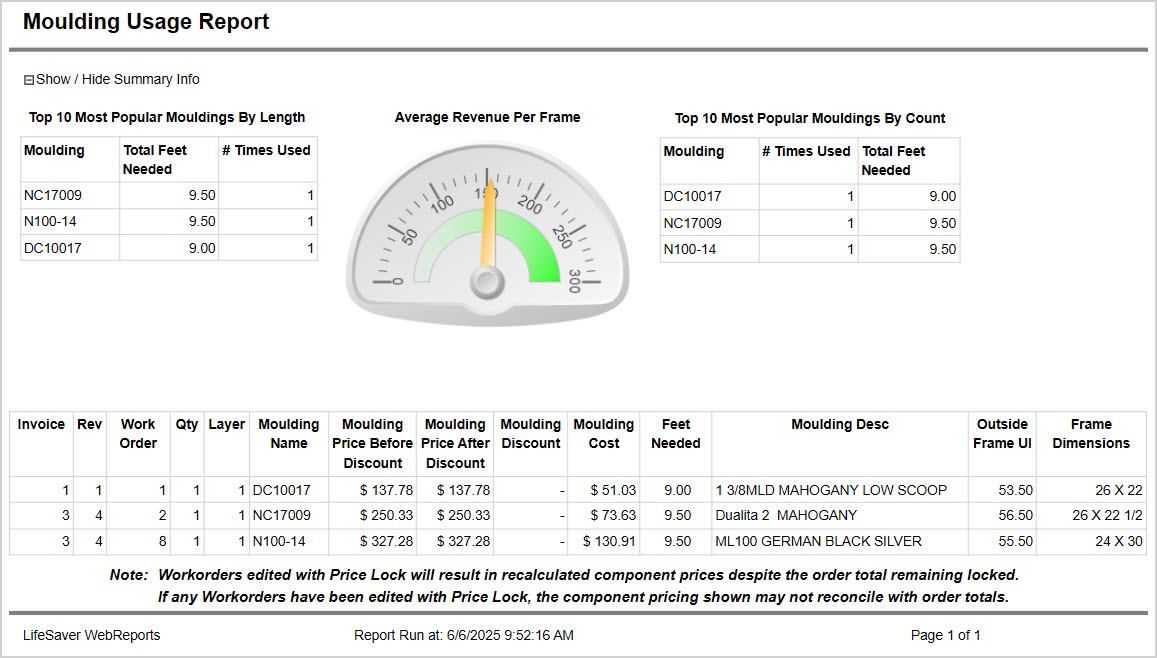
The Moulding Usage report gives you the following data for your moulding usage for the date range you selected:
- In the upper part of the report, it displays the Top Ten Most Popular Mouldings by Length, the Average Revenue Per Frame across all frames sold, and the Top Ten Most Popular Mouldings by Count.
- The Invoice Number, Revision Number, and Work Order Number for each order.
- The Quantity, Number of Layers, Moulding Name, Moulding Price Before Discount, Moulding Price After Discount, Moulding Cost, and Moulding Discount, if any.
- The Feet Needed for the order.
- The Moulding Description, Outside Frame UI (united inches), and Frame Dimensions for each order.
The Glazing Usage Report
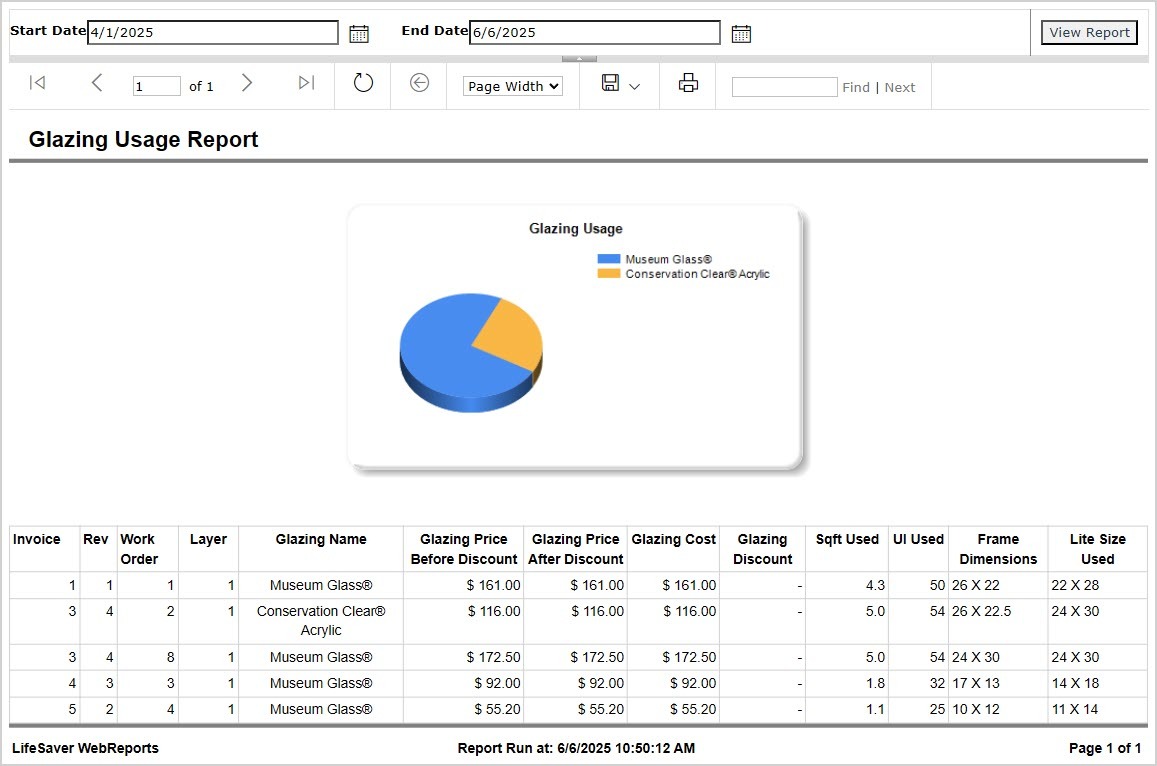
The Glazing Usage report gives you the following data for your glazing usage for the date range you selected:
- In the upper part of the report, it displays a Glazing Usage Pie Chart, showing how all different types of glazing you used compare to each other in quantity.
- The Invoice Number, Revision Number, and Work Order Number for each order.
- The Number of Layers, Glazing Name, Glazing Price Before Discount, Glazing Price After Discount, Glazing Cost, and Glazing Discount, if any.
- The Square Feet Used, and the UI (united inches) Used.
- The Frame Dimensions and Lite Size Used for each order.
The Material Details Report

The Material Details report gives you the following data for your material costs for the date range you selected:
- In the upper part of the report, it displays the Store Name, Address, and Phone, as well as the Date Range the worksheet covers, and the Date and Time you ran the report.
- The upper part of the data table lists the Framing Components, Total cost amount, Percentage of Total Cost for each item type, the Total Last Year cost for each item type, and Percentage of Total Cost for Last Year for each item type.
- The lower part of the data table details the Number of Work Orders, Work Order Total dollar amount, Work Order Average dollar amount, Moulding Total dollar amount, Moulding Average dollar amount, and Moulding Average Price per Foot.
- Below the table, the report has some explanatory note text about the data included, and you can read it in the image above.
The Moulding Bin Report
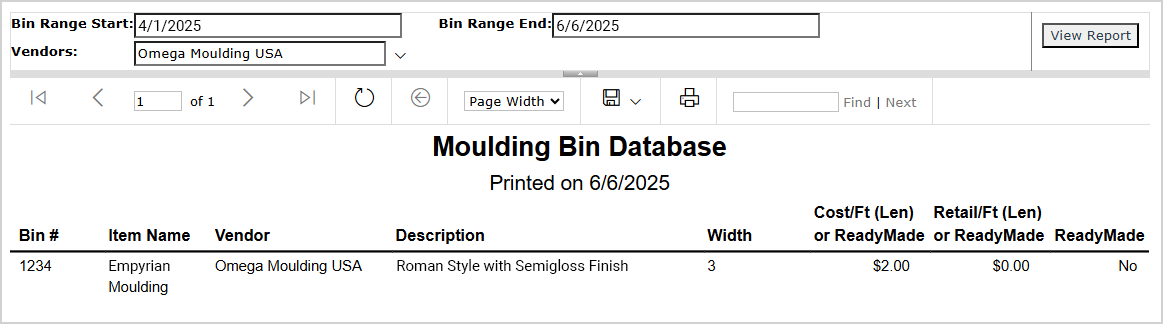
The Moulding Bin report gives you inventory data for your moulding for the date range you selected:
- In the upper part of the report, it displays the Date you ran the report.
- The data table shows you each Bin Number, Item Name, Vendor, and Description for your moulding inventory.
- It also gives you the Width in inches, Cost per Foot Length or Ready Made, Retail per Foot Length or Ready Made, and if the moulding was Ready Made or not.
Related Topics
Production Reports
Order Reports
Closing Reports
Frequently Asked Questions
Q: Can I change the default date range?
A: Yes. Click the Start and End date calendar icons at the top of the Material Usage panel, pick your new date range, then click the View Report button to refresh.
Q: Does the report include orders that are not yet paid in full?
A: Yes. The Material Usage Reports include all framing work orders within the specified date range, even if they are unpaid.
Q: Can I export these reports?
A: Absolutely. Click the Export icon and select your preferred format (e.g., Word, Excel, PDF). You can also click the Print button to create a hard copy.
Q: I have a question, but I can't find my answer here, how do I get more assistance?
A: You can ask any question at the link below, once received one of our technicians will be in touch! If you need immediate assistance, the LifeSaver Software team is available Monday through Friday, from 9:00am to 6:00pm Eastern time. Feel free to contact our support team at: 1-800-381-0600, extension 2. Or you can email us at support@lifesaversoft.com and we will respond within 24-hours.


 October 13, 2025
Is this page helpful?
×Help us improve our articles