
Store Configuration - Settings
The primary system configuration area for LifeSaver Software is the Settings tab on your Store Confi

 February 23, 2026
Your LifeSaver Software SMS Messaging Assistant allows you to send text messages to your customers from important parts of the system. This article will show you how to use the assistant in the different areas. Take a look at what your Messaging Assistant can do for you!
The following areas of the system utilize your Messaging Assistant:
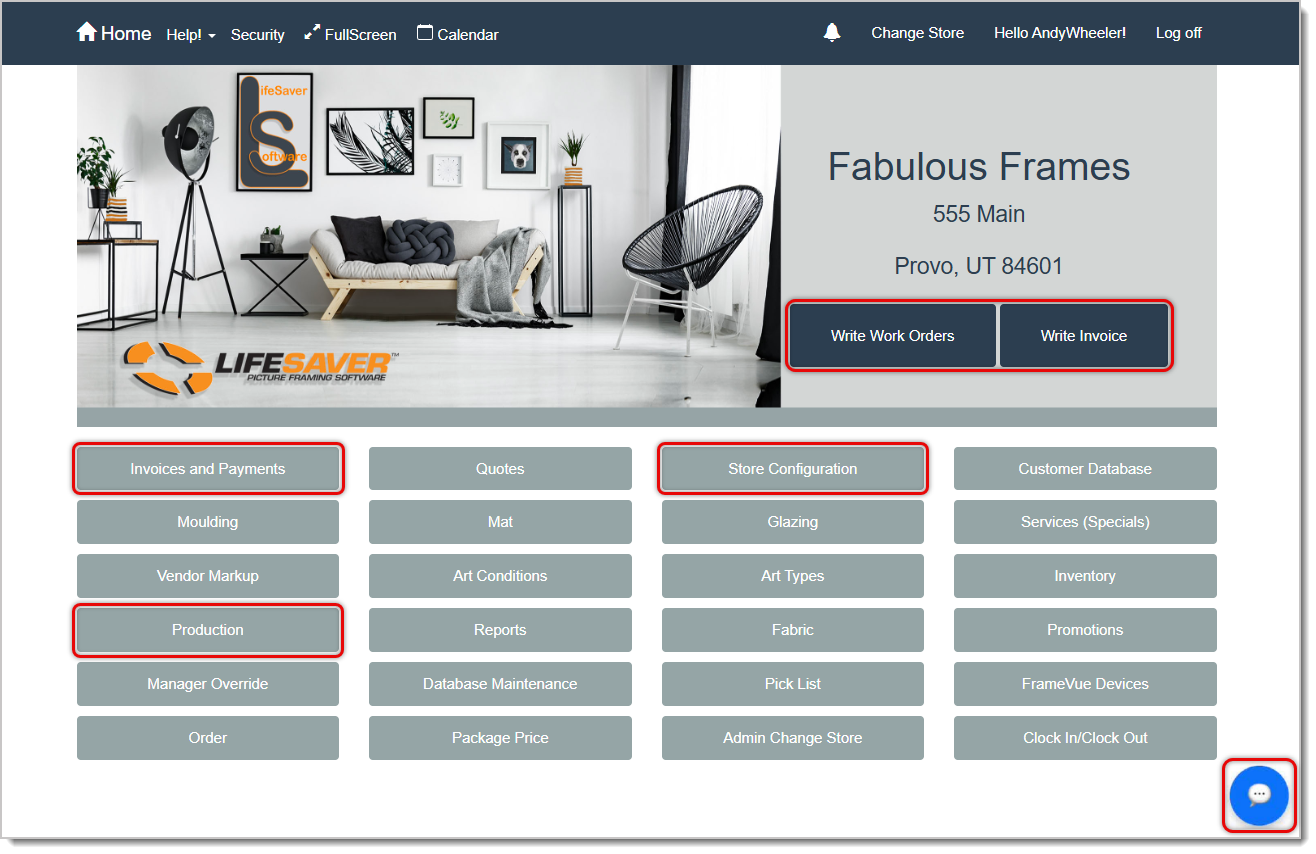
💡Pro Tip: Before sending any SMS or emails to your customers, we encourage you to send test messages to yourself. This will give you better knowledge and expectations on what your customers will experience.
Here are the main uses for your Messaging Assistant you'll learn in this article:
Sending Production Status Notifications
Two-Way Texting with Customers
Sending Google Review Requests
Please Note: For SMS within the United States, SMS providers have certain requirements. The LifeSaver team does most of the heavy lifting there, but merchants are required to make sure that their customers are opted into receiving messages. Below is a form you should have your customers sign before sending them text messages. If you would like to learn more about why opt-in is required, you can learn more here.
Click here to download a PDF of the Opt-In form.
Sometimes you want an easy way to send a customer their receipt via SMS or Email. This is valuable if the customer is not there in person, if they have questions about what they paid for, or you want to save paper.
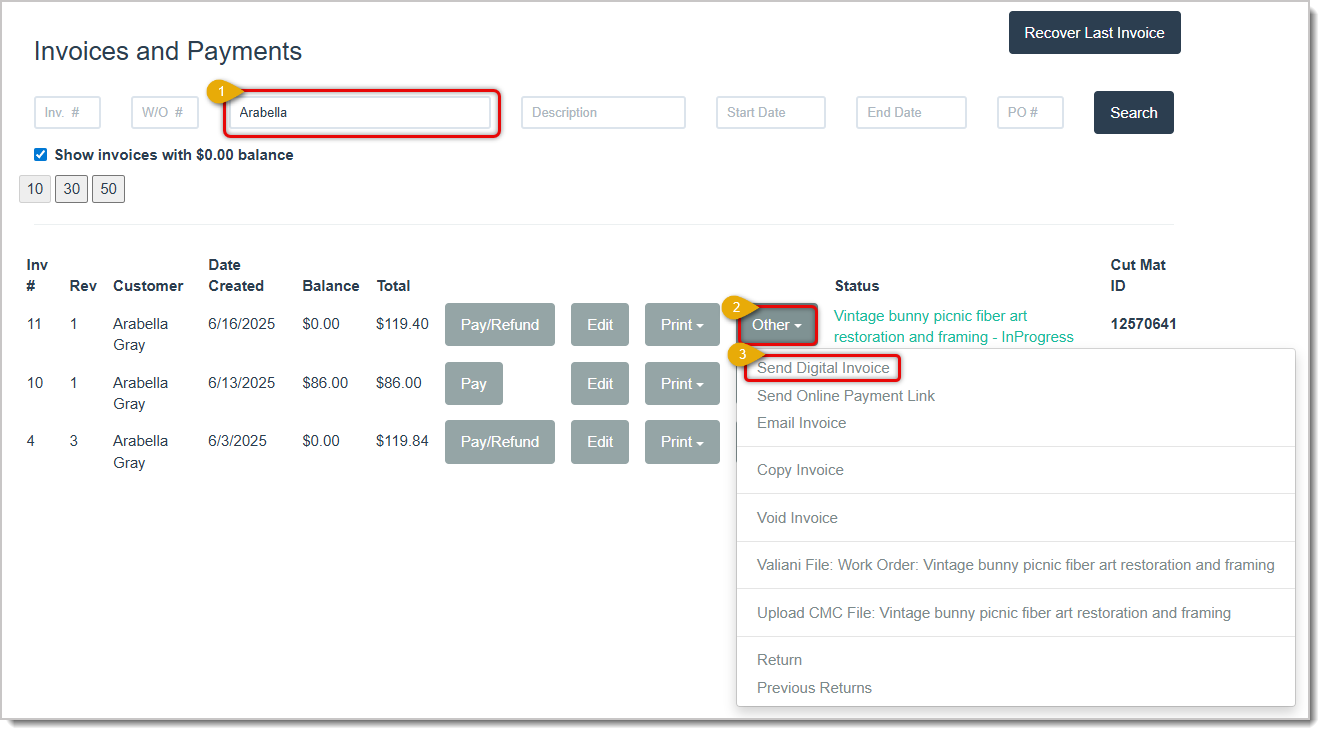
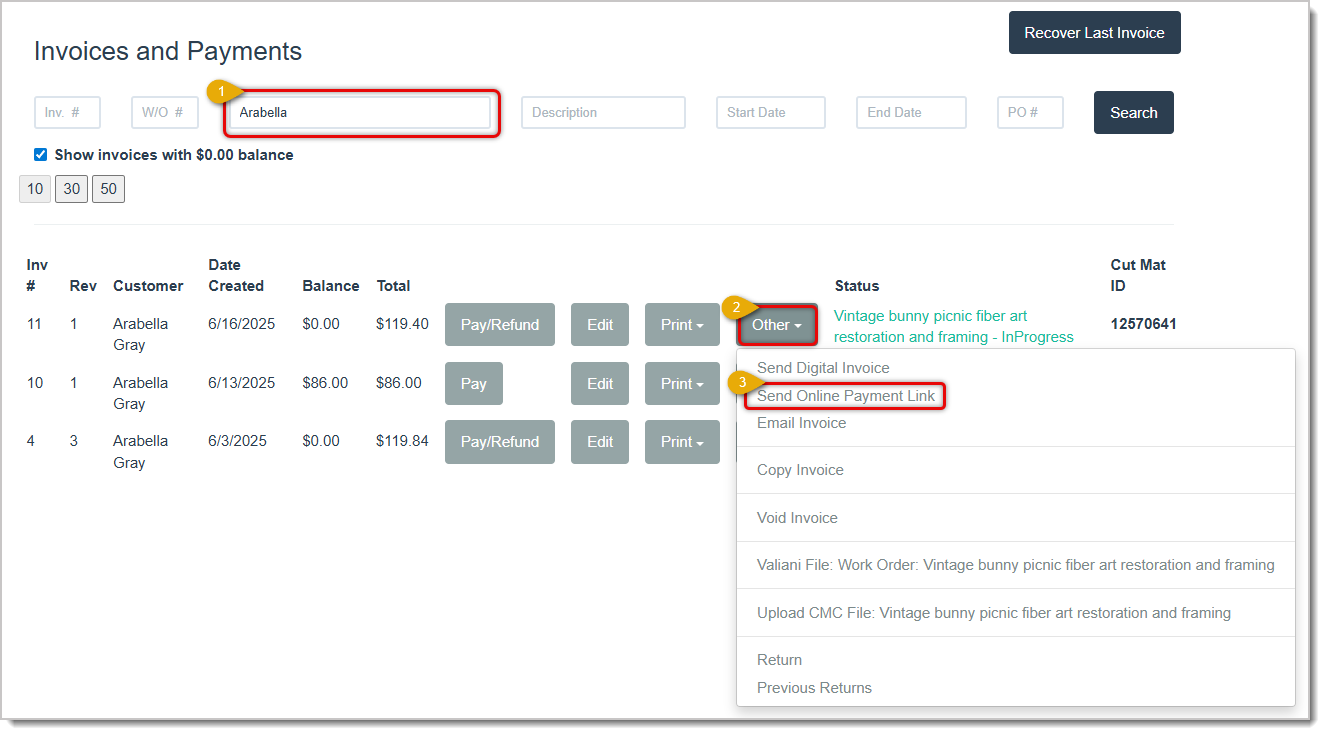
From the Invoices and Payments page, search for the customer or invoice.
Click the Other button on the row for the invoice you would like to send.
Click Send Digital Invoice from the displayed options. If you have the Pay By Link setting enabled, you will see that option here as well. (See Below).
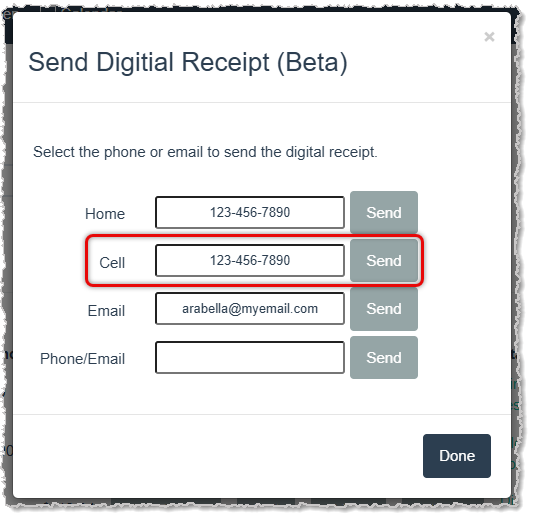
A window will pop up with the contact info for the customer. To send the digital invoice receipt link via SMS text message, click the Send button for the customer's Cell number. Click Done when you are finished. If the phone number is incorrect, you can adjust it as needed.
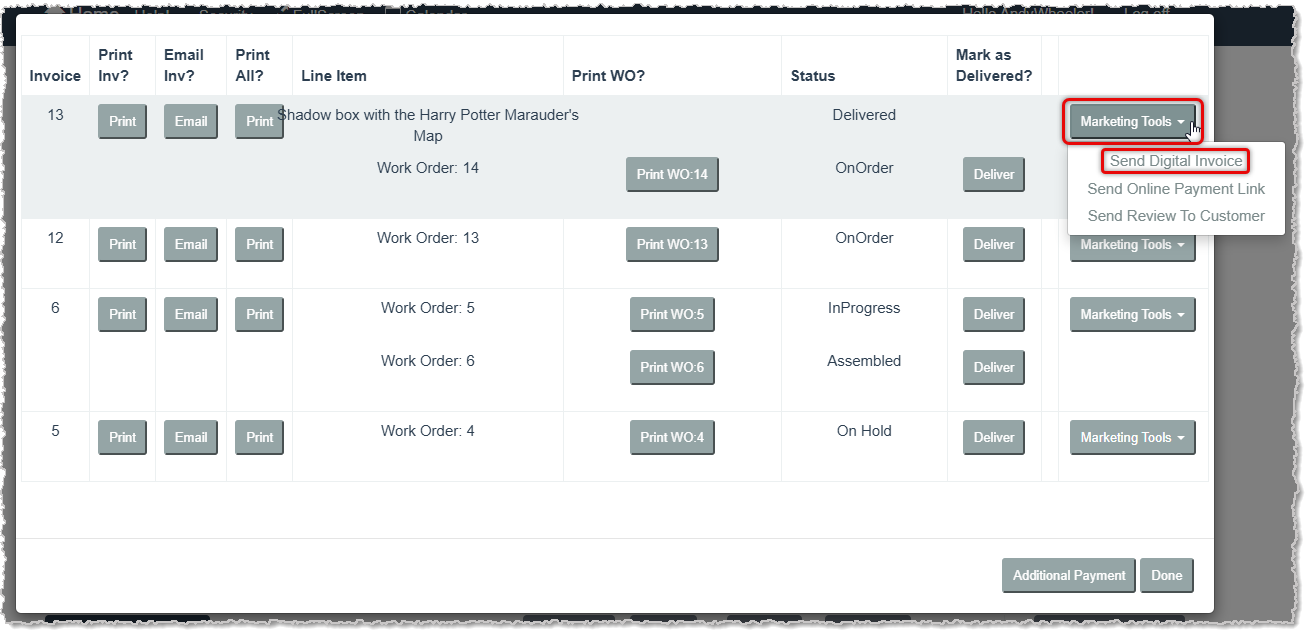
After writing a new Work Order, after accepting payment and when you go to the Invoice step, you are able to send the invoice via SMS Message by opening the Marketing Tools menu and clicking the Send Digital Invoice link pictured below. Doing so will open the same window pictured above and you can click to Send from the Cell phone area. As mentioned above, you can change contact information as needed in the window. Click Done when you're finished.
It is not uncommon for customers to pay for something when they are not in the store. Rather than collecting a credit card number over the phone, you can easily send them a secure payment link they can use to make a payment from their phone or computer. When the payment is collected, LifeSaver will record the payment so your records align.
To send a digital payment link, from the system Home page, click to open the Invoices and Payments page:
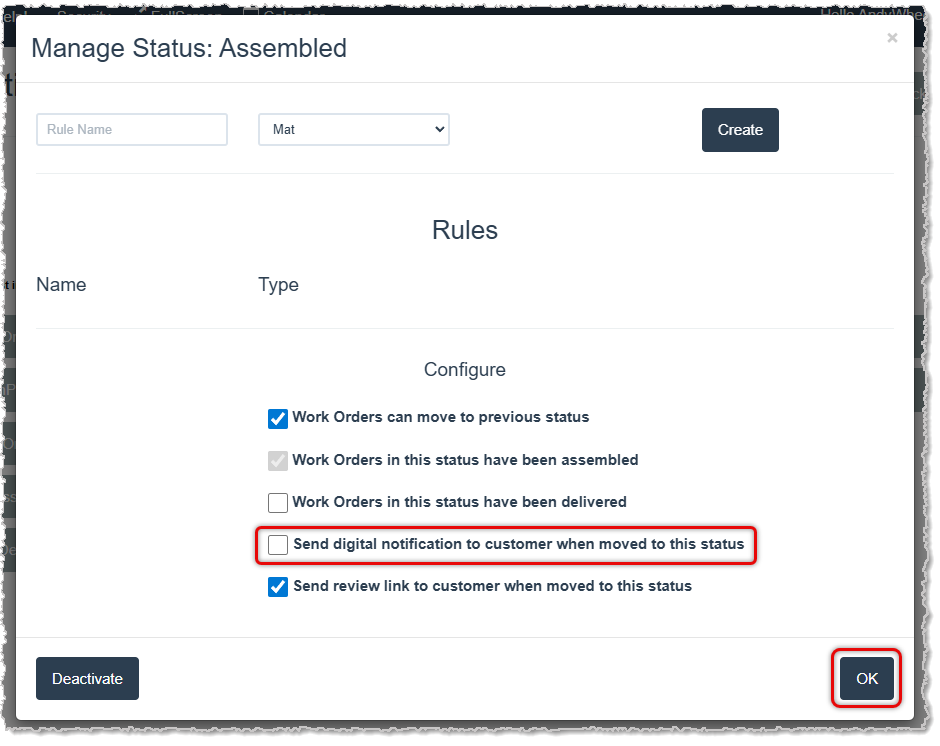
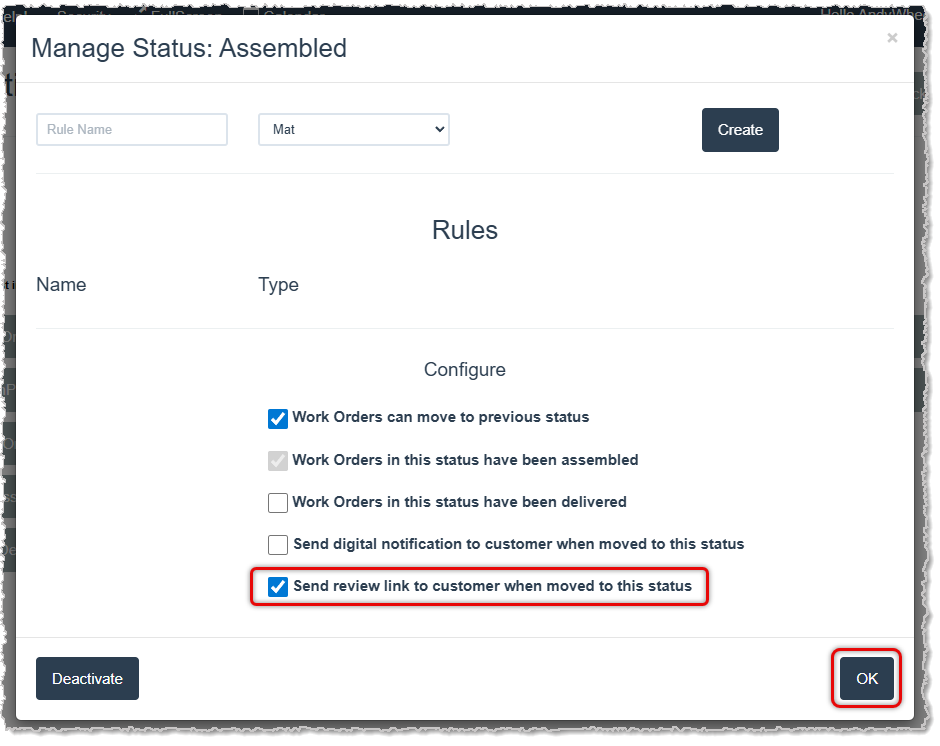
With the Messaging Assistant you are able to automate sending a text or email your customers when the status of their work order changes. There is a setting with each status so you can choose which statuses you want to send updates. The most common use case will be enabling this setting to send notification when an order moves to the Ready For Pickup or a similar status.
Here is how to automate notifications for customer when an order moves to a certain status:
From the system Home page, click the Production button.
On the Production Status page, click the Manage Status button in the upper right.
Click the Manage button for the status for which you want automate notifications.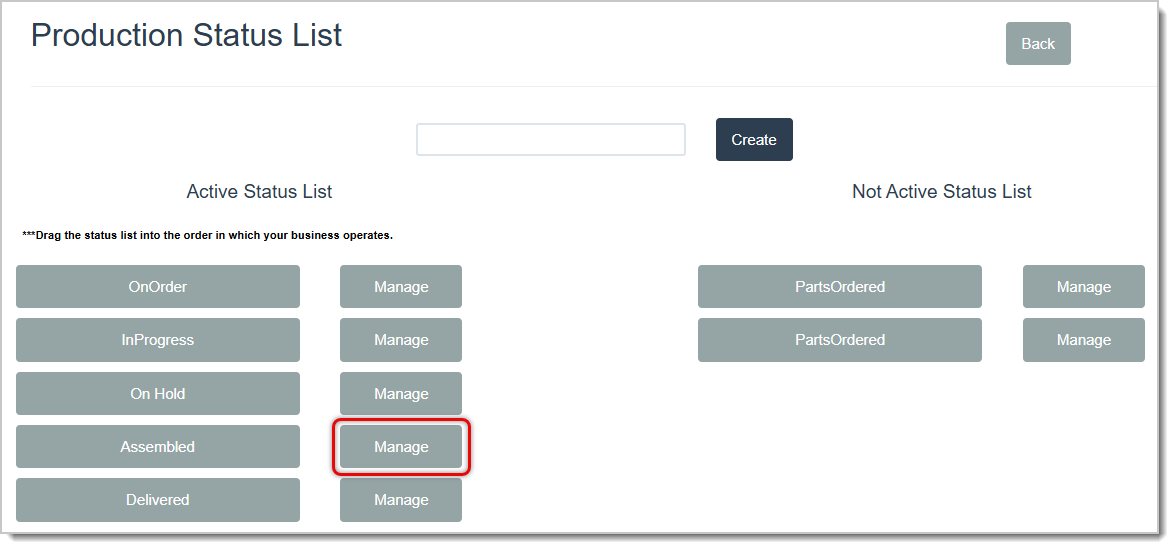
Many customers would love to have the ability to send text messages to your store, and the LifeSaver system's Messaging Assistant allows you to send and receive as needed! This allows you to get quicker responses and to move orders in and out of your store at a quicker pace. As part of the two-way messenger widget, your store will be set up with a unique toll-free phone number that you and your customers can can use for SMS texting. We plan to support the ability to use the same number as your store landline sometime in the future.
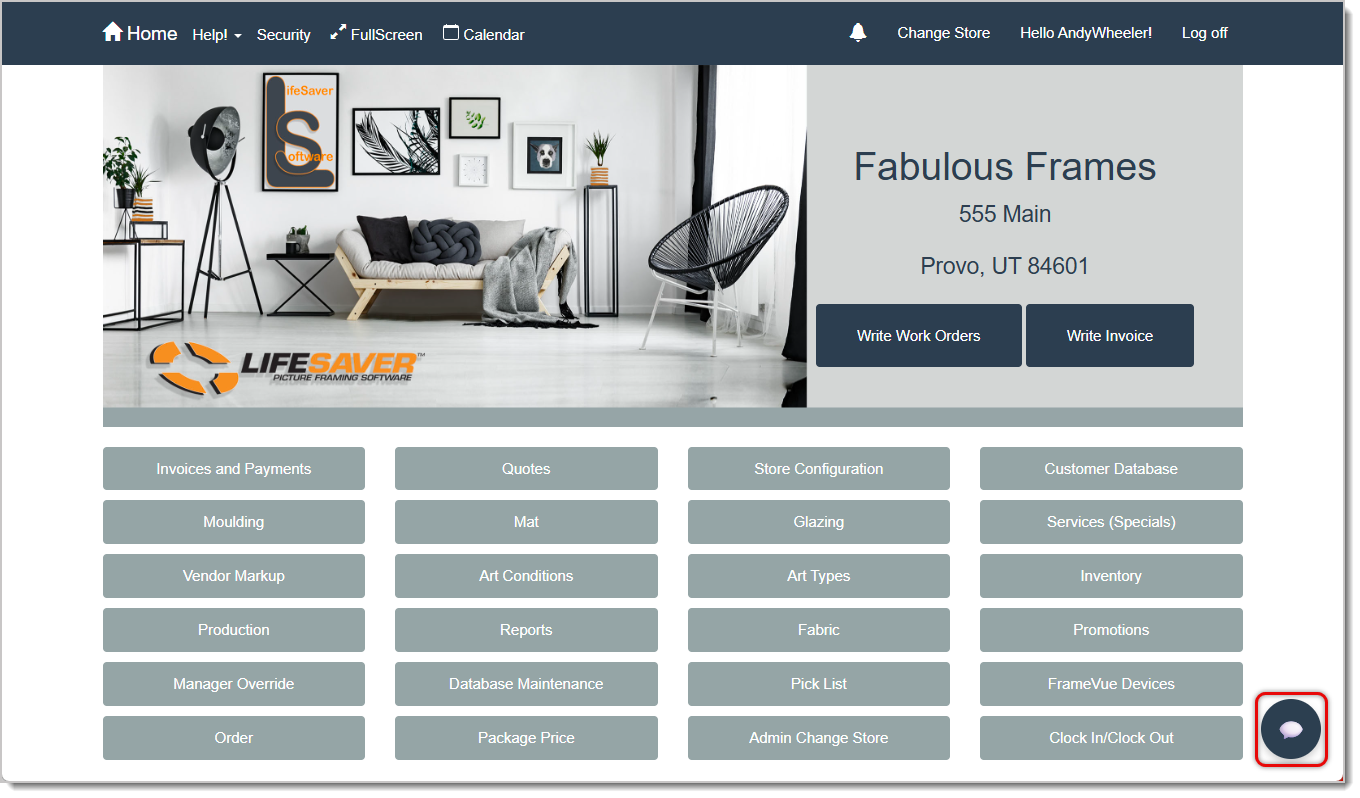
To access the Messenger Widget:
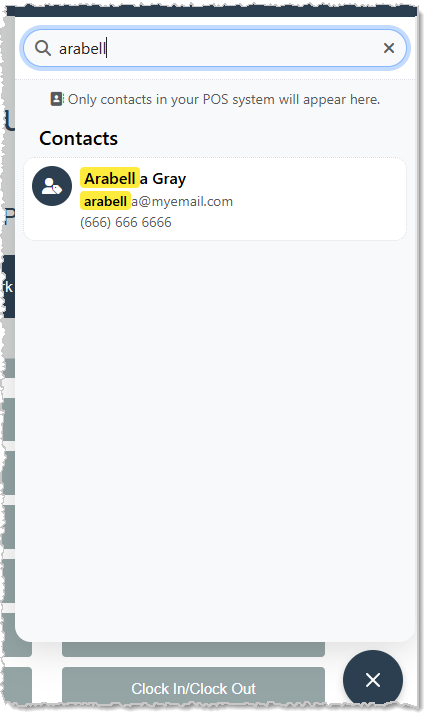
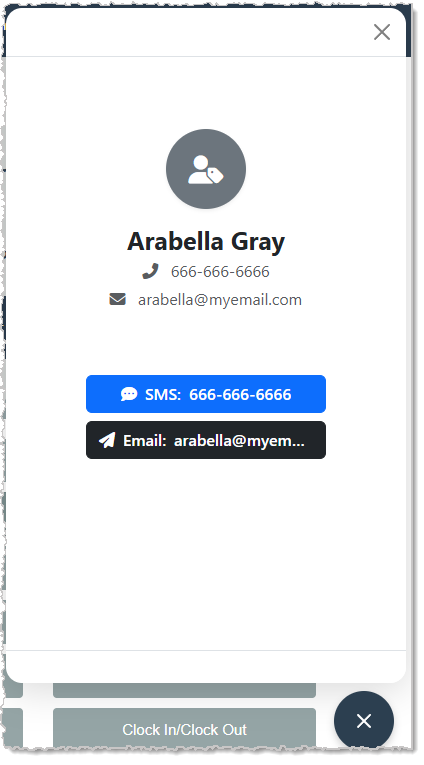
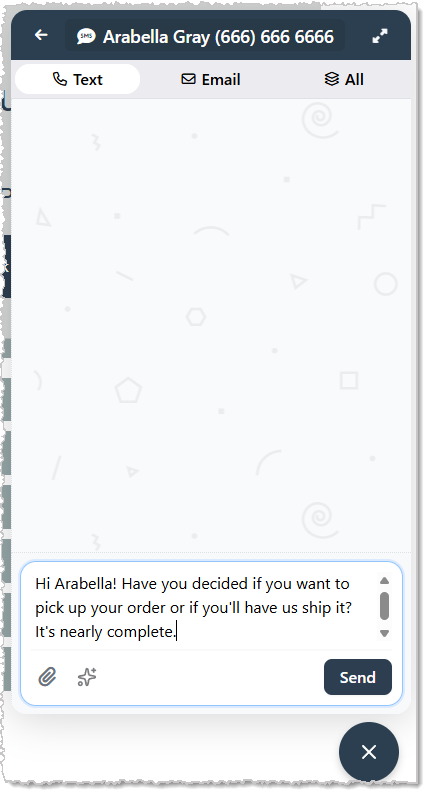
You'll see a number over the Messenger Widget button indicating the number of new messages that are waiting for you whenever you have new ones.
The first place most shoppers go when looking to buy anything is Google. This makes having a presence on Google a necessary component for you to grow your business. One of the most effective was to be recognized in your local search results is to have other shoppers that have positively reviewed your business through Google. By being able to send review links to your customers through LifeSaver, you have a convenient way to build your number of reviews.
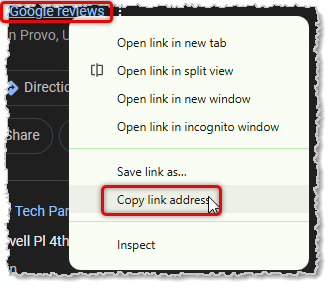
The first step in having Google reviews sent from your account is to get your business Google Reviews URL. You can do this by following these steps:
Do a Google search for your business.
Right-click on the link for your store's Google reviews.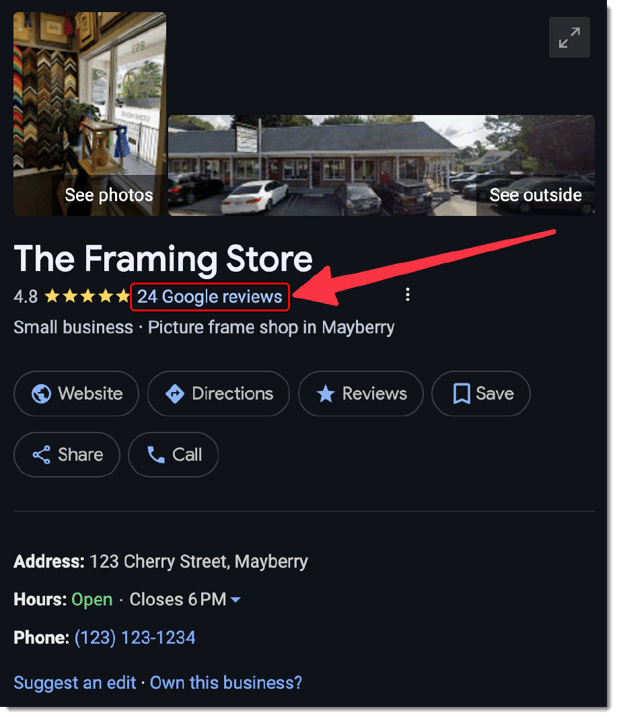
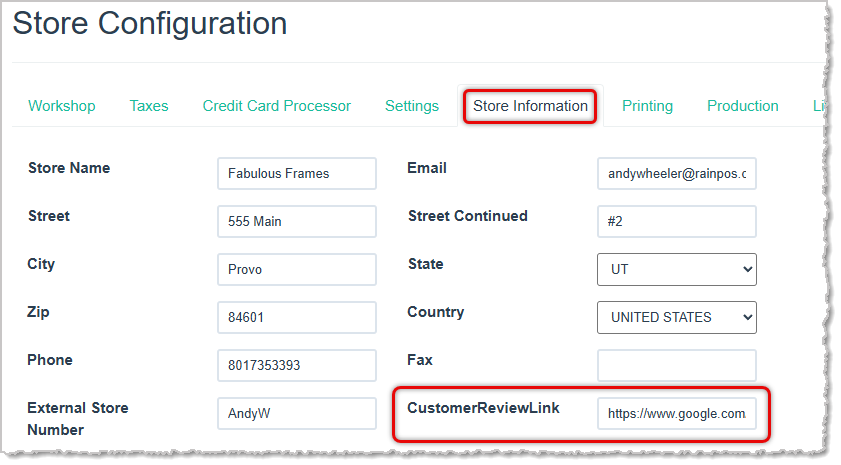
At this point, your Google Review link is now configured!
Next, you'll want to configure when the link will be sent to customers, so we'll go back to the Production statuses to automate that for you:
Q: I have a question, but I can't find my answer here, how do I get more assistance?
A: You can ask any question at the link below, once received one of our technicians will be in touch! If you need immediate assistance, the LifeSaver Software team is available Monday through Friday, from 9:00am to 6:00pm Eastern time. Feel free to contact our support team at: 1-800-381-0600, extension 2. Or you can email us at support@lifesaversoft.com and we will respond within 24-hours.
Is this page helpful?
×Help us improve our articles