Store Configuration - Printing

October 13, 2025
The LifeSaver Software system offers you several ways to configure how your in-house printing will work. In this article, you will learn how to set up and manage printing for Work Orders, Invoices, Receipts, and Quotes, as well as configuration options for general printing.
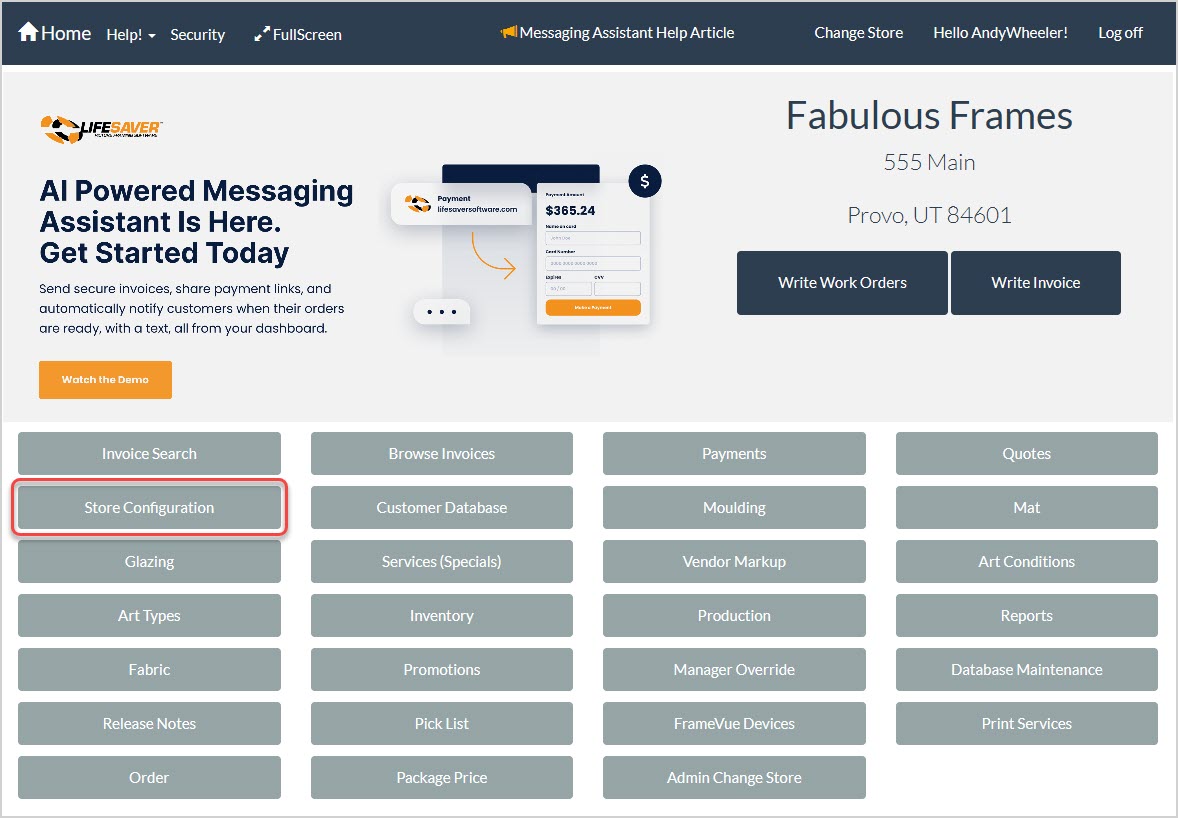
To get to this area, click the Store Configuration button on the Home page. On the Store Configuration page, click the Printing tab.

Printing Setup
We’ll cover your printing setup options in two major areas, starting with Document Copies and Disclaimers.
Document Copies and Disclaimers
The first settings area of the Printing tab contains configuration options for the number of copies and the text for disclaimers you might want for different system documents.
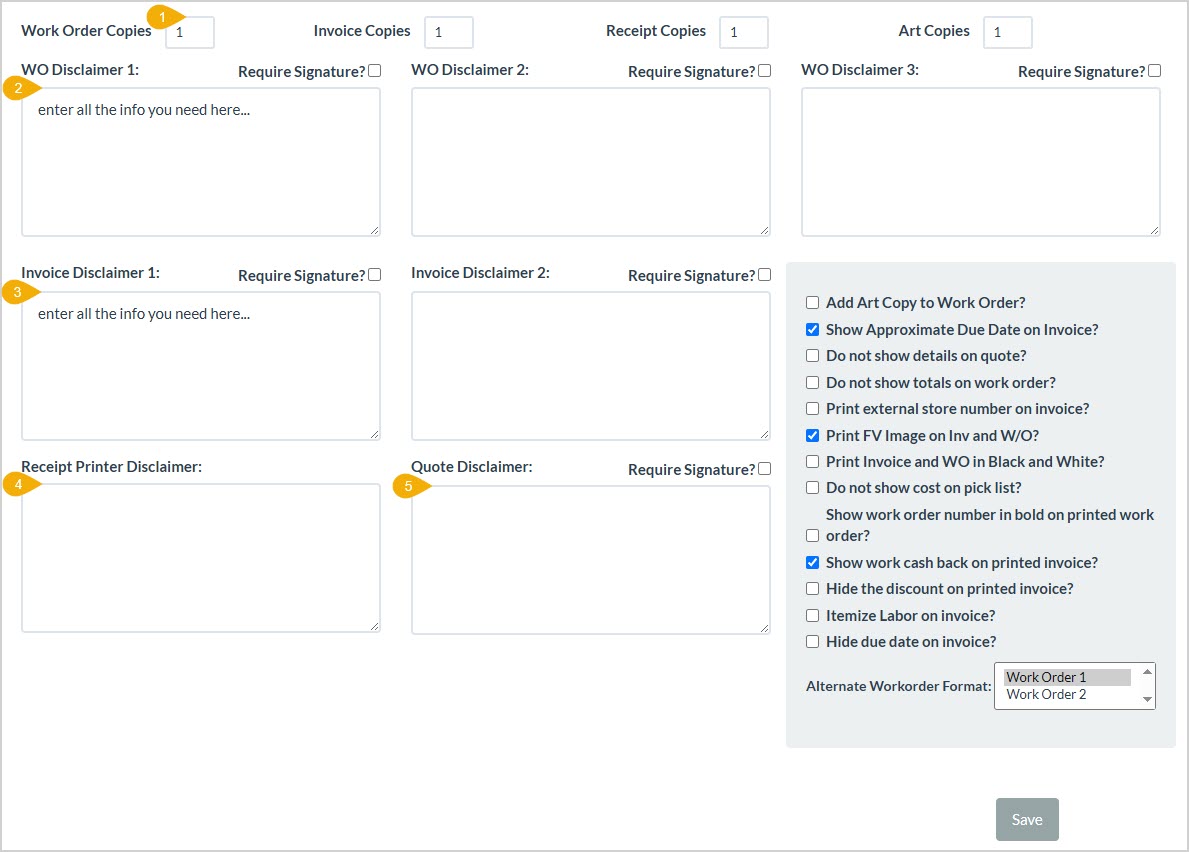
- Number of Copies – You can enter the number of copies you want in each of the number fields for your Work Orders, Invoices, Receipts, and Art. Whenever you print a document, the Copies field of the print window will default to the number you enter, but you’ll be able to change it if you need.
- Work Order Disclaimers – You are able to enter custom text for up to three different Work Order Disclaimers in this area. Each can Require Signature if you check the box. When you go to print a work order, you’ll have the option to include any of the disclaimers you’ve saved.
- Invoice Disclaimers – You are able to enter custom text for up to two different Invoice Disclaimers in this area. Each can Require Signature if you check the box. When you go to print an invoice, you’ll have the option to include any of the disclaimers you’ve saved.
- Receipt Disclaimer – You are able to enter custom text for your Receipt Disclaimer in this area. When you go to print a receipt, any text you’ve saved here will print on the receipt.
- Quote Disclaimer – You are able to enter custom text for your Quote Disclaimer in this area. You can Require Signature if you check the box. When you go to print a quote, any text you’ve saved here will print on the quote.
Print Configuration Settings
The next area of the Printing tab contains configuration options for how system printing will work for your store.
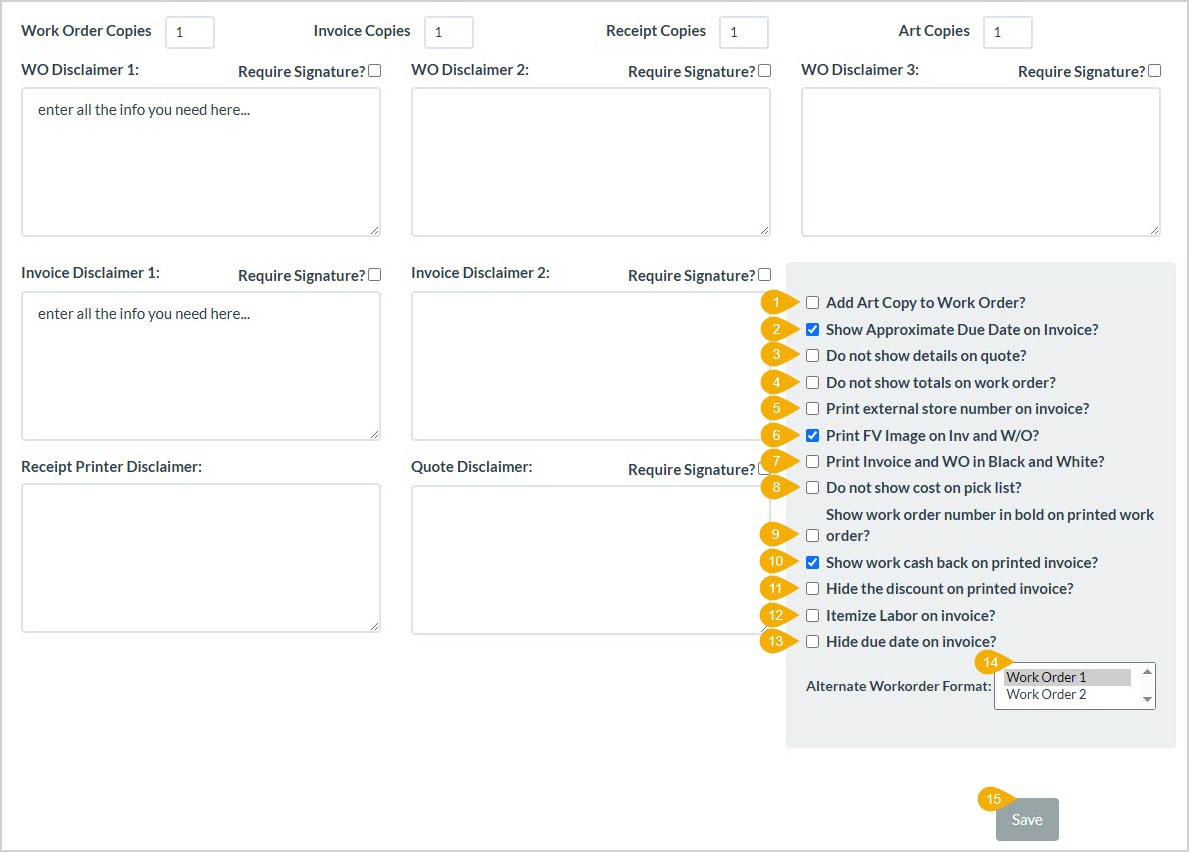
- Add Art Copy to Work Order – If you check this box, your work order print will have the preview printed out along with the other information, for your visual reference. This will print at the bottom and you can cut it out and attach it to the artwork so you can easily keep track of it.
- Show Approximate Due Date on Invoice – Check this box to have the due date print with the word ‘Estimated’ in front of it on your invoices.
- Do Not Show Details on Quote – Check this box to have your quotes print with minimal details.
- Do Not Show Totals on Work Order – If you don’t need to see the order charge totals, check this box and your work orders will print without the totals.
- Print External Store Number on Invoice – Check this box to have whatever you’ve entered into the External Store Number field on the Store Info tab of Setting to print out on the invoice.
- Print FrameVue Image on Invoice and Work Order – Check this box if you want the FrameVue image to print out on your invoices and work orders.
- Print Invoices and Work Orders in Black and White – Check this box to print your invoices and work orders without color (monochrome / grayscale / black and white).
- Do Not Show Cost on Pick List – Check this box if you don’t need to see cost amounts when you print your pick lists.
- Show Work Order Number in Bold on Printed Work Orders – Check this box to have the system print your work order numbers in bold text.
- Show Cash Back on Printed Invoice – Check this box to have any cash back amounts print on invoices.
- Hide the Discount on Printed Invoices – Check this box if you don’t want discount amounts to print on invoices.
- Itemize Labor on Invoice – Check this box if you want to have a line item for Labor charges print on your invoices.
- Hide Due Date on Invoice – Check this box if you do not want to print the Due Date on invoices.
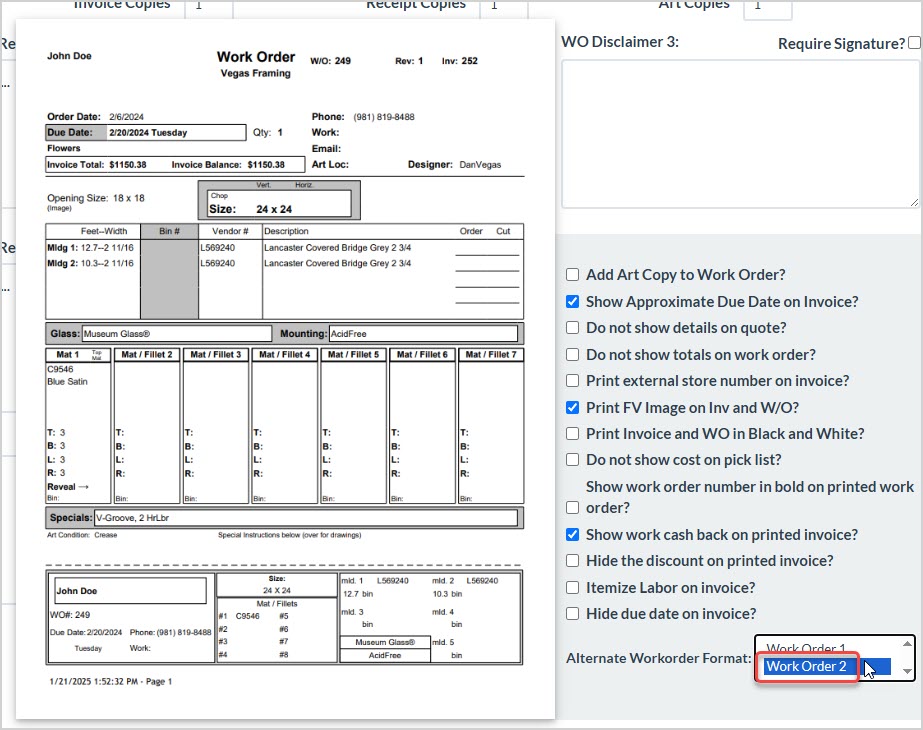
- Alternate Work Order Format – You have two options for the print layout for your work orders. By default, the system will use Work Order 1 pictured below. Click the one you want to use and it will be active:
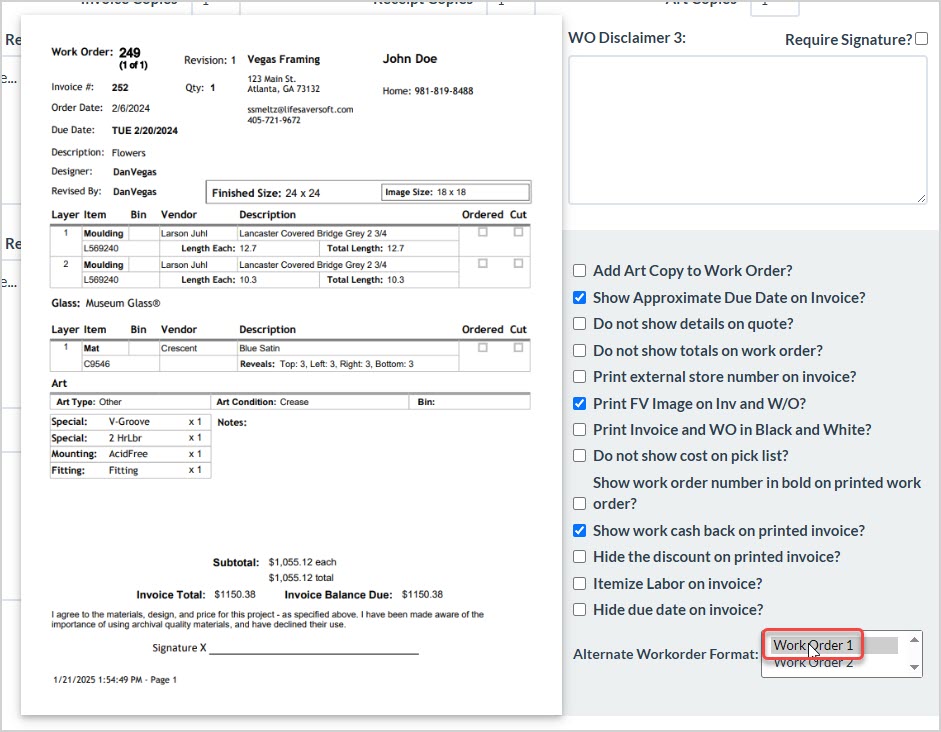
Here is the layout we offer for the Work Order 2 style:
- Save – If you have made any adjustments to your settings anywhere on the Printing tab page, be sure to click the Save button when finished.
Related Topics
Working with Work Orders
Working with Invoices
Print, Email, or Generate a Digital Invoice
Working with Quotes
Store Configuration Tour
Frequently Asked Questions
Q: I have a question, but I can't find my answer here, how do I get more assistance?
A: You can ask any question at the link below, once received one of our technicians will be in touch! If you need immediate assistance, the LifeSaver Software team is available Monday through Friday, from 9:00am to 6:00pm Eastern time. Feel free to contact our support team at: 1-800-381-0600, extension 2. Or you can email us at support@lifesaversoft.com and we will respond within 24-hours.
The primary system configuration area for LifeSaver Software is the Settings tab on your Store Confi
The LifeSaver Software system has an area for setting up your store information that is easy to use.
The LifeSaver Software Picture Framing Software runs in your web browser, and does not have demandin


Is this page helpful?
×Help us improve our articles