
Store Configuration - Settings
The primary system configuration area for LifeSaver Software is the Settings tab on your Store Confi

 February 24, 2026
The LifeSaver Software Payment Portal is a critical part of how you do business, and needs the best security available. In this article, you'll learn how our multi-factor authentication works to secure your account. Take a look!
Multi-Factor Authentication (MFA) is a security process that requires users to verify their identity using multiple forms of authentication before gaining access to an account or system. This layered approach makes it significantly harder for cybercriminals to gain unauthorized access, even if one factor (like a user name & password) has been compromised.
MFA is essential in today’s digital landscape because passwords alone are often weak and vulnerable to attacks such as phishing, credential stuffing, and brute-force attempts. By implementing MFA, we can improve your account security against unauthorized access while maintaining ease of use with modern authentication methods.
This will be enabled for use with the Portal first but will be expanded to be used with all logins into our system to increase security to sensitive information.
The MFA process will only ask for authentication once every 12 hours from when you last logged in. Once you have gone through the authentication process it will not ask for authentication again for 12 hours unless you log in from another computer, in which case it will reset the timer.
To configure MFA follow the steps below:
Log into your Payment Portal (https://payments.quiltsoftware.com/login/).
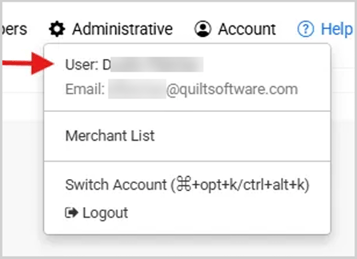
In the upper right of the page you will see the Account area. Click on Account and then click on your username to bring up your user profile.
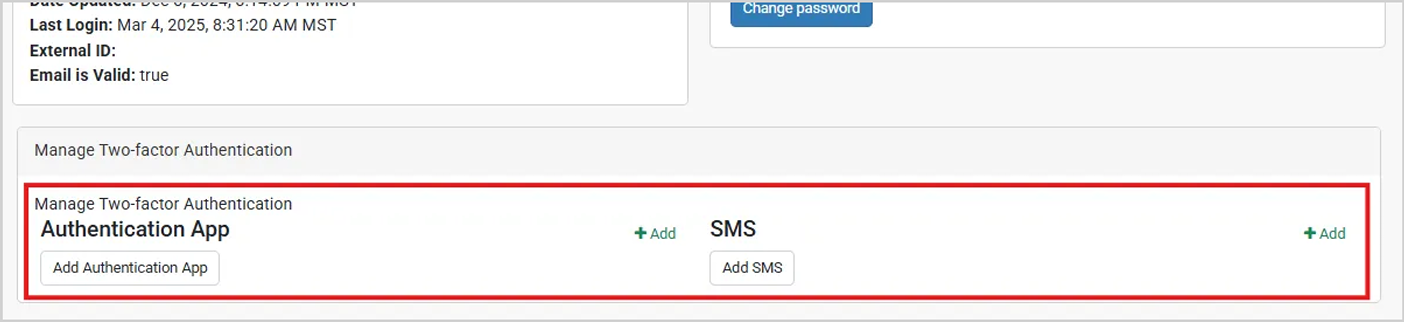

See the sections below for more detailed explanations on each setup method.
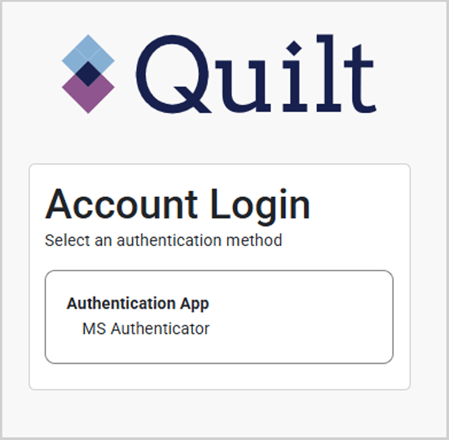
Once the MFA is set up, you will see a request just after you login to the Portal asking to use the MFA, App or SMS message. Select on one of them and it will request the code that is on your app or that was sent to your phone.
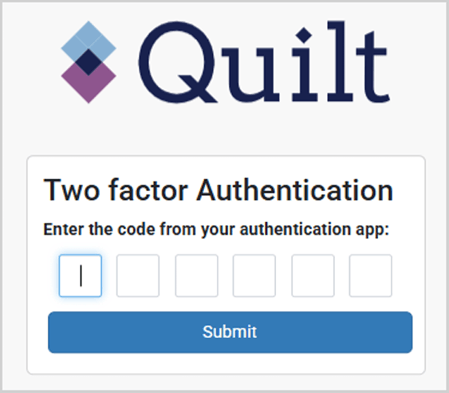
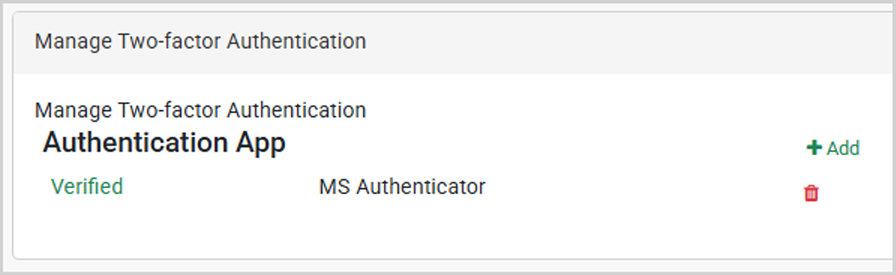
The system will not allow the removal of the last MFA until another has been added to the system and validated.
Please Note: Recommended authenticator apps include Microsoft Authenticator and Google Authenticator.
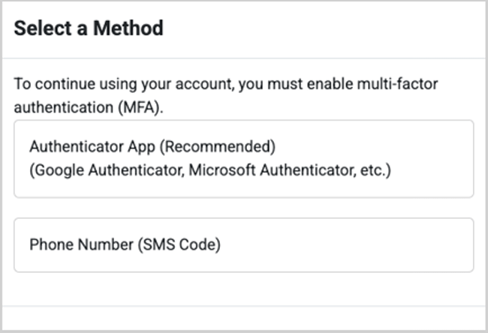
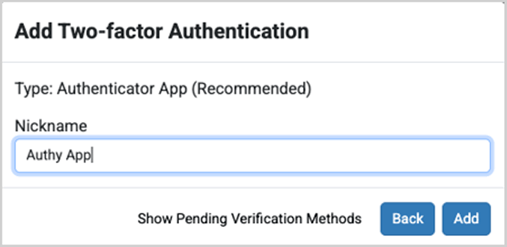
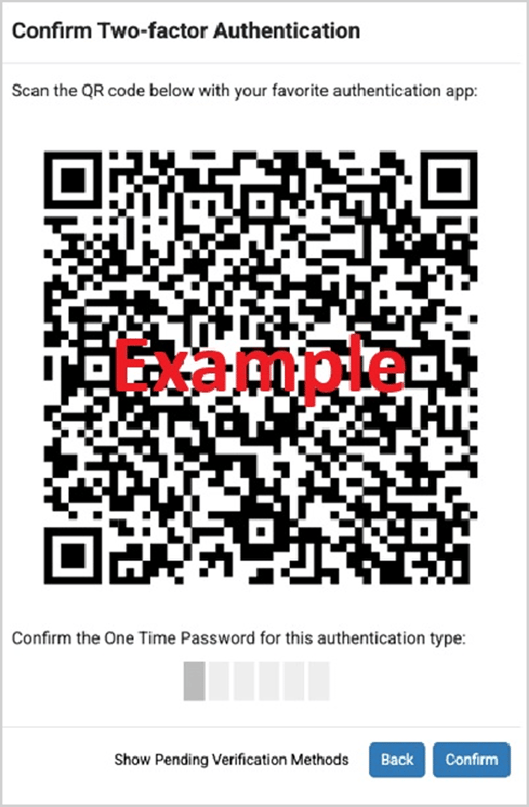
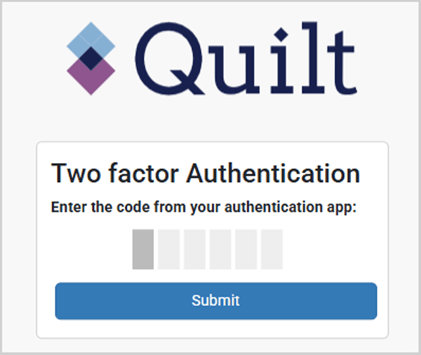
If you select to use the SMS message option and have the system send a text message to your mobile phone, you will be presented with a screen to enter the phone number you would like the message to be sent to. 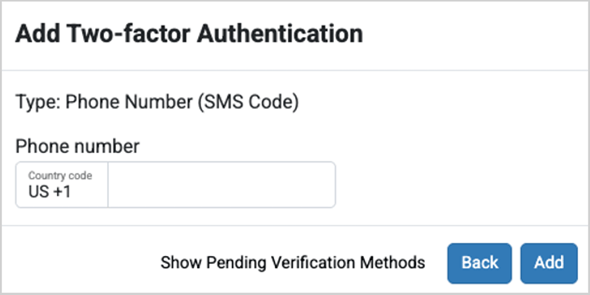
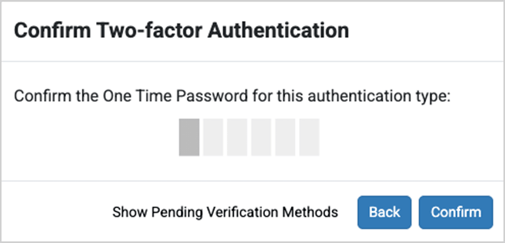
If you have multiple methods set up for authentication you will be presented with a screen to select which method you would like to use for the Authorization.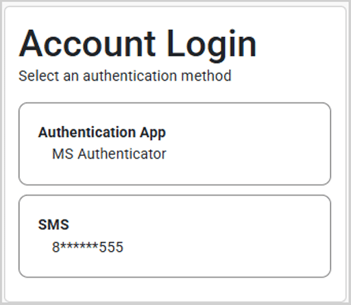
You are able to update your own user profile if you have sufficient permission to do so in the system. To assist with resetting a MFA you will need the following permission: Super Admin Role: User Manager. If you do not have that permission, you will need to work with your manager to get your MFA updated.
To update the MFA that is set up on your account you will need to access the profile page for your login ID.
Access the profile page by clicking on the Account button on the top right of the Portal, and then clicking on your name that appears next to User.
From the profile page you will see the Manage Two-Factor Authentication at the bottom of the page.
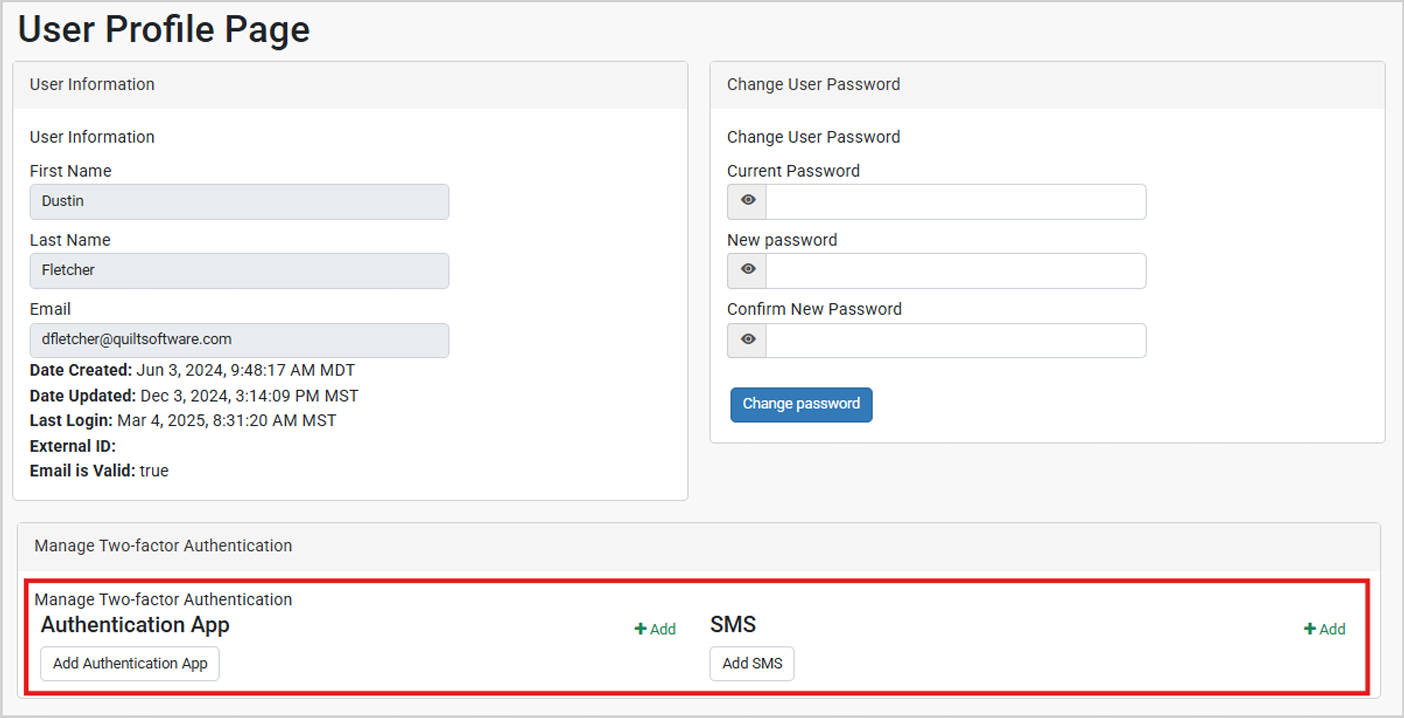
From this page you will be able to update your selections for MFA. You will be able to add and delete different methods for authenticating your login ID.
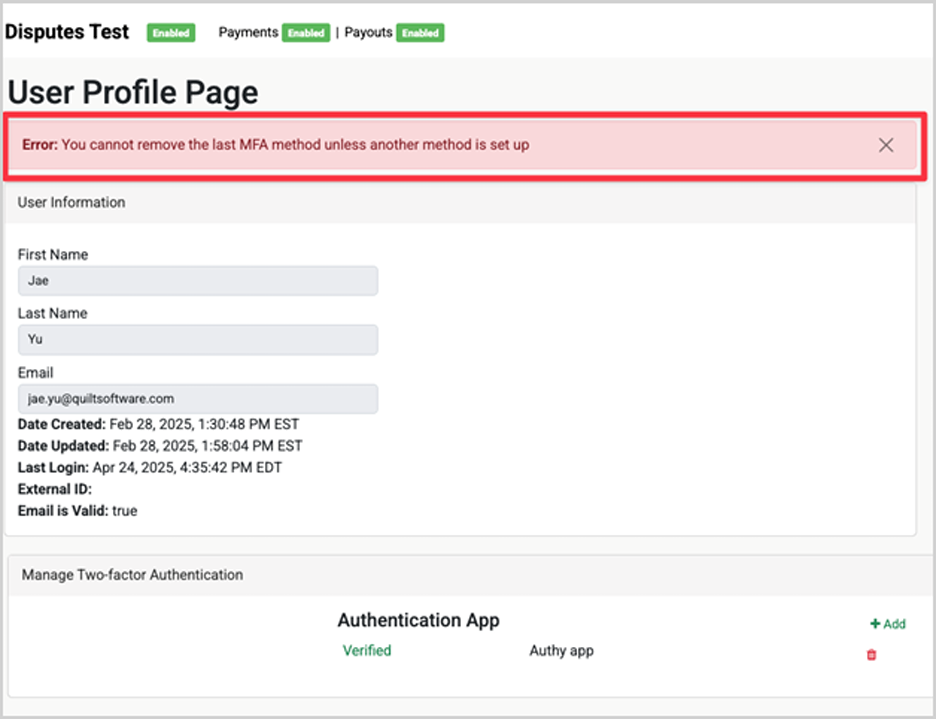
There always must be at least one MFA method set up, so if you are changing your method, you will need to add the new method before deleting the old. If you attempt to remove all MFA methods from your login you will receive an error stating that you can’t remove the last MFA method.
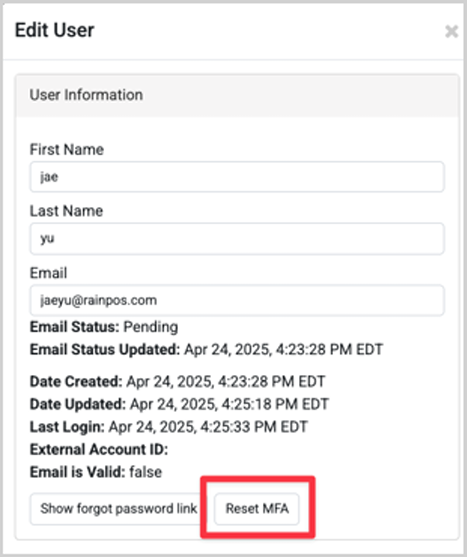
Admins with Manage User permissions will have access to a button on the edit user screen to reset the MFA. This will clear all MFA from an account and force the user to go through the setup again on their next login.
Please Note: Resetting the MFA is the only way support can assist you with your MFA. This will require validating your user account before resetting.
Q: I have a question, but I can't find my answer here, how do I get more assistance?
A: You can ask any question at the link below, once received one of our technicians will be in touch! If you need immediate assistance, the LifeSaver Software team is available Monday through Friday, from 9:00am to 6:00pm Eastern time. Feel free to contact our support team at: 1-800-381-0600, extension 2. Or you can email us at support@lifesaversoft.com and we will respond within 24-hours.
Is this page helpful?
×Help us improve our articles