Ticket Sales Reports

October 13, 2025October 13, 2025

The Ticket Sales Reports are great tools for your sales team to track and analyze individual performance in LifeSaver Software Software. This article will help you understand how to generate and interpret the Ticket Sales Reports so that you get a clear view of your staff's framing sales, discounts, average order amounts, and more. Take a look to see how this feature can help you understand sales activity and identify ways to increase revenue.

To get started, click on the Reports button on the main Home page. 
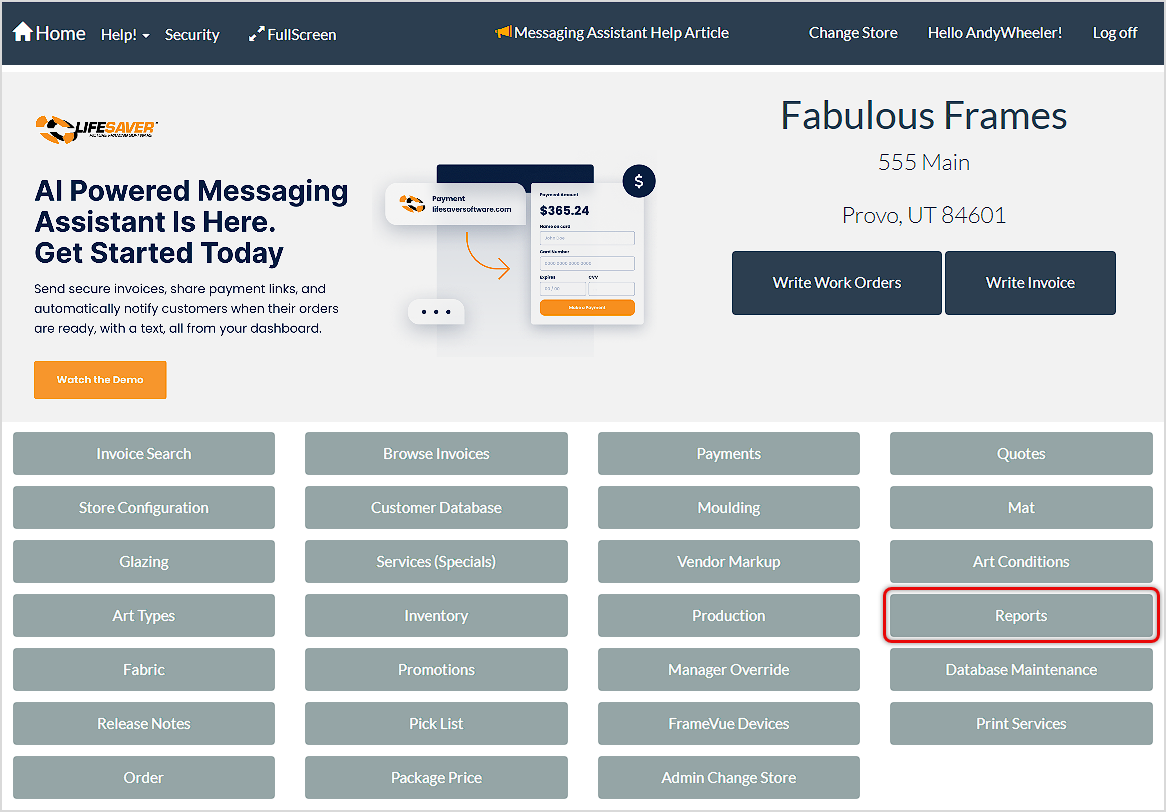
Image displaying the LifeSaver System Home page, highlighting the Reports button.

From the Store Reports page, click on the Ticket Sales drop-list and click the desired Report.
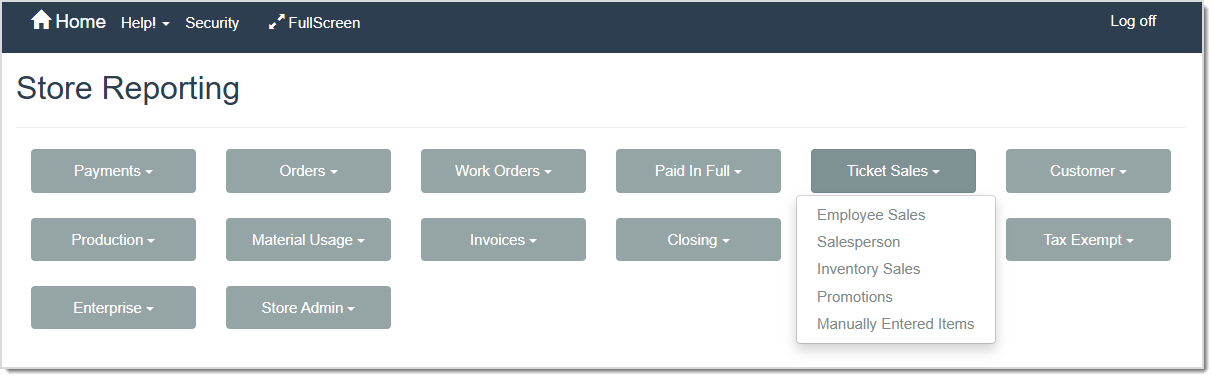
Image displaying the Store Reporting page, highlighting the Ticket Sales Reports.


Employee Sales Report

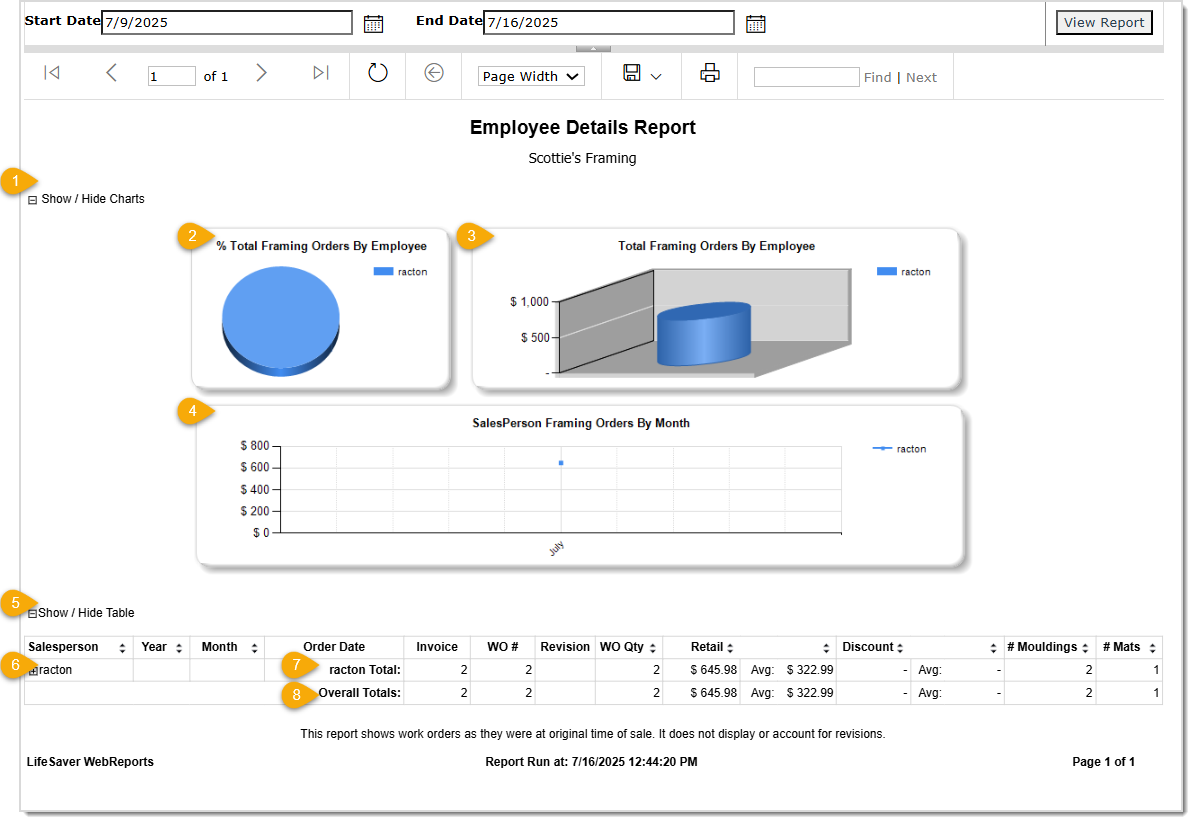
Image displaying the Employee Sales Report.

This report shows you sales data for each of your employees during a selected timeframe (7 days, by default)  in the format of charts, graphs, and tables. 

The Employee Sales report displays the following details:

  1. A Show / Hide Charts option.
  2. A Pie Chart representation of the percentage of framing orders completed by each employee. 
  3. A Bar Graph representation of the total value of those orders by employee. 
  4. A Line Graph representation of how each employee performed across months. 
  5. A Show / Hide Table option.
  6. Detailed information about an employee’s sales data across the selected timeframe. Details display as you expand columns. When you expand the Salesperson’s name, Years display and totals for those years are shown. When you expand a Year, Months display and the totals for each month. Finally, when you expand a Month, individual order dates and invoice / work order details are shown.
  7. Summary information about an employee’s sales data across the selected timeframe. The summary information for an employee includes the total number of Invoices and Work Orders they wrote during the timeframe, the total Retail value of that person’s invoices and work orders and the average sales amount of them, the total value of  Discounts given by the employee and the average amount discounted, the total number of Mouldings, and the total number of Mats
  8. Overall Totals showing the combined sales details for all employees during the selected timeframe. 


Salesperson Report

Image displaying the Salesperson Report with Invoice Details.

This report lists selected salespeople’s productivity statistics with (True) or without Invoice Detail (False) for the time period selected. The image above displays the Report showing the Invoice Details. You are also able to select a specific Salesperson, a few of them, or All of them in the Salesperson drop-list. You can always click the plus / minus sign next to a salesperson’s name to show or hide details. After making the desired selections, click the View Report button to load the resulting data.

The Salesperson Report displays the following details:

  • The name of each Salesperson.
  • The Invoice Number of each invoice the salesperson wrote.
  • The Number of Revisions made to each invoice.
  • The Customer Name on each invoice.
  • The Date that the Order was written.
  • The City where the customer resides.
  • The Subtotal of the Order.
  • The Tax amount applies to the Order.
  • The Total dollar amount of the Order (Subtotal + Taxes).
  • Each employee’s overall sales Totals.
  • Each employee’s total New Invoice Count.
  • Each employee’s  New Invoice Average value.
  • The Store Totals.
  • The total New Invoice Count for the store.
  • The total New Invoice Average value for all invoices written at the store.

And this Image displays the Report without Invoice Details:
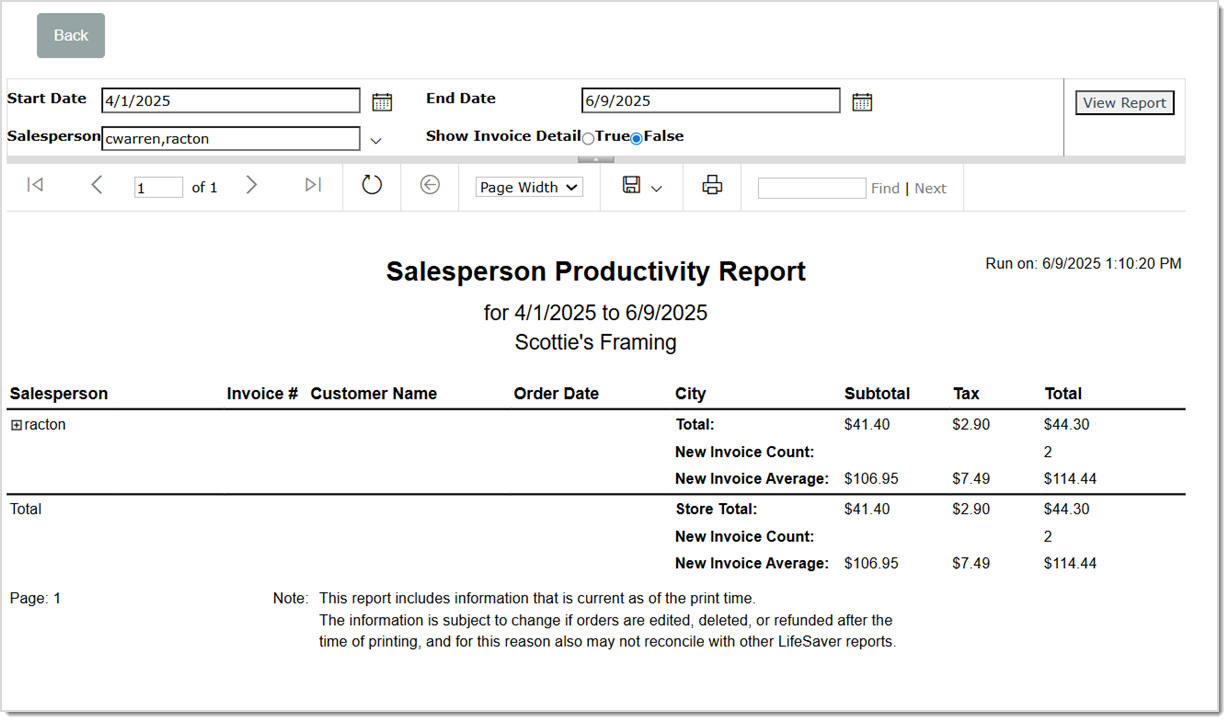
Image displaying the Salesperson Report without Invoice Details.


Inventory Sales Report

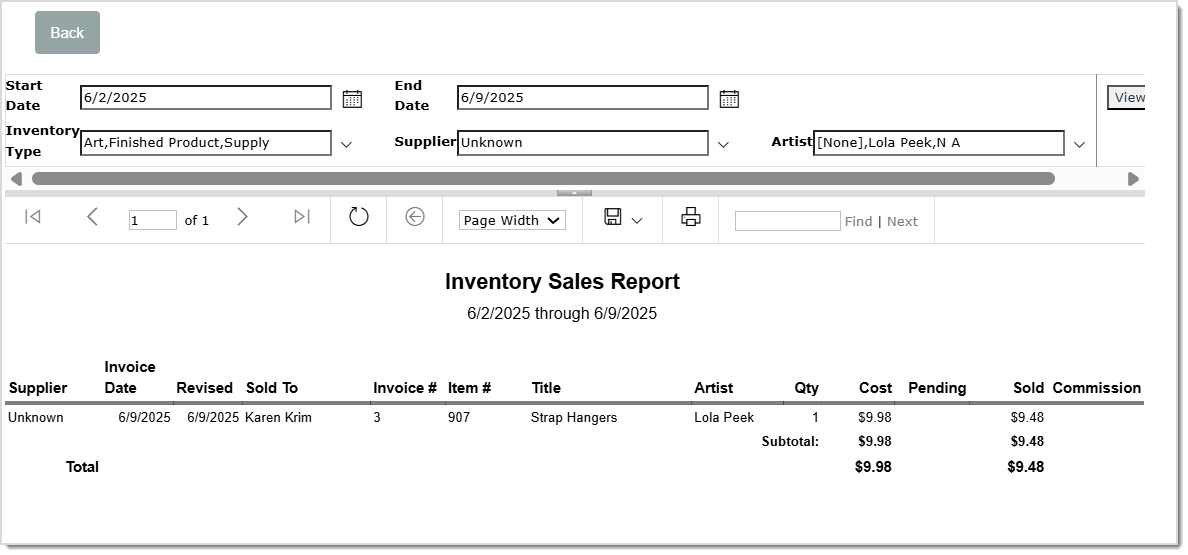
Image displaying the Inventory Sales Report.

This report details inventory sales by supplier and inventory type. In order to get the report results you need, make the necessary selections in the Inventory Type, Supplier, and Artist drop-lists. 

The Inventory Sales Report displays the following details:
  • The name of the Inventory Item’s Supplier.
  • The Date the Invoice was created.
  • The Date the Invoice was Revised.
  • The Name of the Customer that the Inventory was Sold To.
  • The Invoice Number.
  • The Item’s Identification Number.
  • The Item’s Title, or Name.
  • The Name of the Artist.
  • The Quantity of the Item sold.
  • The store’s Cost of the Item.
  • Any Pending Costs will be displayed here.
  • The selling price, which is displayed in the Sold column.
  • The artist’s Commission amount, if any.


Promotions Report

Image displaying the Promotions Report.

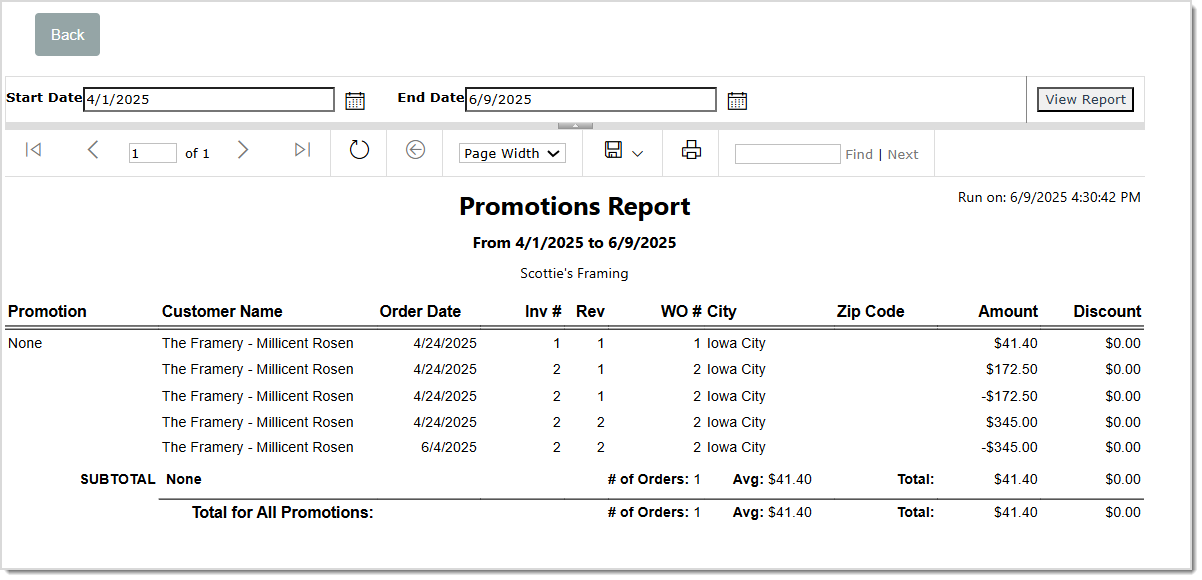
This report is a great tool to track the performance of your store created promotions. 

The Promotions Report displays the following details:
  • The Name of the Promotion.
  • The Customer’s Name.
  • The Date that the Promotion Order was made. 
  • The Invoice Number.
  • The Number of Revisions made to the Order.
  • The Work Order Number.
  • The City where the customer resides.
  • The Zip Code where the customer resides.
  • The dollar Amount of the order.
  • The Discount added to the order, if any.
  • At the bottom of the Report, you will find the Subtotals of each promotion, Number of Orders, Average price of the Order, and the Overall Totals. As well as the Totals for All Promotions.


Manually Entered Items Report

Image displaying the Manually Entered Report.

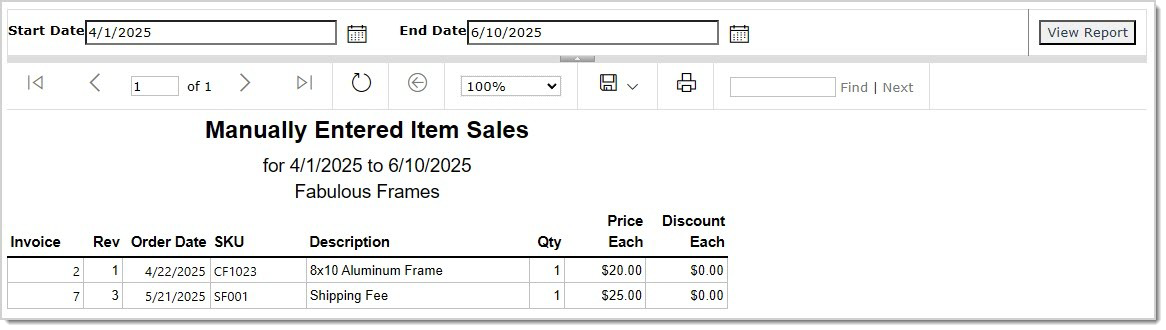
This report lists all of your manually entered items for the time period selected. The report defaults to 7 days.

The Manually Entered Items Report displays the following details:

  •  The Invoice Number
  • The Number of Revisions made to the Invoice.
  • The Date that the Order was entered.
  • The SKU number of the Item entered.
  • The Description of the Item.
  • The Quantity of the Item in the order.
  • The Price of Each Item.
  • The Discount added to Each Item.


Related Topics

Order Reports

Work Order Reports

Production Reports


Frequently Asked Questions

Q: What do the True / False values on the Salesperson report mean?

A: If you want Inventory Details in that report, click on the True bubble. If not, click on the False bubble. Click View Report for the selection results to display.


Q: I have a question, but I can't find my answer here, how do I get more assistance?

A: You can ask any question at the link below, once received one of our technicians will be in touch! If you need immediate assistance, the LifeSaver Software team is available Monday through Friday, from 9:00am to 6:00pm Eastern time. Feel free to contact our support team at: 1-800-381-0600, extension 2. Or you can email us at support@lifesaversoft.com and we will respond within 24-hours.

Need Help?

Can't quite find the answer you're looking for? Our support team is just a call away.