
Working With Account Statements and Packing Lists
Statements – Creating a statement of account is a powerful feature for frame shops who need to manag

 August 26, 2025
There are a lot of different reasons why you might mark a sale, or part of a sale, tax exempt. Often, sales to non-profit organizations and charities are typically exempt from sales tax. Be sure to familiarize yourself with your state’s tax laws before using tax exemptions. Take a look below to see how quick it is to mark all or part of an order as tax-exempt, how to set up a customer with a tax ID so that their invoices are automatically exempt from sales tax, and how to review tax exempt information in your LifeSaver Software software.
To get started, you will need to access the Invoice page. Do so using one of the following methods.
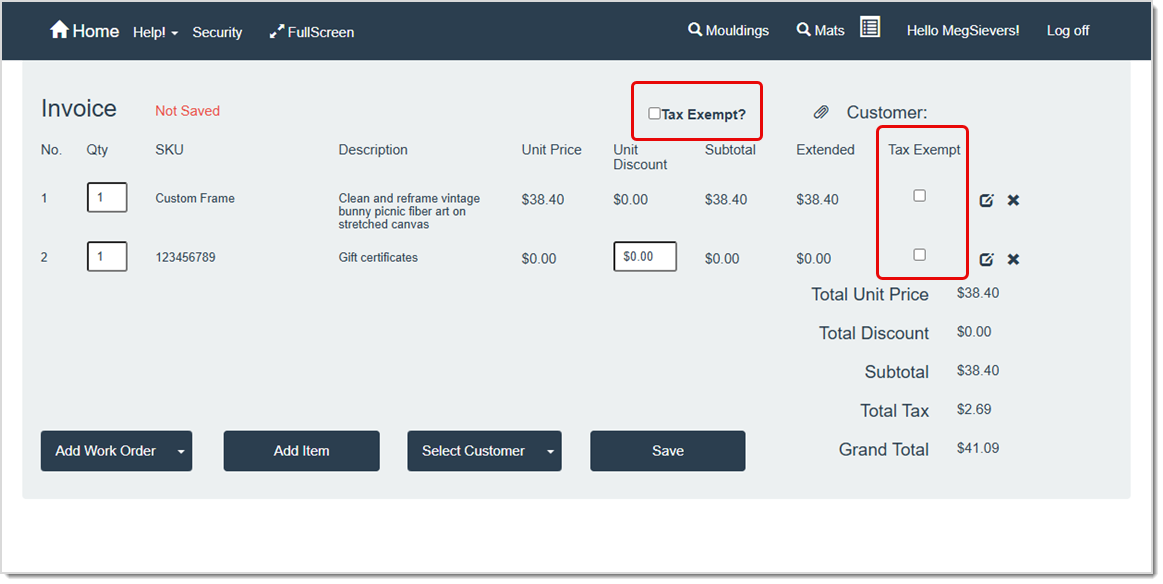
On the Invoice page, click the Tax Exempt option at the top of the page to mark the entire invoice exempt or click the Tax Exempt option on each line item that is exempt.
Pro Tip: If a customer’s account record already includes a Tax ID, the Tax Exempt check box will be selected for you once you’ve added them to the invoice. You can deselect it if you want to charge tax on individual items or the entire order.
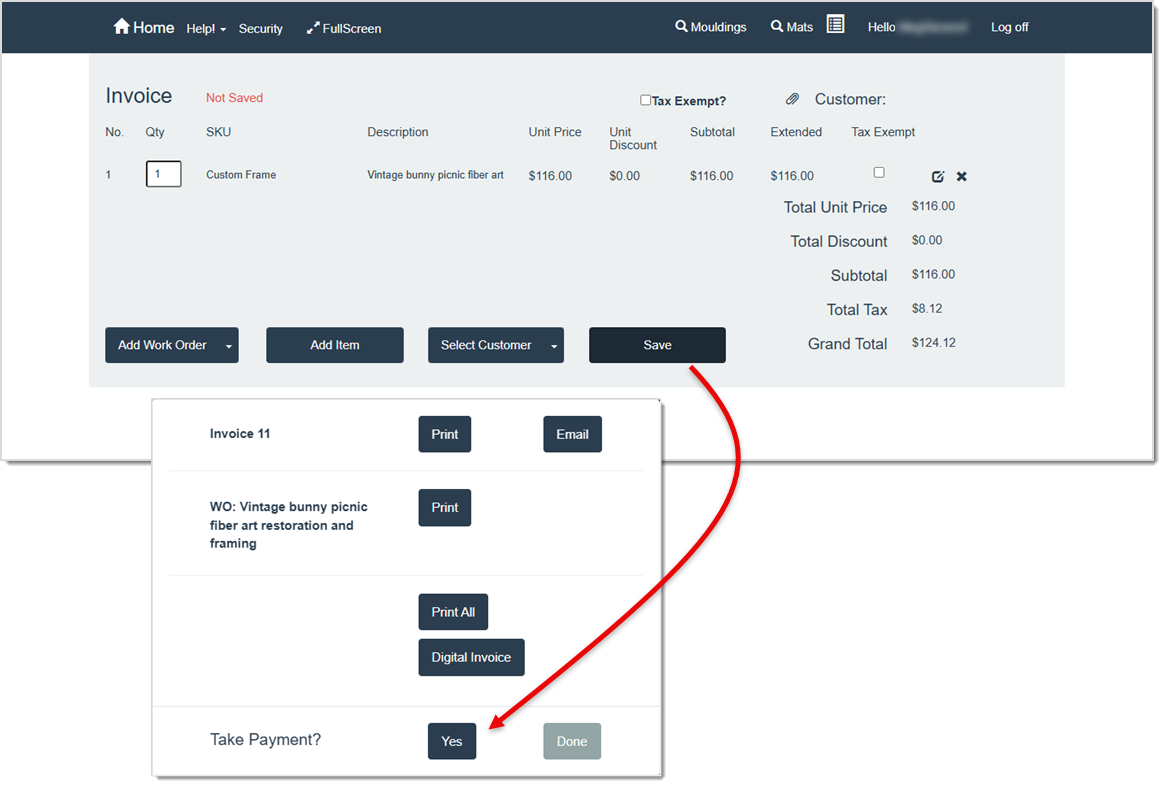
Taking payment on an invoice with exempted sales tax is exactly the same as taking payment on any other invoice. Simply click the Save button on the Invoice page to begin finalizing your payments. In the pop-up window that opens, click the Yes button in response to the Take Payment question.
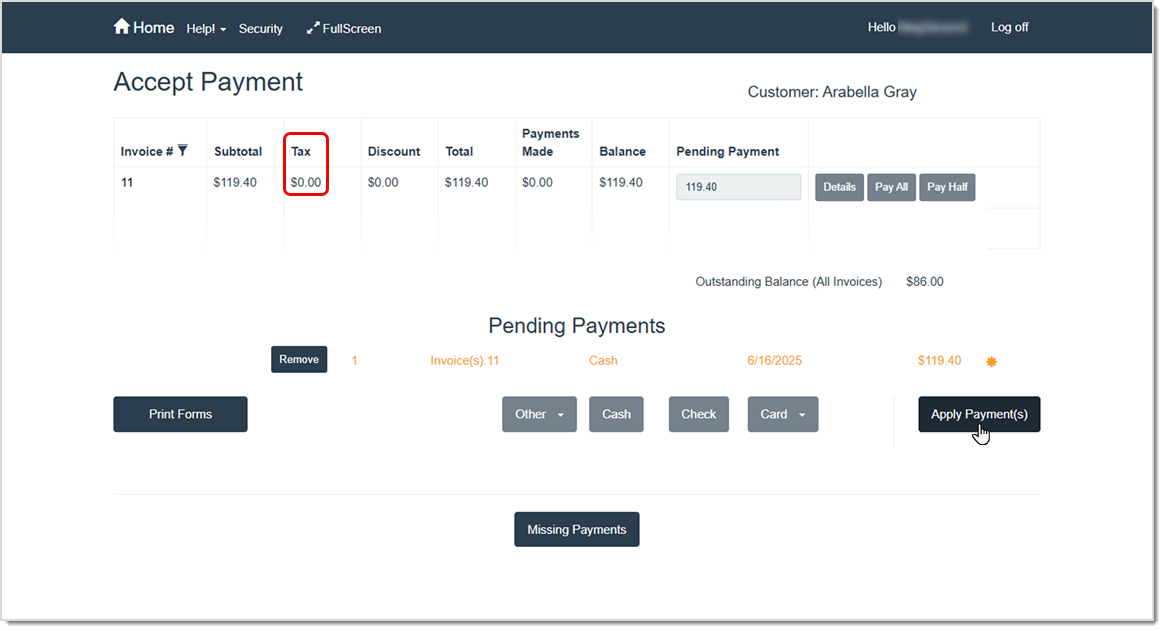
Proceed with your usual steps for completing the sale, selecting the payment method and noting that the Tax charge is $0.00 (or reduced to exclude any exempted items on the invoice). Then, click Apply Payments to finalize.
Pro Tip: If your store collects partial payments, remember to mark the invoice as tax exempt before applying any payment so the system correctly excludes tax.
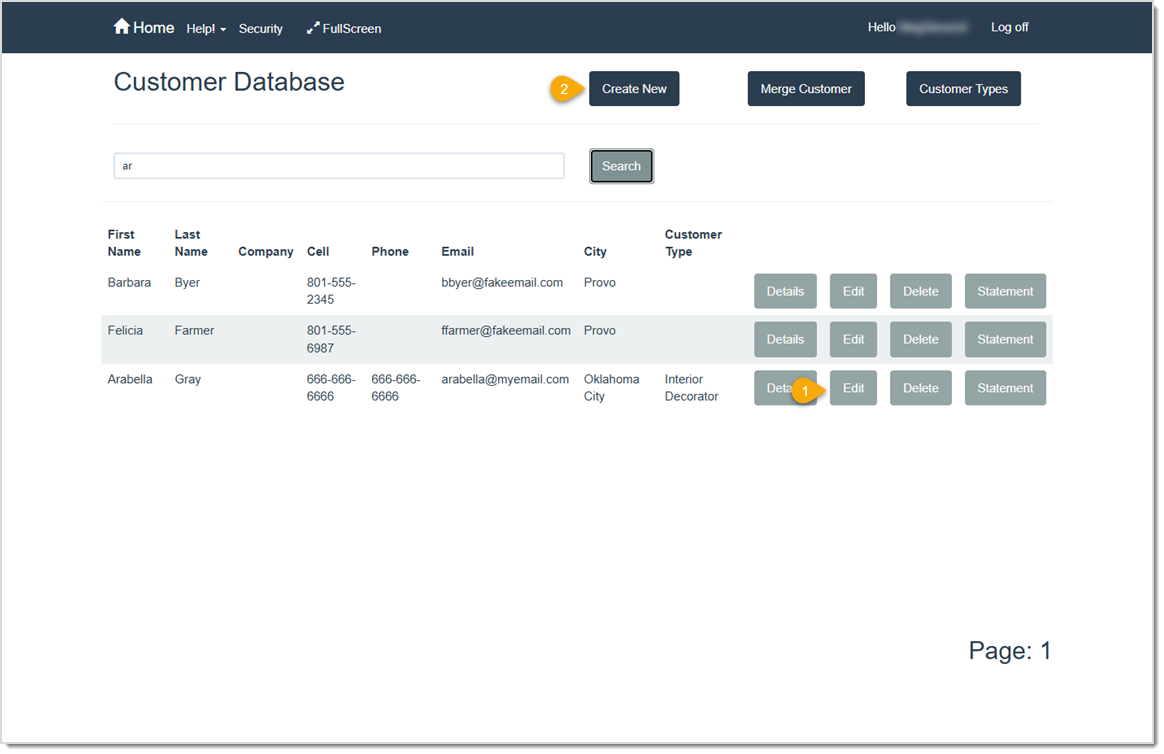
Tax IDs are added for customers from the Add New Customer page. To access it, go to Home > Customer Database and complete one of the following:
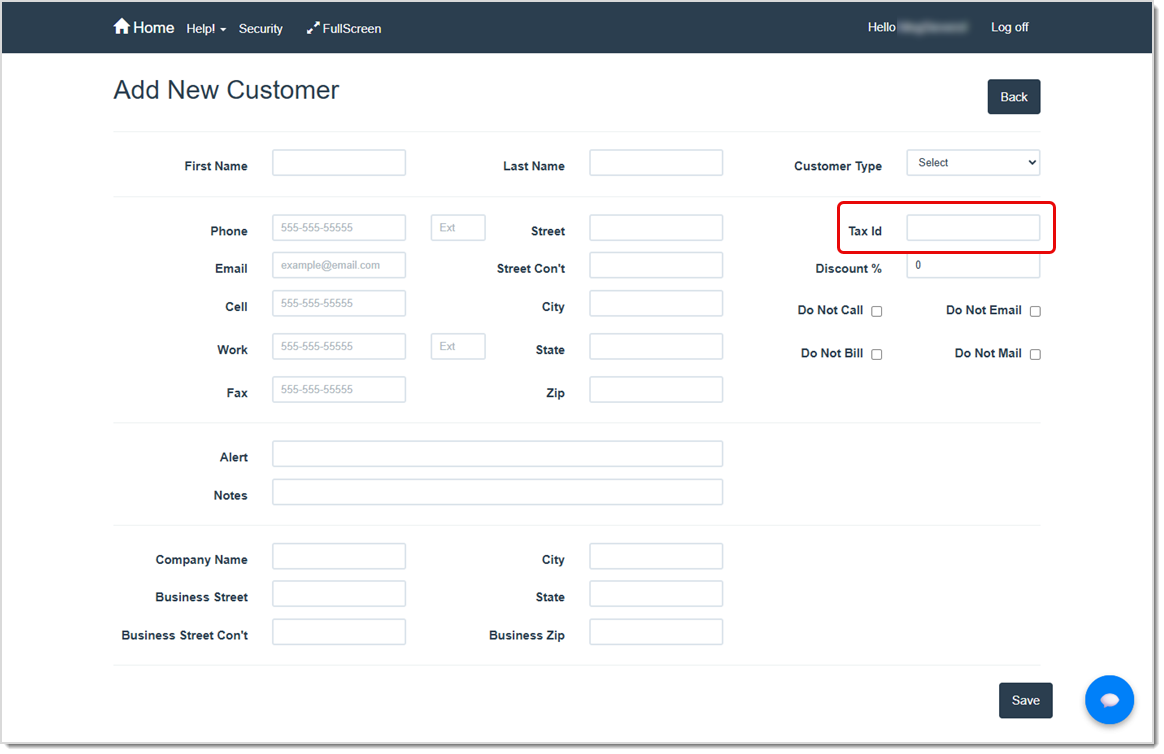
Once on the Add New Customer page, enter the customer’s tax exempt tax ID in the Tax ID field and click Save.
Pro Tip: When you enter a tax ID here, the Tax Exempt check boxes are automatically selected when you assign this customer to a work order or invoice.
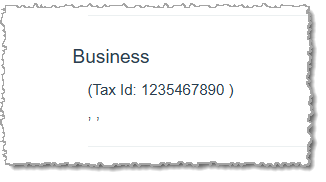
Later, when you view the customer details, you’ll see a Tax ID listed in the Business section of the Customer Details page.
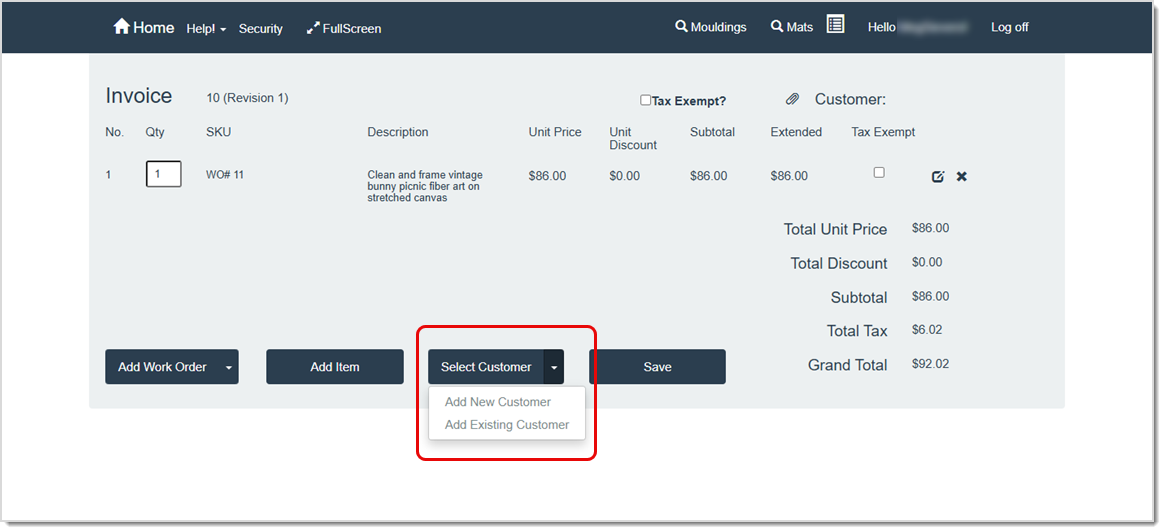
You can add a Tax ID to a customer record while working on an Invoice. To do so, click the Select Customer button on the Invoice page and select either option from the drop-list. Depending on your selection, you’ll do one of two things to access the Customer Expanded View window.
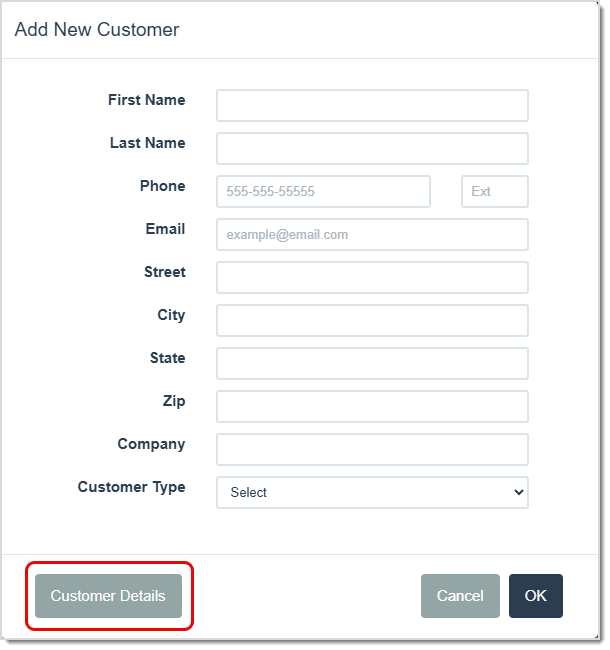
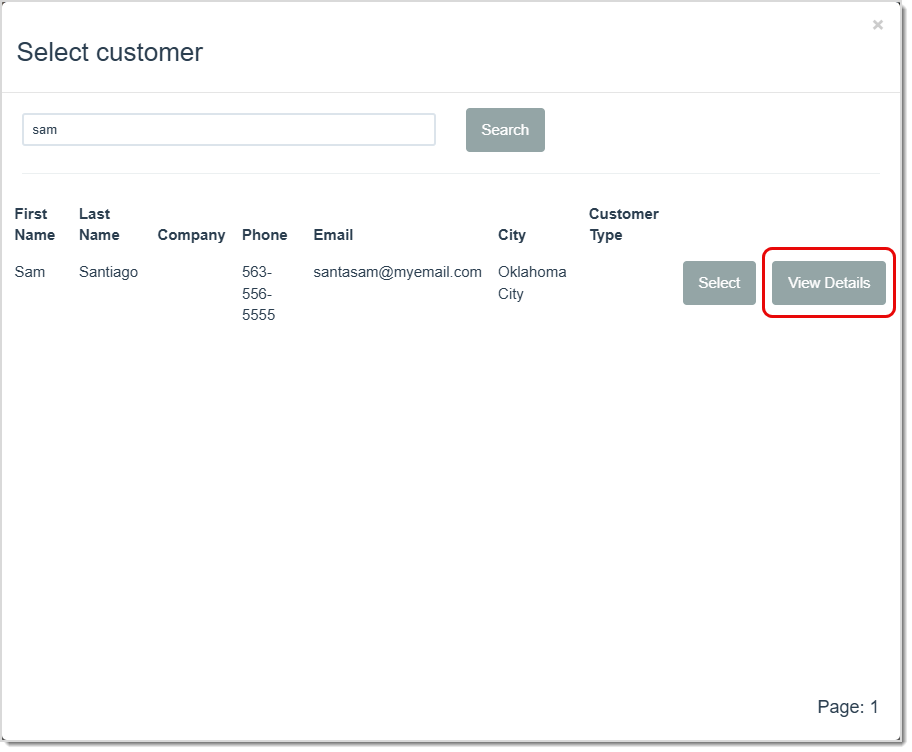
Once you are in the Customer Expanded View window, enter the customer demographic information (if this is a new customer) and enter their Tax ID in the Tax ID field at the bottom of the window. Then, click OK to save. 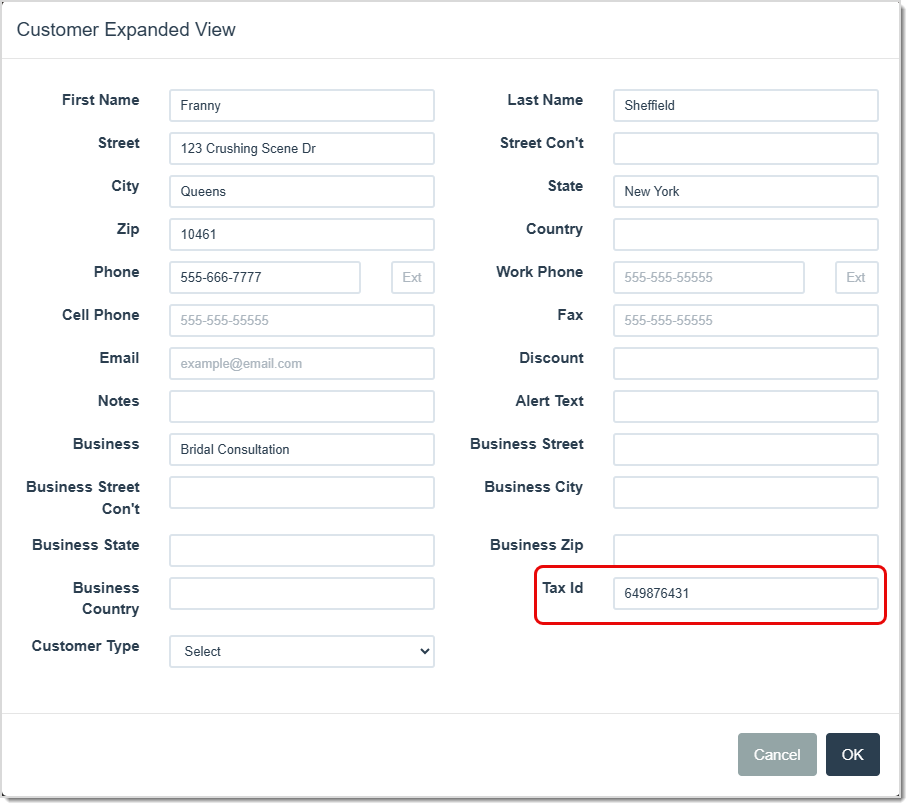
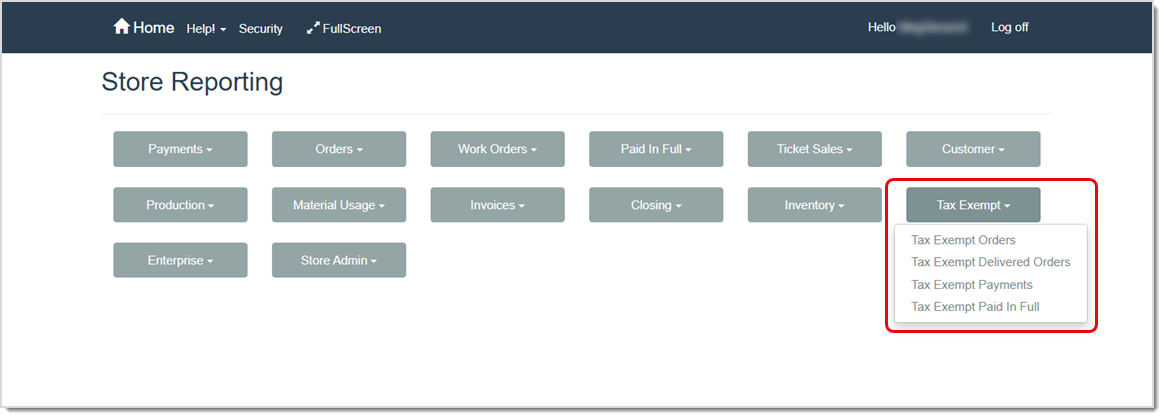
LifeSaver Software Software provides specialized reports for tracking tax exempt transactions. You can access these reports by clicking the Reports button on the Home page and then clicking Tax Exempt.
Process a Payment on an Invoice
Q: Do I always have to click “Tax Exempt” for returning customers?
A: If the Tax ID is already saved in the customer’s profile, the system will automatically mark invoices as tax exempt. You can verify in the upper right side of the Invoice Window.
Q: Do I have to mark an entire invoice as tax exempt, or can I exempt only certain items?
A: You can exempt the entire invoice or just specific items. Check the Tax Exempt field for the line item or for the entire invoice.
Q: Where do I enter the customer’s Tax ID?
A: You can create or edit a customer profile in the Customer Database. Enter the Tax ID there, and the software will automatically apply tax exemption whenever you create a new invoice.
Q: How do I see a summary of tax-exempt payments for a specific time frame?
A: Go to Reports > Tax Exempt > Tax Exempt Payments. Enter your date range and click View Report or Print.
Q: I have a question, but I can't find my answer here, how do I get more assistance?
A: You can ask any question at the link below, once received one of our technicians will be in touch! If you need immediate assistance, the LifeSaver Software team is available Monday through Friday, from 9:00am to 6:00pm Eastern time. Feel free to contact our support team at: 1-800-381-0600, extension 2. Or you can email us at support@lifesaversoft.com and we will respond within 24-hours.
Is this page helpful?
×Help us improve our articles