
Working With Database Maintenance
Important Note: This function is only available if you are subscribed to LifeSaver Software’s Enterp

 October 09, 2025
Knowing how to print labels in the LifeSaver Software Software is crucial for packaging business orders and returns. Keep reading to learn more about label printing in LifeSaver Software.
Print barcode labels for your moulding, mats and inventory items with the Dymo LabelWriter printer.
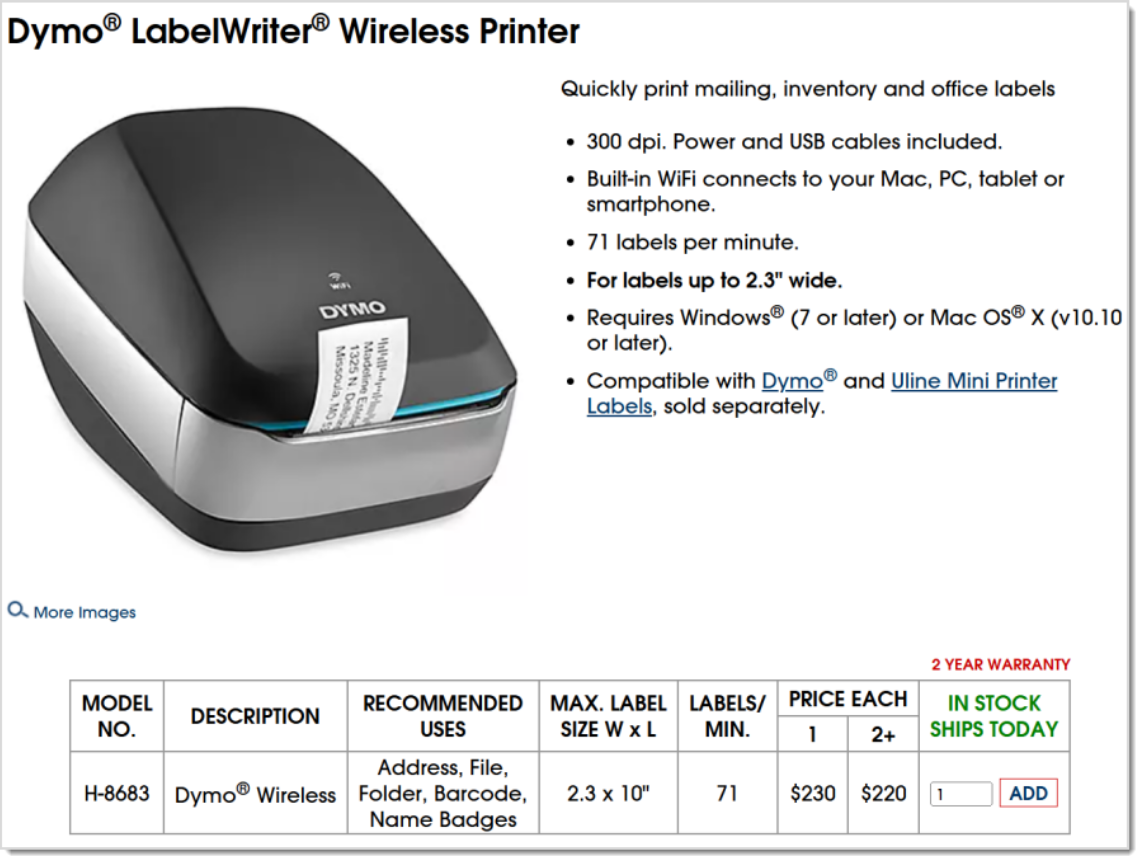
Please Note: Major retailers sell the Dymo, such as Uline, Amazon, Staples, and Office Depot / OfficeMax.
Alacrity QR Mini Barcode Reader or any compatible barcode reader. You can also use most new barcode scanners that can read Code 39 and Full ASCII. To set up the scanner all you should need to do is to either plug in the scanner if it is USB or enable Bluetooth if the scanner is wireless.
DYMO 30251 – 1 1/8 x 3 ½, 28mm x 89mm, or
DYMO 30336 – 1 x 2 ⅛
The option will not be active unless the Dymo software is installed. You can get it here: https://www.dymo.com/support?cfid=user-guide
After clicking the link:
After installing the Dymo Software, you need to connect your Dymo printer:
The label print option will now be visible when you click on Mat, Moulding, or Inventory buttons on the LifeSaver Software Home page. The option will be active only after the software is installed. Click the Print Label button on the desired line item and the Dymo printer will print the label. Continue the process for any additional barcode labels you want to print.
If you order or have inventory items that already have barcodes on them, you can activate those existing barcodes:
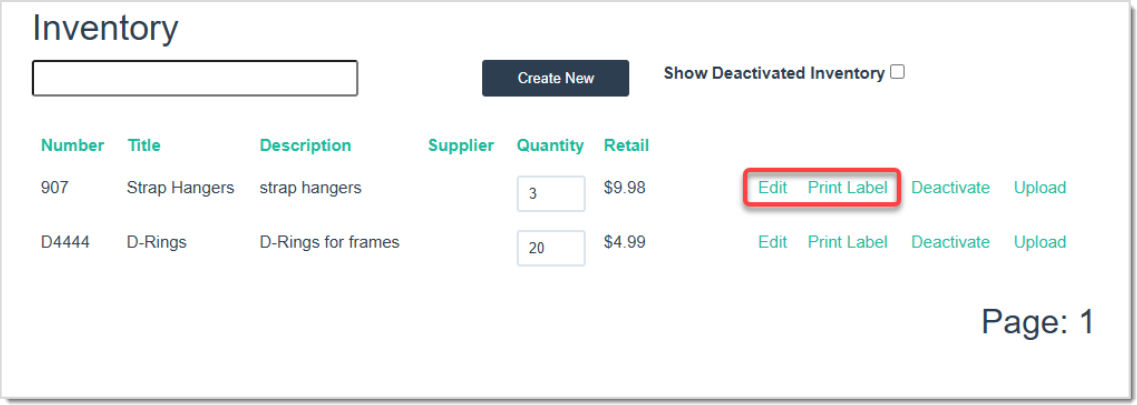
To begin, create an inventory item then click the Edit button:
Q: Can I use Zebra label printers with the LifeSaver Software software?
A: LifeSaver Software works exclusively with the DYMO printers listed in above in this article, other label printers are not supported.
Q: I have a question, but I can't find my answer here, how do I get more assistance?
A: You can ask any question at the link below, once received one of our technicians will be in touch! If you need immediate assistance, the LifeSaver Software team is available Monday through Friday, from 9:00am to 6:00pm Eastern time. Feel free to contact our support team at: 1-800-381-0600, extension 2. Or you can email us at support@lifesaversoft.com and we will respond within 24-hours.
Is this page helpful?
×Help us improve our articles