
Working With Services (Specials)
Creating a Service Special in LifeSaver Software lets you customize labor, mounting, or other Servic

 October 10, 2025
The FrameVue feature in LifeSaver Software Software allows you to take a picture of a customer’s artwork and use FrameVue to show them different custom framing options. This is a great way to help your customers visualize what their finished project might look like. Read on to see how easy it is to set up FrameVue Devices and provide a more convenient, modern experience for your customers.
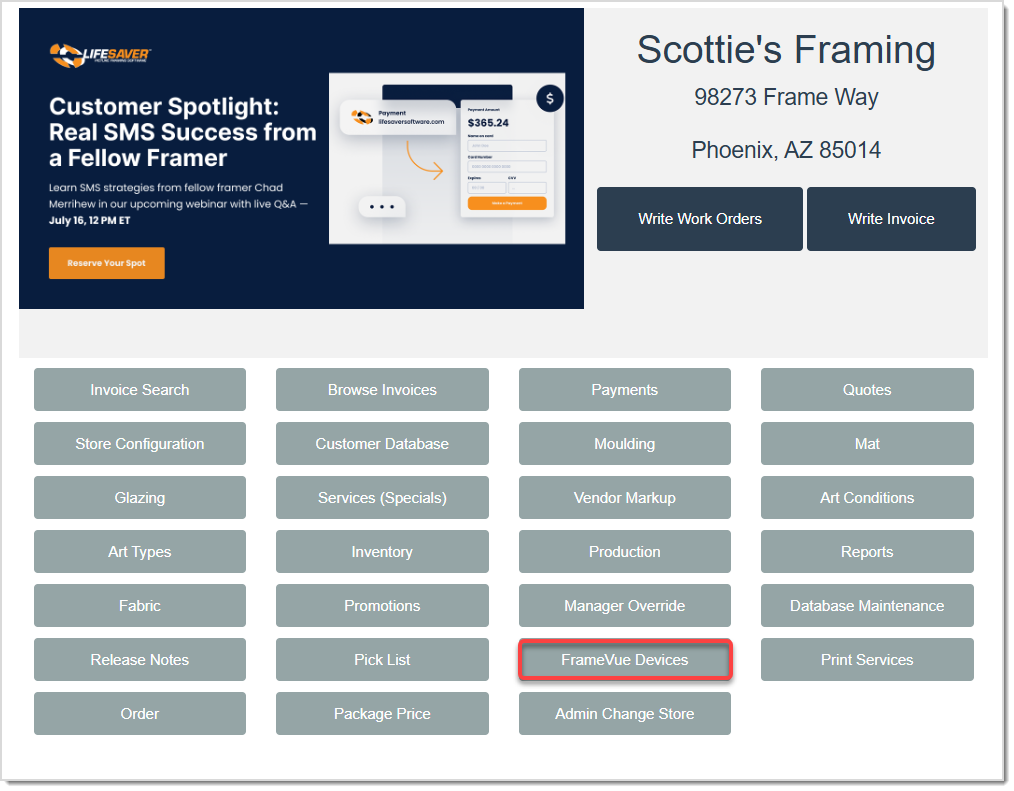
You can click on the FrameVue Devices button on the LifeSaver Software Home page to get started.
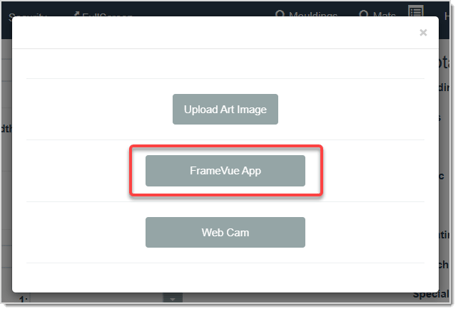
When you enable FrameVue Devices, your customers can then bring in their art and have it photographed by your employees with the FrameVue app. Follow the steps below to set up FrameVue:
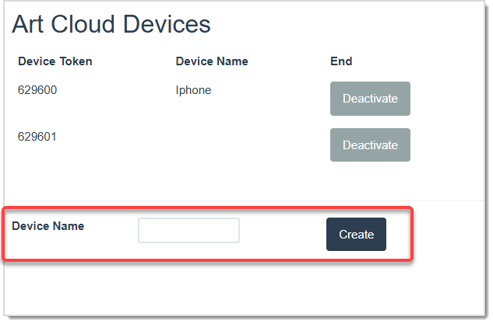
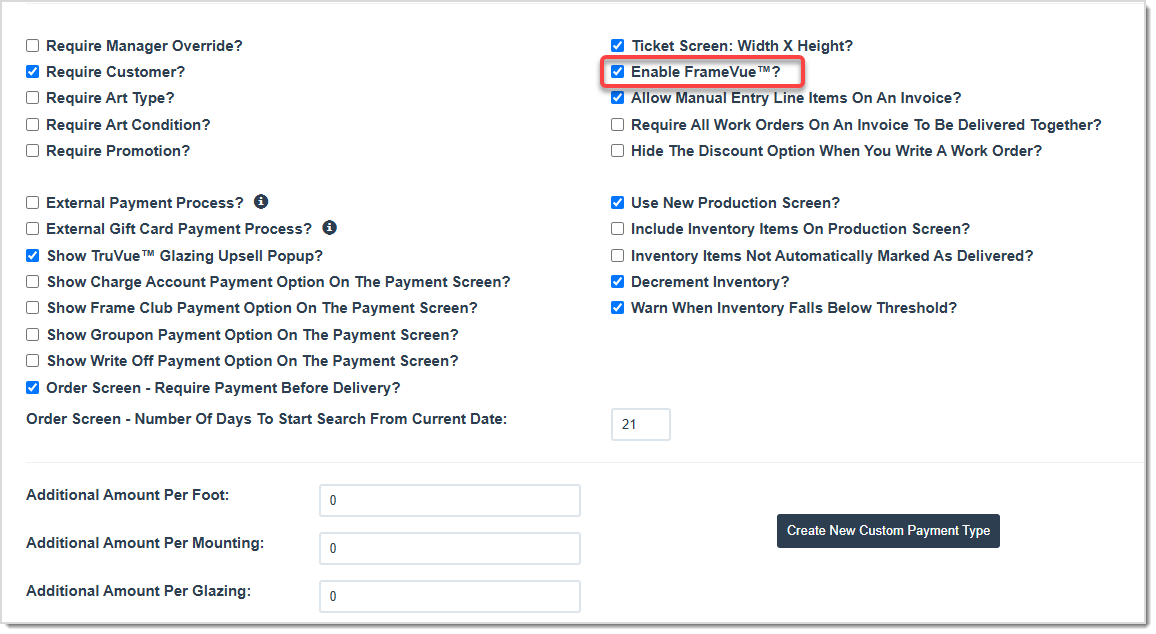
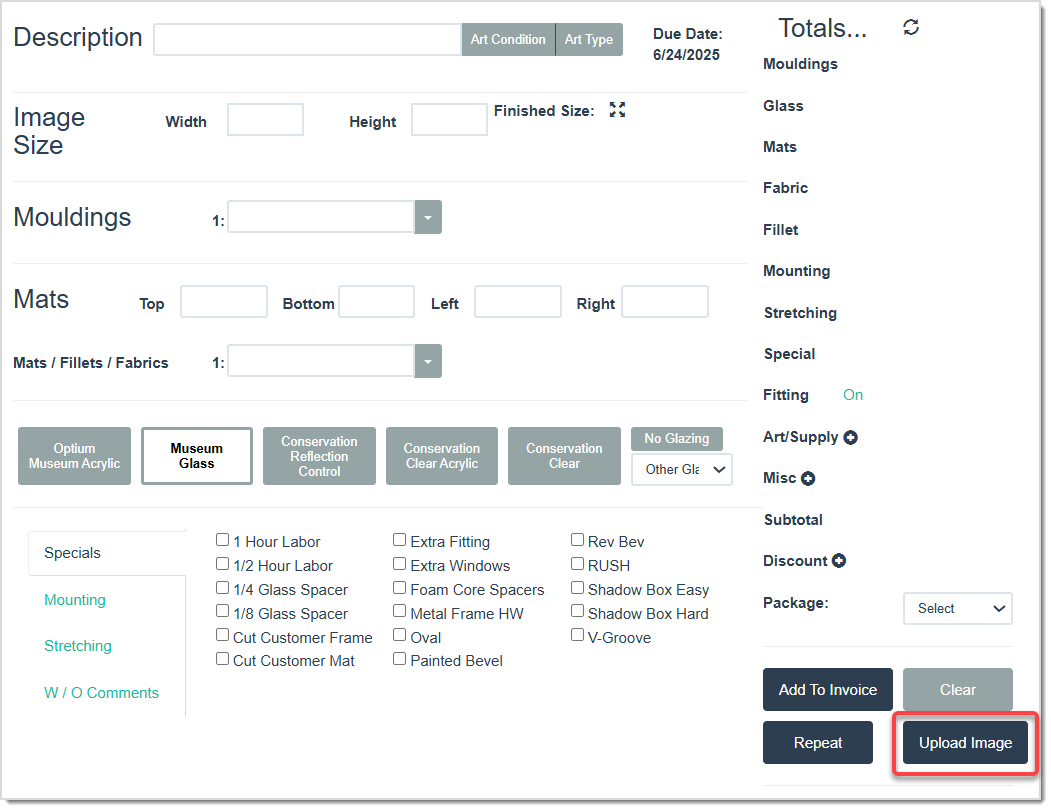
Click this link to learn more about working with FrameVue in the LifeSaver Software system.
Q: What if I do not see the FrameVue checkbox on the Store Configuration page?
A: You should contact LifeSaver Software Support to enable FrameVue on your account.
Q: Does each device need a separate login?
A: Typically, you only need to enter your store’s FrameVue credentials once. Customers then select your store from the FrameVue App to send photos.
Q: I have a question, but I can't find my answer here, how do I get more assistance?
A: You can ask any question at the link below, once received one of our technicians will be in touch! If you need immediate assistance, the LifeSaver Software team is available Monday through Friday, from 9:00am to 6:00pm Eastern time. Feel free to contact our support team at: 1-800-381-0600, extension 2. Or you can email us at support@lifesaversoft.com and we will respond within 24-hours.
Is this page helpful?
×Help us improve our articles