Payment Reports

October 13, 2025October 13, 2025

The Payment Reports help track payments taken for a date range in LifeSaver Software Software. This article will help you understand how to navigate, process, and export the report so you can gain valuable insights into your business finances. Take a look to see how running a Payment Summary Report can help your business.
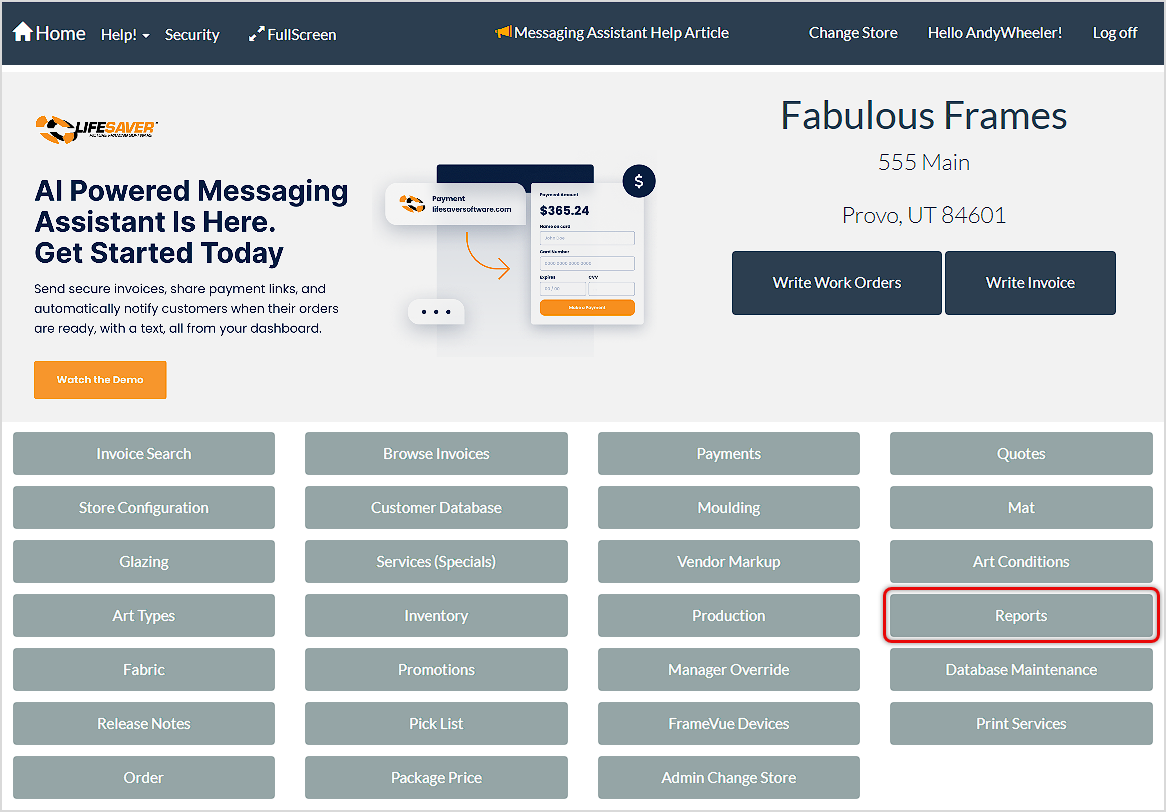
Image displaying the LifeSaver Home page, highlighting the Reports button.

On the Home Page, click on the Reports button. Then on the Reports page, click on the Payment drop-list and select the Payment Summary option you want to view.
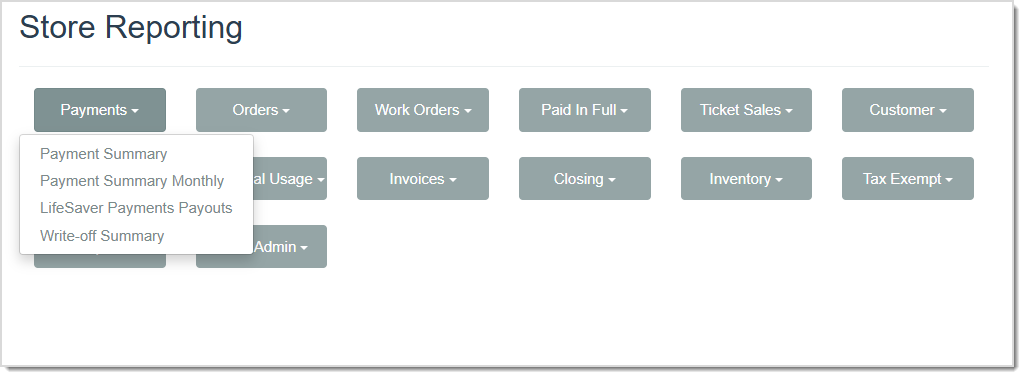
Image displaying the Payments Report drop-list.


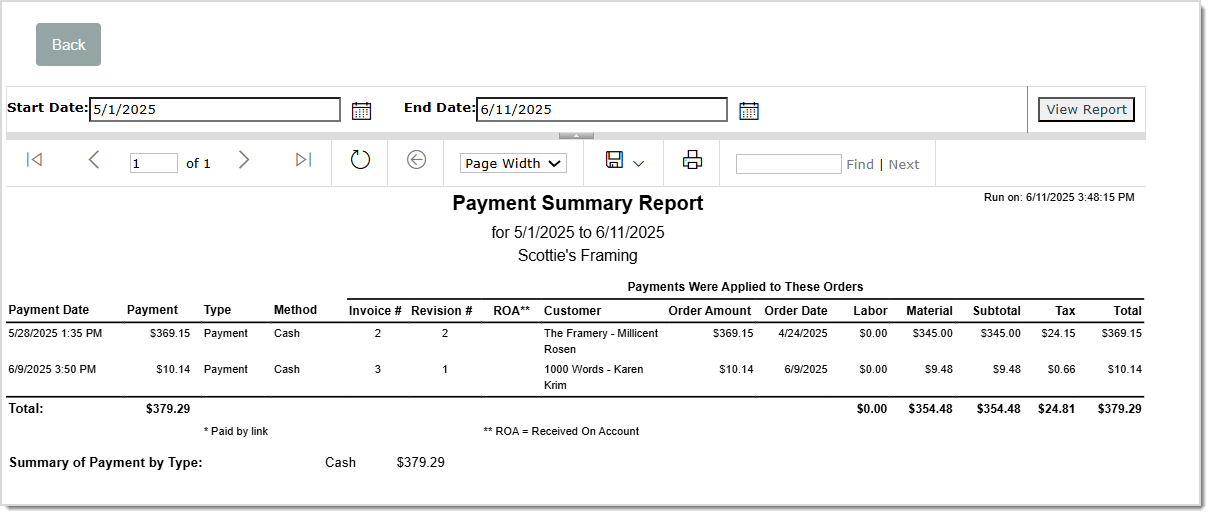
Payment Summary Report

Image displaying the Payment Summary Report page.

The Payment Summary report displays payments taken for the date range. This report gives you the following payment data for your selected store:

  • Payment Date – This column displays the date when a payment, refund, or write off was made.
  • Payment – This column displays the amount of each payment made, refunded, or written off. 
  • Type – This column displays the type of payment made, such as Payment, Refund, or WriteOff.
  • Method – This column displays the Method of Payment such as Card or Cash.
  • Invoice # – This column displays the Invoice number.
  • Revision # – This column displays the number of revisions made to the invoice.
  • ROA – If applicable, this column will display any payments received on the account.
  • Customer – This column displays the Customer’s name and their Business name.
  • Order Amount – This column displays the total dollar amount of the invoice
  • Order Date – This column displays the date in which the invoice was created.
  • Labor – This column displays the total dollar amount cost of labor.
  • Material – This column displays the total dollar amount cost of materials included in the invoice.
  • Subtotal – This column displays the total cost of the invoice before tax.
  • Tax – This column displays the tax added onto the invoice.
  • Total – This column displays the total dollar amount of the invoice.
  • Summary of Payment by Type – This area displays the method of payment used and the total paid.


Payment Summary Monthly Report

Image displaying the Payments Received Monthly Summary Report.

This report summarizes a month’s worth of payment data for your store. The Payment Summary Monthly Report gives you the following data for your selected store:
  • Date – The Payment Date, or the date when a payment, refund, or write off was made.
  • Payment – The Method of Payment such as Card or Cash.
  • Write-Off – The Write-Off cost.
  • Retail – The Retail price.
  • Tax – The Tax added onto the invoice.
  • Total – The Total dollar amount of the invoice.
  • Totals Row – The Overall Totals are calculated at the bottom.


LifeSaver Software Payments Payouts Report

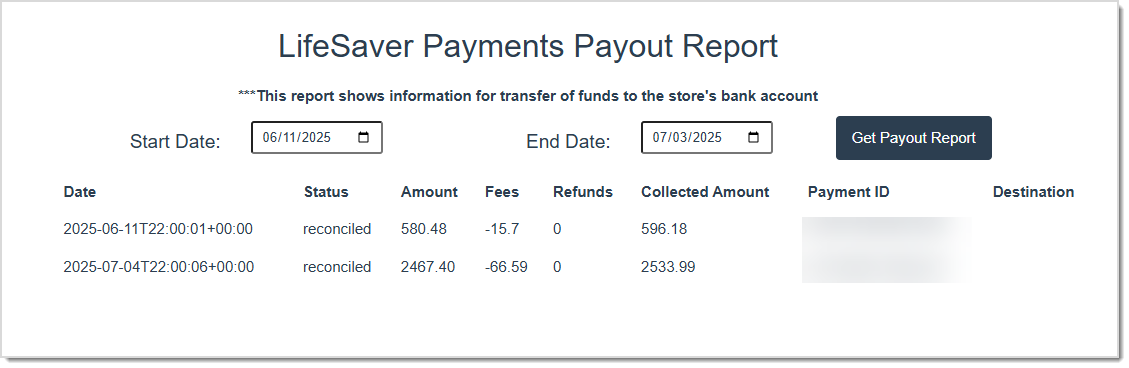
Image displaying the LifeSaver Payments Payout Report.

If you have LifeSaver Software Payments integrated credit card processing, this report will list the transfer of funds to your store's bank account for the time period selected. This Report displays the following fields:
  • Click the Get Payout Report button after entering in the desired Start / End Dates.
  • The Date the transfer occurred. 
  • The Status of the transfer.
  • The Amount of the transfer.
  • The Fees associated with the fund transfer.
  • The Collected Amount of the fund transfer.
  • The Payment ID of the transfer.
  • The Destination, or Bank Account, that the funds were transferred into.


Write-Off Summary Report

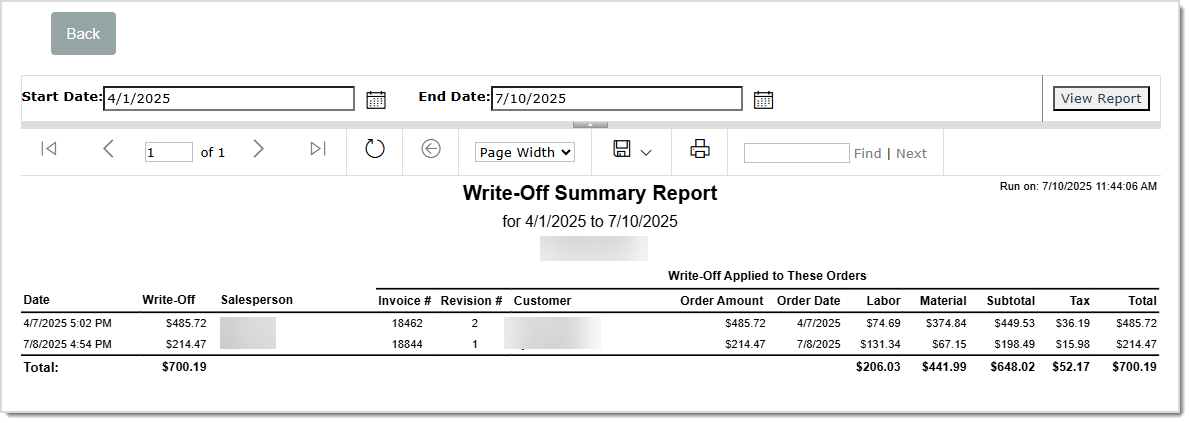
Image displaying the Write-Off Summary Report.

This Report will list the invoices that have been written-off for the time period selected. The information in the report is consolidated from the Payment Summary report. The Write-Off Report displays the following fields:

  • The Date that the write-off occurred.
  • The Write-Off amount. 
  • The Sales person’s name that completed the write-off.
  • The Invoice Number.
  • The Number of Revisions made to the Invoice.
  • The Customer’s name.
  • The Order Amount.
  • The Date that the Order was made.
  • The cost of Labor.
  • The cost of Materials.
  • The Subtotal of the Order.
  • The Taxes added to the Order.
  • The Total dollar amount of the Order.
  • The Overall Totals calculated at the bottom of the table.


Related Topics

Generating Store Reports

Paid In Full Reports

Closing Reports

Tax Exempt Reports


Frequently Asked Questions

Q: How do I see monthly totals for payments?  

A: Select the Payment Summary Monthly option on the Report page to display payments received by month. It defaults to the current month and year, but you can adjust it as needed.   


Q: Can I view tax-exempt payments separately?  

A: Yes. There is a Tax Exempt Payment Summary Report that specifically lists tax-exempt payments for a selected date range.   


Q: How do I include or exclude write-offs from a report?  

A: By default, the Payment Summary report includes all payments. If you need a report that excludes write-offs, use the Payment Summary Monthly option since it does not include write-offs. 


Q: I have a question, but I can't find my answer here, how do I get more assistance?

A: You can ask any question at the link below, once received one of our technicians will be in touch! If you need immediate assistance, the LifeSaver Software team is available Monday through Friday, from 9:00am to 6:00pm Eastern time. Feel free to contact our support team at: 1-800-381-0600, extension 2. Or you can email us at support@lifesaversoft.com and we will respond within 24-hours.

Need Help?

Can't quite find the answer you're looking for? Our support team is just a call away.