Writing Work Orders

October 10, 2025
The Write Work Orders page allows you to sell store product inventory, write custom work orders, create and provide quotes to your customers for customer work, and take payments. Keep reading to find out more about how to write orders.

Using the Write Order Page

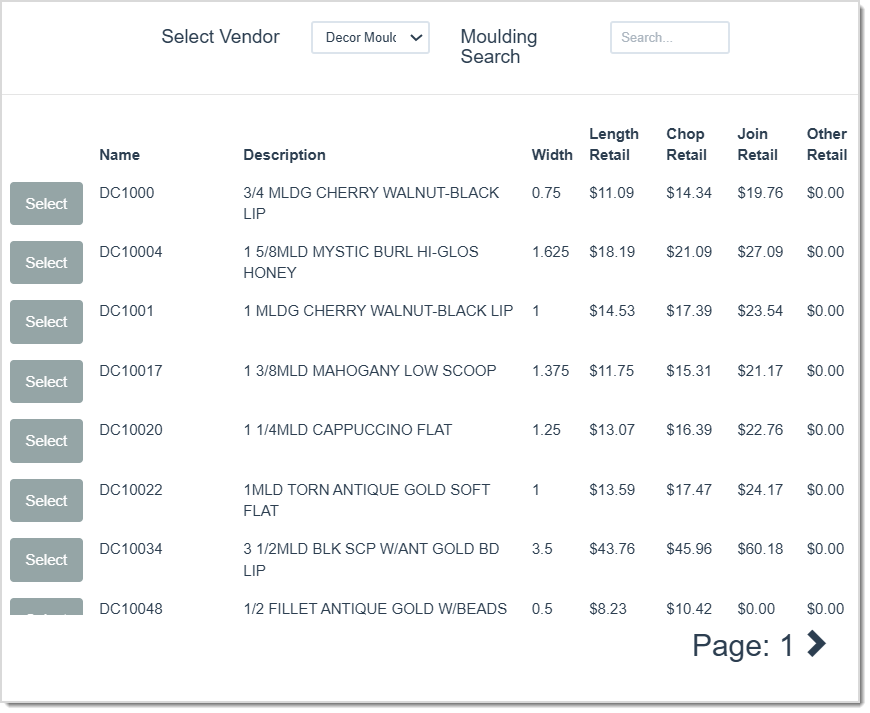
- Mouldings – Click this to open the Mouldings window to select a moulding vendor and moulding for the order, if necessary. Selecting a moulding from this window will automatically fill in the first item in the Order’s first Moulding field (#8, above). You can select multiple mouldings for the project. Each time you click Select here another moulding field will be added to the Order.
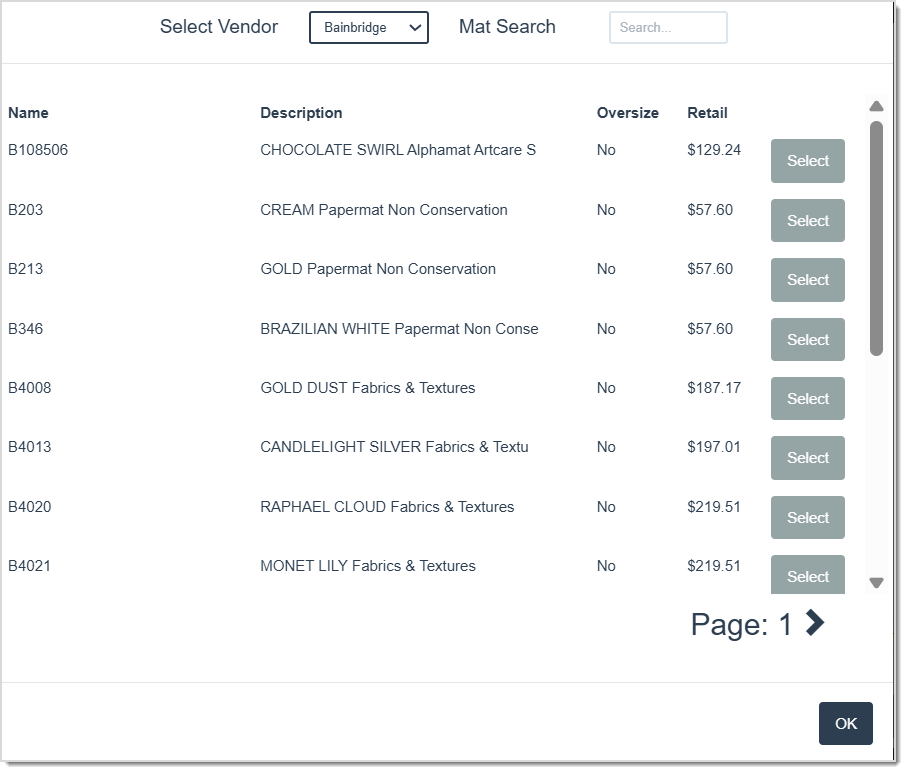
- Mats – Click this to open the Mats window to select a mat vendor and mat if necessary. Selecting a mat in this window will automatically fill in the Order’s first Mats / Fillets / Fabrics field (#10 above). You can select multiple mats, fillets, or fabrics for the project. Each time you click Select here another mat field will be added to the Order.
- Description – Enter a descriptive name for the order you are creating.
- Art Condition – Click this button to open the Art Condition window. The LifeSaver Software system comes with premade conditions, to add new ones go to Home > Art Condition. In the window, check any Conditions that apply and enter in the location blemishes or any necessary notes in the Location / Notes field. You can also list the Art Bin you’ll be using to store the items for the order, if any. Click the OK button after making your changes.

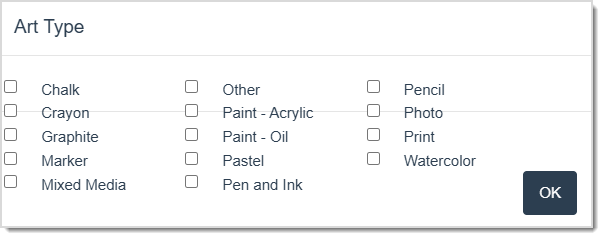
- Art Type – Click this button to open the Art Types window. The LifeSaver Software system comes with premade Art Types, to add new ones go to Home > Art Types. Check the boxes for any Types that apply, then click the OK button to add them to the Order.
- Image Size – Enter in the Width and Height of the art size or mat opening here in the Width and Height fields.
- Finished Size – This is calculated by the Image Size fields above. Or, you may occasionally need to manually enter the finished size, such as when a customer gives you the frame they want to use and then the software will automatically calculate the mat sizing for you.
- Mouldings – If you entered a Moulding above, this field will already be filled in. If not, enter the moulding type for this order. Click the down arrow to edit or remove the Moulding and more. You can add as many different mouldings as you need for the order.
- Mats Size – If you entered one or more Mats above, this field will already be filled in. If not, enter the amount of mat reveal for each side to use here.
- Mats / Fillets / Fabrics – If you entered one or more Mats above, this box will already be filled in with the mat, fillet, and / or fabric item numbers. If not, enter in the item numbers here. Click the down arrow to edit or remove the item and more.
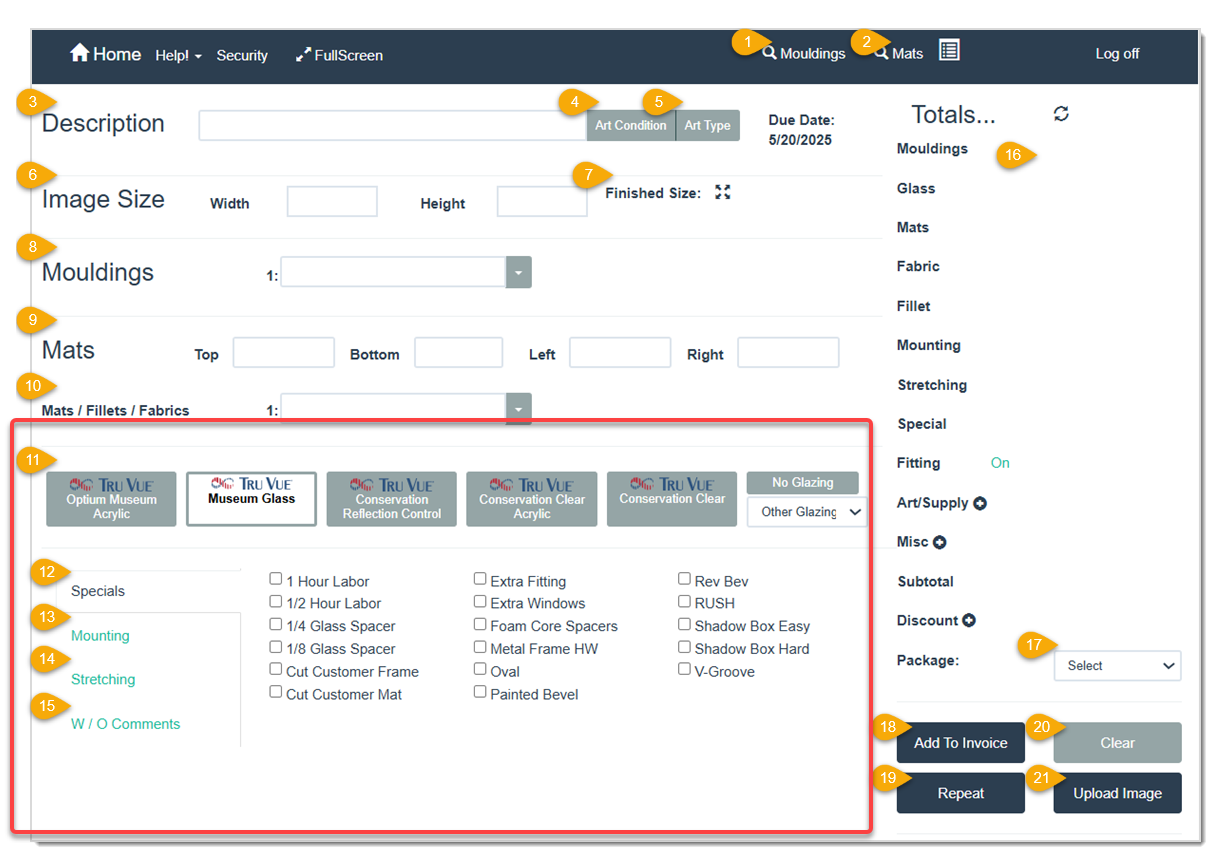
- Glazing Options – Select the Glazing you want for the Order. If not applicable, click the No Glazing button to the right. Or, if you don’t see the option you are looking for, click the Other Glazing drop-list and select what you need. Note that the LifeSaver Software system defaults to TruVue Museum glazing. If you’re unsure which to select, you can hover the mouse on each glazing option to display each type’s details.
- Specials – If there are any Specials associated with this order, check the boxes for the ones that apply here.
- Mounting – If applicable, check the box for the desired Mounting special to include with this work order.
- Stretching – If applicable, check the box for the desired Stretching special to include with this work order.
- W / O Comments – Enter any applicable Work Order comments.

- Totals – These fields will automatically fill in once the above fields are entered. Art Supply, Misc, and Discount are not auto-populated. You can click on those and make selections.
- Package – This field refers to promotional packages. If applicable, select the Package type here.
- Add To Invoice – Click this button to add this work order to an Invoice. Clicking this will take you to the Invoice page to associate it with a Customer.
- Repeat – If you have more than one art item to frame, click this button to start a second order. Doing so will prompt the system to ask if you want to keep the previous order information so it can be copied to this work order to save time.
- Clear – Click this button to clear the changes made to this page.
- Upload Image – Click this button to upload an image for this Work Order. A window will pop up for three options on how to upload an image: Upload Art Image, FrameVue App, and Webcam. Select the desired option here, depending on what avenue you want to take. The image will print with the Invoice, but will not give a preview if moulding and mats are added to the order.
Related Links
Working with Work Orders
Viewing Work Order History
Working with the Package Pricing Page
Working with Services (Specials)
Working with Vendors
Create Art Conditions
Frequently Asked Questions
Q: Can I edit the Work Order after creating it?
A: Yes, you can edit any Work Order from the Invoice Search button on the Home page.
Q: I have a question, but I can't find my answer here, how do I get more assistance?
A: You can ask any question at the link below, once received one of our technicians will be in touch! If you need immediate assistance, the LifeSaver Software team is available Monday through Friday, from 9:00am to 6:00pm Eastern time. Feel free to contact our support team at: 1-800-381-0600, extension 2. Or you can email us at support@lifesaversoft.com and we will respond within 24-hours.
Creating a Service Special in LifeSaver Software lets you customize labor, mounting, or other Servic
The FrameVue feature in LifeSaver Software Software allows you to take a picture of a customer’s art
Work Orders are the cornerstone in any framing business, and knowing how to use LifeSaver Software’s


Is this page helpful?
×Help us improve our articles