
Store Configuration - Settings
The primary system configuration area for LifeSaver Software is the Settings tab on your Store Confi

 February 20, 2026
The LifeSaver Software Software gives you a Time Clock your employees can use to clock in and out for their shifts. The admin system will compile their time and provide you reports on time worked and an audit of all clock punches. Take a look!
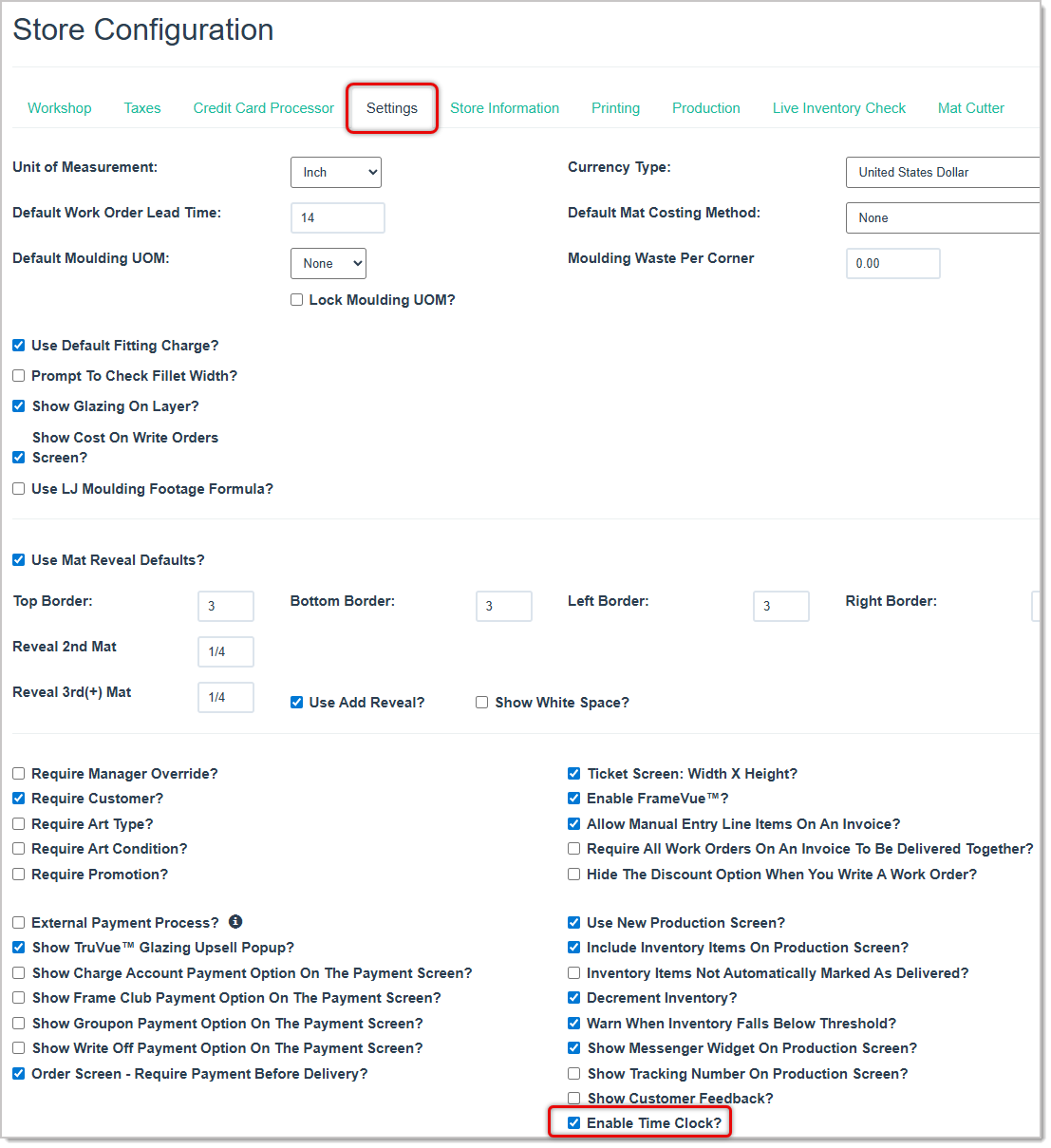
To enable this feature, in your main menu on the Home page, click the Store Configuration button, and on the Store Configuration page, click the Settings tab. You'll see the Enable Time Clock setting about half-way down the page on the right. Check the box to enable it, then click the Save button at the bottom of the page.
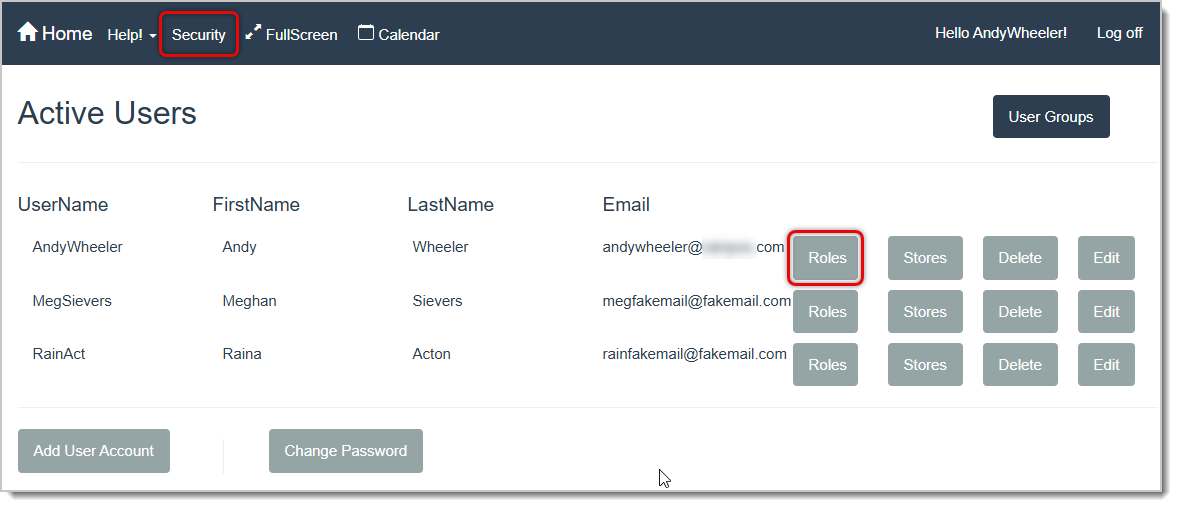
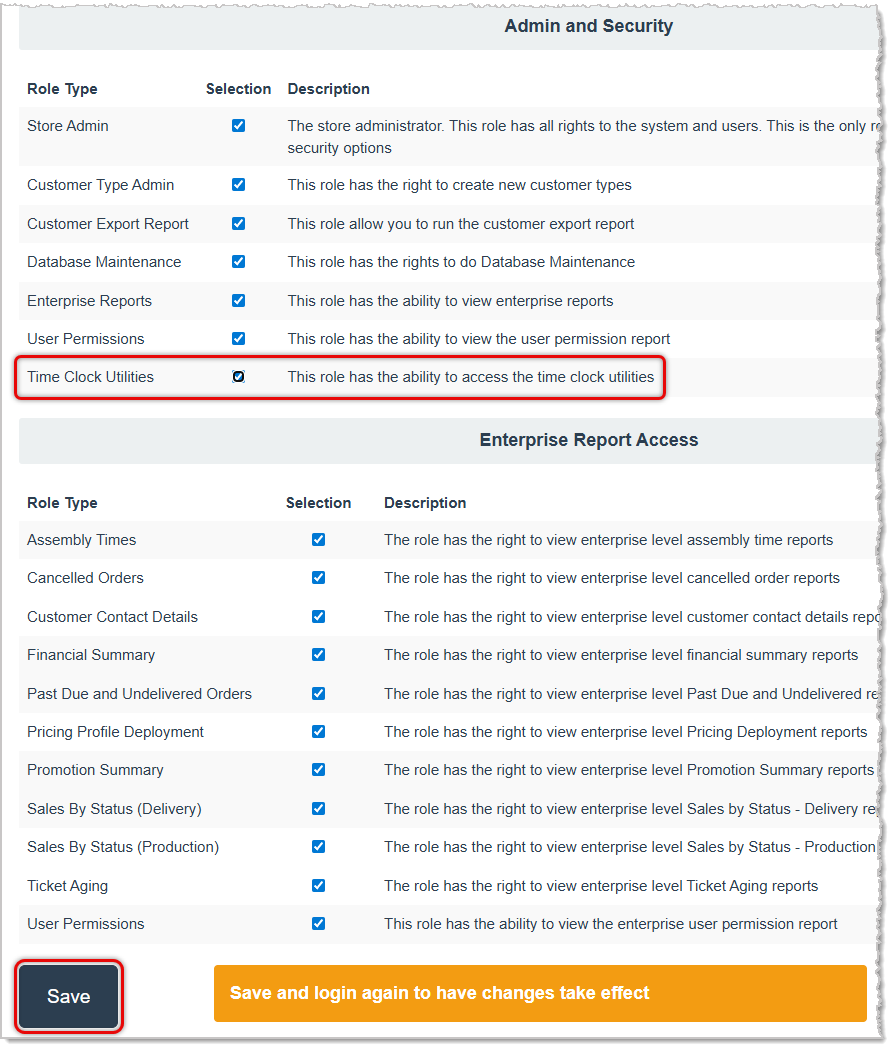
To use the feature, you'll need to add permission to the employee login accounts that will be able to manage Time Clock functions. In the main system bar at the top of the page, click on Security and you'll see all employee accounts. Click on the Roles button and about half-way down the page, click the checkbox for Time Clock Utilities in the Admin and Security area. At the bottom of the page, click the Save button.
That user will now need to Log Off (click the button in the upper right of the page), then log back in for the permission change to come into effect. Repeat these steps for other authorized users who will need to be able administrate Time Clock reports and clock in / clock out events. All users will be able to clock in and out, as demonstrated below, but only users with the permission pictured below will have access to the Time Clock Utilities.
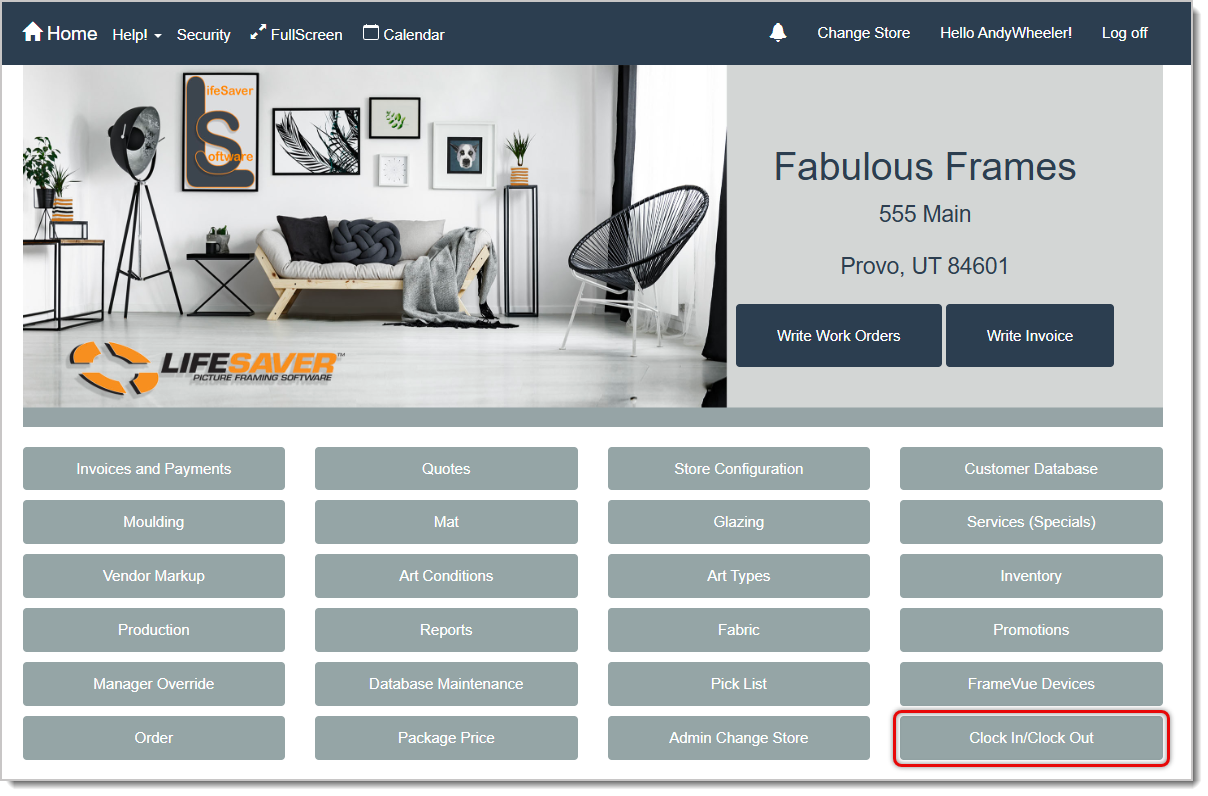
To use the Time Clock for shift start and end, on the system Home page in the lower right, click on the Clock In / Clock Out button:
The Time Clock window will open for you:
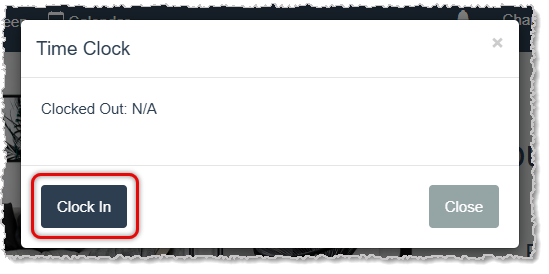
If you have not yet clocked in, you will see a Clock In button. If you have clocked in, you'll see a Clock Out button. The clock event will display with the date and time, and the Clock button will change to the other mode and will be ready for whenever you need to click it next.
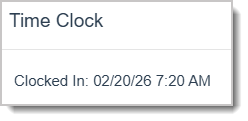
That is all that is needed to log your time worked for your shifts throughout the week. System administrators will be able to log sick days and vacation days for you using the Time Clock Utilities. The LifeSaver Software system will keep a running total of your hours worked and administrators will be able to view your hours for each pay period and adjust clock punches as needed.
If you have the system permission for Time Clock Utilities enabled in your user account on the Roles page, you will see a button for Time Clock Utilities when you click the Clock In / Clock Out button on the system Home page to open the Time Clock, as pictured here:
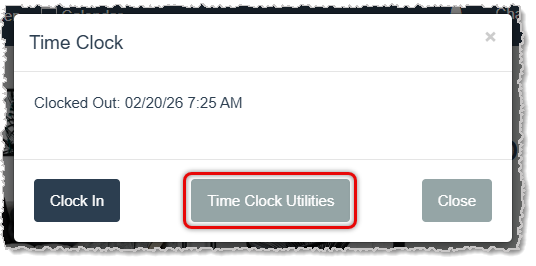
Click the Time Clock Utilities button to open the utilities. If you need to adjust, add, or delete an Employee Time Clock event, click the User drop-list and select the employee.
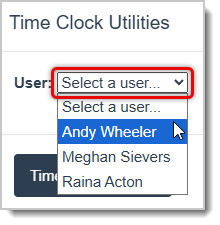
Once you have selected a user, you'll be able to choose the date you want for Clock In and Clock Out events, as pictured below. Here is how you can work with those events:
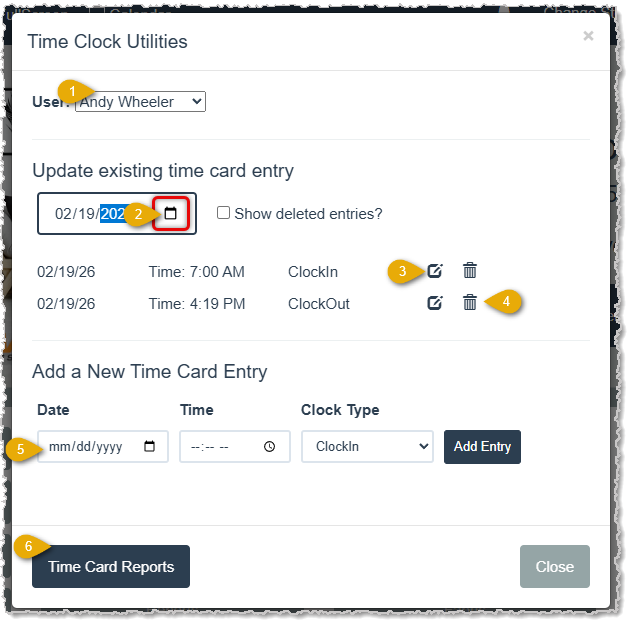
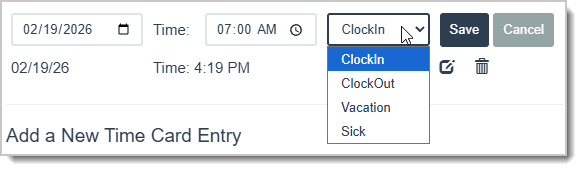
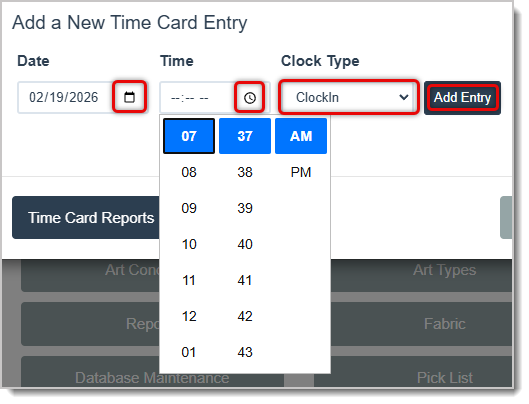
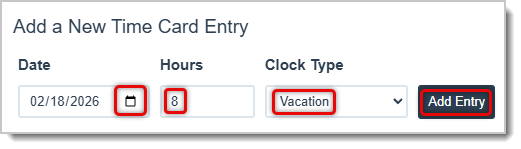
In the Time Clock Utilities window, if you click the Time Card Reports button, the Time Clock Report will load in a new browser tab for you, as described below.
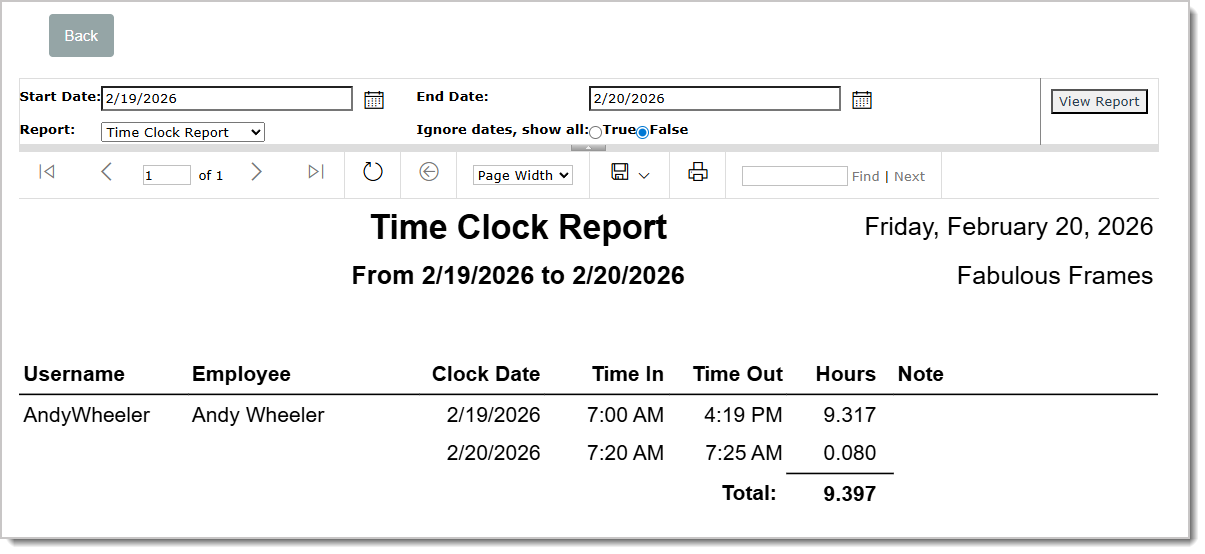
The Time Clock Report will list all employees with logged hours for the date range you select. Use the Start Date and End Date areas (click the Calendar Icons) to set whatever date range you need. You have the normal report functions for Navigation (previous and next page buttons, page number selection), Save functions (Excel, CSV, or PDF), and Print function. You can toggle the report to Ignore Dates / Show All clock events, and any filter changes will be applied when you click the View Report button. For each employee, you'll see the dates and times of their clock events, total hours for each date, and then a grand total of all hours for the period, as pictured above.
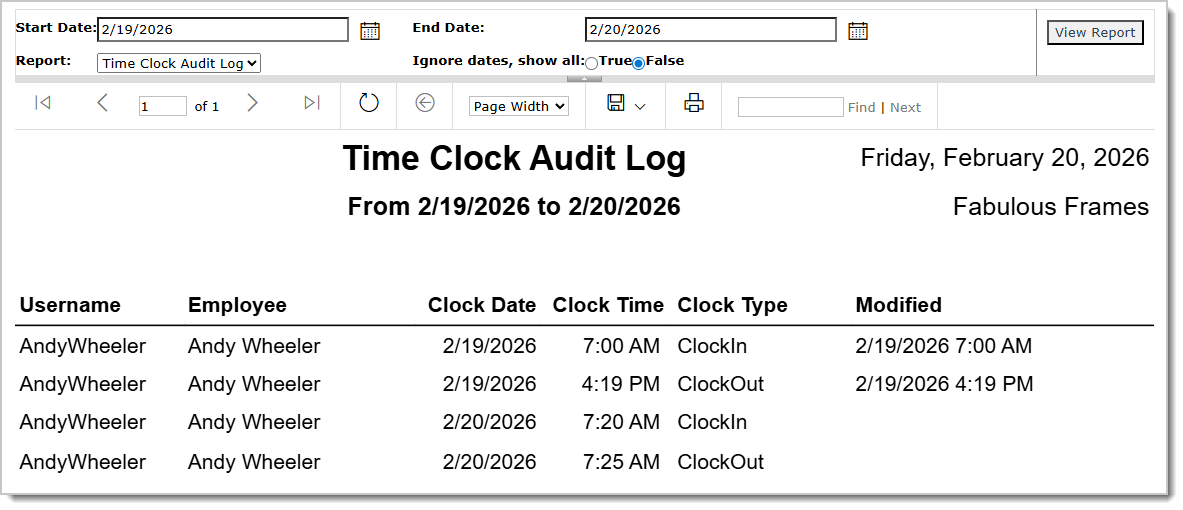
The Time Clock Audit Log will list all clock events for employees with logged hours for the date range you select. Use the Start Date and End Date areas (click the Calendar Icons) to set whatever date range you need. You have the normal report functions for Navigation (previous and next page buttons, page number selection), Save functions (Excel, CSV, or PDF), and Print function. You can toggle the report to Ignore Dates / Show All clock events, and any filter changes will be applied when you click the View Report button. For each employee, you'll see the dates and times of their clock events, and Modified event dates and times for any clock events that were manually adjusted or added.
Store Configuration - Settings
Q: I have a question, but I can't find my answer here, how do I get more assistance?
A: You can ask any question at the link below, once received one of our technicians will be in touch! If you need immediate assistance, the LifeSaver Software team is available Monday through Friday, from 9:00am to 6:00pm Eastern time. Feel free to contact our support team at: 1-800-381-0600, extension 2. Or you can email us at support@lifesaversoft.com and we will respond within 24-hours.
Is this page helpful?
×Help us improve our articles