
Working With Production Statuses
Your Production Statuses are a key feature in LifeSaver Software Software that help you organize, tr

 October 10, 2025
Use the Call List to manage your customer communications. The Call List helps you track customers you have contacted regarding their work orders and others who still need a call. This article explains how this keeps you organized, reduces delays, and maintains a high level of customer service.
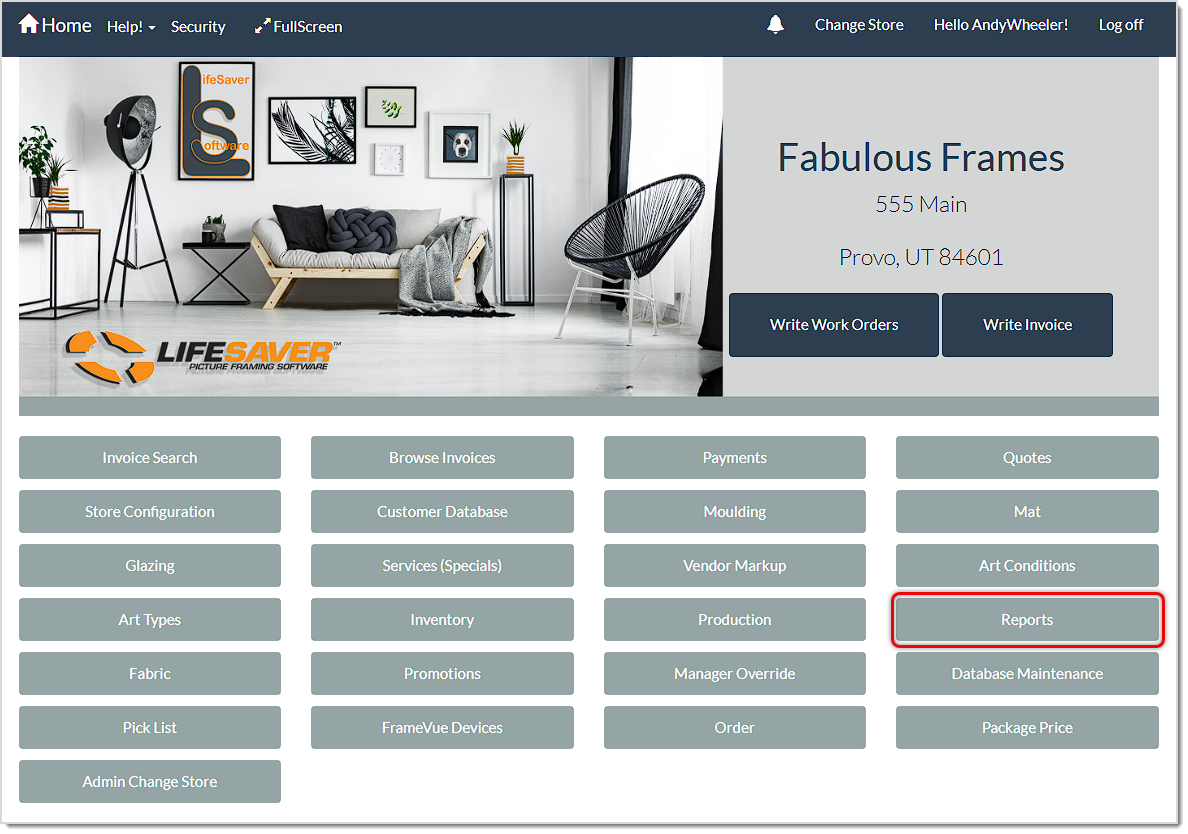
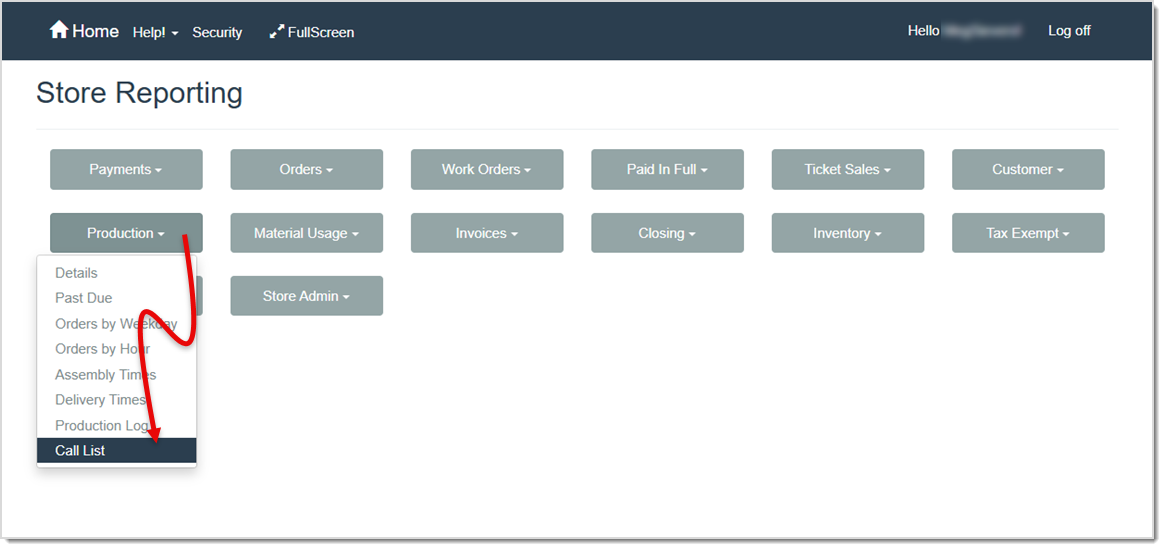
To access this feature, click the Reports button on your Home screen. On the Store Reporting page, click the Production drop list and click Call List.
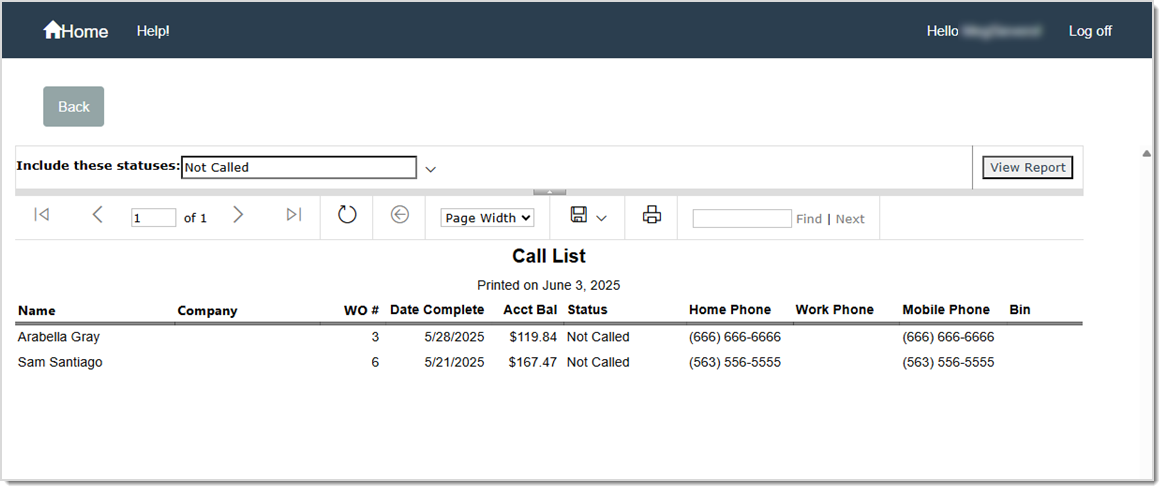
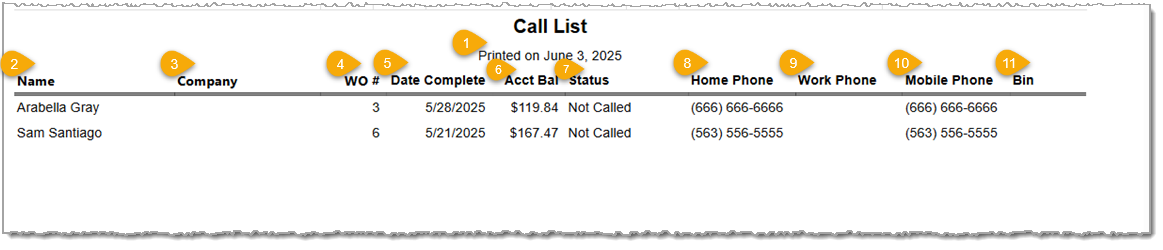
When you open the Call List, you’ll see a report of all assembled work orders still waiting for customer pickup. Use this list to notify customers that their orders are ready, and record whether you reached them, left a message, or need to follow up.
Pro Tip: Check your Call List daily for newly assembled orders that need a pickup reminder. After each call, update the Work Order’s call status in the Production Rules window or the Work Order Details window. Keeping this information current ensures the Call List stays accurate.

Using the Production Status Feature
Q: Where does the Call List get its information?
A: It automatically pulls all work orders that are marked as Assembled but are not yet delivered, so you do not have to manually add them.
Q: Can I see more than one status at a time?
A: Yes. On the Call List report you can set multiple statuses by clicking in the Include These Statuses drop-list and making your status selections. Then, click the View Report button to filter your results.
Q: How do I log the call status after contacting a customer?
A: In either the Production > Production Rules or Order > Work Order Details, update the work order’s “Call Status” field to reflect the outcome of your call (e.g., Called - Left Message).
Q: Can I use the Call List to see which orders still have a remaining balance?
A: Absolutely. The Balance Due column displays how much each customer owes so you can remind them of any payments owed before they can take delivery.
Q: How do I change the default filter from "Not Called" to another call status?
A: You cannot permanently change the default filter, but you can quickly select a different filter using the Include these statuses drop-list each time you open the Call List.
Q: Why do I still see old orders in this list?
A: Orders stay on the call list until you update them to a final status or change their Call Status in the system. Make sure you update the status when the order is picked up.
Q: I have a question, but I can't find my answer here, how do I get more assistance?
A: You can ask any question at the link below, once received one of our technicians will be in touch! If you need immediate assistance, the LifeSaver Software team is available Monday through Friday, from 9:00am to 6:00pm Eastern time. Feel free to contact our support team at: 1-800-381-0600, extension 2. Or you can email us at support@lifesaversoft.com and we will respond within 24-hours.
Is this page helpful?
×Help us improve our articles