
Working With Tax Exemption
There are a lot of different reasons why you might mark a sale, or part of a sale, tax exempt. Often

 October 10, 2025
Providing quotes to your customers offers them a clear summary of framing details and costs, without requiring the commitment of an immediate payment. This allows you to organize potential orders as Quotes before committing them to invoices. The article below walks you through how easy it is to manage and convert quotes in your LifeSaver Software software.
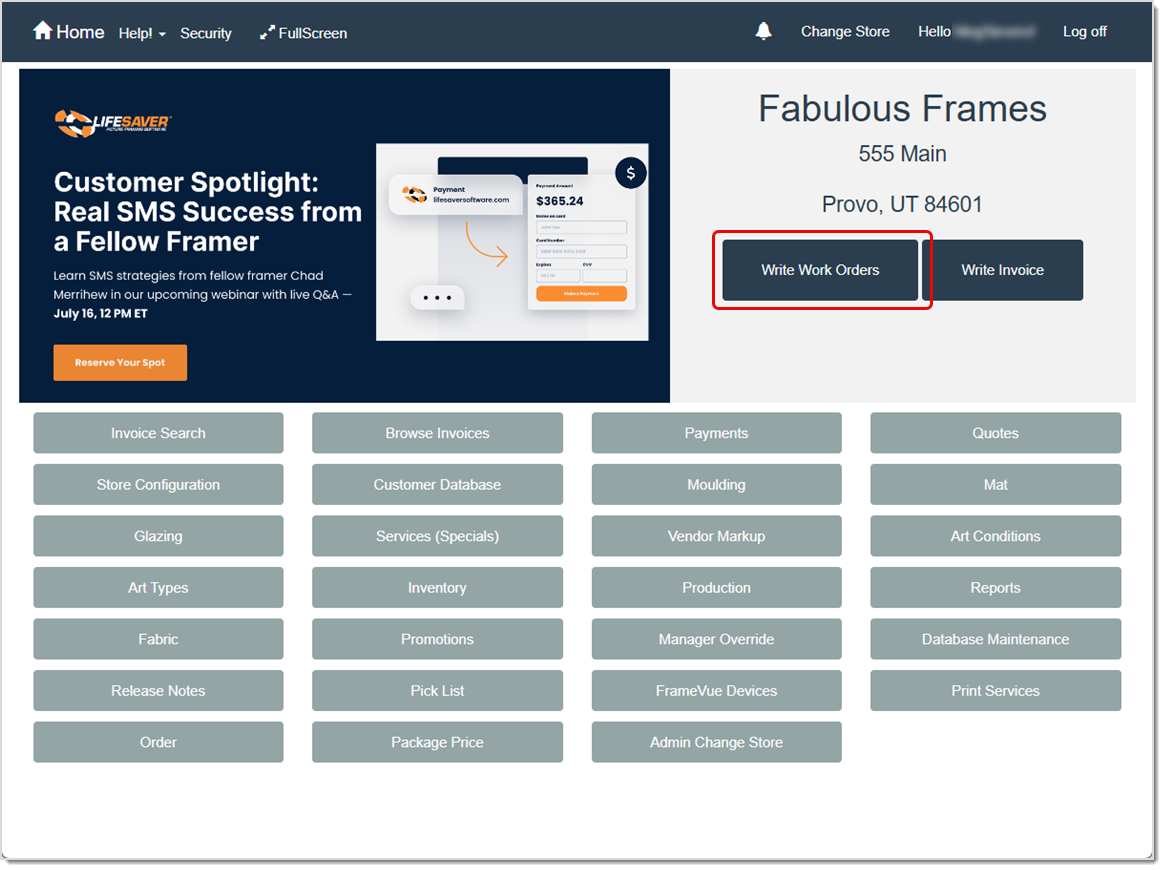
To access this area of the software, click the Write Work Orders button on the Home page and the Write Work Orders page will open.
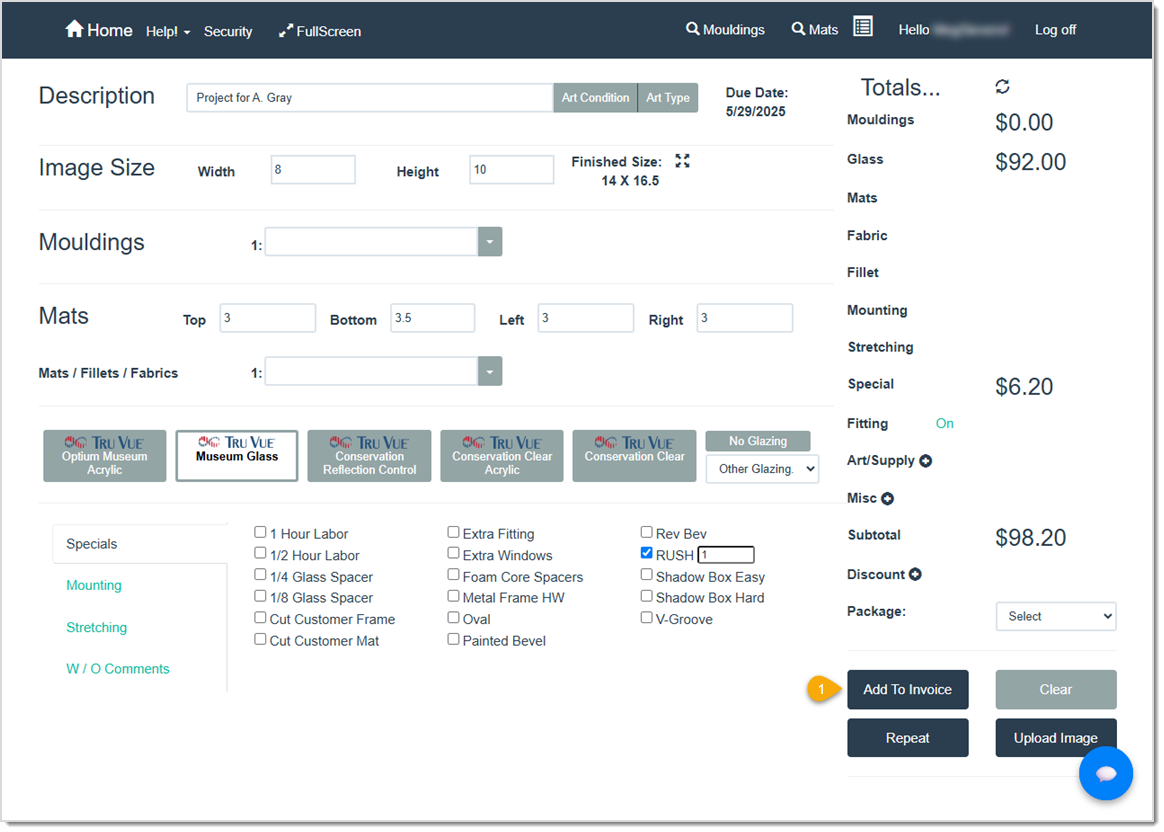
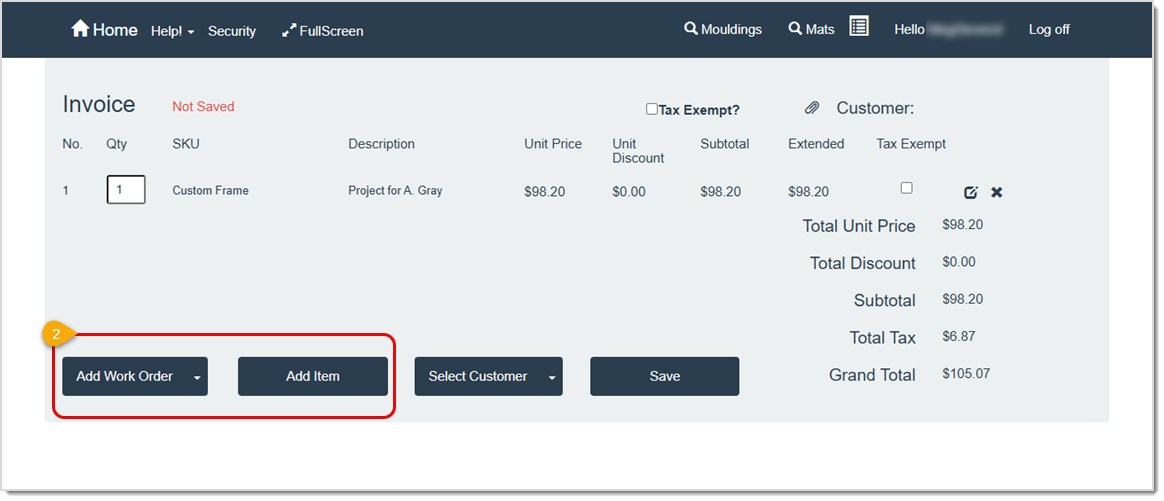
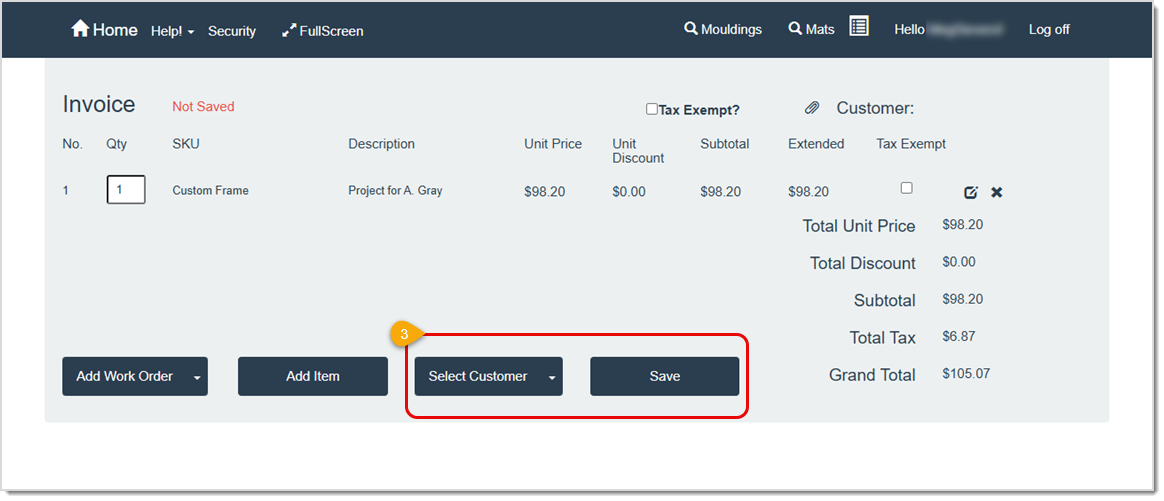
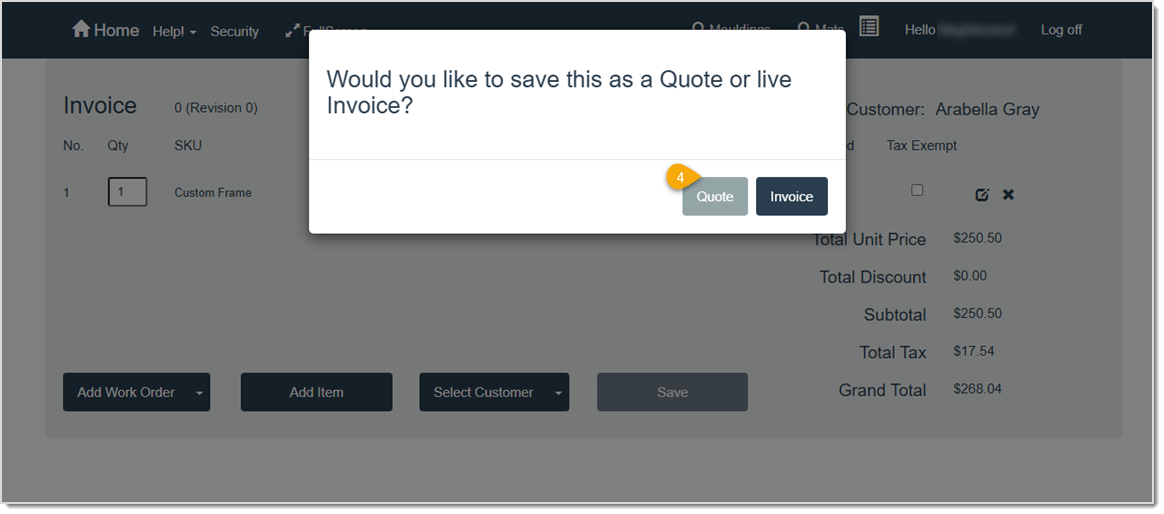
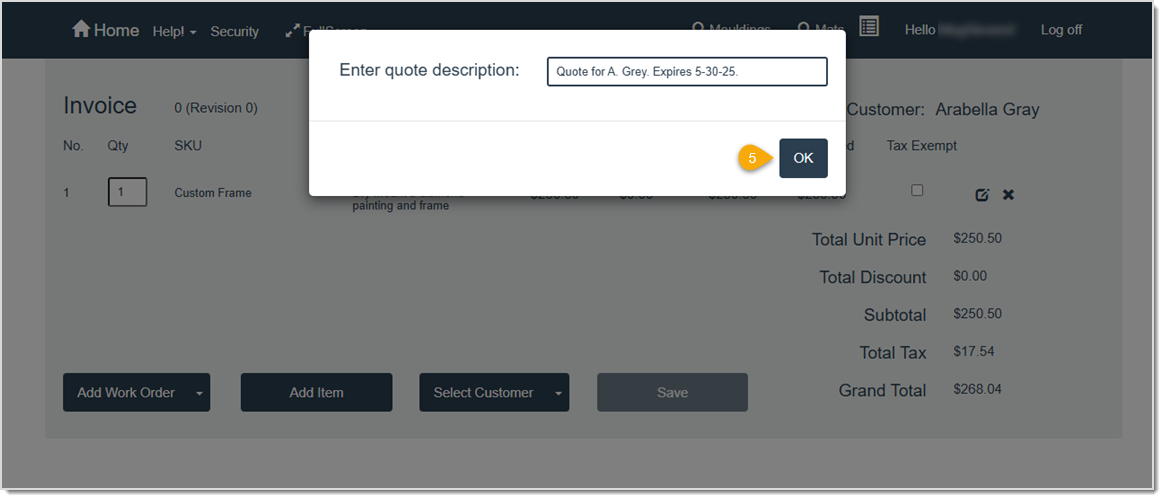
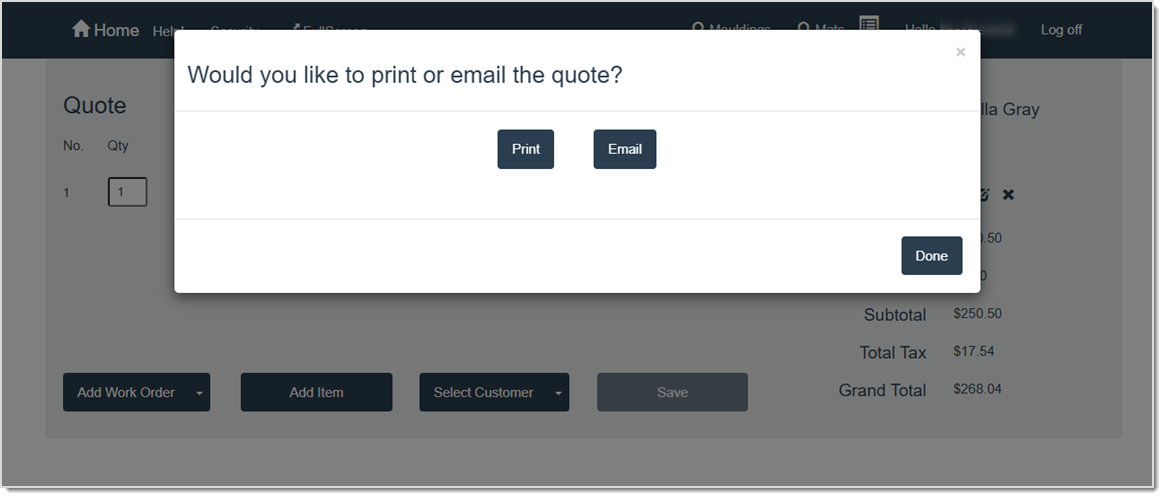
Please Note: The quote receipt can display the total amount of the work order only or it can display component prices and total work order amount. The option is available by going to your Home page > Store Configuration > Settings. The default setting is to list component totals and total amount.
Q: How do I email a quote to a customer?
A: When you finish creating a quote, a popup message displays asking if you want to print or email the quote. Simply click the Email button at this time and enter the customer’s email information. If you did not remember to email the quote as you finished creating it, you can still email it by clicking the Quote button on the Home page, locating the desired quote, and clicking the Email button from there. In the Send Email window, confirm or update the customer’s email address and subject line. Click the Send button to email the quote.
Q: Can I print a quote at a later time?
A: Yes. Click the Quote button on the Home menu, locate your quote, then click the Print button to see the preview and finalize printing.
Q: Can I add additional work orders or items to a quote that’s already been saved?
A: Yes. Click the Quote button on the Home menu, locate your quote, then click Open to add additional work orders or items.
Q: Can I make changes to a work order that is part of a quote?
A: Yes. Click the Quote button on the Home menu, locate your quote, then click Open or Edit, depending on your needs. On the Quote page or Invoice page (you clicked Open or Edit, respectively) you can use the icons in the data table to make changes to the individual work orders that make up the quote or use the buttons below the table to make changes to the quote as a whole.
Q: I have a question, but I can't find my answer here, how do I get more assistance?
A: You can ask any question at the link below, once received one of our technicians will be in touch! If you need immediate assistance, the LifeSaver Software team is available Monday through Friday, from 9:00am to 6:00pm Eastern time. Feel free to contact our support team at: 1-800-381-0600, extension 2. Or you can email us at support@lifesaversoft.com and we will respond within 24-hours.
Is this page helpful?
×Help us improve our articles