The Pick List page is a helpful feature for frame shop owners and staff who need an organized way to handle the materials required for upcoming orders. Keep reading to explore how this feature can help your business stay on top of inventory and orders.
How to Work With Pick Lists
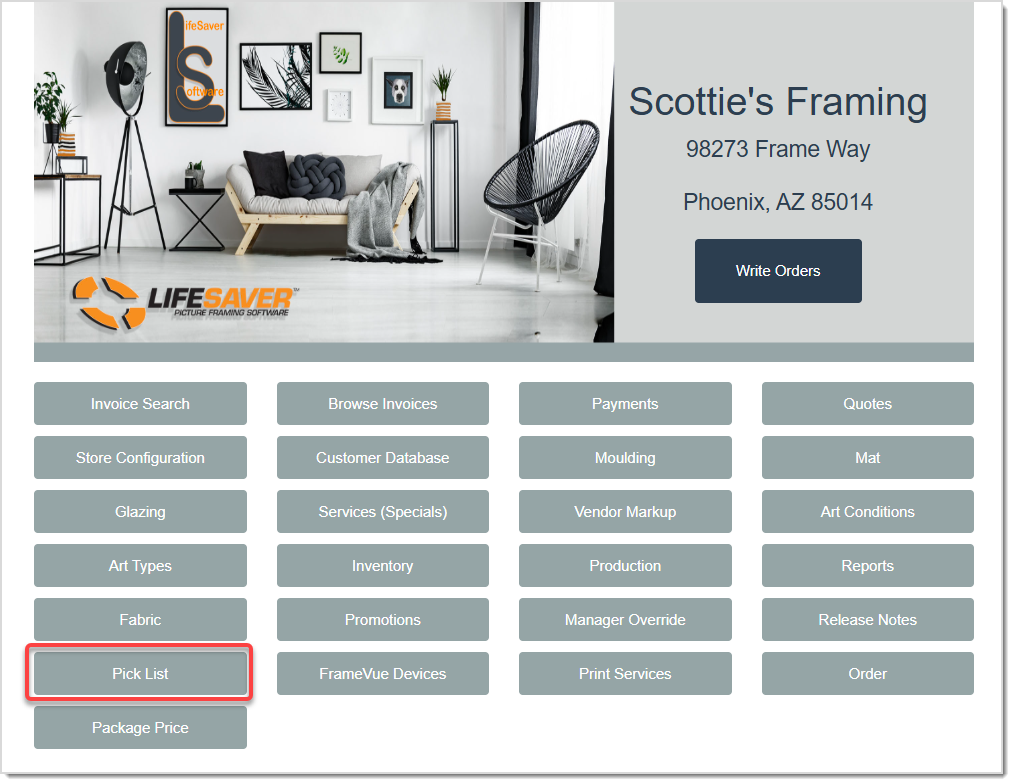
On the LifeSaver Software Home page, click the Pick List button to start managing your pick lists.
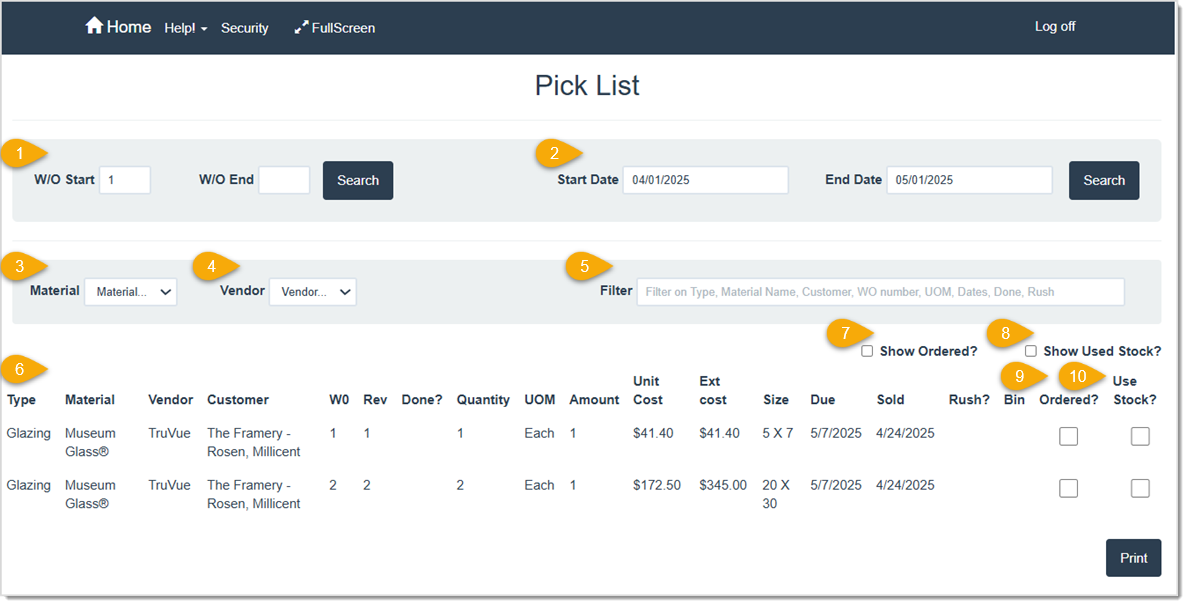
When the Pick List page opens, you will see a range of filters to help refine what appears in the list. The Pick List will contain all mouldings, mats, mounting materials, fabric, and glazing needed to complete the listed work orders. You can use it to order necessary materials or confirm you have enough in stock.
- W/O Start / W/O End – Use these fields to view a range of work orders, in numeric order. In the Work Order Start field, enter the starting work order number that you want to view. In the Work Order End field, enter the last work order number you want to view. For example, if you want to view work orders 100, 101, 102, and 103, in the Start field you would enter 100 and in the End field you would enter in 103. Click the Search button to view the results.
- Start Date / End Date – If you would rather search by a range of dates than work order numbers, enter the Start Date and the End date to view work orders written between those dates. Click Search to populate the table.
- Material – If you want to filter the work orders by material, click the Material drop-list and select one of the options. This will only display if you’ve used either of the searches.
- Vendor – If you want to filter the work orders by vendor, click the Vendor drop-list and select the desired vendor. This will only display if you’ve used either of the searches.
- Filter – You can enter text here to filter the results here by Type, Material Name, Customer, Work Order number, Unit of Measurement, Dates, or if the order is Done. This will only display if you’ve used either of the searches.
- Pick List Table – The table will display the results of your search and filter criteria, above.
- Show Ordered? – Click this checkbox to include previously ordered items in the Pick List. Items flagged as ordered will have a check mark to indicate they have already been placed.
- Show Used Stock? – Click this checkbox to include any line items that have been designated for use as in-store stock supply. Items flagged for store stock have a check mark in the Use Stock? column.
- Ordered? – Within the Pick List, you can click the Ordered checkbox on any line to mark the item as ordered. By default, the line item is removed from the list unless you check the Show Ordered checkbox.
- Use Stock? – If an item can be fulfilled with your existing inventory, click the Use Store Stock checkbox to mark it as using what you already have. That line will be removed unless you check the Show Used Stock? box.
After making the necessary changes, click the Print button to print and use your Pick List page to gather materials to complete your work orders.
Customizing Your Pick List
To customize your Pick List to show or hide cost details, navigate to the Store Configuration page by clicking the Store Configuration button on the Home page. Click on the Printing tab.
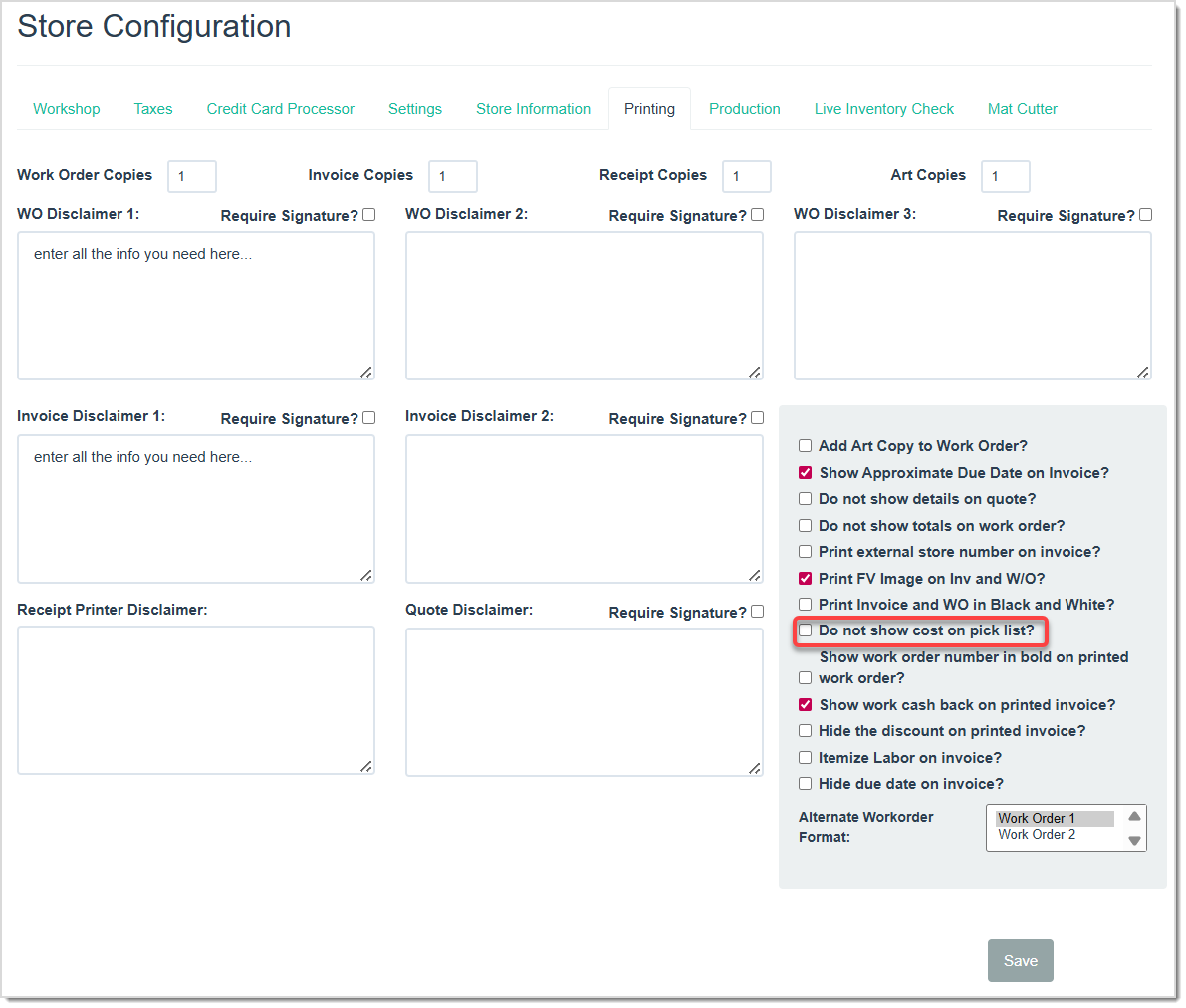
Check the Do Not Show Cost on Pick List box if you do not want the costs to display on the Pick List. To finalize your selection, click the Save button.
Related Topics
Working with Work Orders
Viewing Work Order History
How to Find an Invoice
Frequently Asked Questions
Q: Why don’t I see the unit cost or extended cost for each line item?
A: You can configure the pick list on the Store Configuration page to show or hide cost details.
Q: I have a question, but I can't find my answer here, how do I get more assistance?
A: You can ask any question at the link below, once received one of our technicians will be in touch! If you need immediate assistance, the LifeSaver Software team is available Monday through Friday, from 9:00am to 6:00pm Eastern time. Feel free to contact our support team at: 1-800-381-0600, extension 2. Or you can email us at support@lifesaversoft.com and we will respond within 24-hours.


 October 10, 2025
Is this page helpful?
×Help us improve our articles