LifeSaver Software’s Gift Cards feature lets you sell and manage gift cards your customers can use for future purchases in your store. This article will show you how to work with the utilities and report we have for your Gift Cards. Take a look at what's here for you!
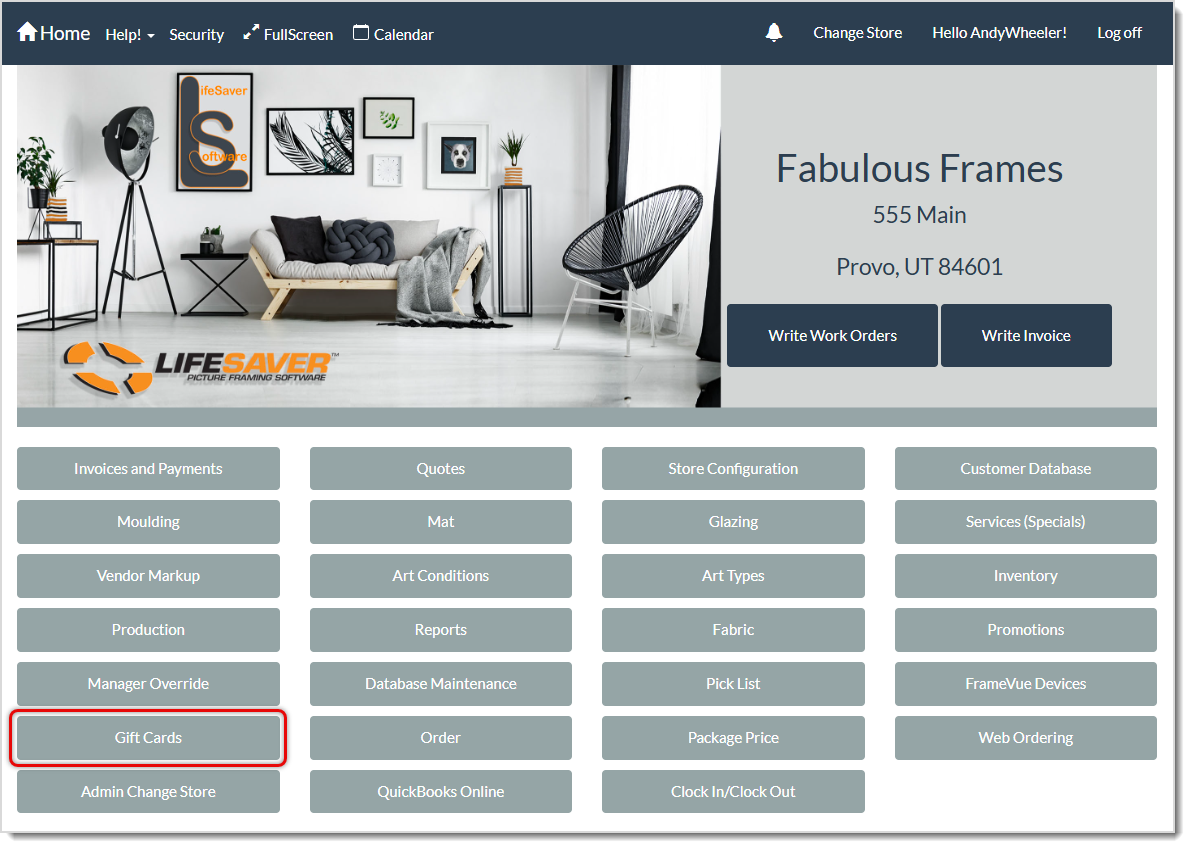
To get to this area, on the system Home page, click the Gift Cards button, as pictured above.
The Gift Cards Page
The Gift Cards page has three major areas: +Create New Card (loads by default), Utilities, and Reports. If you just need a card code added to the system so you can sell it in the Invoice, the +Create New Card area is a fast way to do that. Below are sections detailing each of these areas for you, and we'll also show you how you can sell Gift Cards and work with them in your Invoices for taking payment on a transaction.
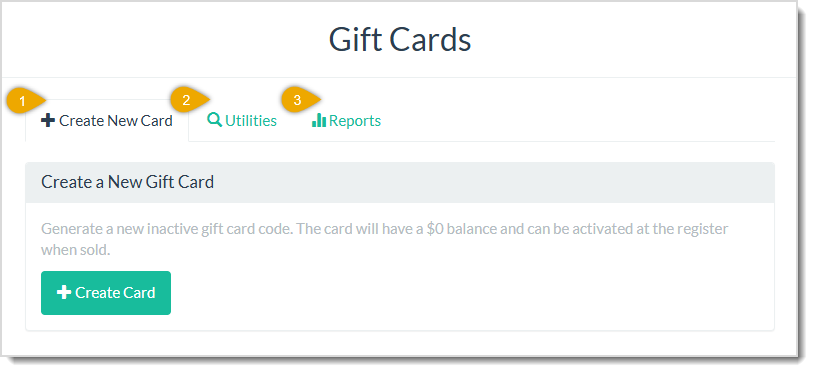
1. +Create New Gift Card
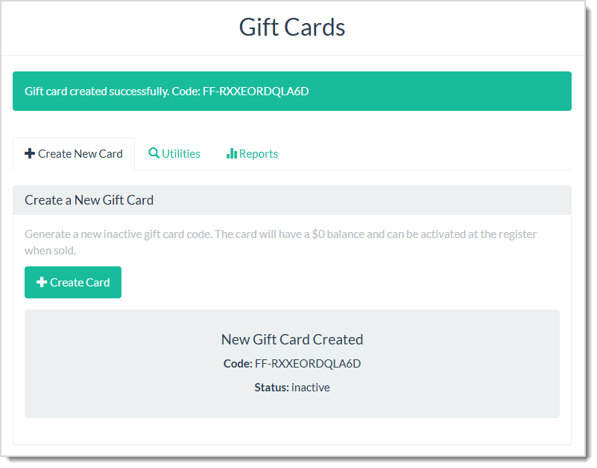
You can click the +Create Card button, and the system will work on creating the new card's code for you. When it's done, you'll see the code like this, and you can copy and paste it when activating the card in the Invoice when completing the transaction.
2. Utilities
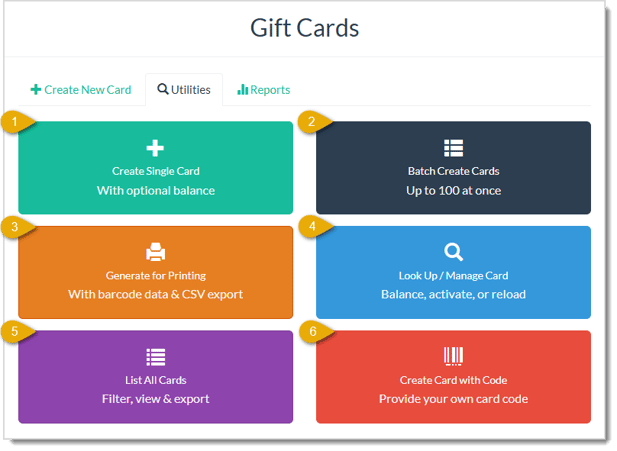
There are six Utilities for your Gift Cards, Create Single Card (with optional balance), Batch Create Cards, Generate for Printing, Look Up / Manage Card, List All Cards, and Create Card with Code.
💡Please Note: The primary area you'll most likely use for creating new Gift Cards and loading existing ones will be in the Invoice in the Add Item window. Cards created and activated there are paid for right away. One thing to be careful about is creating cards in the Utilities areas below and activating and adding balances to them does not require payment, so cards created this way would be good for promotional giveaways or similar purposes.
- Create Single Card (With Optional Balance) — You can use this tool to create a new Gift Card Code, and you are given the option of also activating the card and adding a Balance. This is useful if you want to sell a preloaded card or give one away for promotional purposes. If you don't preload and activate, inactive cards are good to sell at checkout for whatever amount the customer wants. If you're adding a balance and activating, check the box for Set an Initial Balance (Activate Immediately) and enter the Initial Balance, as in this example:
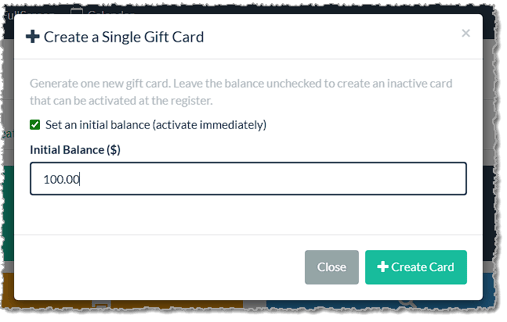
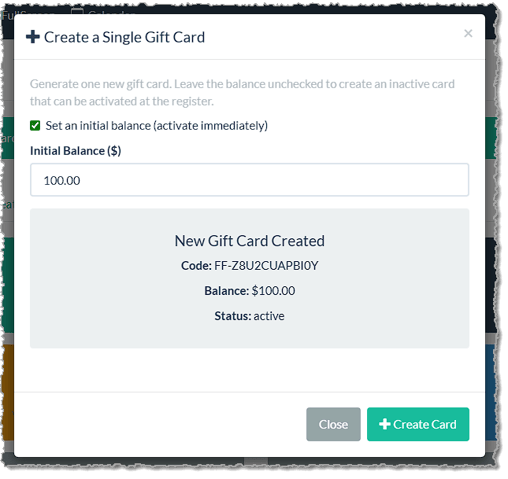
Click the +Create Card button. The system will work on creating your code, please be patient. When it's finished, you'll see the new code appear and if the card is Activated with a Balance, you'll see that as well.
- Batch Create Cards (Up to 100 at Once) — You can use this tool to create multiple new Gift Card Code, and you are given the option of also activating the cards and adding a Balance to each. This is useful if you want to sell a preloaded card or give one away for promotional purposes. If you don't preload and activate, inactive cards are good to sell at checkout for whatever amount the customer wants. Enter the Quantity of new Gift Card codes you want. If you're adding a balance and activating, check the box for Set an Initial Balance (Activate Immediately) and enter the Initial Balance, as in this example:
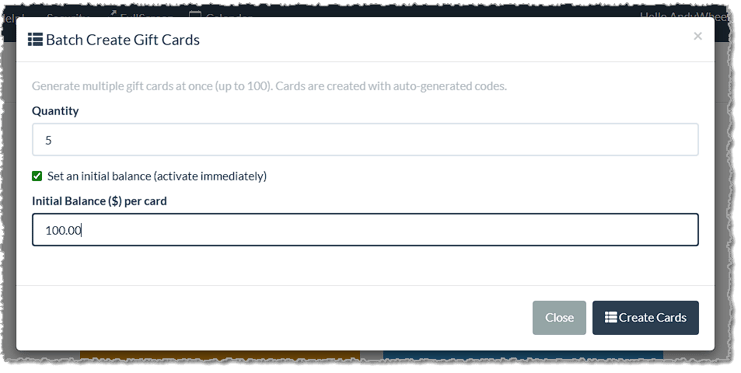
Click the button to Create Cards. The system will work on creating your codes, please be patient. When it's finished, you'll see the new codes appear and if the cards are Activated with a Balance, you'll see that as well.
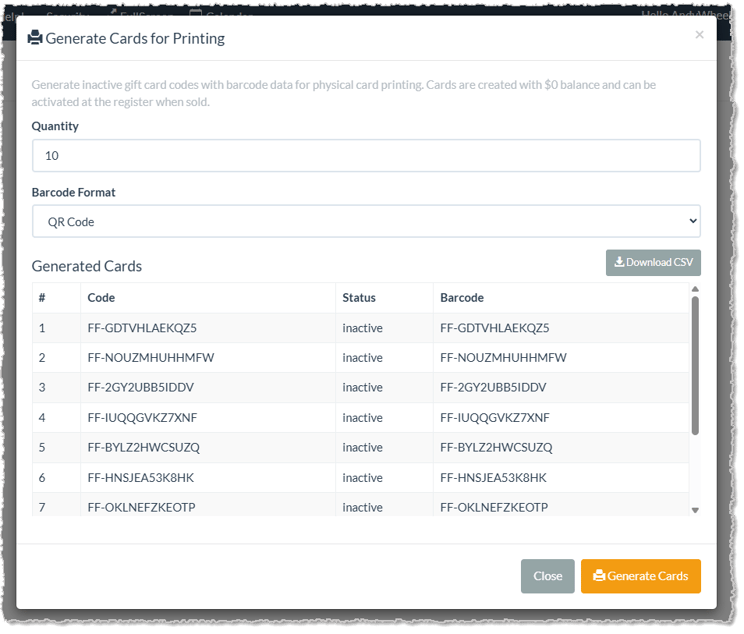
- Generate for Printing (With Barcode Data and CSV Export) — You can use this tool to create multiple new Gift Card Codes that you can add to cards you print externally. All codes will be inactive with a $0 balance and will be ready to activate in the Invoice.
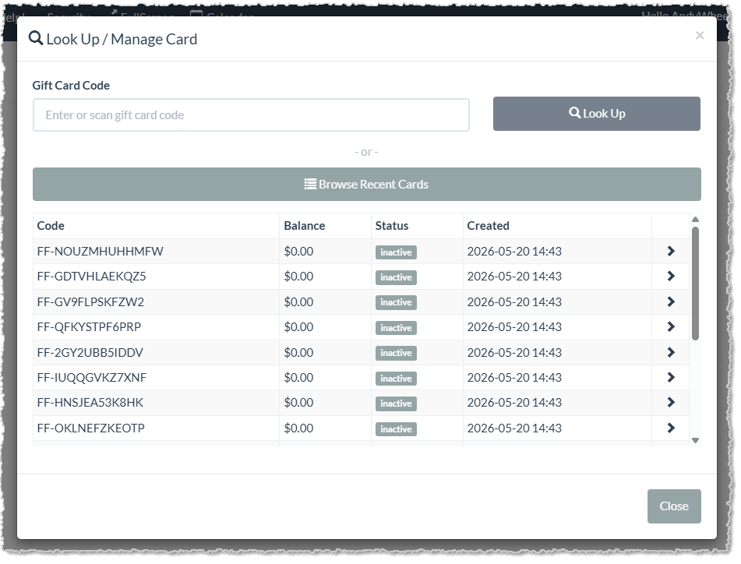
- Look Up / Manage Card (Balance, Activate, or Reload) — You can use this tool to look up an individual Gift Card code you scan in or enter, or you can click to Browse Recent Cards and find the one you want. For individual card lookup, after you enter the code, click the Look Up button, and card matches will populate in a drop-list for you and you can click the one you want. If you're browsing, when you find the card you want to look up, click on it. In either case, the detail window for the card will open.
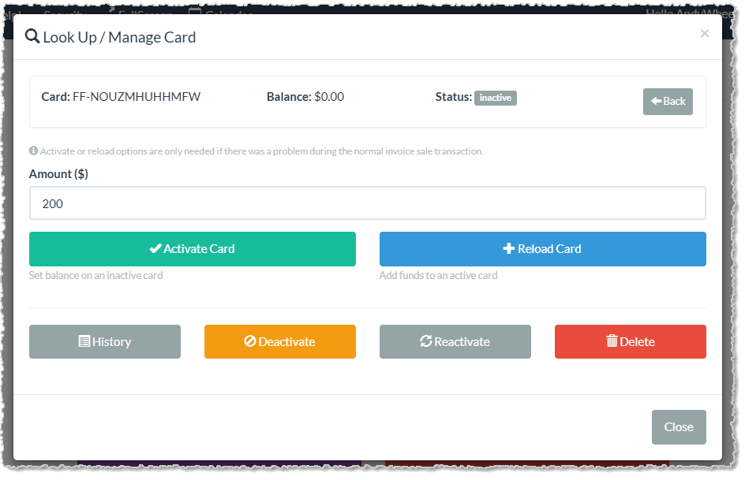
Here is the detailed view for a selected card. You'll see the Gift Card Code, Balance, and Status. If you need to go back to the previous page, there is a Back button in the upper right. You have the option of loading an inactive card or reloading an active one by entering the Amount you want. Click the Activate Card or the Reload Card button for the action you want. You can also click to view the History, Deactivate the card, Reactivate an inactive card, or Delete the card permanently. If you click to Delete a card, the system will pop up a warning that mentions that cards with non-zero balances should be Deactivated instead.
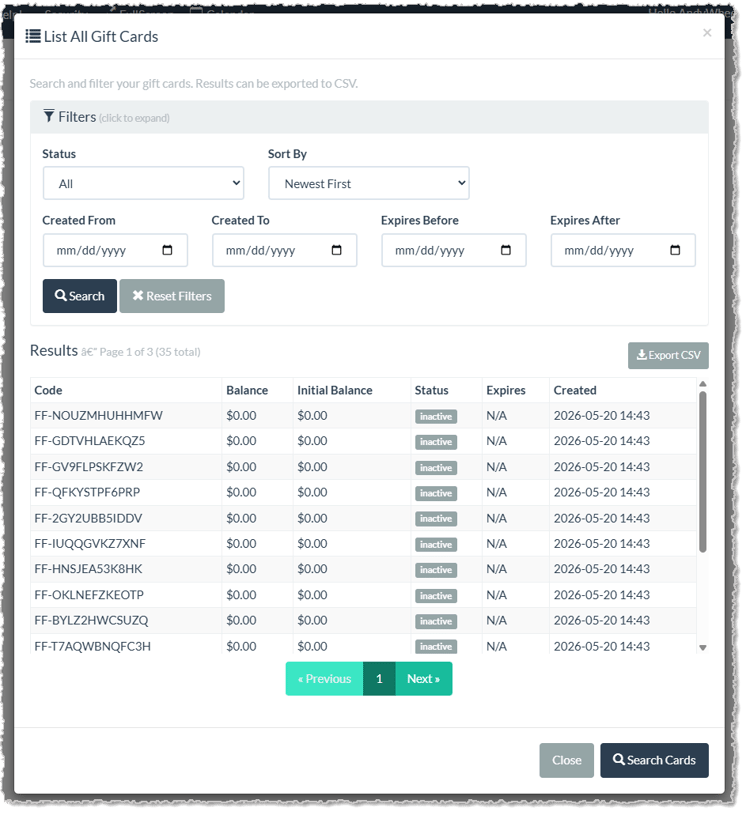
- List All Cards (Filter, View, and Export) — You can use this tool to see all Gift Cards saved in the system by clicking the Search button after the window opens (you can also click the Search Cards button in the lower right for the same action). You can also use Filters (expanded view shown below) to view cards by Status, Created Date, or Expiry Date. You can Sort By to change to your preferred sorting method (Newest First (default), Oldest First, Highest Balance, Lowest Balance, Code (A to Z), or Code (Z to A). You can also Export a CSV spreadsheet file of the data.
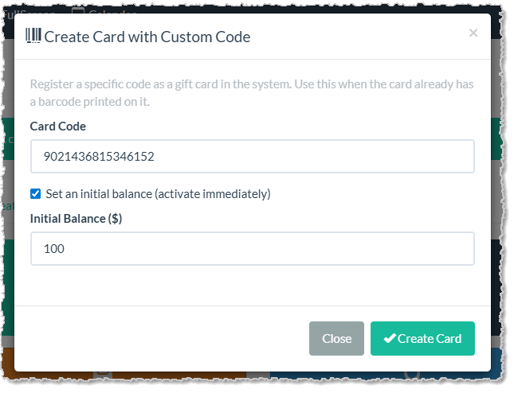
- Create Card with Code (Provide Your Own Card Code) — You can use this tool to create a new card using a code you already have, including those already printed on gift cards you buy through third-party providers such as Duracard.com. Enter or scan in the Card Code. You can check the box to Set an Initial Balance (Activate Immediately) if needed, and then you can enter the amount for the Initial Balance. When you're ready click the button to Create Card.
3. Gift Card Reports
The Reports tab of the Gift Cards page offers you detailed reports on saved Gift Cards and their use in your store. There are four reports and you can access each from the Report Type drop-list in the upper left: Gift Card Summary (shown below), Financial Report, Transaction Report, and Reconciliation Report. For all reports, you can Export a CSV file of the data.
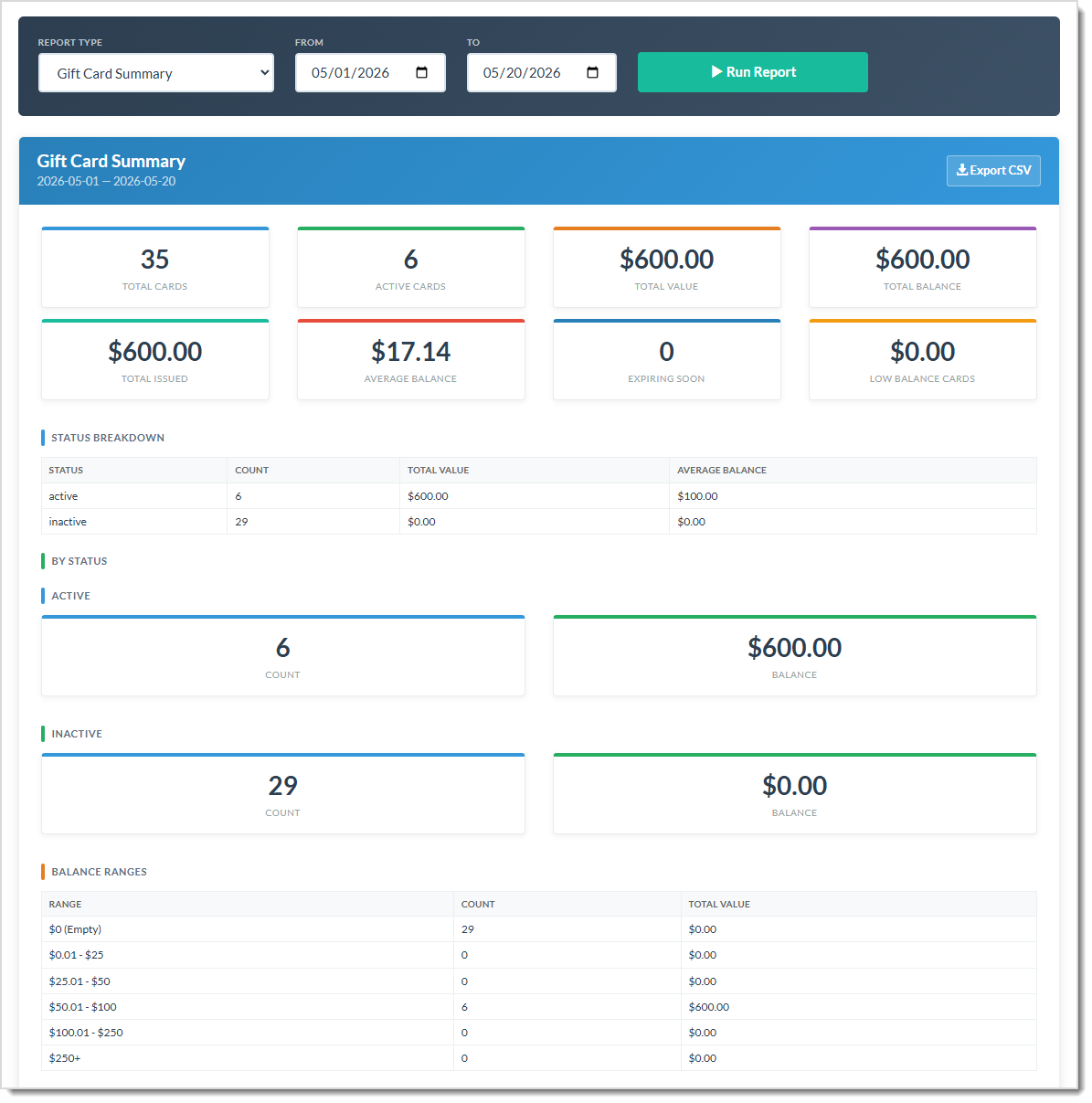
Here is an example of a Gift Card Summary Report.
Gift Cards in Invoices
Adding a Gift Card to an Invoice
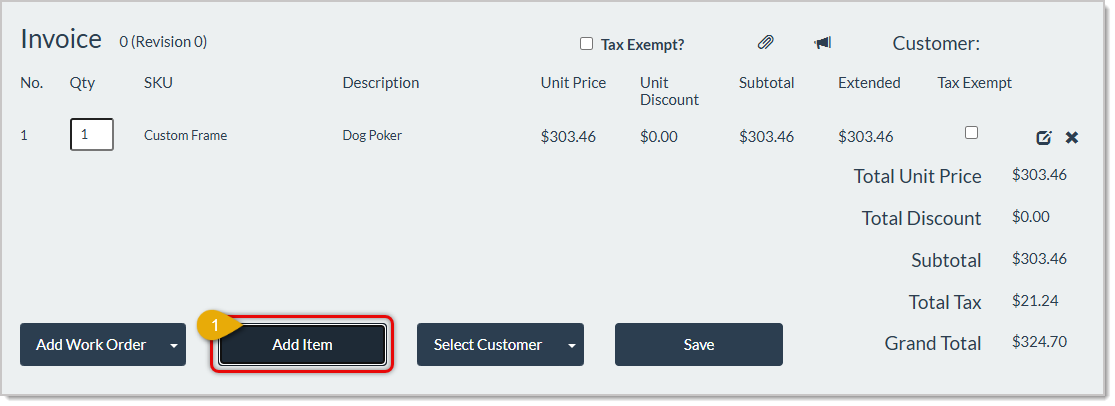
If the customer wants to buy a Gift Card, you can add one by clicking the Add Item button.
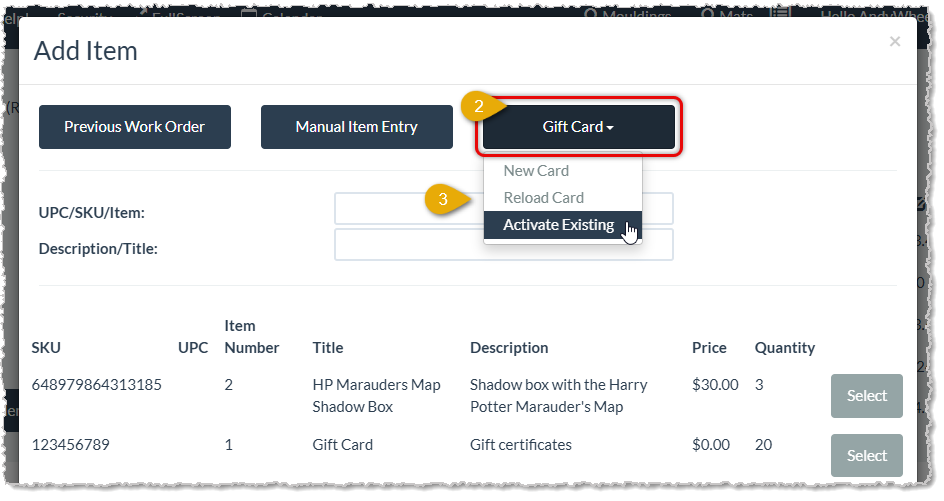
In the Add Item window, in the upper right, click the Gift Card button and in the drop-list, click to either create a New Card, Reload Card, or Activate Existing. For this example, we will Activate Existing. The other two options will have you scan or enter in the Gift Card Code.
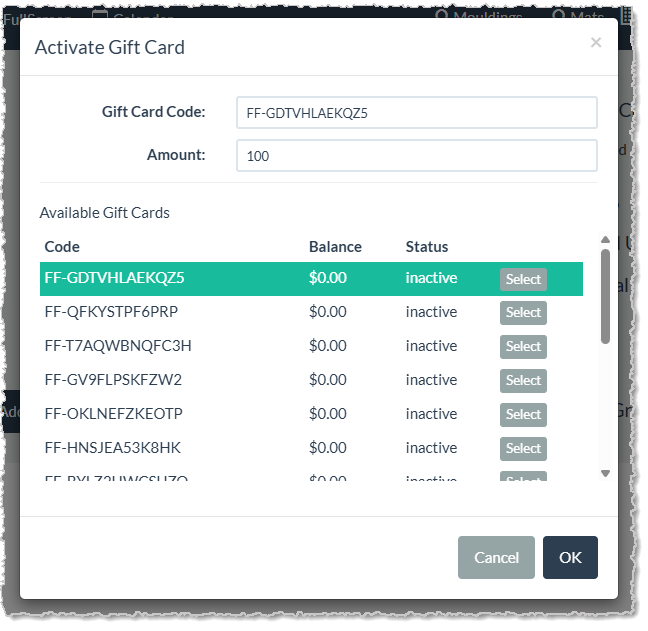
Find the Gift Card Code you want in the list and click the Select button to load it into the Gift Card Code field. Enter the Amount the customer wants on the card. Click the OK button in the lower right when you're ready.
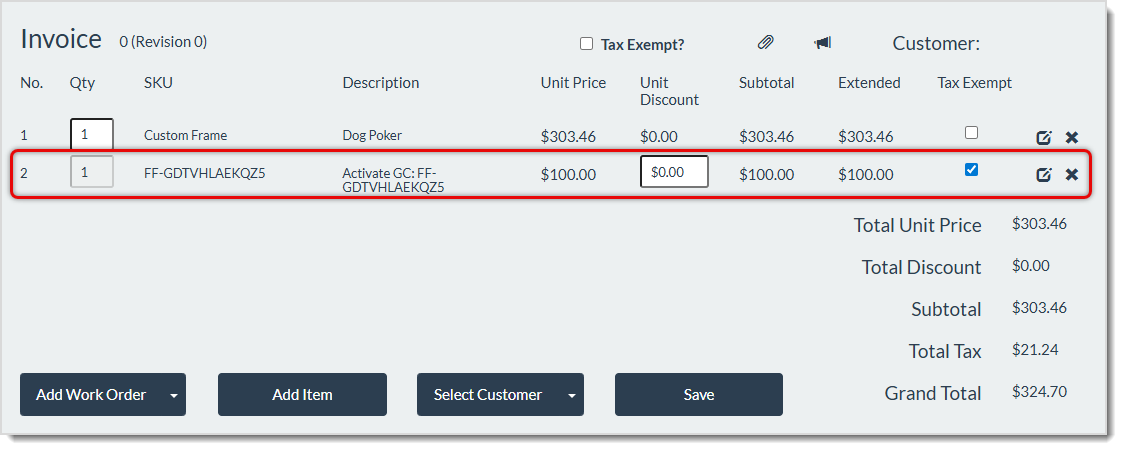
You'll see your Gift Card line item in the Invoice. In the case of activation, you'll see in the Description that the card is being activated. By default, Gift Cards are always Tax Exempt. The the balance is later used for purchases, tax will be applied to taxable items.
Paying With a Gift Card in the Accept Payment Window
When you go to take payment on an Invoice, you are able to use a Gift Card as a payment method using these steps:
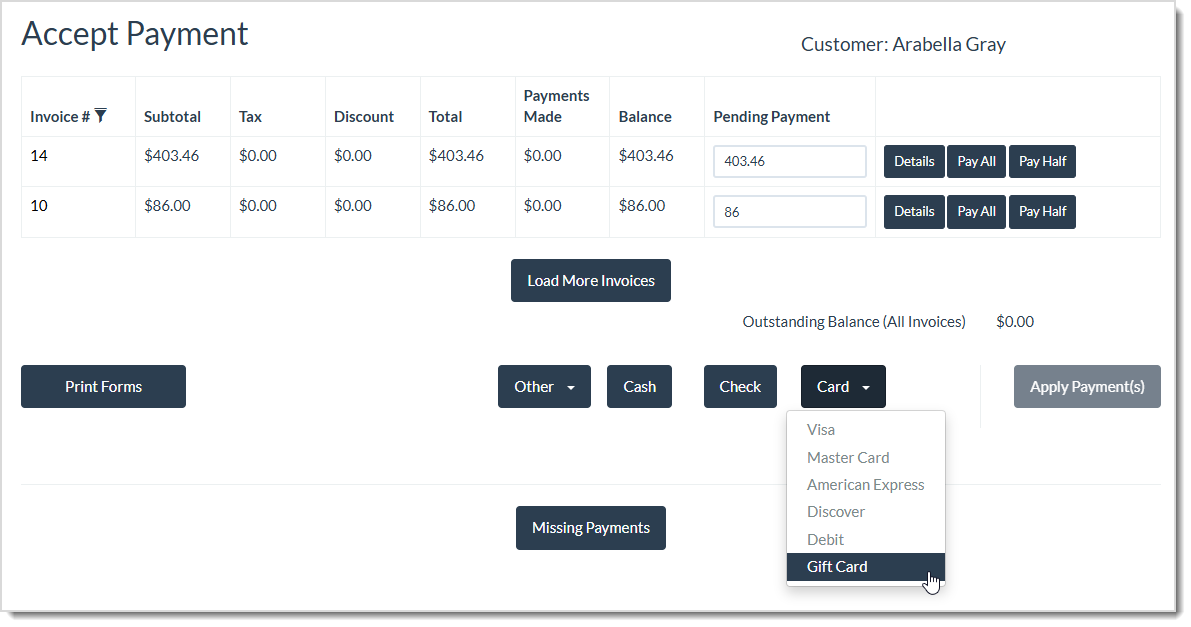
- Set the Pending Payment amount(s) you need.
- Click the Card button, and in the drop-list, click on Gift Card.
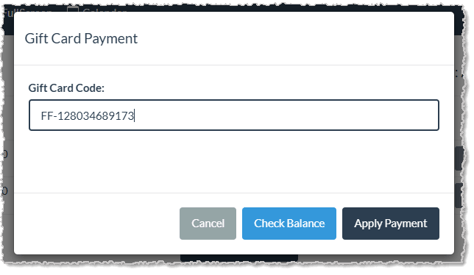
- Scan or enter the Gift Card Code. You can click the Check Balance button if needed. Click the Apply Payment button when you're ready, you can then complete the transaction in the normal way.
Related Topics
Create an Invoice
Print, Email, or Generate a Digital Invoice
Process a Payment on an Invoice
Refund a Payment or Void an Invoice
Working with Quotes
Frequently Asked Questions
Q: I have a question, but I can't find my answer here, how do I get more assistance?
A: You can ask any question at the link below, once received one of our technicians will be in touch! If you need immediate assistance, the LifeSaver Software team is available Monday through Friday, from 9:00am to 6:00pm Eastern time. Feel free to contact our support team at: 1-800-381-0600, extension 2. Or you can email us at support@lifesaversoft.com and we will respond within 24-hours.


 May 21, 2026
Is this page helpful?
×Help us improve our articles