Working With Mat Cutters

October 14, 2025October 14, 2025

Mat Cutters are essential to any Framing business, so setting up your Mat Cutter in the LifeSaver Software system is crucial for seamless framing and packaging. Keep reading below to learn more. 

 

Configuring Your Mat Cutter

Image displaying the LifeSaver Home page and highlighting the Store Configuration button.

On the LifeSaver Software Home page, click on the Store Configuration button to go to the Store Configuration page. Click the Mat Cutter tab. On the Mat Cutter tab, check the box that matches your Mat Cutter. The options are Valiani Mat Cutter or Wizard Mat Cutter. Click the Save button after making your selection to save your changes. If you use a different mat cutter, LifeSaver Software is not configured to work with it, so don’t make a selection.
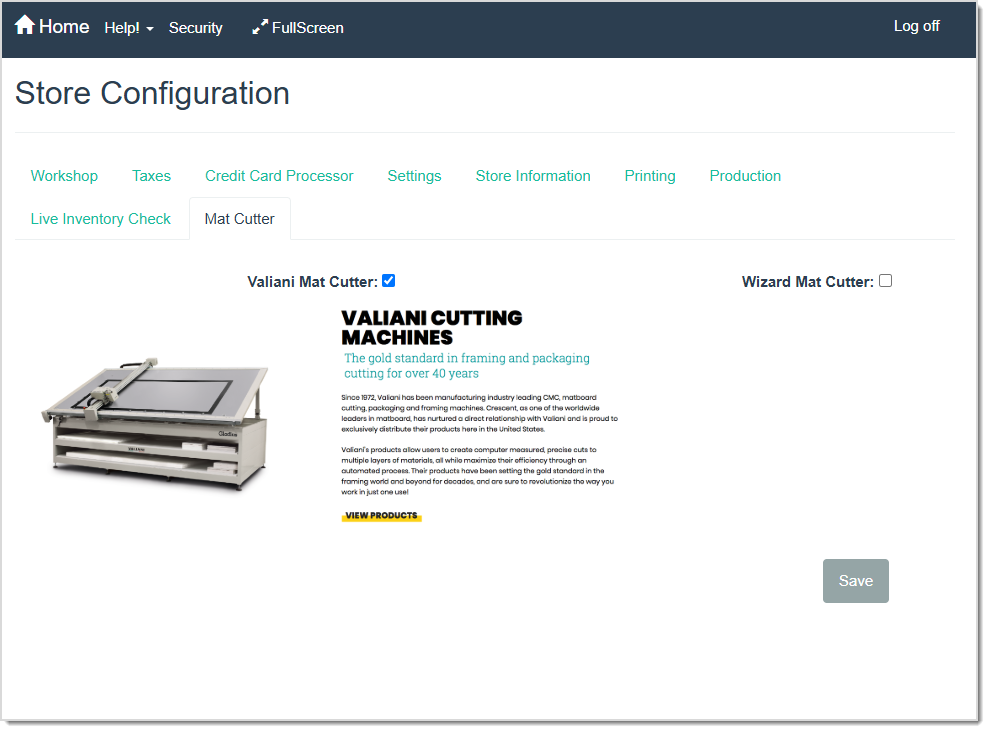
Image displaying the Mat Cutter tab of the Store Configuration page of the LifeSaver software.


Accessing Your Computerized Mat Cutter
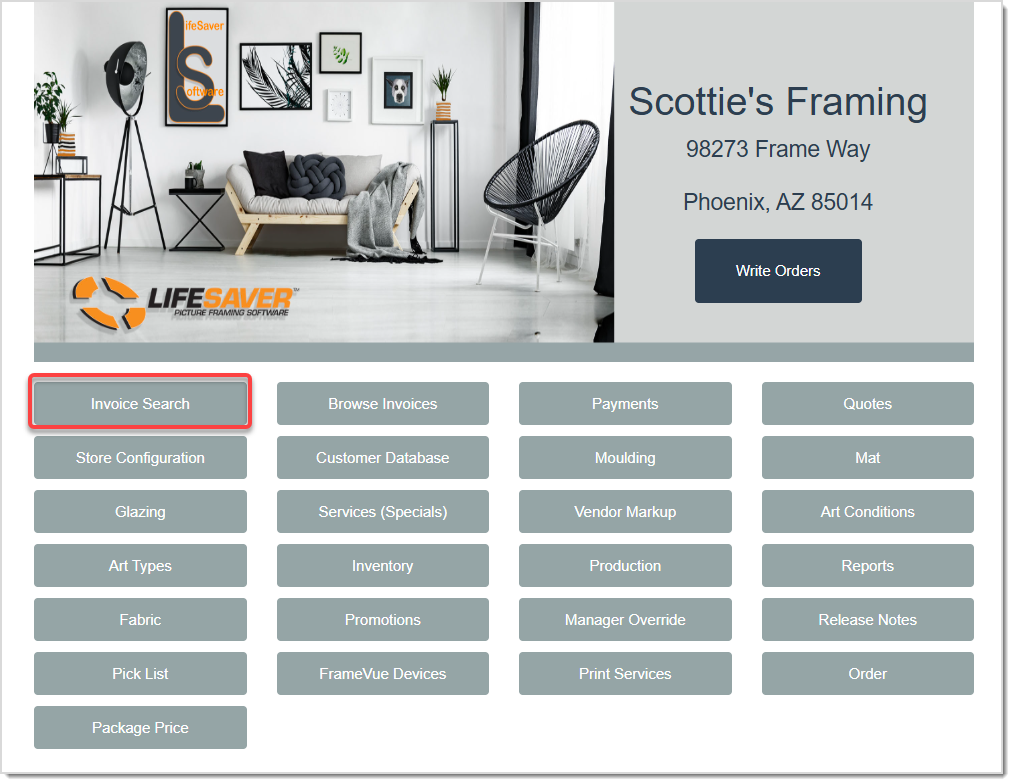
Image displaying the LifeSaver Home page and highlighting the Invoice Search button.

To get started, click the Invoice Search button on the LifeSaver Software Home page. 
 

Valiani Mat Cutter

  • In the Search field, search by Invoice number, Work order number, Phone number, Description or Date Range to pull up the Mat Cut ID.
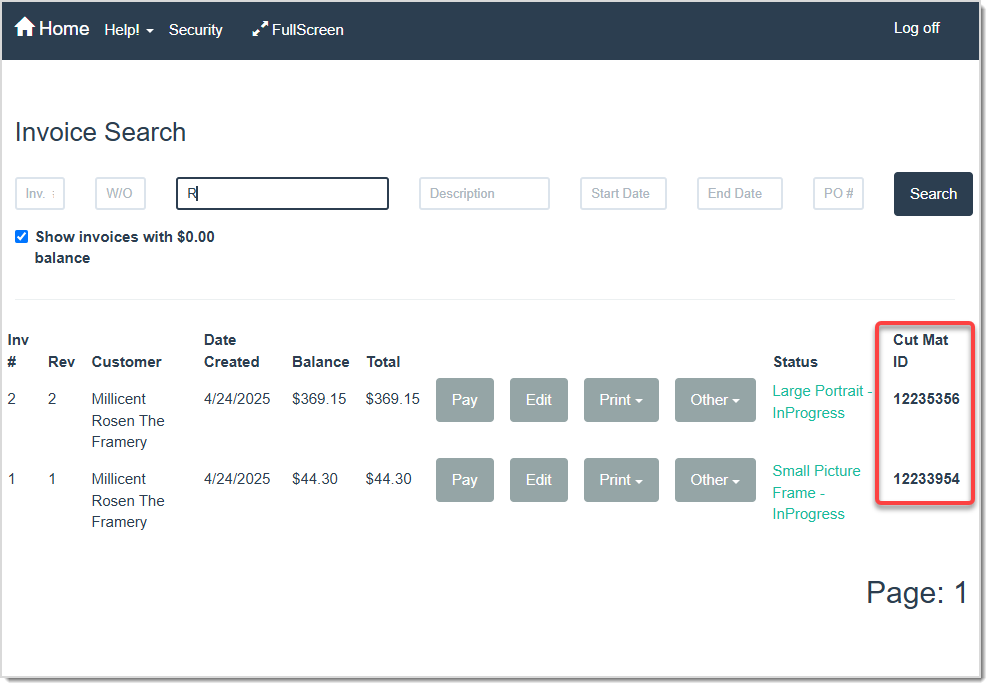
  • Write down or copy the desired Work Order’s Mat Cut ID displayed below.
    Image displaying the Invoice Search page, highlighting the Cut Mat ID value.
  • Then open your Valiani Studio program and click the Create button.
  • Click on the LifeSaver POS option in the menu bar located in the top left. 
  • Enter in the Cut Mat ID Number into the Order Code field and click the Open button.
  • The desired Mat Cut Image opens on the Create page. Then follow the Valiani Studio instructions to proceed.


Wizard Mat Cutter

  • On the Invoice Search page, in the Search field, search by Invoice number, Work order number, Phone number, Description or Date Range. 
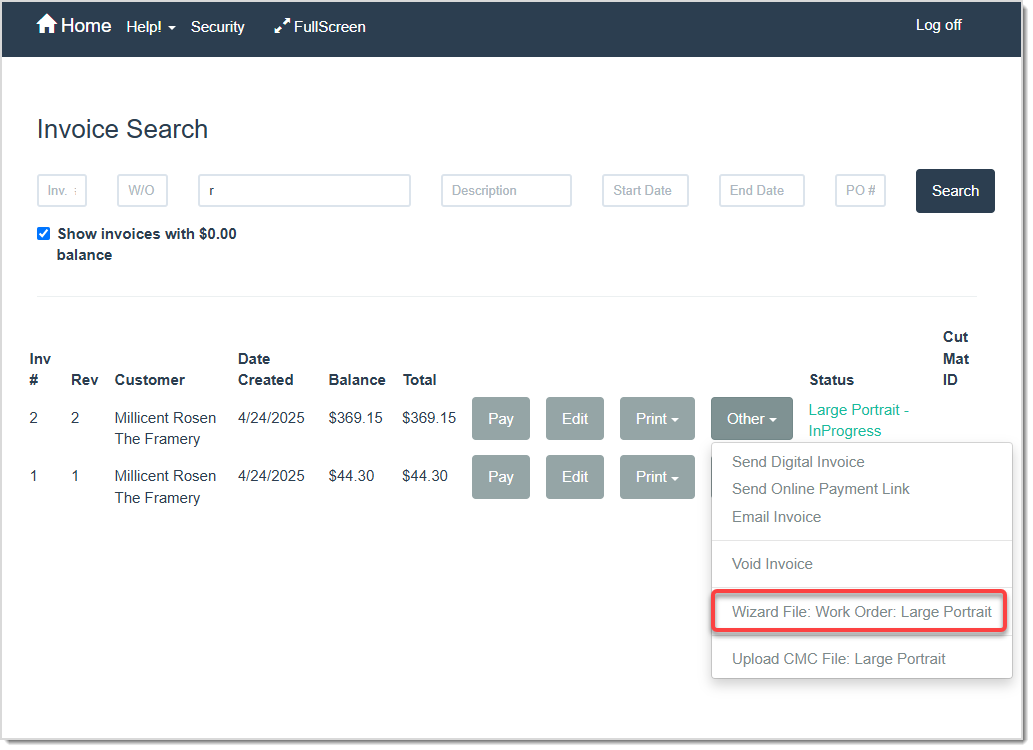
  • On the desired Invoice, click the Other button and then select the Wizard File option to download the Cut Mat file.
    Image displaying what options are available when the Other button is clicked on the Invoice Search page.
  • Double click the Cut Mat Download File located in the downloads section at the top of your screen next to your computer’s menu bar.
    Image displaying the downloads icon next to your computer’s menu bar.
  • Follow the Wizard CMC instructions to proceed with the mat cutting process.


Related Topics

Writing Work Orders

Working with Work Orders

Purchase Orders

Printing Labels


Frequently Asked Questions

Q: Do you have to have either a Valiani or Wizard Mat Cutter, or could you use a different one?

A: With the LifeSaver Software system, you have those two computerized cutter options to select from.


Q: I have a question, but I can't find my answer here, how do I get more assistance?

A: You can ask any question at the link below, once received one of our technicians will be in touch! If you need immediate assistance, the LifeSaver Software team is available Monday through Friday, from 9:00am to 6:00pm Eastern time. Feel free to contact our support team at: 1-800-381-0600, extension 2. Or you can email us at support@lifesaversoft.com and we will respond within 24-hours. 

Need Help?

Can't quite find the answer you're looking for? Our support team is just a call away.