The Package Price page in LifeSaver Software is an easy way for you to bundle framing materials and services into a single price point for your most popular options. By reading this article, you will learn how to create packages that may include a variety of mats, mouldings, glazing, and services.

On the LifeSaver Software Home page, click the Package Pricing button to access this feature.
Creating and Editing Promotional Packages
Use the Package Pricing page to create bundled offers that include a selection of mouldings, mats, glazing, and services for one fixed price. Here is how you can create and configure your pricing packages:
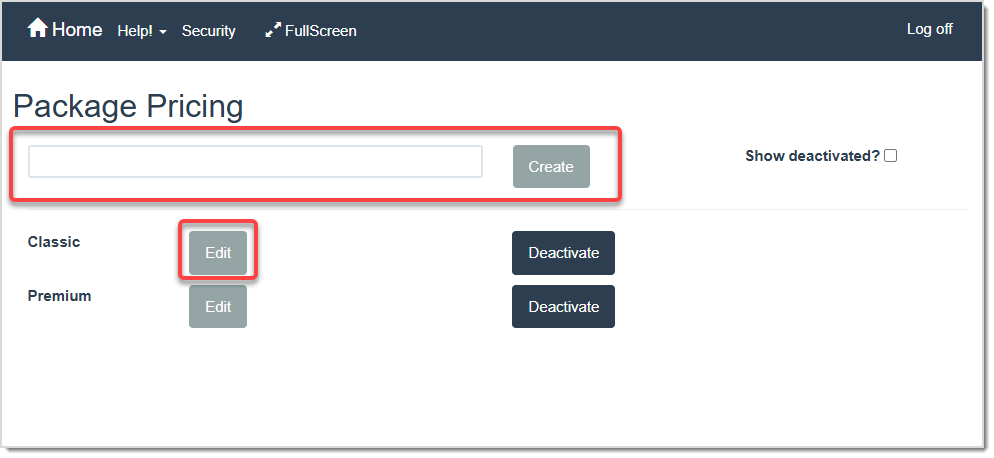
Enter the Package name you want to add into the highlighted field above, then click the Create button to add the new Pricing Package. Or, if you just need to make changes to a preconfigured Package, click the Edit button highlighted in the image above. Clicking either of these buttons will take you to the Package Details window.
Package Details: The Size and Price Tab
You can use the Size and Price tab to set a date range for the Package, include glazing, and set the size an price of your Package.
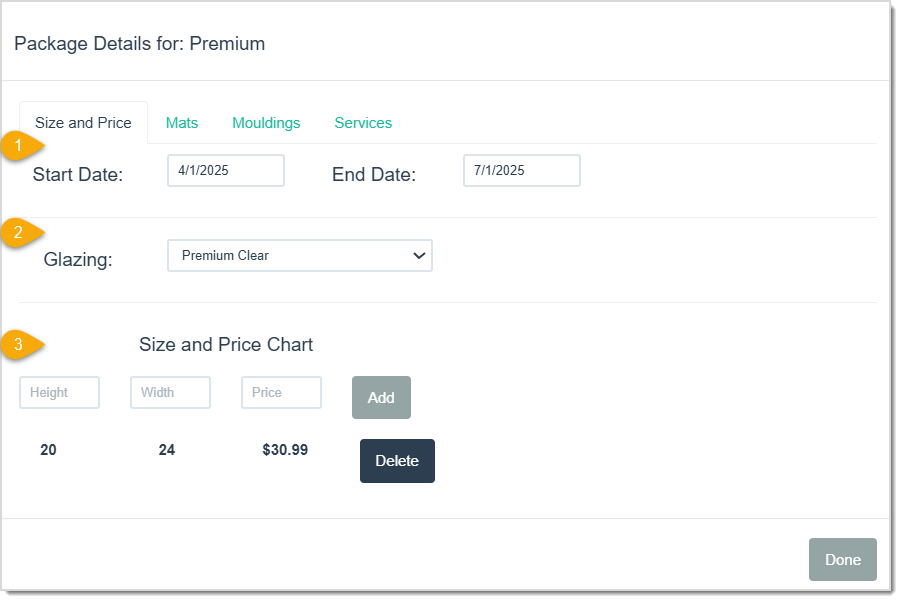
- Start / End Date – Enter your Start Date and End Date for the promotion.
- Glazing – Select the Glazing type you want to use in the package.
- Size and Price Chart – Add the order item’s Height and Width measurements and the Price you want in the Package. Click the Add button to add more size and price options to the promotion. To remove a size, click the Delete button on the corresponding line.
Package Details: The Mats Tab
You can use the Mats tab to include one or more mats in your Package.
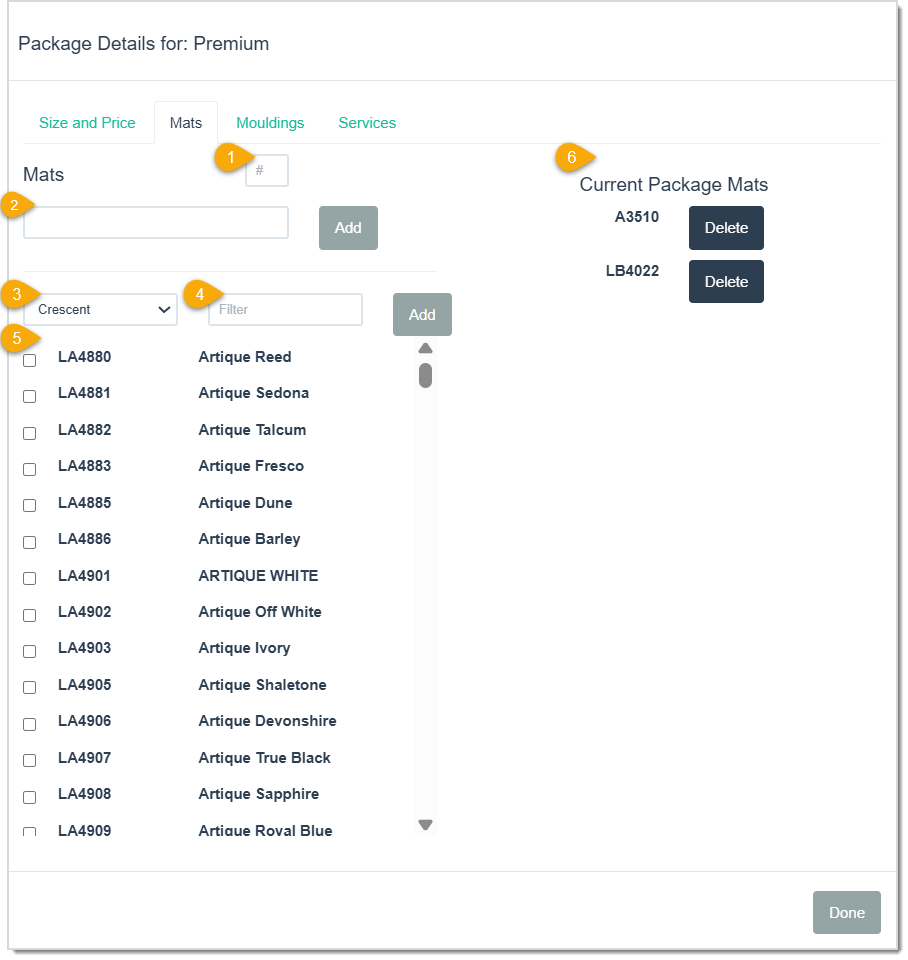
- Number Field – Enter the number of Mats that you want to include in the promotion.
- Mat – Add Mat items by typing the Mat item code and clicking the Add button. The Mat will then appear on the Current Package Mats list.
- Vendor – Alternatively, select a Vendor from the drop-list to search for the desired Mat.
- Filter – After selecting the Vendor, enter in the color or partial item code of the Mat you’re looking for.
- Mat list – This list displays after selecting a Vendor. Once you’ve found the Mat you want, check the box next to it and then click the Add button, or you can select more than one and add them all at once.
- Current Package Mats – Once you’ve clicked either of the Add buttons on this page, the added Mats will then display here. Click the Delete button next to the corresponding Mat to remove it from this package.
Package Details: The Mouldings Tab
You can use the Mouldings tab to include one or more mouldings in your package.
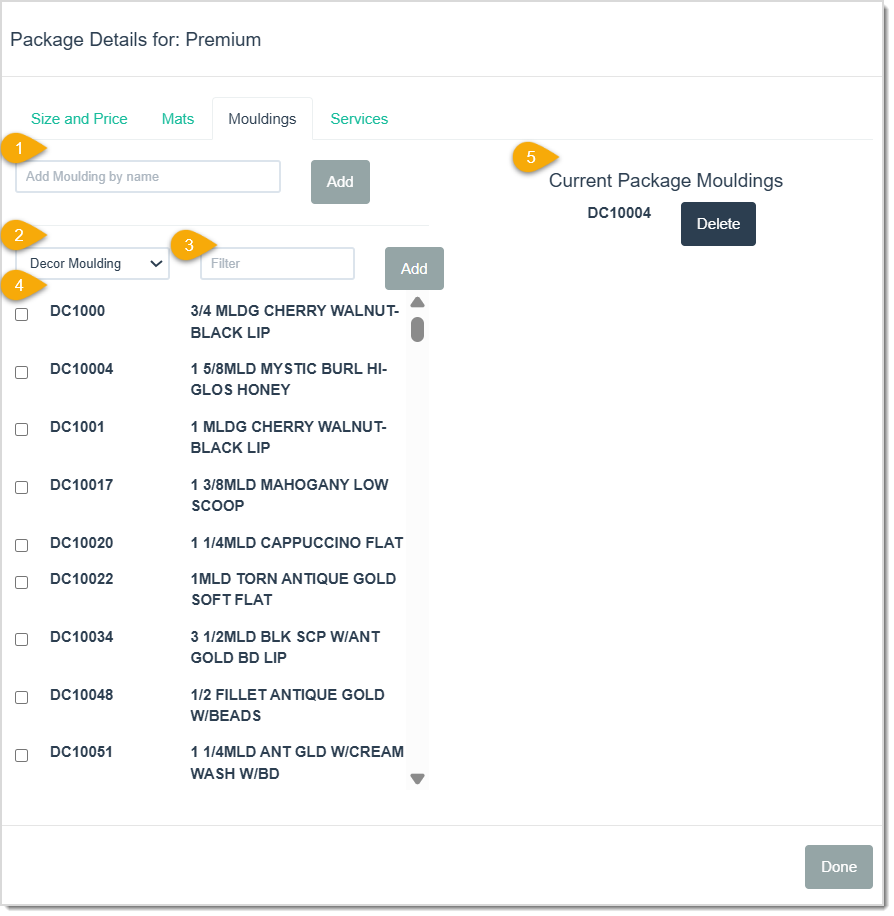
- Moulding – Add Moulding items by typing the Moulding item code and clicking the Add button. The Moulding will then appear on the Current Package Mouldings list.
- Vendor – Alternatively, select a Vendor from the drop-list and select the desired Moulding this way.
- Filter – After selecting a Vendor, enter the color, name, width, or partial item code of the desired Moulding into this field and the list below will filter down to those results.
- Moulding List – This list displays after selecting a Vendor. Once you’ve found the Moulding you want, select the box next to it and then click the Add button.
- Current Package Mouldings – After clicking either of the Add buttons on this page, the Moulding will appear here. Click the Delete button next to the corresponding Moulding to remove it from this package.
Package Details: The Services Tab
You can use the Services tab to add any of your store’s services or specials to the package.
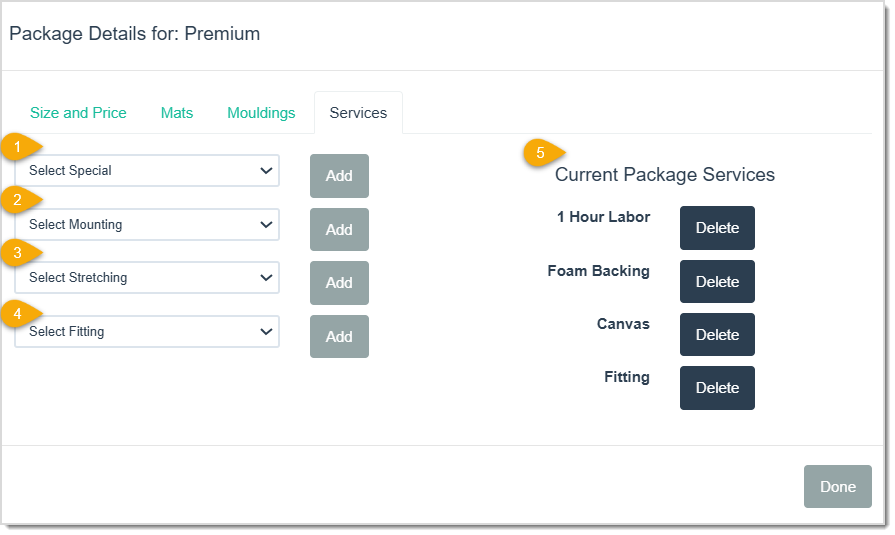
- Select Special – If you want to add a Special to include in your promotion, like an hour of labor shown above, select what Special you want here and click the Add button.
- Select Mounting – If you want to add a Mounting type to the package, select one in the drop-list and click the Add button.
- Select Stretching – If you want to add a Stretching type to the package, select one in the drop-list and click the Add button.
- Select Fitting – If you want to add a type of Fitting to the package, select one in the drop-list and click the Add button.
- Current Package Services – Once any of these services are added, they will appear in this list. To remove one, click the associated Delete button.
Once all the necessary additions and changes are made to your promotional package, click the Done button to finalize your changes. You will be able to apply your Package to any order from the Write Order page in the sidebar.
Related Topics
Working with Work Orders
Working with Invoices
Working with Quotes
Writing Work Orders
Working with Promotional Discounts
Frequently Asked Questions
Q: Can I offer different glazing types under the same package?
A: Yes. You can enter each glazing type as a separate package or edit the field to specify which glazing is included in each size.
Q: Can I multiple mouldings in the same package?
A: Yes. You can enter as many mouldings as you like from the Mouldings tab.
Q: I have a question, but I can't find my answer here, how do I get more assistance?
A: You can ask any question at the link below, once received one of our technicians will be in touch! If you need immediate assistance, the LifeSaver Software team is available Monday through Friday, from 9:00am to 6:00pm Eastern time. Feel free to contact our support team at: 1-800-381-0600, extension 2. Or you can email us at support@lifesaversoft.com and we will respond within 24-hours.


 October 10, 2025
Is this page helpful?
×Help us improve our articles