

The LifeSaver Software Home Page
 October 14, 2025
The LifeSaver Software Home page is essentially your base of operations. In this topic you will find everything there is to know about each function. Keep reading to become a pro at navigating the LifeSaver Software System Home page.
The LifeSaver Software Home Page
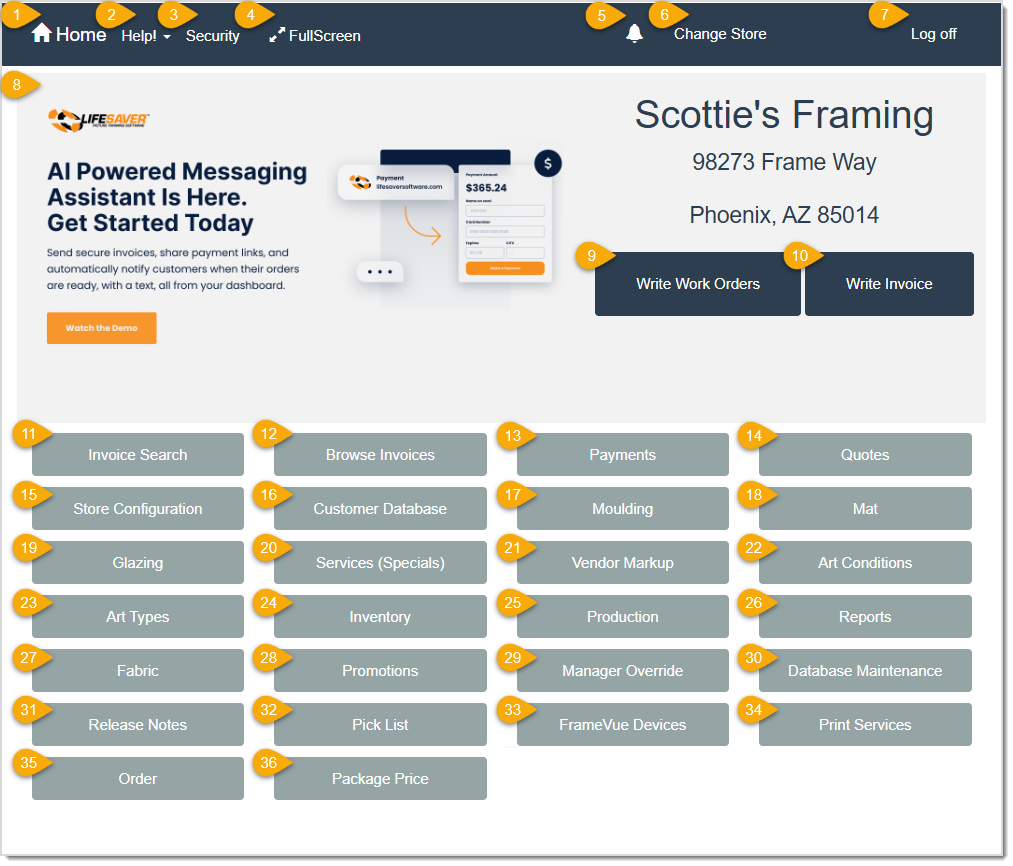
Please Note: Some features on this page are only found in our Enterprise version, which is for multi-store accounts.
Links in the items below will all open in a new browser tab for you. Here are the functions of your LifeSaver Home page:
- Home – At any point in the LifeSaver system, you can click this to take you back to the Home page.
- Help! – Click this to go to the LifeSaver Support page or, click Manual in the drop-list and it will take you to the same page.
- Security – Click this to go to the Active Users page to add, edit, or view your users. Learn More: Working with Users
- FullScreen – If you’re on a smaller window, click this to change your screen to fullscreen.
- What’s New – Click the bell icon to open the What’s new on LifeSaver window to stay up-to-date on LifeSaver news.
- Change Store – If you have multiple stores, click this to select the store you want to work in. Note that you will be logged out of your current store. When you log back in, you will be switched to the store you selected on the Change Store window.
- Log Off – Click this to log out of the LifeSaver system.
- News Bulletin – This will display any new features that LifeSaver has to offer.
- Write Work Orders – Click this to go to the Create Ticket page where you can start writing a work order. Learn More: Writing Work Orders
- Write Invoice – Click this to go to the Invoice page where you can Add a Work order, Add Items, Select a Customer for the order, and Save the Invoice. Learn More: Working with Invoices
- Invoice Search – Click this to go to the Invoice Search page to search, pay, print and edit invoices. Learn More: How to find an Invoice
- Browse Invoices – Click this to go to the Browse Invoice page where you can open or print your invoices.
- Payments – Click this to make a payment on an open invoice. Clicking the Payments button will take you to the Invoice Search page, once you’ve searched for the desired Invoice, click the Pay or Pay/Refund button to make a payment. Learn More: Process a Payment on an Invoice / Refund a Payment or Void an Invoice
- Quotes – Click this to open the Quotes page where you can open, print, email, delete, or edit a Quote. Learn More: Working with Quotes
- Store Configuration – Click this to open the Store Configuration page to configure your store’s settings. Learn More: Store Configuration Tour
- Customer Database – Click this to go to the Customer Database page where you can search for customers, add new ones, and more. Learn More: Working with Customers
- Moulding – Click this to take you to the Moulding page where you can view and add moulding vendors as well as create new moulding items. Learn More: Working with Mouldings
- Mat – Click this to take you to the Mat page where you can view and add mat vendors as well as create new mat items. Learn More: Working with Mats
- Glazing – Click this to take you to the Glazing page where you can view and add additional glazing options. Learn More: Working with Glazing
- Services (Specials) – Click this to take you to the Services Search page, where you can create service types and individual services to fit your business’s needs. Learn More: Working with Services (Specials)
- Vendor Markup – Click this to take you to the Vendor Search page where you can view vendor details and add new vendors. Learn More: Working with Vendors
- Art Conditions – Click this to take you to the Art Conditions page where you can add new conditions, deactivate old ones, and edit existing ones. Learn More: Create Art Conditions
- Art Types – Click this to take you to the Art Types page where you can add new types and deactivate old ones. Learn More: Create Art Types
- Inventory – Click this to take you to the Inventory page where you can search for inventory items, add new ones, and much more. Learn More: Managing Inventory
- Production – Click this to take you to the Production Status page where you can organize, track, and control the work order progress. Learn More: Working With Production Statuses
- Reports – Click this to go to the Store Reporting page to view and run any report you might need. Learn More: Generating Store Reports
- Fabric – Click this to take you to the Fabric page where you can view and add fabric vendors as well as create new fabric items. Learn More: Working with Fabrics
- Promotions – Click this to take you to the Promotions page where you can create new promotions, deactivate old ones, and edit existing ones. Learn More: Working with Promotional Discounts
- Manager Override – Click this button to take you to the Manager Override Reason Codes page where you can view your override reason codes, add new ones, and delete old ones.
- Database Maintenance – Click this button to take you to the Database Maintenance page where you can export and import data as well as viewing and distributing pricing profiles. Note that this button will only be active if you’re subscribed to a package that includes enterprise.
- Release Notes – Use this button to view update details that include new features and bug fixes.
- Pick List – Click this to view the Pick List page where you can handle the materials required for upcoming orders. Learn More: Managing Your Pick List
- FrameVue Devices – Click this to view the Art Cloud Devices page where you can manage devices that are connected to FrameVue. Learn More: Working with FrameVue Devices
- Order – Click this button to view the Order page where you can go and change the production statuses of work orders. Learn More: Purchase Orders
- Package Price – Click this to view the Package Pricing page to add, edit, and deactivate price packages. Learn More: Working with the Package Pricing Page
Frequently Asked Questions
Q: I have a question, but I can't find my answer here, how do I get more assistance?
A: You can ask any question at the link below, once received one of our technicians will be in touch! If you need immediate assistance, the LifeSaver Software team is available Monday through Friday, from 9:00am to 6:00pm Eastern time. Feel free to contact our support team at: 1-800-381-0600, extension 2. Or you can email us at support@lifesaversoft.com and we will respond within 24-hours.
Is this page helpful?
×Help us improve our articles